
If you run an agency, consultancy, software firm, or professional services practice, you know the onboarding headache: a new client signs on, and your team spends 20 to 30 minutes creating a Google Drive root folder, creating subfolders, duplicating contract and invoice templates, renaming files, and sharing permissions. Multiply that across dozens of clients each month, and you lose valuable billable hours to mundane administrative work.
In this step-by-step guide, you'll learn how to build an end-to-end automated client onboarding workspace pipeline using Google Sheets, Google Drive, and Foldernest. With one click or an intake form submission, your entire client workspace will generate instantly.
The Real Cost of Manual Client Folder Creation
Setting up client workspaces manually doesn't just waste time — it introduces human errors that damage your agency's professional credibility:
- Inconsistent Folder Structures: Different account managers organize client files haphazardly, making it difficult for the team to find assets.
- Copy-Paste Template Errors: Leaving old client names, wrong contract amounts, or past dates in duplicated agreements.
- Missing Critical Files: Forgetting to generate initial invoices, kickoff decks, or NDA documents before the kickoff call.
- Access & Sharing Gaps: Forgetting to share the root folder with client stakeholders or external contractors.
What We're Building: Automated Agency Client Onboarding Hub
Using Foldernest's new Folder Hierarchy Tree builder, we will automate the creation of a standardized multi-level client workspace containing:
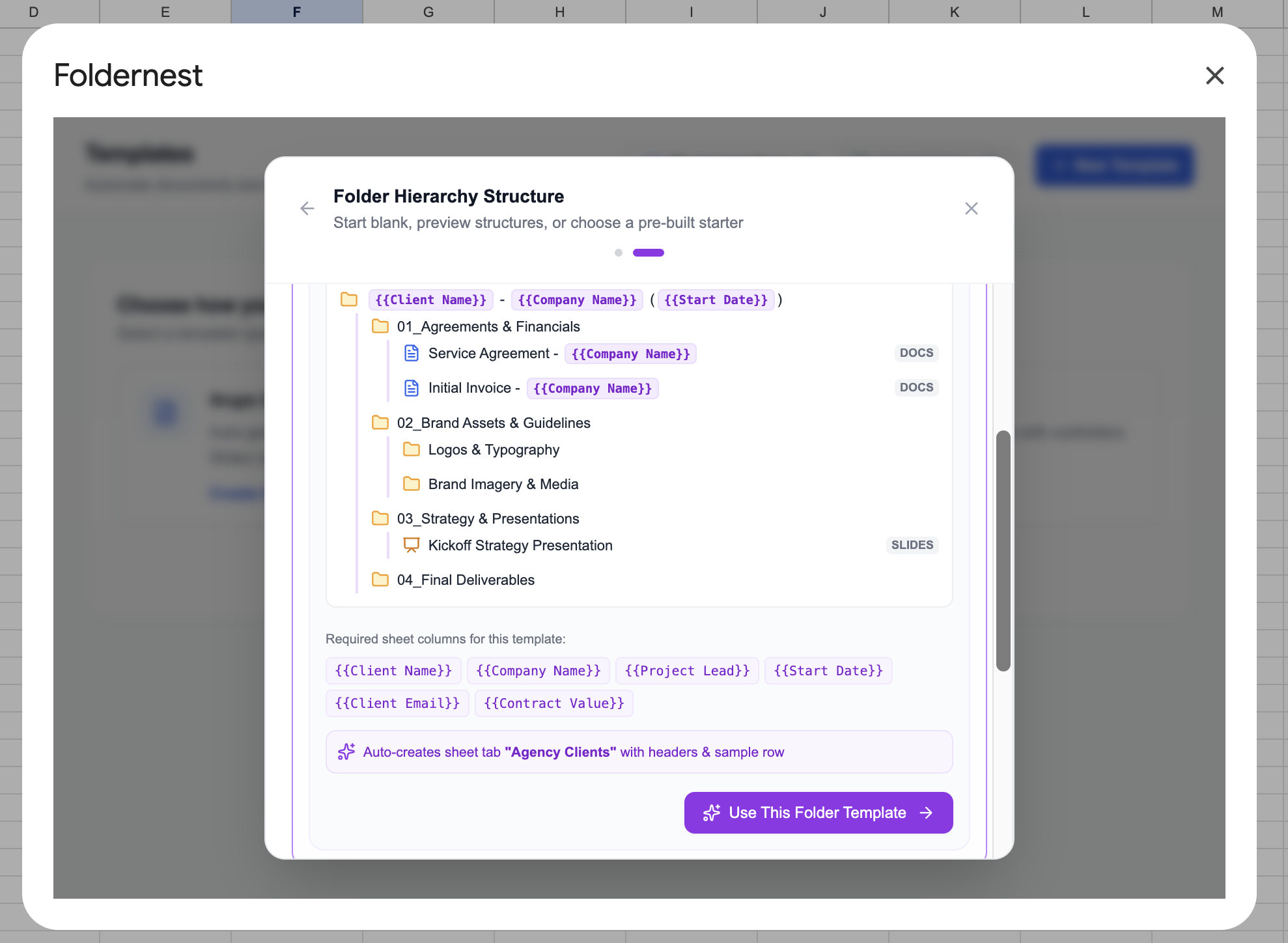
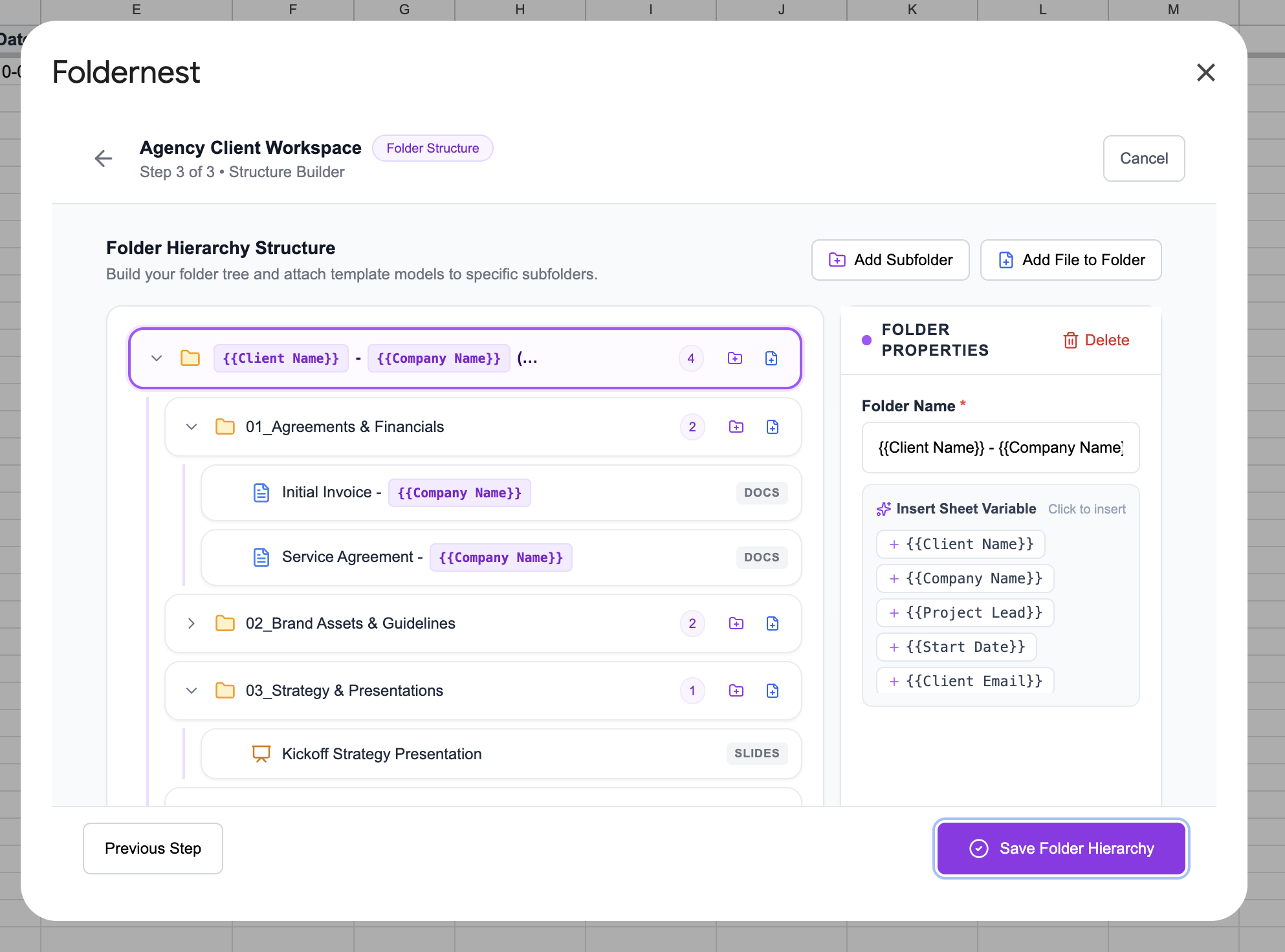
- Root Client Folder: Dynamic naming such as `{{Client Name}} - {{Company Name}} ( {{Start Date}} )`
- 01_Agreements & Financials: Pre-filled Google Docs *Service Agreement* and *Initial Invoice*
- 02_Brand Assets & Guidelines: Subfolders for *Logos & Typography* and *Brand Imagery & Media*
- 03_Strategy & Presentations: Pre-filled Google Slides *Kickoff Strategy Presentation*
- 04_Final Deliverables: Dedicated client deliverables repository
- Automated Link Tracking: Direct Google Drive folder links recorded in your Google Sheet
Step 1: Open FolderNest from Google Sheets
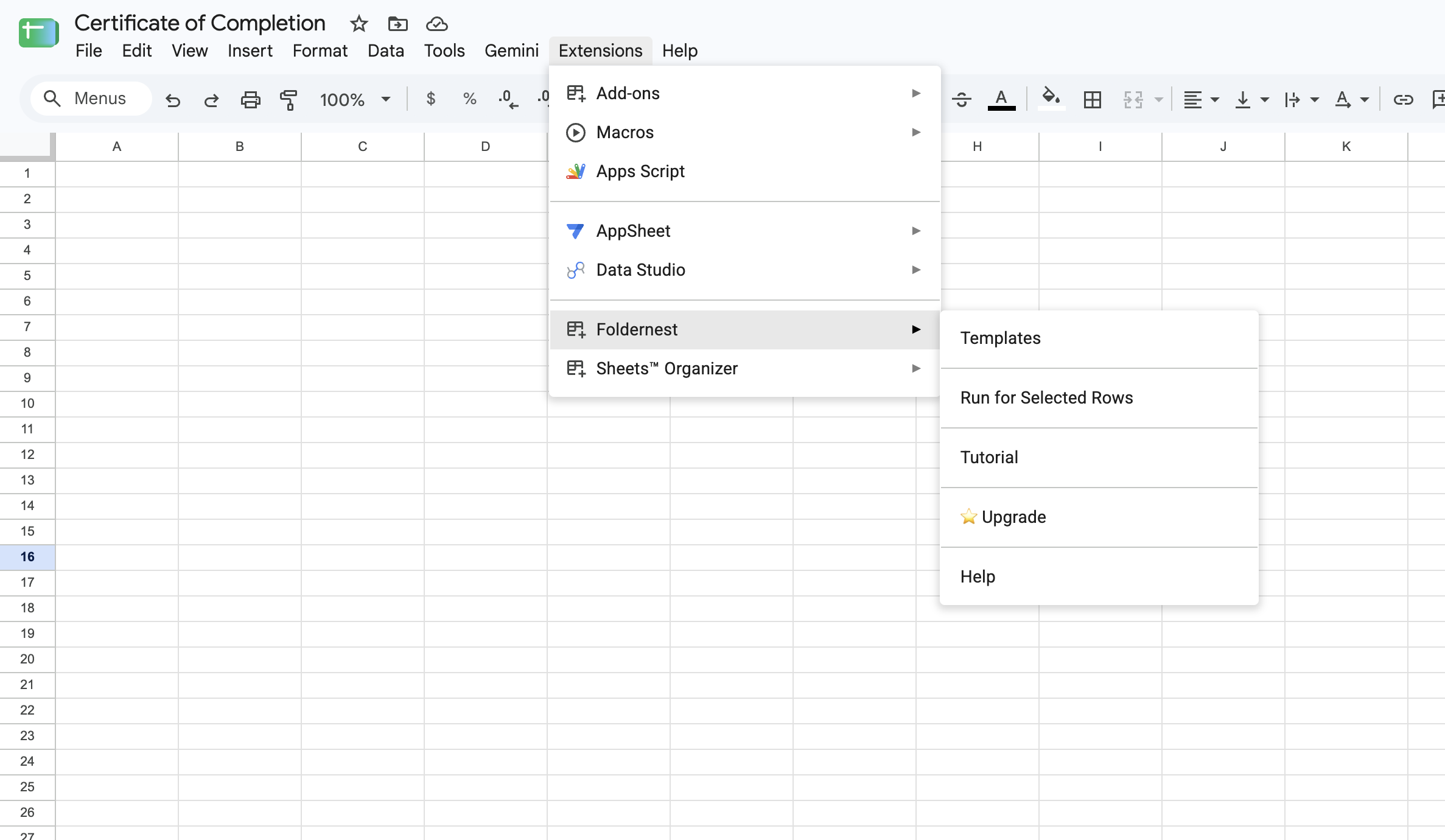
To get started, open the Google Sheet where you track client intake or accounts. Launch FolderNest directly from the top menu:
- 1. Click Extensions in the Google Sheets menu.
- 2. Select Foldernest > Templates.
Step 2: Choose 'Folder Hierarchy Tree'
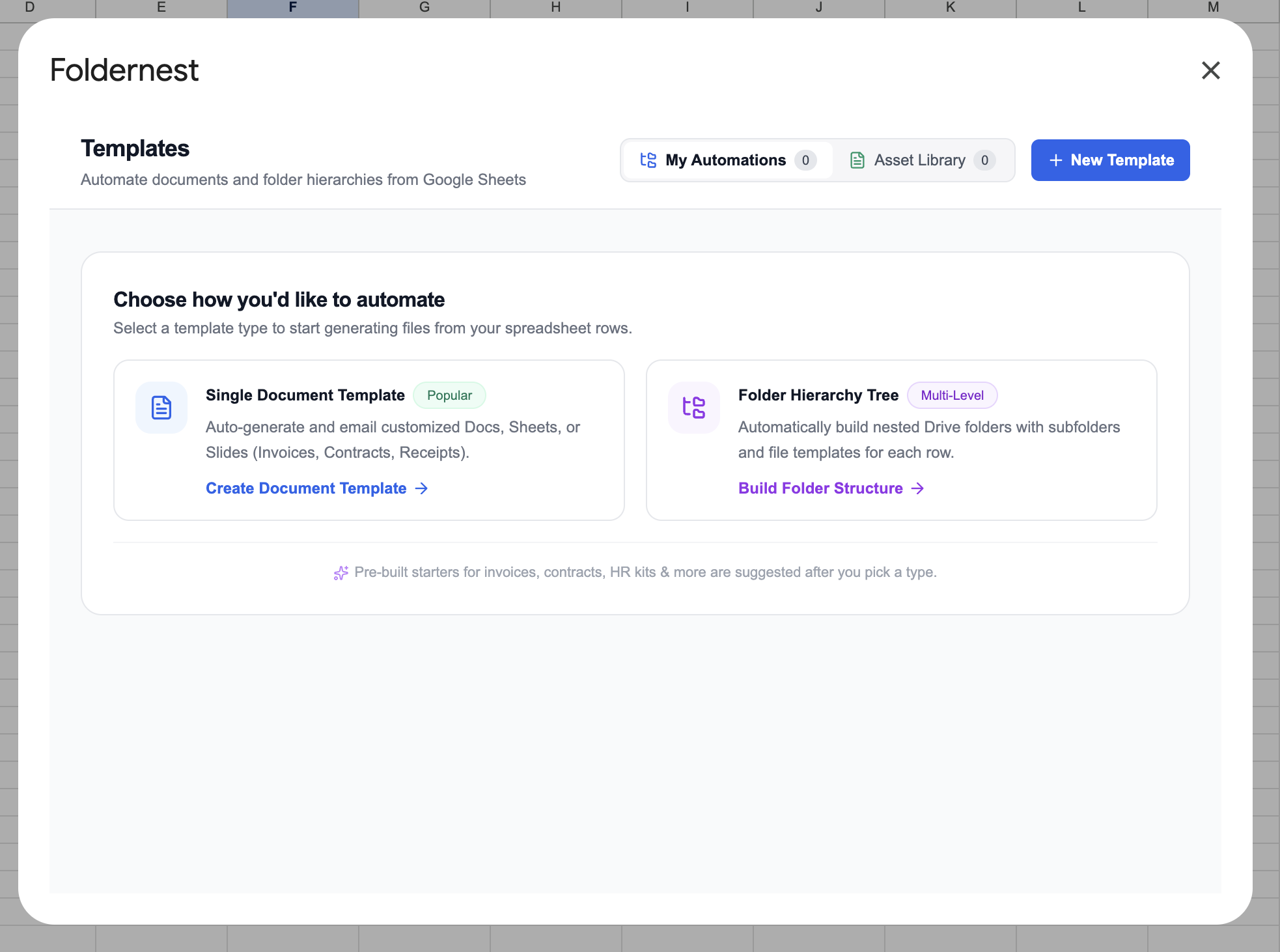
In the template chooser, select Folder Hierarchy Tree (Multi-Level) to build nested folder structures with attached document templates.
Step 3: Pick the 'Agency Client Onboarding Hub' Starter
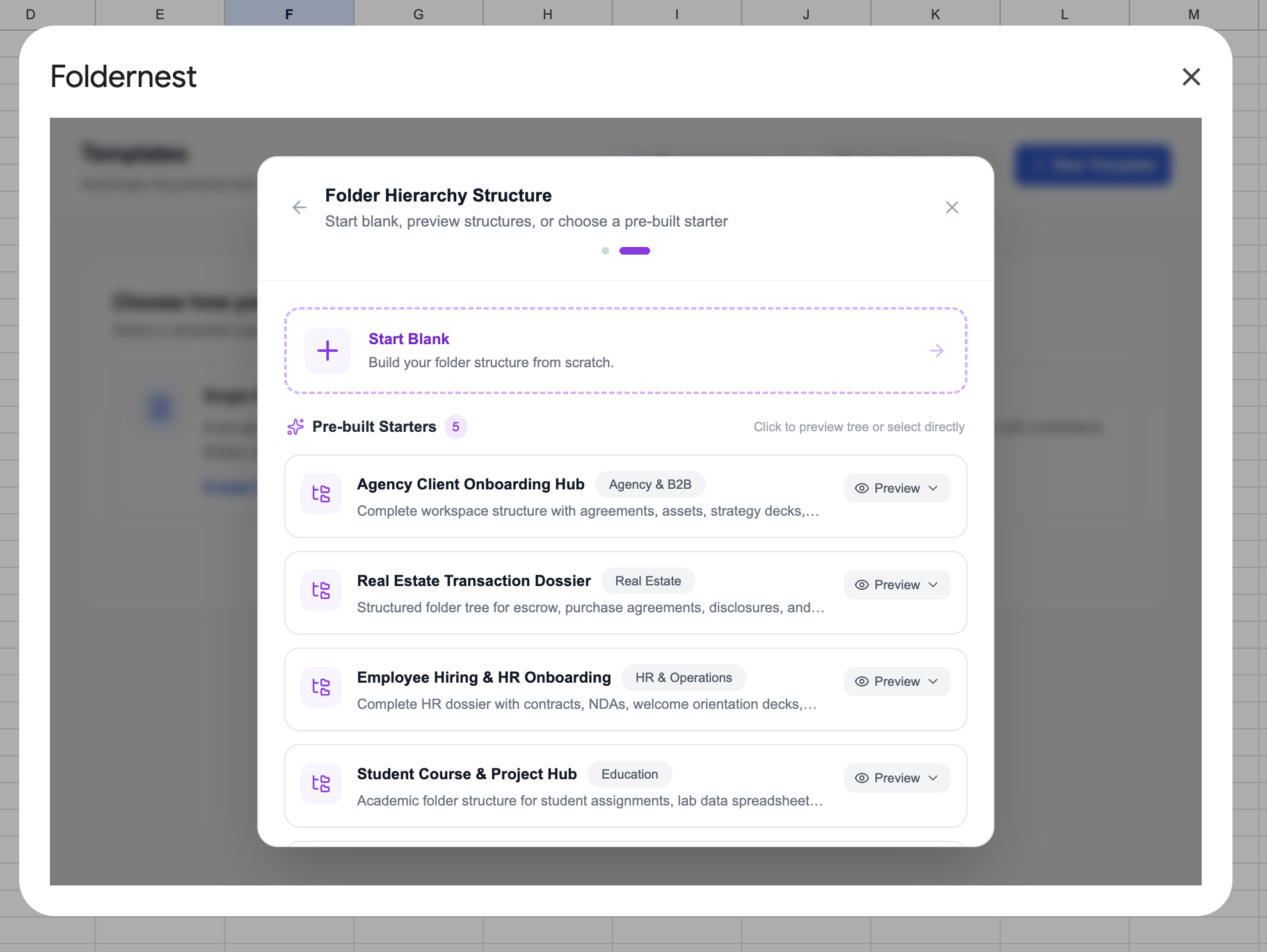
Foldernest provides pre-built folder structure starters for Agencies, Real Estate, HR Onboarding, and Education. Under Pre-built Starters, select Agency Client Onboarding Hub.
Step 4: Preview the Structure & Sheet Column Requirements
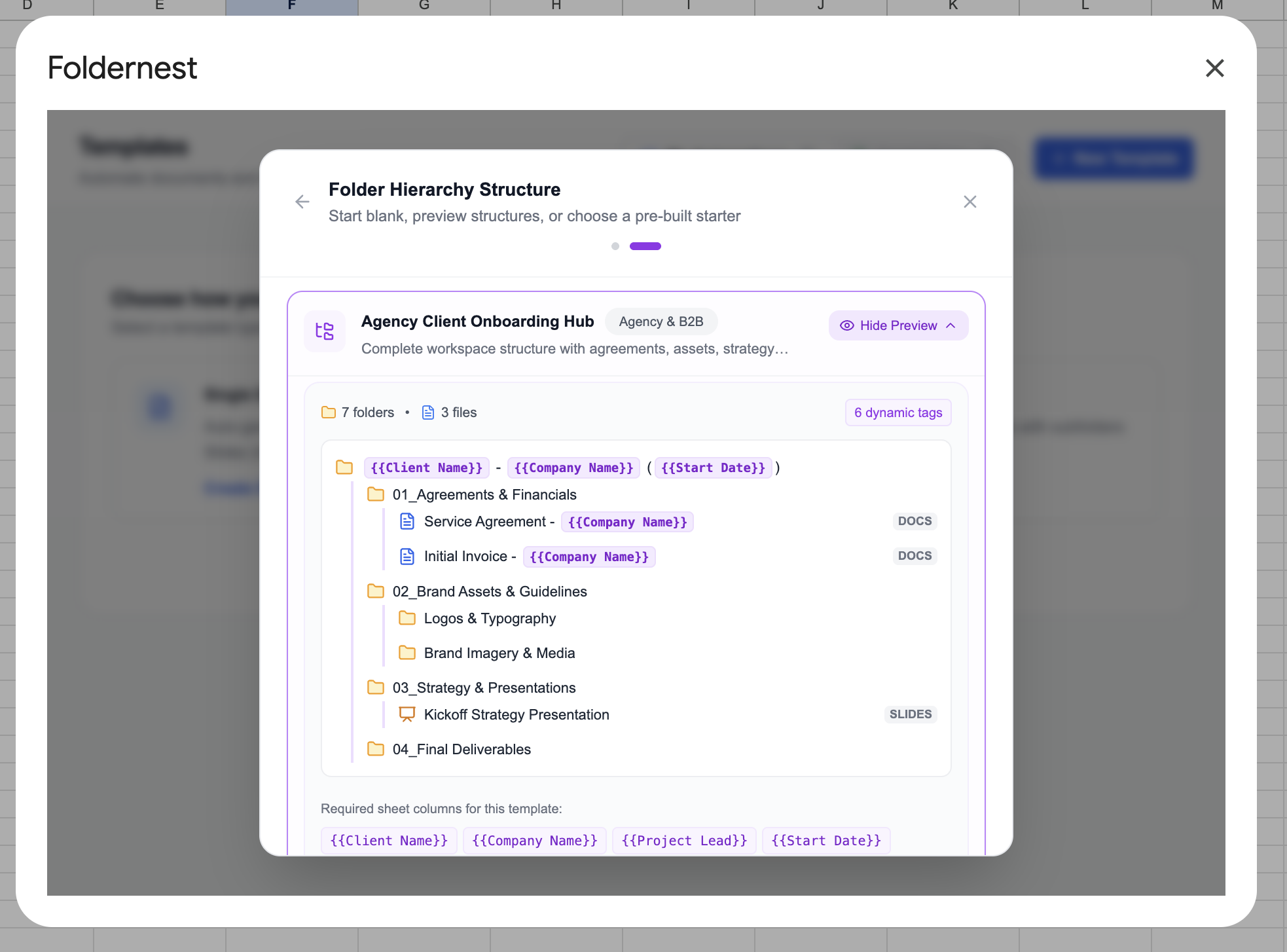
Expanding the preview displays the entire workspace tree — 7 folders, 3 file templates, and 6 dynamic tags. Foldernest automatically detects required variables such as `{{Client Name}}`, `{{Company Name}}`, `{{Project Lead}}`, `{{Start Date}}`, and `{{Client Email}}`.
Foldernest will even automatically create a ready-to-use spreadsheet tab named 'Agency Clients' complete with headers and a sample data row. Click Use This Folder Template to proceed.
Step 5: Configure Automation Triggers (Manual & Form Providers)
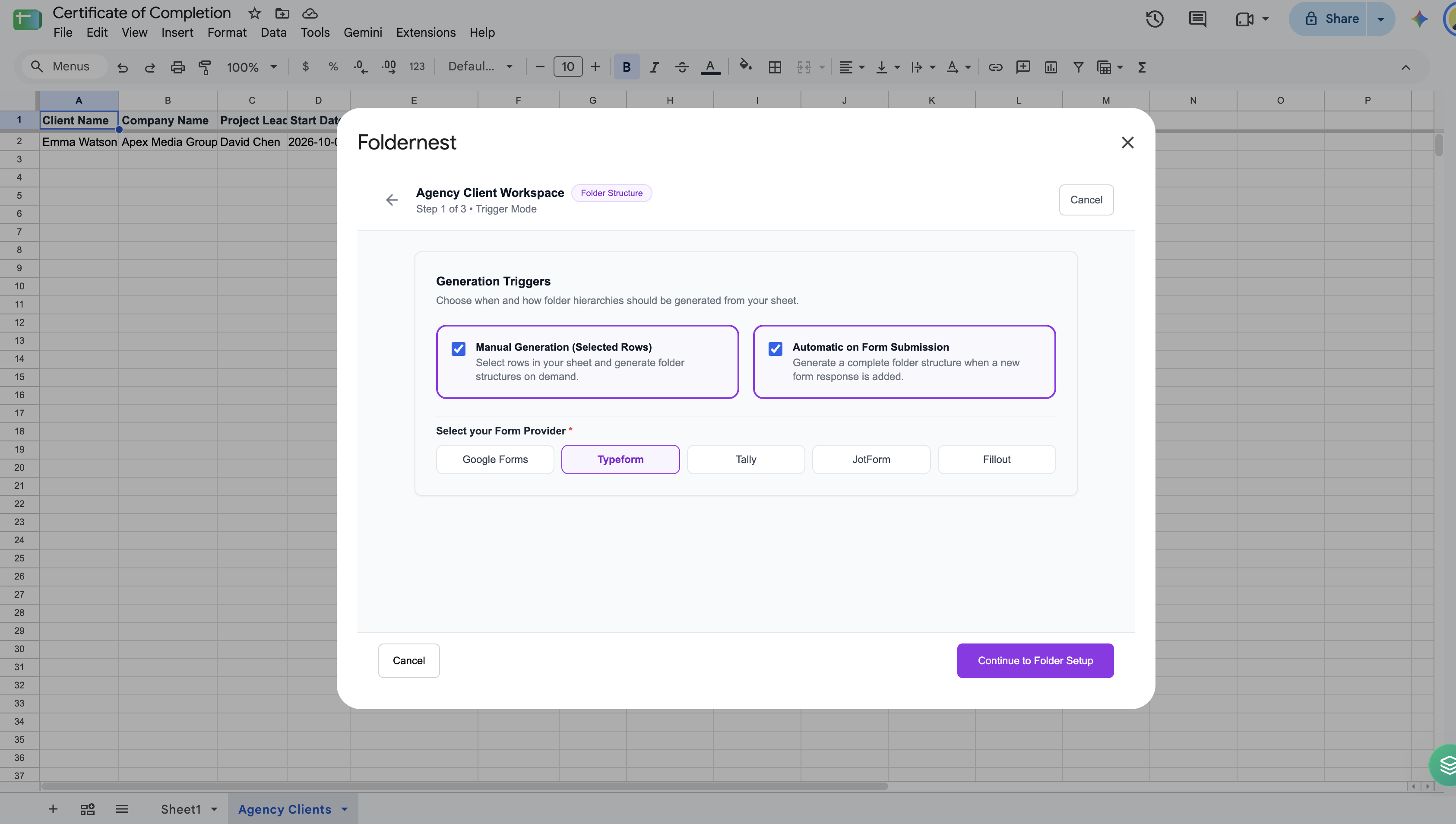
In Step 1 of the configuration wizard, select how client onboarding workspaces should be generated:
- Manual Generation (Selected Rows): Run folder creation on-demand whenever you select client rows in Google Sheets.
- Automatic on Form Submission: Generate complete workspaces the second a client or account manager submits an intake form via Google Forms, Typeform, Tally, JotForm, or Fillout.
Step 6: Define Target Folder, URL Column & Sharing Permissions
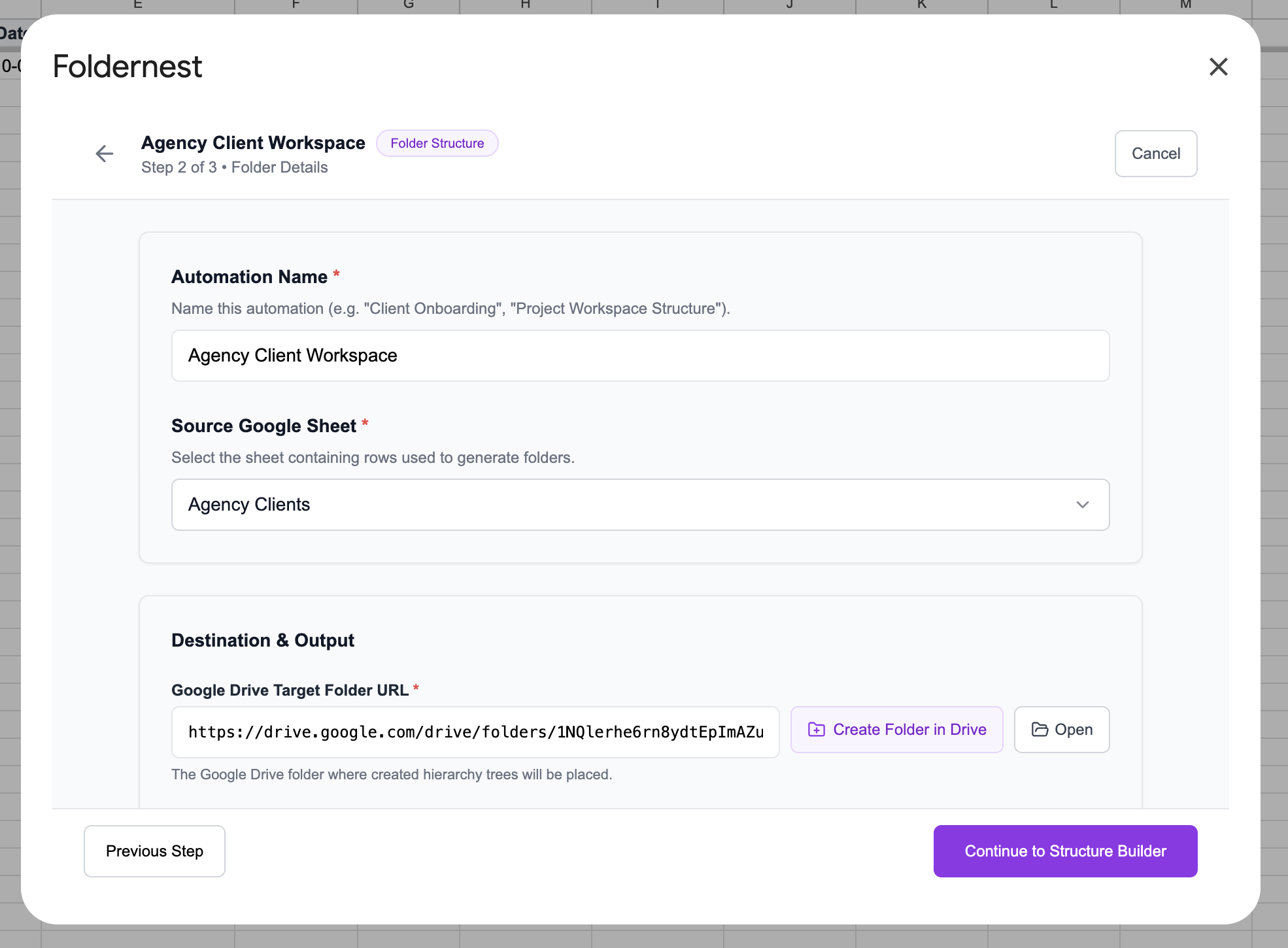
In Step 2 of the wizard, set your Automation Name (*Agency Client Workspace*), verify your Source Google Sheet (*Agency Clients*), and paste your Google Drive Target Folder URL where all client folders will live.
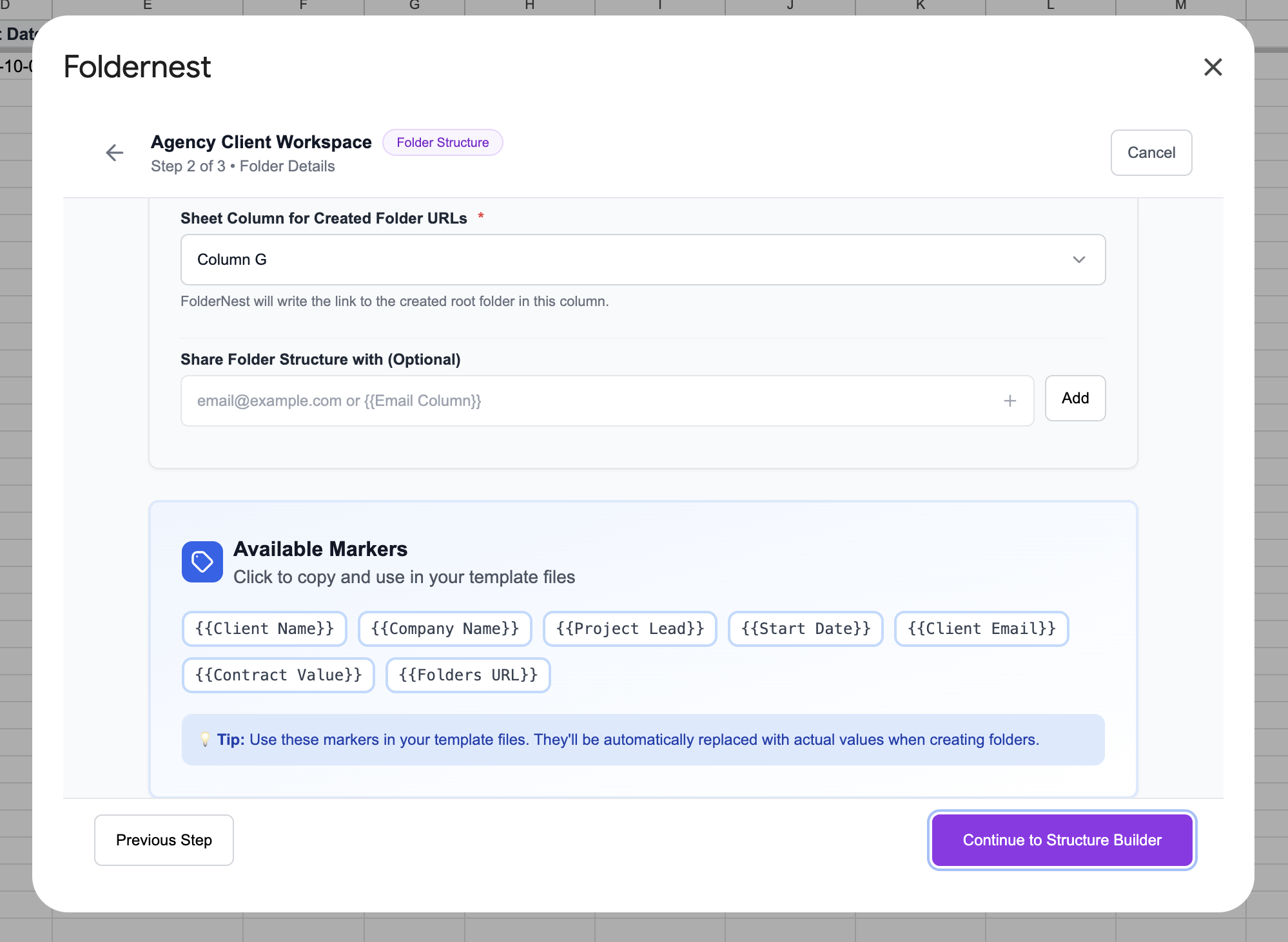
Next, specify the column (e.g. `Column G`) where Foldernest will write back the created folder URL, and optionally add dynamic email sharing (e.g. `{{Client Email}}`):
Step 7: Customize Your Folder Tree in Structure Builder
Step 3 opens Foldernest's visual Structure Builder. You can add new subfolders, attach additional Google Docs/Sheets/Slides templates, or adjust folder names by clicking variable pills like `+ {{Client Name}}` or `+ {{Company Name}}` in the Folder Properties sidebar.
Step 8: Run a Safe Test Simulation
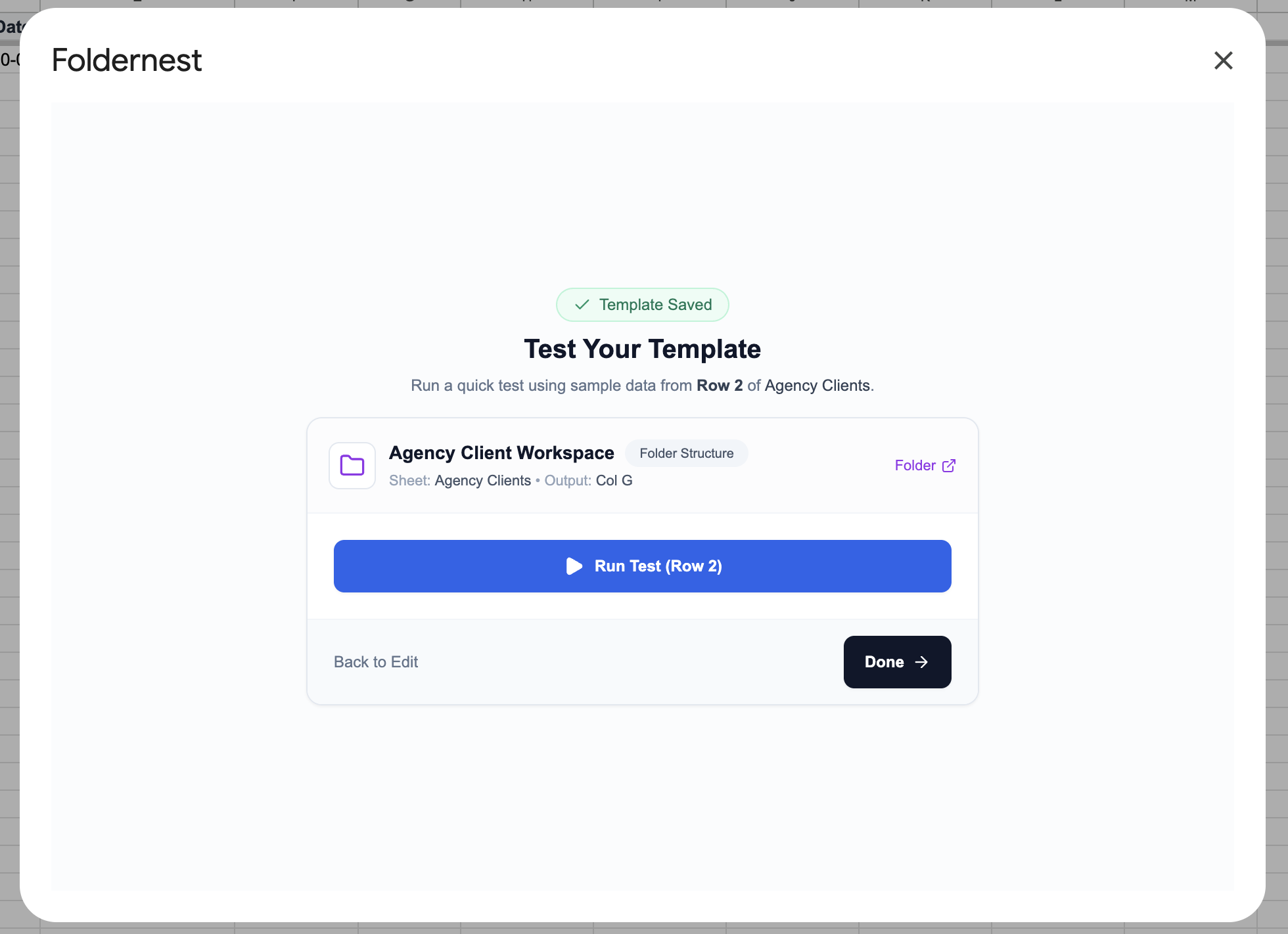
Before activating live automation across all clients, Foldernest provides an integrated test screen. Click Run Test (Row 2) to create a sample client folder using real data from your sheet.
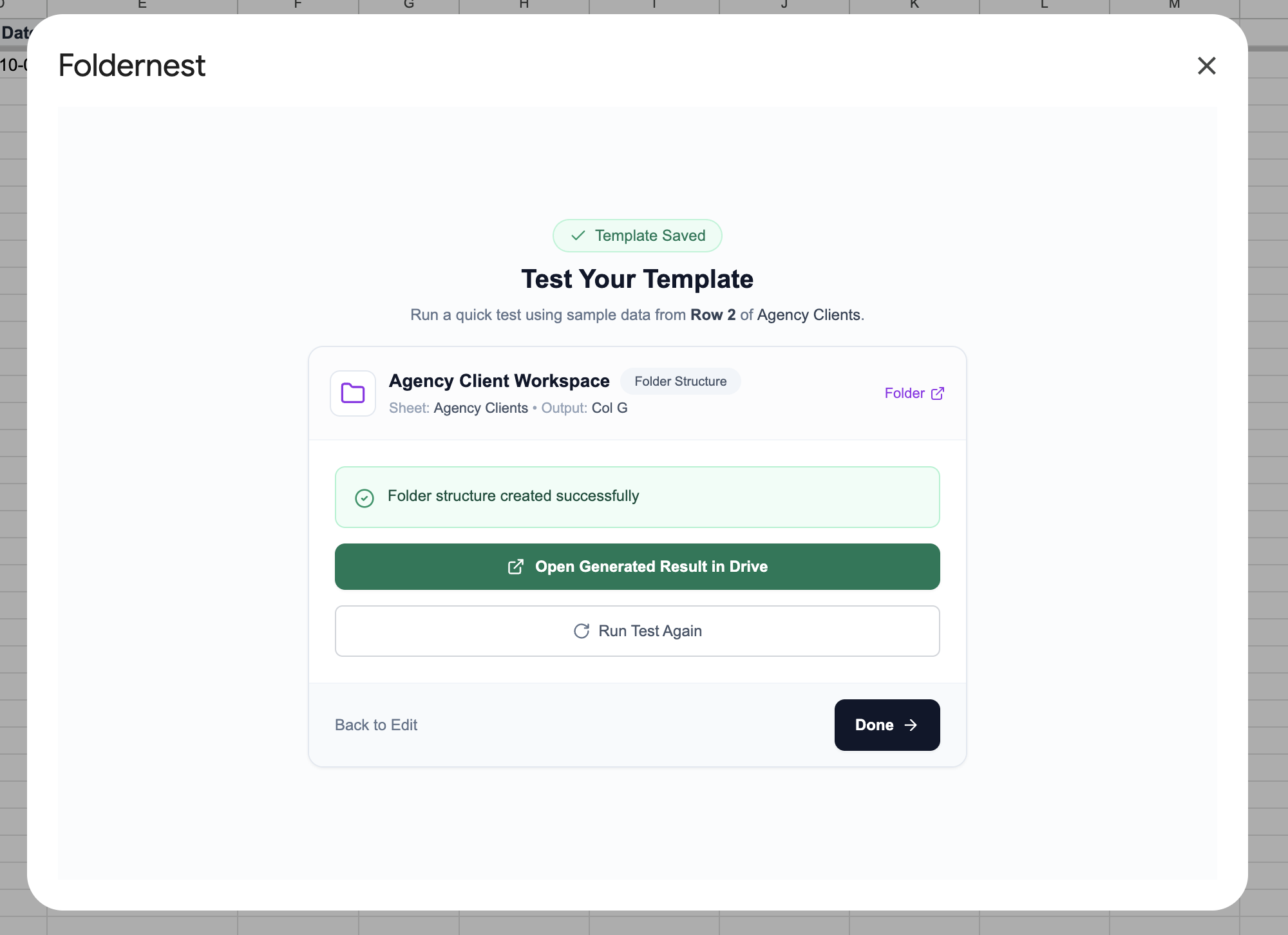
In seconds, the system reports 'Folder structure created successfully' with a direct button to Open Generated Result in Drive.
Step 9: Verify the Result in Google Drive
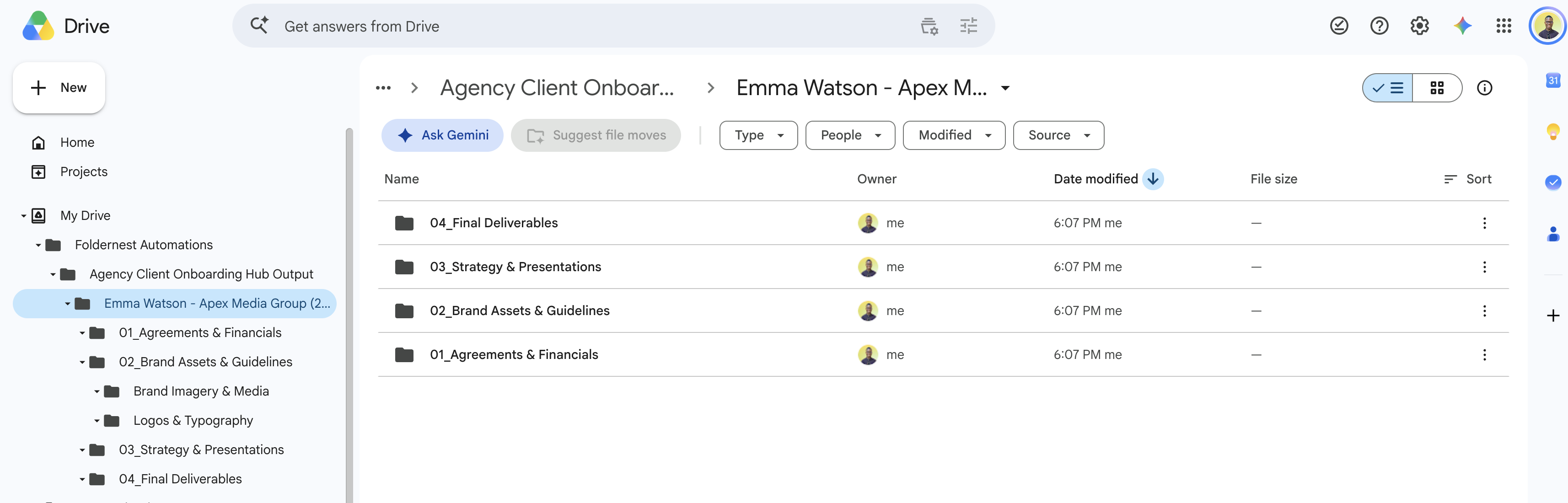
Opening Google Drive reveals the generated client workspace: `Emma Watson - Apex Media Group (2026-10-01)`. Inside, all 4 structured subfolders and pre-populated documents are created and ready for collaboration.
Step 10: Manage Automations & Real-Time Spreadsheet Tracking
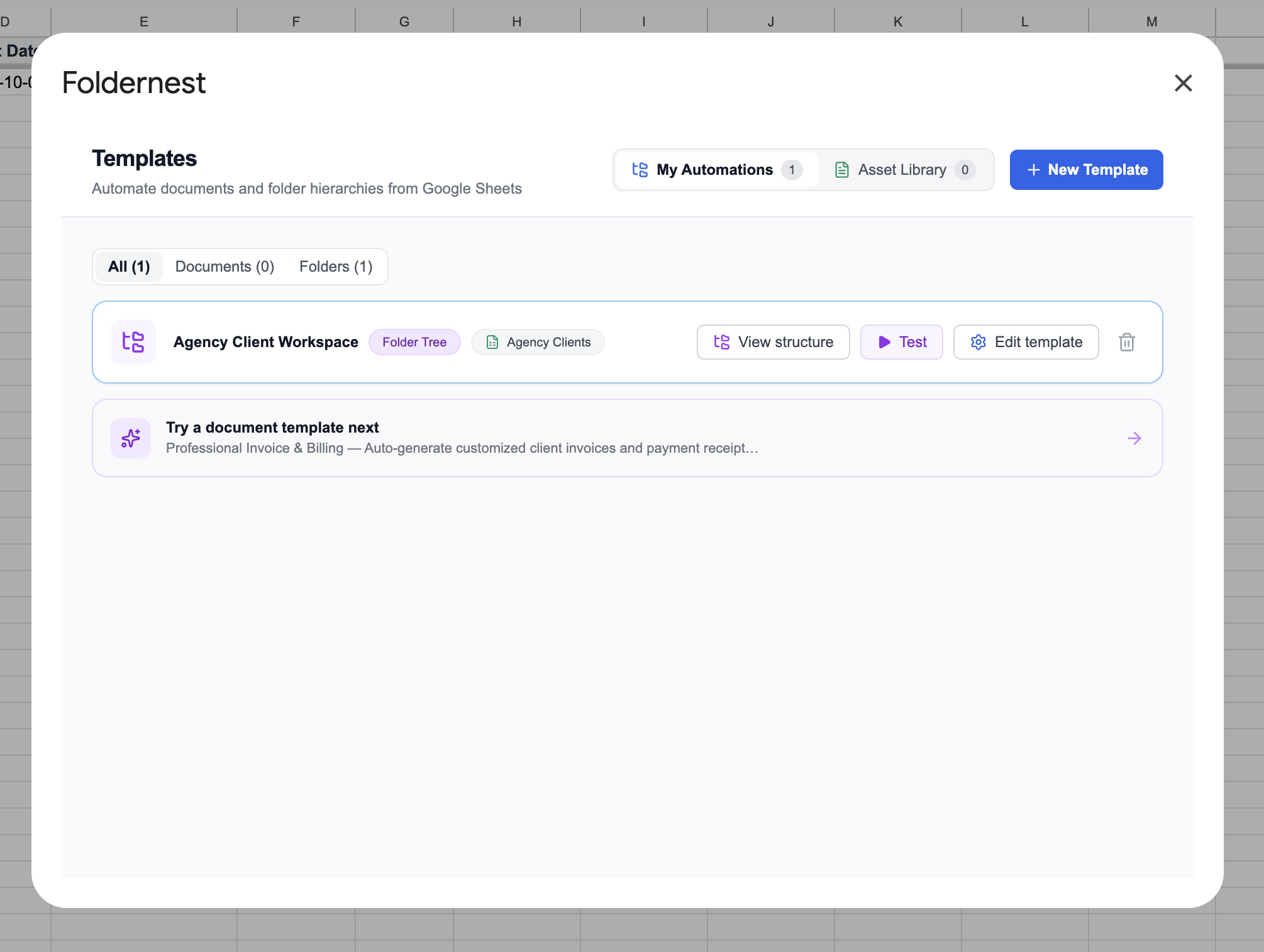
Your saved blueprint appears under My Automations in Foldernest, allowing you to edit structures, run test batches, or duplicate templates at any time.
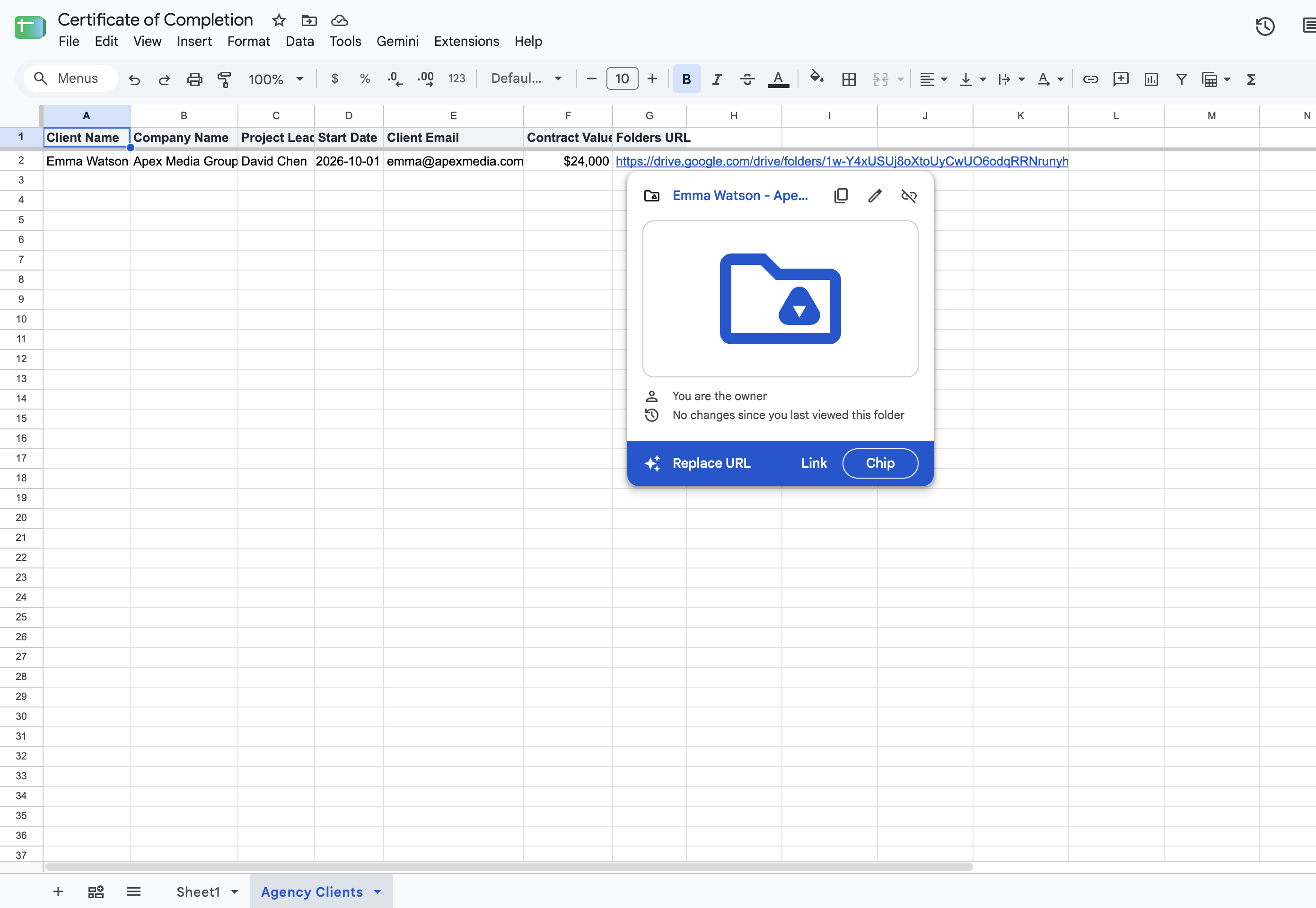
Back in your Google Sheet, the generated folder link is instantly inserted into Column G (`Folders URL`), featuring interactive Google Drive hover preview chips for fast navigation.
Key Benefits for Growing Agencies
| Workflow Metric | Manual Client Onboarding | Foldernest Automation |
|---|---|---|
| Time per Client Setup | 20 to 30 minutes | Under 3 seconds |
| Document Accuracy | Frequent copy-paste errors | 100% consistent data mapping |
| Form Integration | Manual entry from emails | Auto-trigger on Typeform/Forms/Tally |
| Folder Organization | Inconsistent per team member | Standardized agency blueprint |
| File Sharing | Manual email invites | Automatic instant permissions |
| Technical Overhead | Custom Apps Script maintenance | Visual no-code builder |
Frequently Asked Questions
Which form builders are supported?
Foldernest natively integrates with Google Forms, Typeform, Tally, JotForm, and Fillout via direct spreadsheet links and webhooks.
Can I customize the folder hierarchy and add my own files?
Yes! You can add unlimited subfolder levels and attach any Google Docs, Google Sheets, or Google Slides templates with custom `{{placeholders}}` using the Structure Builder.
Can I generate folders for multiple historical clients in bulk?
Absolutely. Simply highlight any number of rows in your Google Sheet and select Extensions > Foldernest > Run for Selected Rows to batch-generate client folders in seconds.