
Every successful real estate tenancy begins with a clear, comprehensive agreement. Whether you are an independent landlord renting out a duplex, a property management firm handling hundreds of apartment units, or a corporate housing operator managing furnished rentals, executing an accurate rental contract is your first line of legal and financial protection. A strong rental agreement sets forth the tenancy term, monthly rent schedule, security deposit obligations, late fee penalties, parking allowances, utility responsibilities, and property rules.
Yet for leasing coordinators and property managers, drafting contracts manually is an exhausting administrative bottleneck. Cloning old Google Docs or Word templates, retyping tenant names, addresses, and rent amounts, and manually editing non-applicable clauses frequently leads to clerical errors, contradictory terms, and legal exposure. In this guide, you will discover how to turn tenant rows in Google Sheets into customized, ready-to-sign rental contracts in Google Docs in seconds using Foldernest and its free pre-built Rental Contract starter template.
The Hidden Cost of Manual Rental Contract Drafting
Drafting residential contracts by duplicating old documents or wrestling with outdated mail-merge tools creates real operational and financial headaches:
- Privacy Violations & Residual Tenant Data: Reusing past agreements often leaves previous tenant names, former co-signers, old rental amounts, or pet rules buried inside boilerplate paragraphs, creating embarrassing privacy leaks.
- Conflicting Payment & Late Fee Clauses: Rental terms vary between properties. Some leases charge a fixed late fee, others charge an annual percentage, and others include grace periods. Manually editing these clauses often produces contradictory provisions that make late fees legally unenforceable in court.
- Security Deposit Inconsistencies: Depending on local rent stabilization ordinances or tenant credit profiles, security deposits may be collected upfront, paid in installments, or waived. Deleting deposit clauses manually leaves awkward gaps, broken paragraph numbering, or orphan clauses.
- Disorganized Google Drive Filing: Leases end up saved haphazardly across team member folders with confusing names like `Rental_Contract_Draft_Final_Unit3B.docx`, making move-out inspections, tenant audits, and compliance archiving difficult.
The Modern Solution: Smart Spreadsheets + Conditional Docs
Foldernest upgrades traditional document generation by combining Google Sheets data with smart variable markers (`{{Column Name}}`) and conditional logic syntax (`<<If: ...>>...<<EndIf>>`):
- Complete Counterparty Separation: Structured columns for Landlord (*Eleanor Vance*), Tenant (*Jonathan Miller*), and Additional Occupants prevent data bleed and guarantee correct signature blocks.
- Pre-Configured Dropdown Validations: Columns such as *Residence type*, *Security deposit option*, *Late fee option*, *Late fee frequency*, and *Parking fee type* include built-in dropdowns in Google Sheets to eliminate typos.
- Smart Conditional Content: Provisions for fixed fees, interest per annum, parking fees, pet restrictions, and utility allowances appear *only* when selected in your spreadsheet. Irrelevant clauses vanish completely with zero blank lines.
- Centralized Tenancy Register: Every generated Google Doc link is recorded automatically in Column BM (Generated File URL) with Google Drive Smart Chip previews.
Step 1: Open Foldernest in Google Sheets
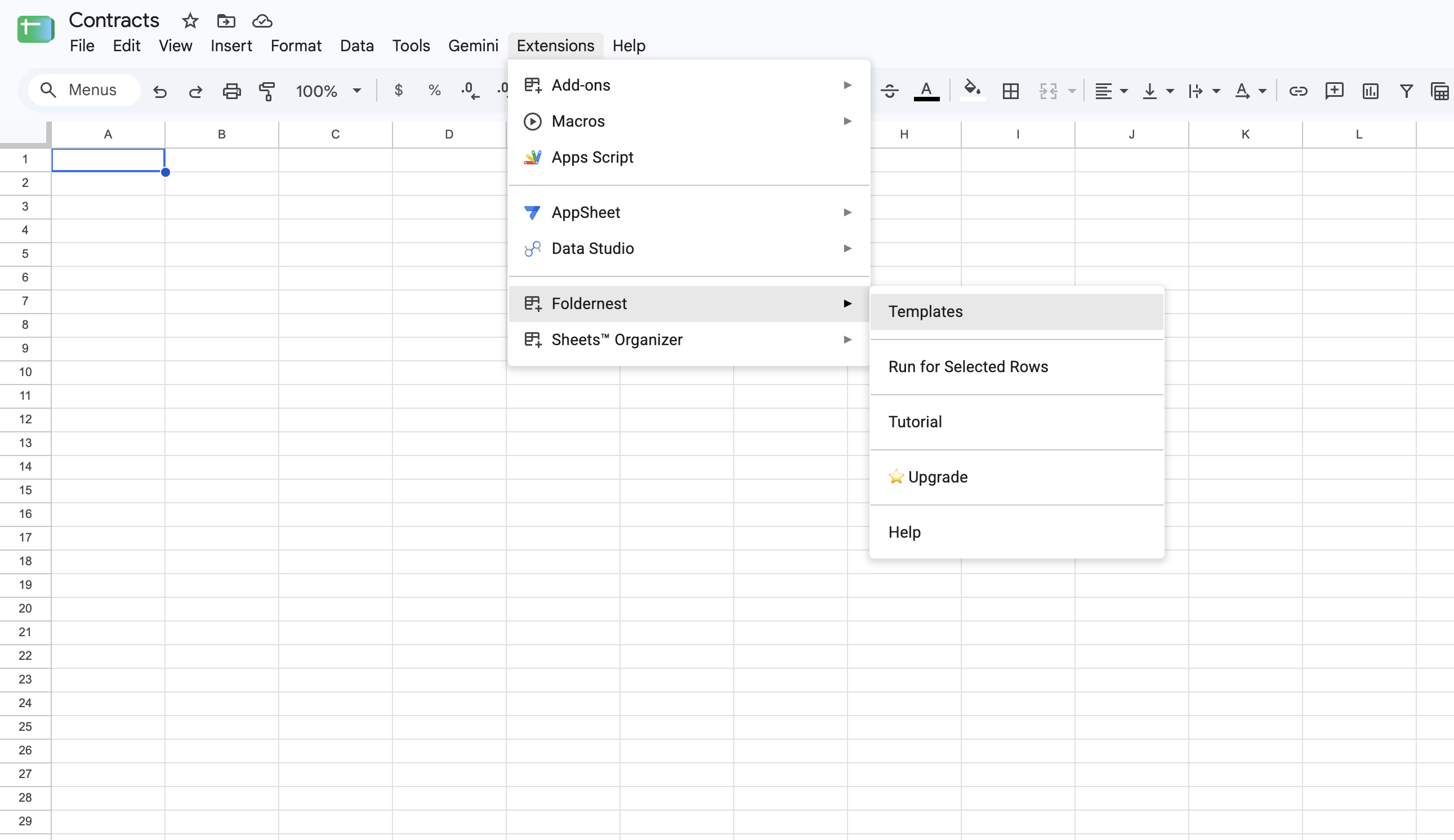
Open your Google Spreadsheet where you manage prospective tenants, rental applications, or property listings. In the top navigation bar:
- 1. Click Extensions in the Google Sheets menu.
- 2. Select Foldernest > Templates (or Document & Folder Templates).
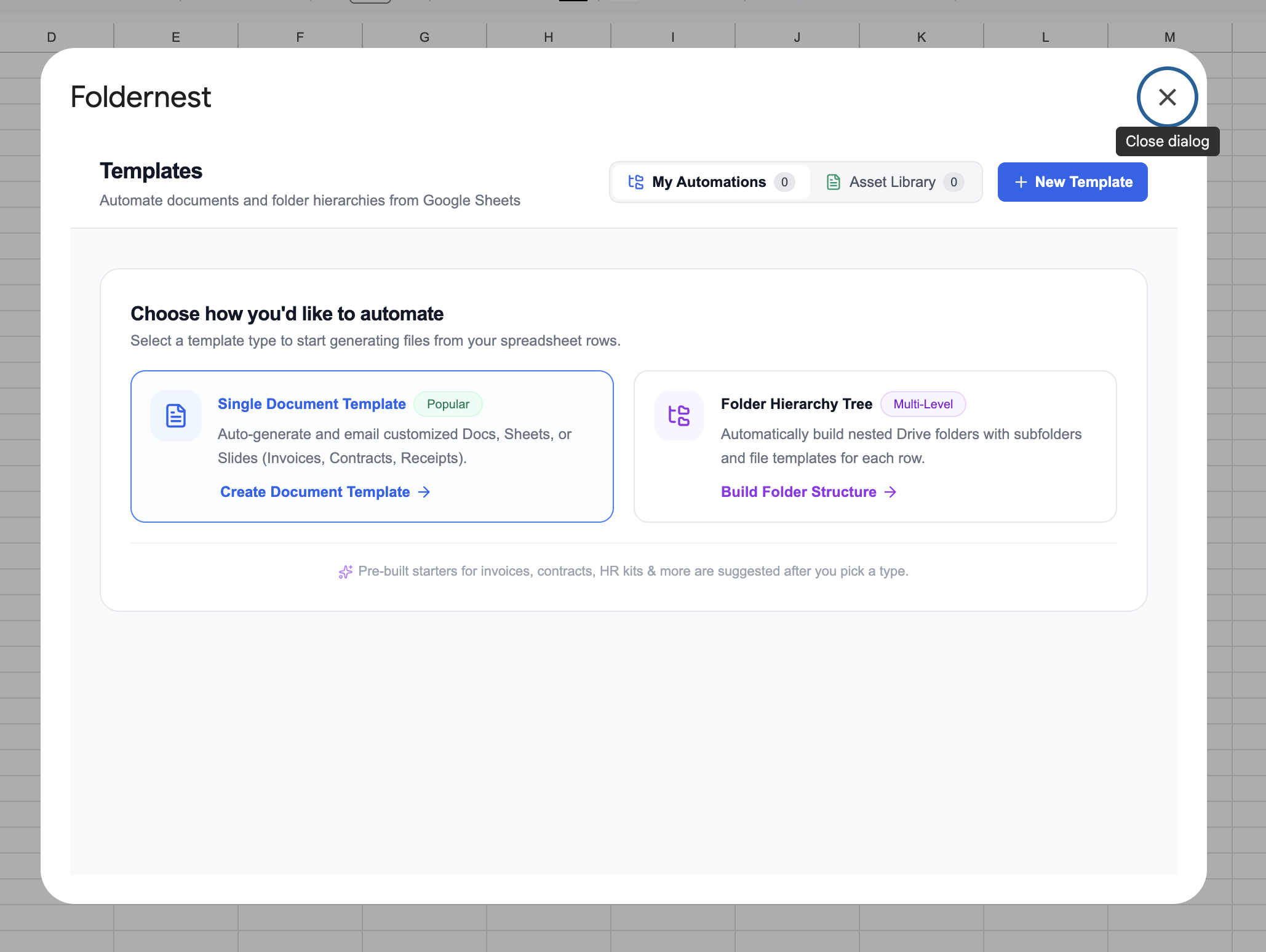
Step 2: Choose 'Single Document Template' Mode
In the Foldernest template builder modal, choose Single Document Template (highlighted as the popular option). This mode automatically merges spreadsheet rows into customized, individual Google Docs agreements.
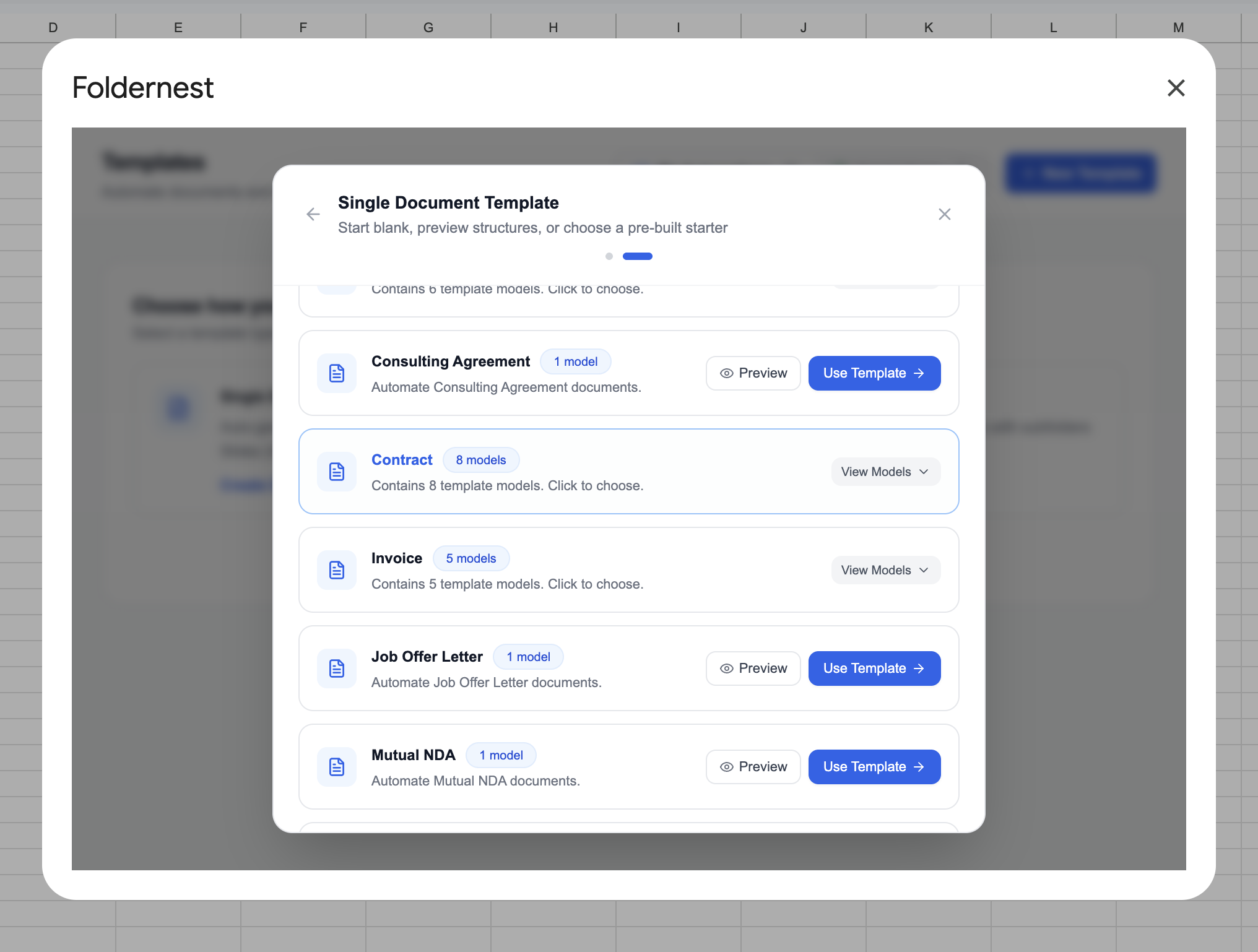
Step 3: Browse Contract Starters & Select 'Rental Contract'
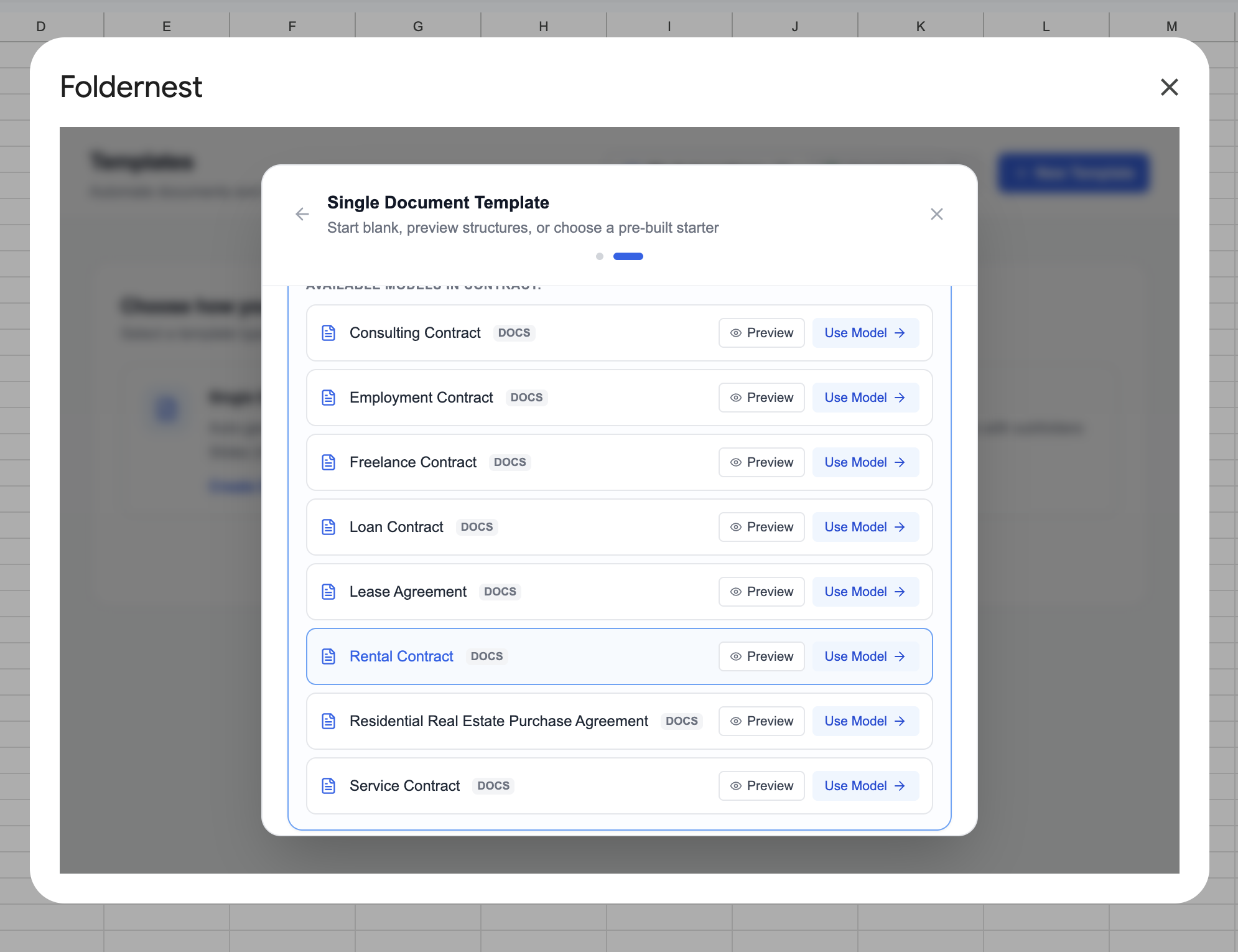
Foldernest features a curated catalog of pre-built commercial and legal starters. Browse through the available categories or expand the Contract group (containing 8 ready-to-use models).
Expand the Contract category, locate Rental Contract (DOCS), and click Use Model.
When you select Use Model, Foldernest configures your Google Workspace environment automatically in seconds:
- Creates the 'Rental Contract' Sheet Tab: Adds a dedicated spreadsheet tab with 65 curated columns (from Column A through BM) covering landlord and tenant identities, property specs, dates, rental payments, security deposit options, late fees, utilities, and parking covenants.
- Applies Native Data Validations: Sets up in-cell dropdowns for critical fields (*Residence type*, *Security deposit option*, *Late fee option*, *Parking fee type*) to keep data entry uniform and mistake-free.
- Injects Realistic Starter Values: Populates Row 2 with authentic sample tenancy data (*Eleanor Vance* as Landlord, *Jonathan Miller* as Tenant, *742 Evergreen Terrace, Apt 3B*, and a monthly rent of *$2,400.00*).
- Provisions the Master Template: Clones the editable Rental Contract - Template Master Google Doc directly into your Google Drive.
Step 4: Inspect the Master Template & Conditional Logic in Google Docs
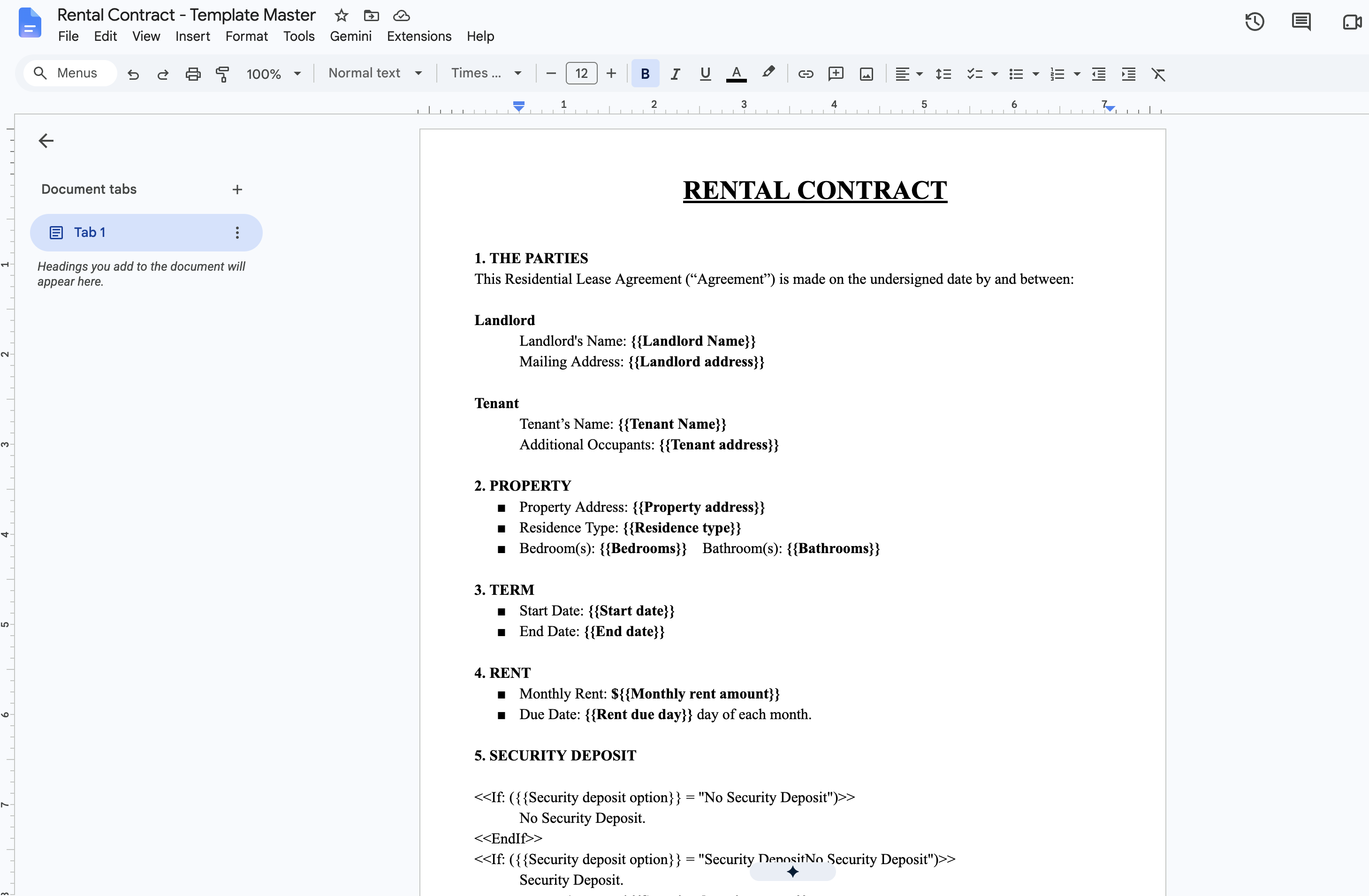
Open the newly provisioned Rental Contract - Template Master in Google Docs. The document is professionally formatted with legal headings, section numbering, and dynamic markers (`{{...}}`) alongside conditional statement tags (`<<If: ...>>`):
Pro Tip
How Conditional Clauses Work in Practice: Examine Section 5 (Security Deposit). The master template contains `<<If: ({{Security deposit option}} = "No Security Deposit")>>No Security Deposit.<<EndIf>>` alongside an alternate clause for when a security deposit is required. When Foldernest compiles your document, it evaluates your spreadsheet selection and renders only the matching text—completely wiping out non-applicable clauses without leaving orphaned headings or blank lines.
Core dynamic and conditional provisions pre-wired in the master template include:
- The Parties: `{{Landlord Name}}`, `{{Landlord address}}`, `{{Tenant Name}}`, and `{{Tenant address}}`.
- The Property: `{{Property address}}`, `{{Residence type}}`, `{{Bedrooms}}`, and `{{Bathrooms}}`.
- Tenancy Term & Rent: `{{Start date}}`, `{{End date}}`, `{{Monthly rent amount}}`, and `{{Rent due day}}`.
- Security Deposit Variations: Evaluates whether a deposit is required, along with amount and return terms.
- Late Fee Rules: Evaluates whether late fees are charged as a fixed fee (`{{Late fee amount}}`) or as an annual interest rate (`{{Late fee percentage}}% per annum`).
- Parking & Utilities: Dynamically incorporates parking space allowances and specific fee descriptions.
Step 5: Configure Model & Source Sheet in Foldernest
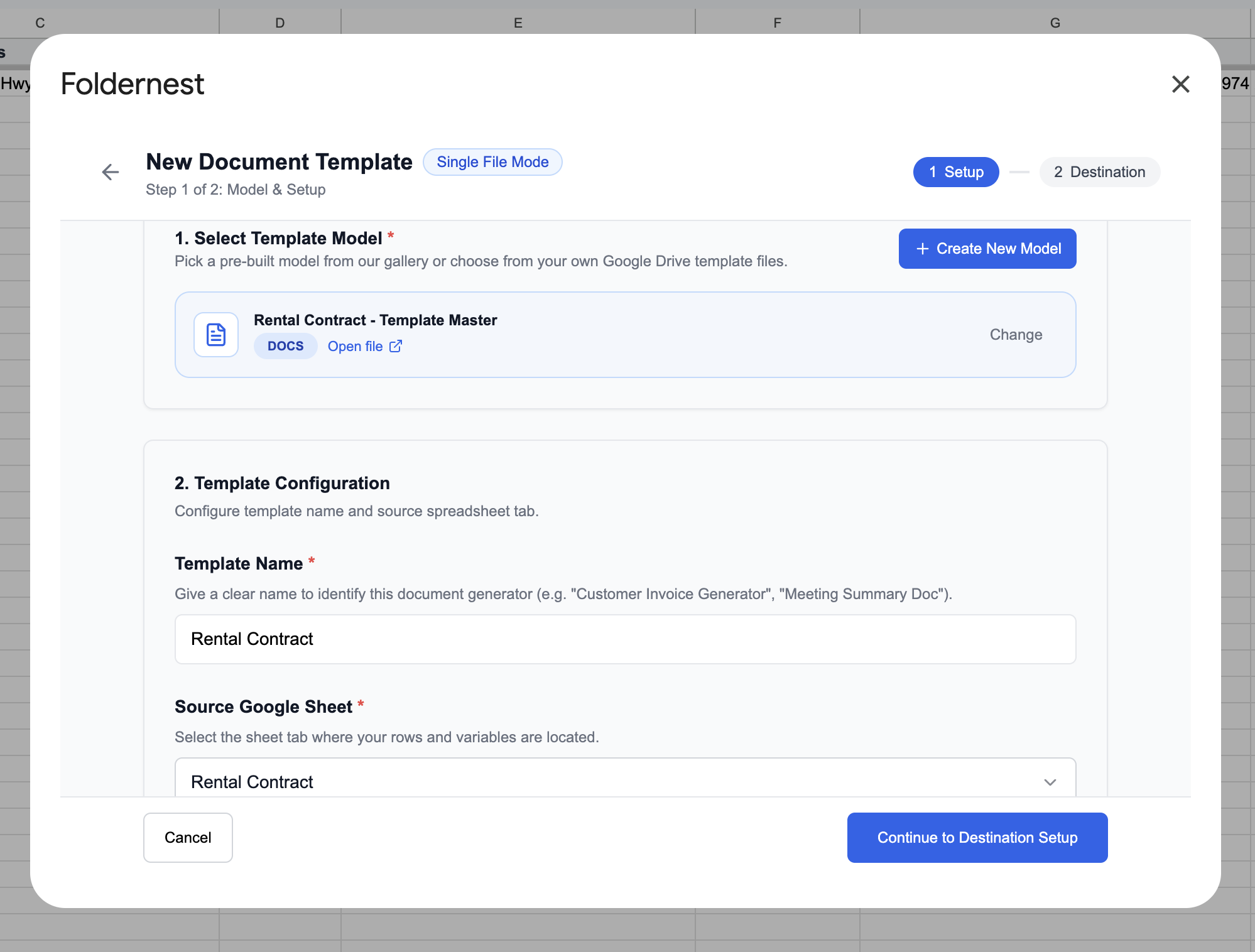
Return to the Foldernest wizard (Step 1 of 2: Model & Setup). The Rental Contract - Template Master Google Doc is automatically selected. Verify the Template Name (set to *Rental Contract*) and confirm that the Source Google Sheet points to the Rental Contract tab.
Step 6: Select Generation Triggers
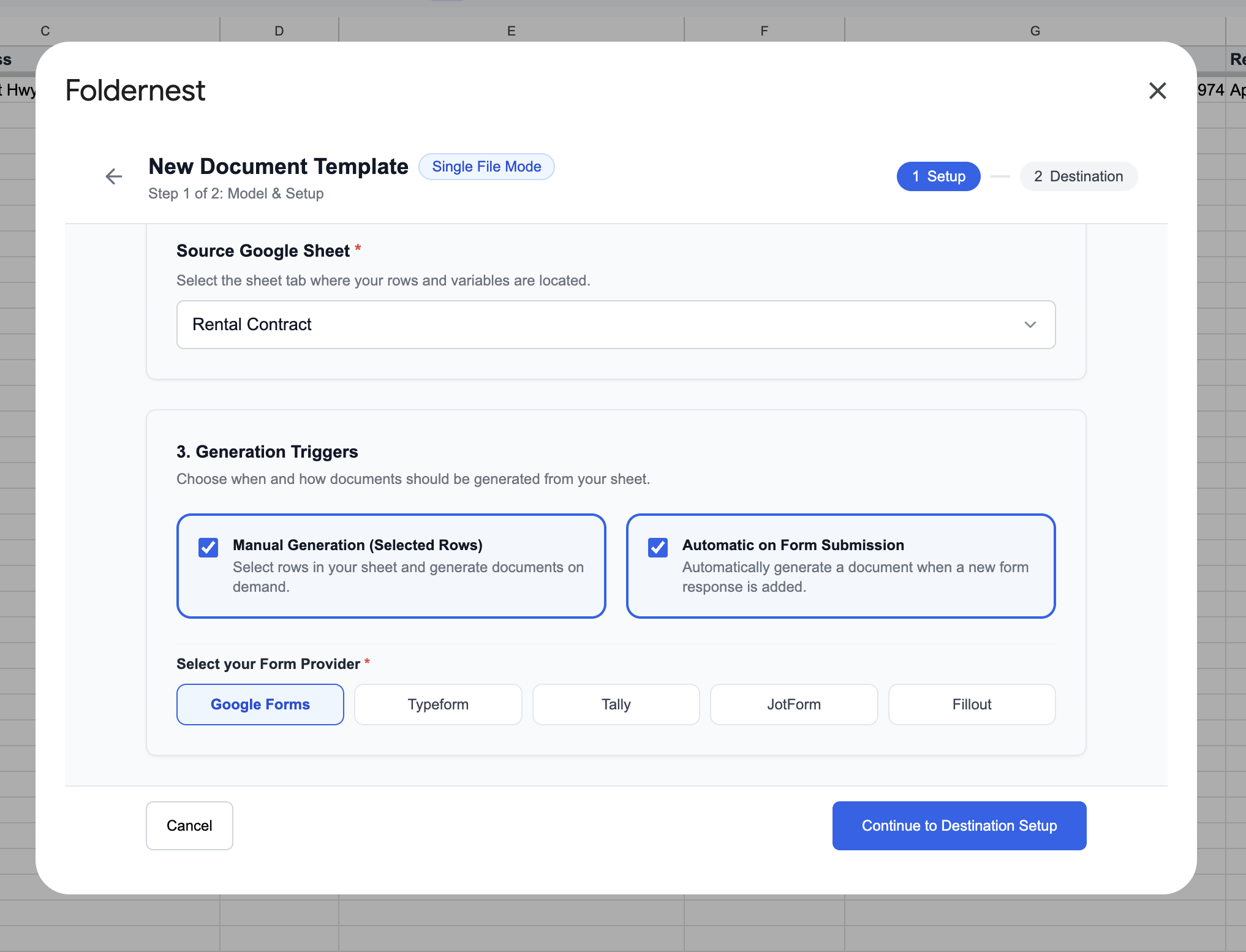
Under Generation Triggers, determine when agreements should be produced from your spreadsheet:
- Manual Generation (Selected Rows): Ideal for leasing agents who review tenant applications, run background checks, and generate lease packets upon approval. Simply select the tenant row and click generate.
- Automatic on Form Submission: Perfect if you collect rental inquiries or lease renewal requests via Google Forms, Typeform, Tally, JotForm, or Fillout. As soon as a tenant submits their form, Foldernest immediately creates their agreement draft.
Click Continue to Destination Setup to proceed to the next step.
Step 7: Configure Dynamic Naming & Destination Folder
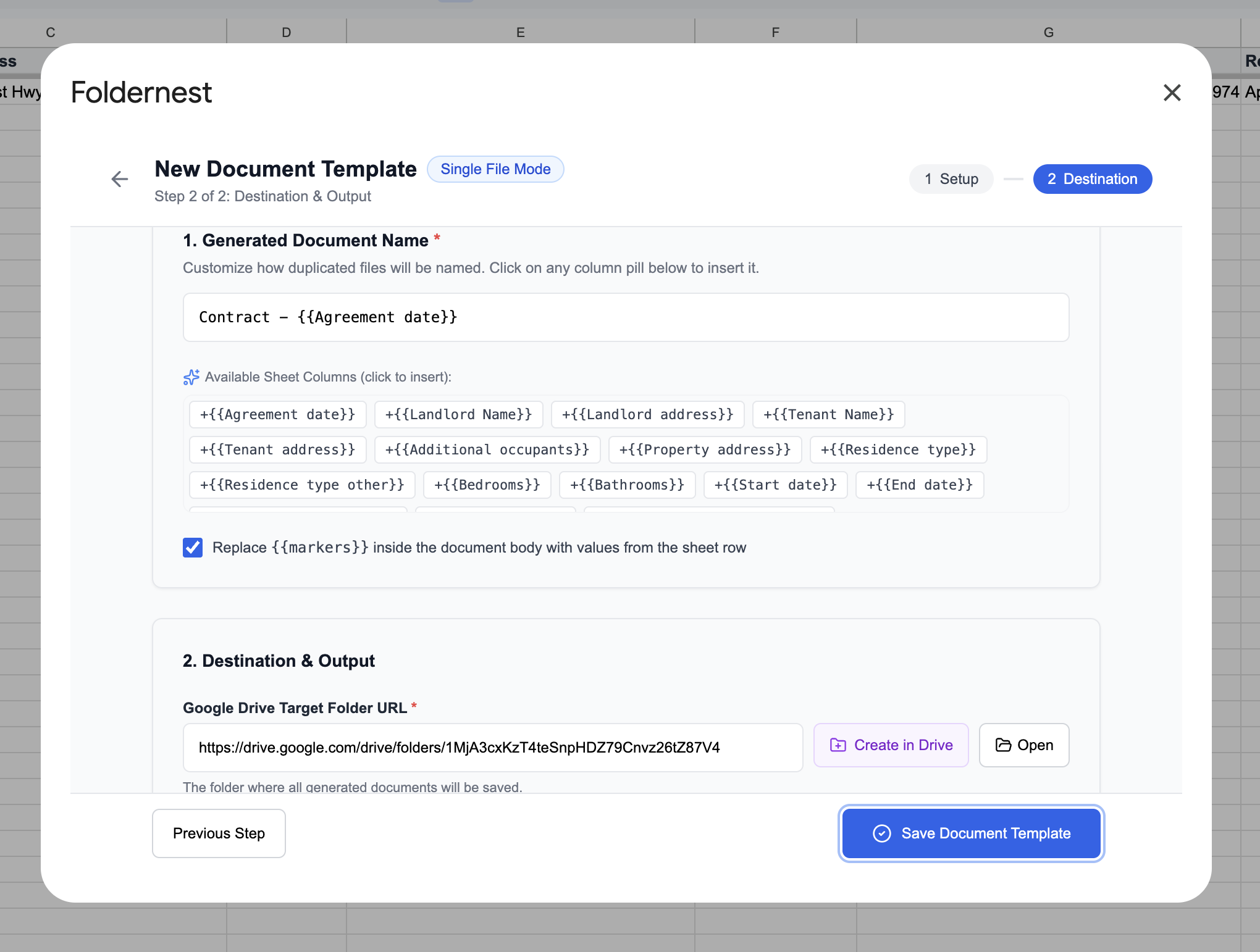
In Step 2 of 2: Destination & Output, configure file organization and dynamic naming in Google Drive:
- 1. Generated Document Name: Click any column pill to construct dynamic filenames like `Contract - {{Agreement date}}` or `Rental Contract - {{Tenant Name}} - {{Property address}}`.
- 2. Replace {{markers}} inside document body: Keep this checkbox enabled so all variables and conditional rules evaluate throughout the agreement.
- 3. Google Drive Target Folder URL: Paste the Google Drive folder where generated contracts will be filed, or click Create in Drive to provision a dedicated folder automatically.
Step 8: Auto-Detect Output URL Column & Review Markers
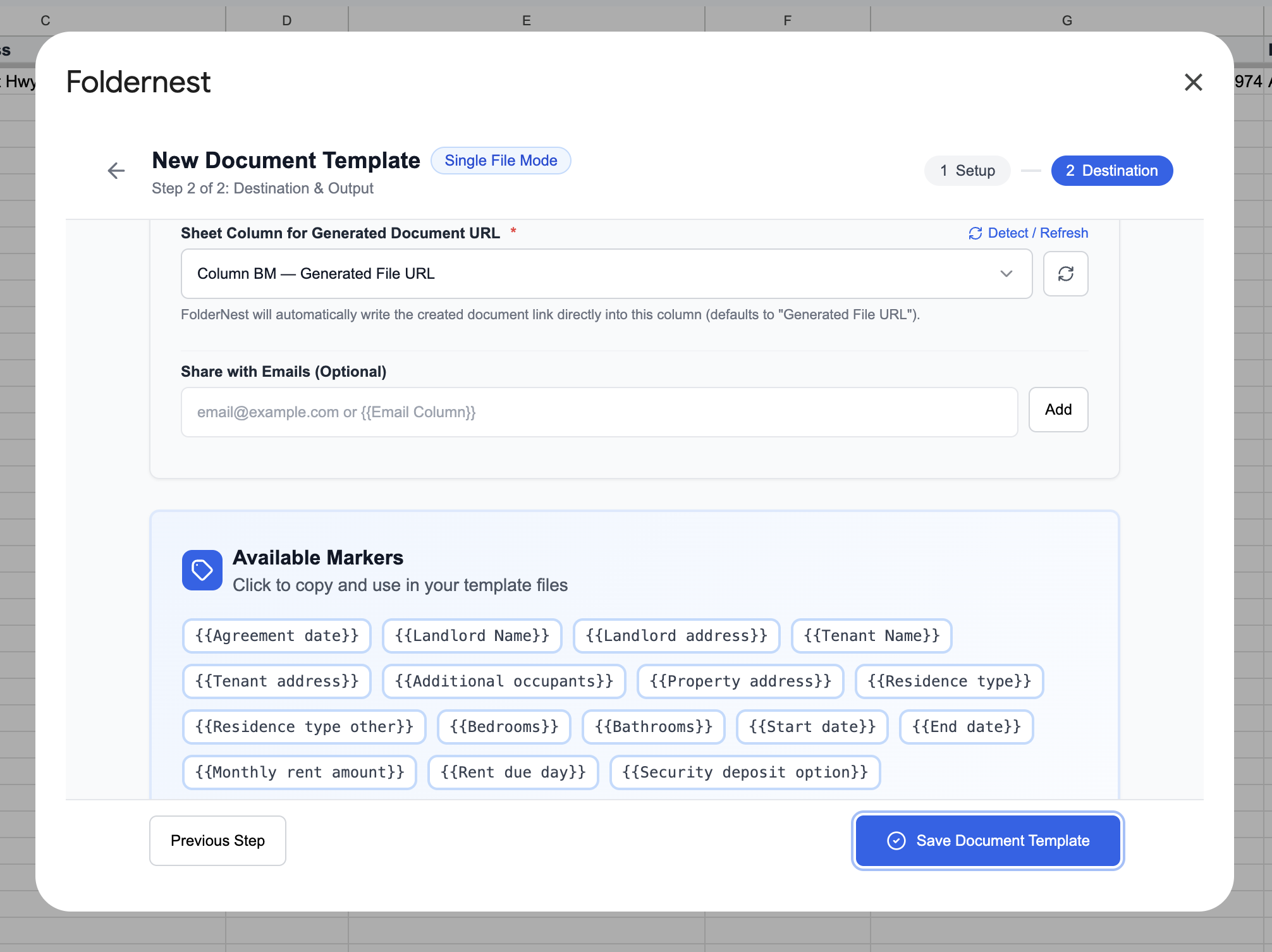
Scroll down to verify your output column. Foldernest automatically detects Column BM — Generated File URL, which logs the direct Google Drive link for every generated contract. The interactive Available Markers panel displays all detected fields, allowing you to copy any tag with a single click.
Pro Tip
Adding Custom Landlord Fields: If you add custom columns to your spreadsheet (such as *HOA Rules Addendum*, *Parking Space #*, or *Key Fob Deposit*), click the Detect / Refresh button. Foldernest instantly syncs your new column headers without resetting your template settings.
Click Save Document Template to finalize your automation configuration.
Step 9: Test Run on Sample Tenant Row (Row 2)
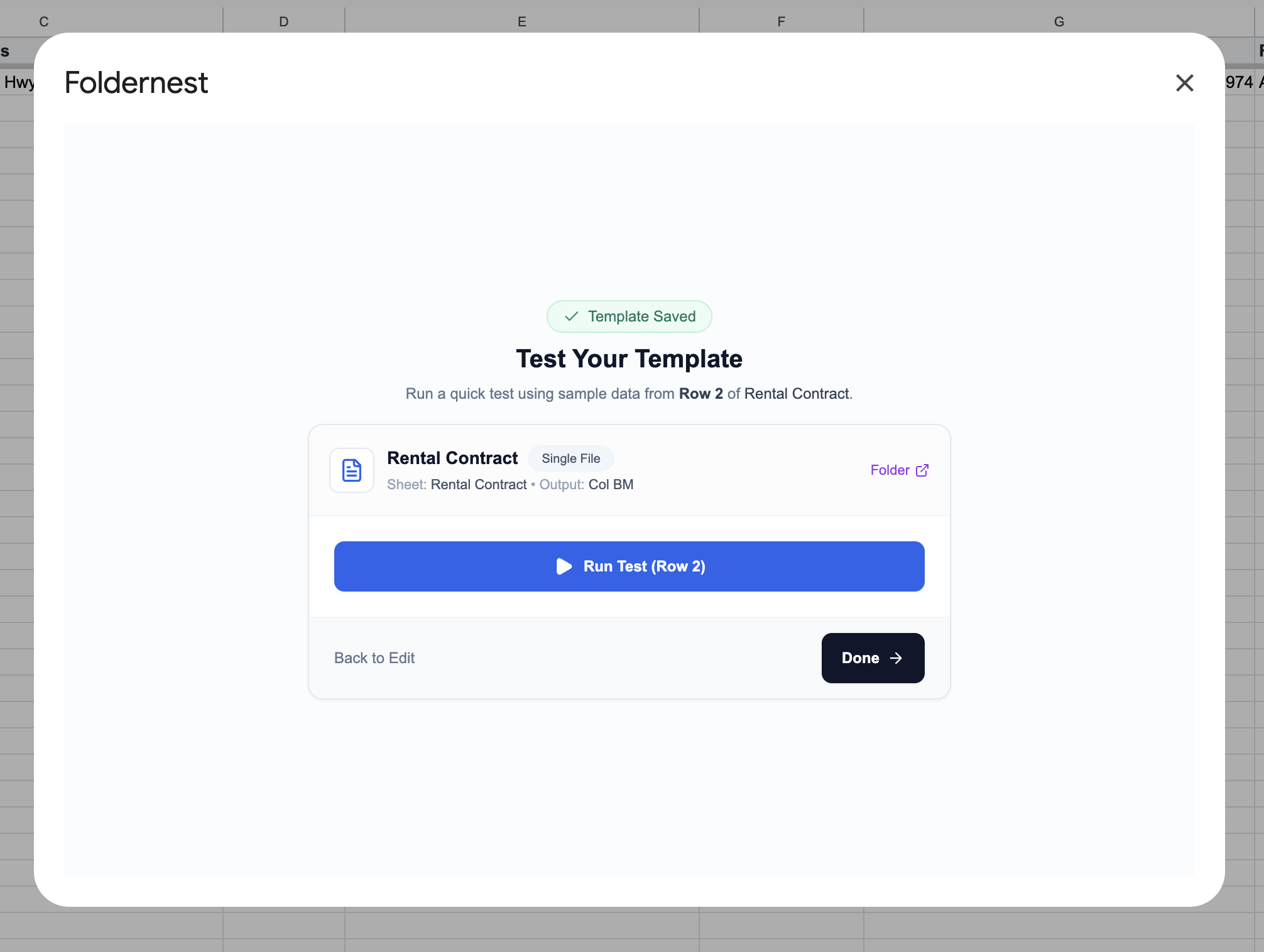
Before generating contracts for actual tenants, run a live test using the sample row created by the starter. On the Test Your Template screen, click Run Test (Row 2).
Step 10: Generation Success Confirmation
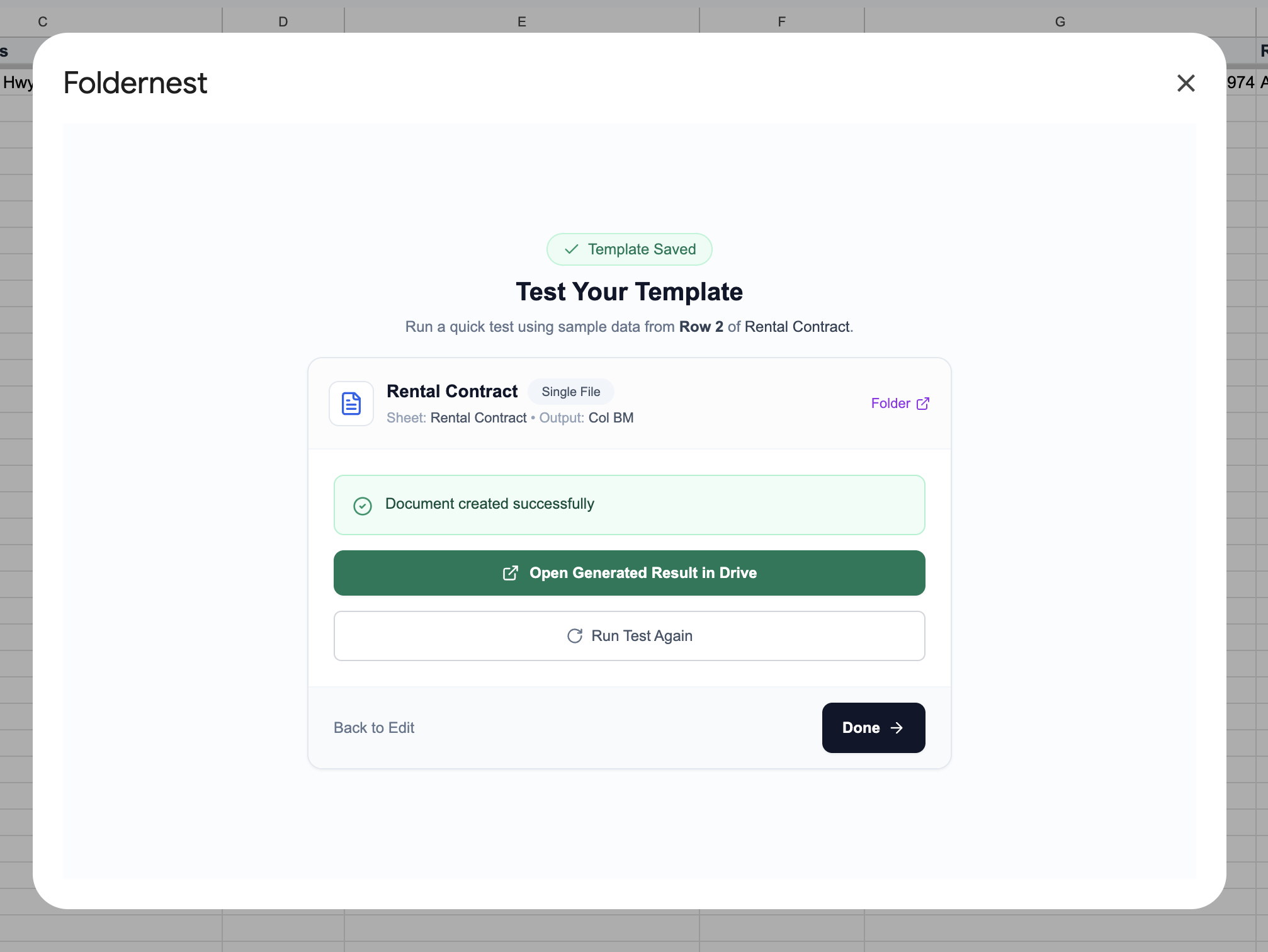
Within seconds, Foldernest completes document generation and displays the green Document created successfully badge. Click Open Generated Result in Drive to inspect your freshly rendered rental agreement.
Step 11: Review the Generated Rental Contract in Google Docs
Open your newly generated document (Contract - November 1, 2026). Notice how cleanly and accurately all property specifications, party details, and conditional covenants were compiled:
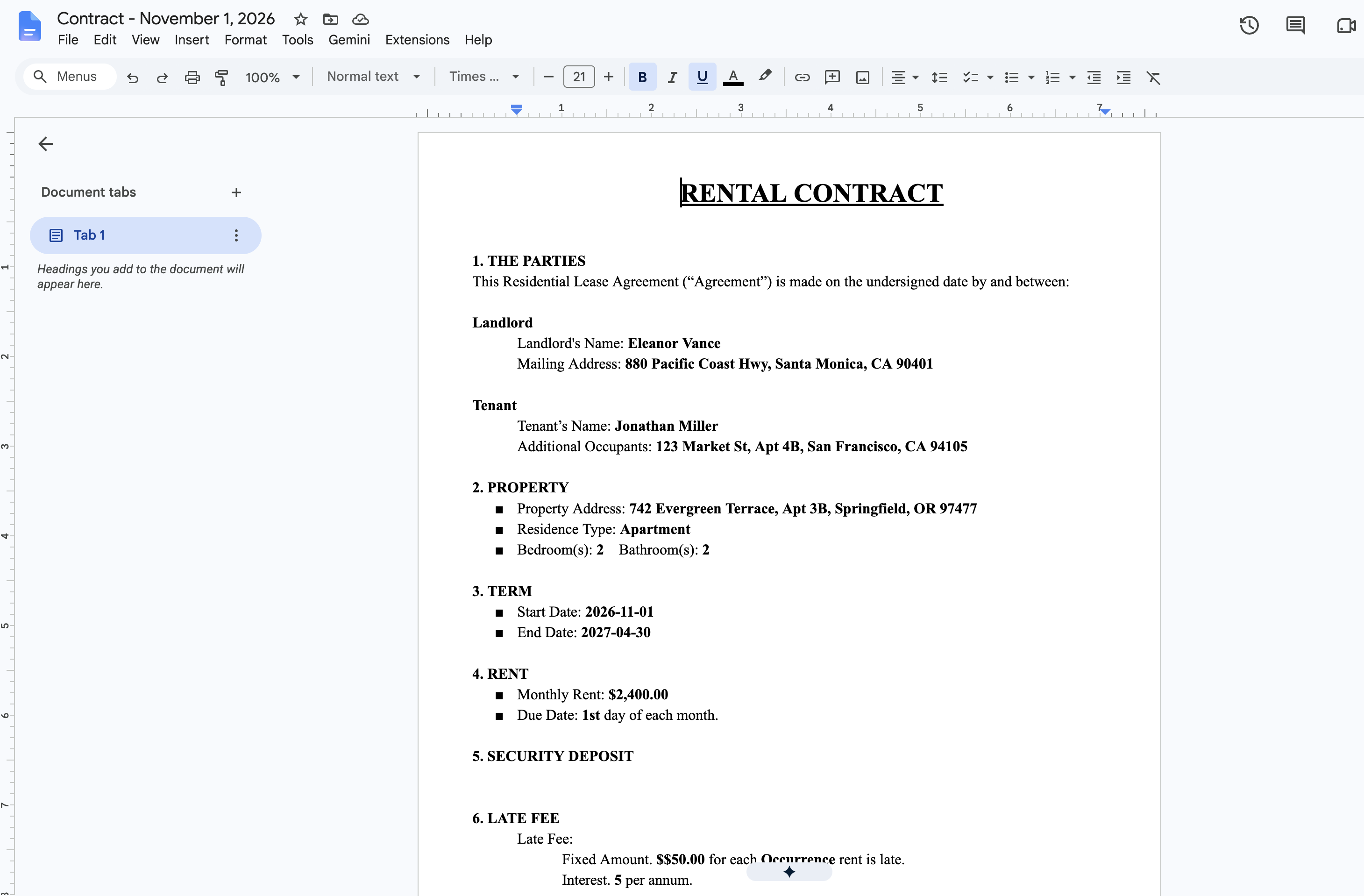
- Parties Clearly Identified: Landlord is rendered as Eleanor Vance (880 Pacific Coast Hwy, Santa Monica, CA) and Tenant is rendered as Jonathan Miller (123 Market St, Apt 4B, San Francisco, CA).
- Property Specifications: Accurately displays property address 742 Evergreen Terrace, Apt 3B, Springfield, OR 97477, Apartment residence type, with 2 Bedrooms and 2 Bathrooms.
- Tenancy Term & Rates: Commences 2026-11-01 and ends 2027-04-30 with monthly rent cleanly formatted as $2,400.00 due on the 1st day of each month.
- Evaluated Late Fee Clauses: Resolves both fixed penalty provisions ($50.00 per occurrence) and statutory interest terms (5% per annum).
- Pristine Document Formatting: Headings, underlines, bulleted items, and spacing remain sharp with zero syntax residue.
Step 12: Production-Ready Automation in 'My Automations'
Click Done to return to the Foldernest template center. Your Rental Contract automation is permanently registered under My Automations (1).
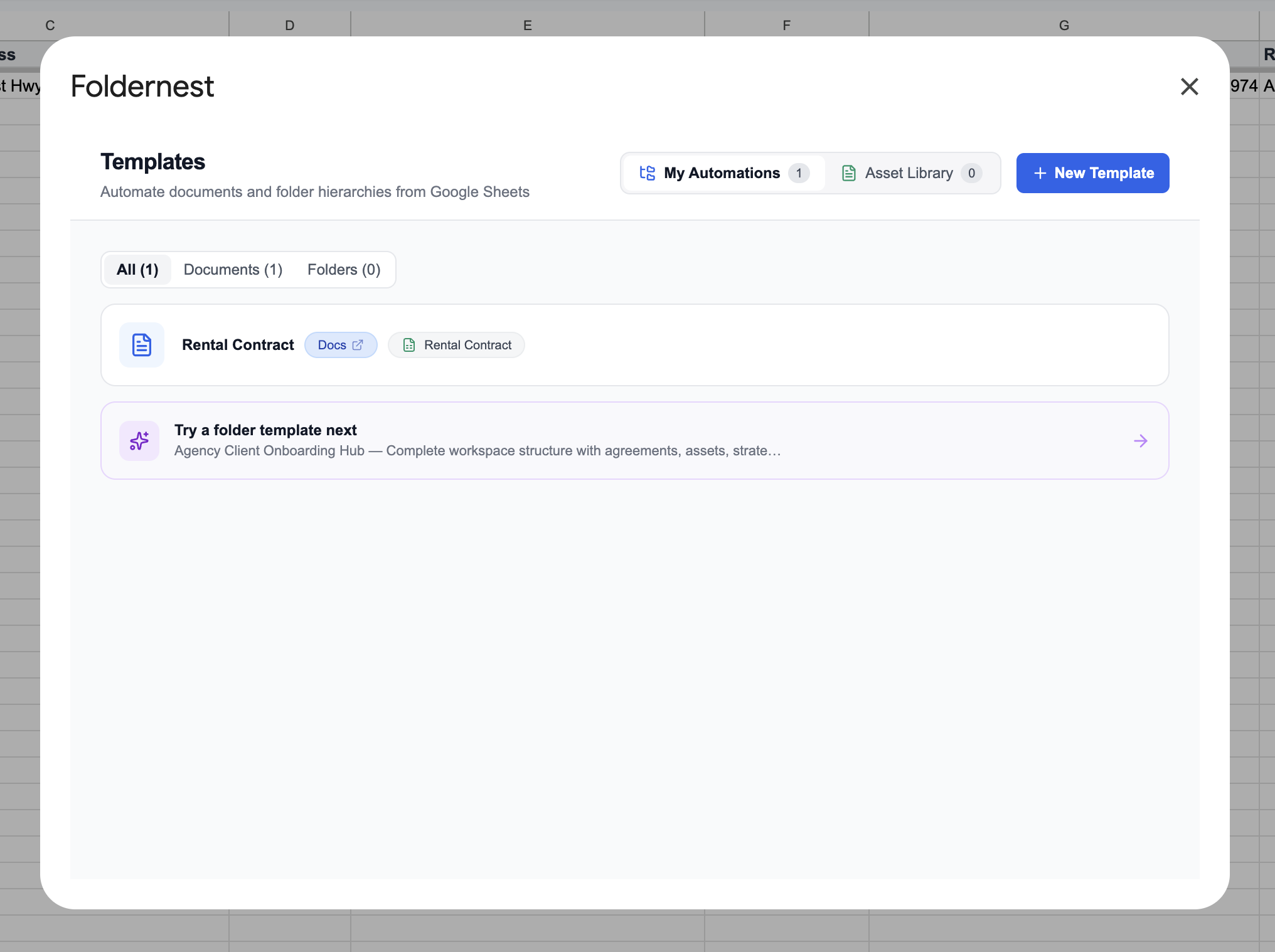
The automation card features dedicated quick-access badges: click Docs to open and edit your Master Template in a new tab, or click Rental Contract to navigate directly to your source sheet tab.
Deep Dive: Mastering Conditional Clauses in Rental Agreements
Residential tenancies require strict compliance with state and municipal housing laws. Even minor drafting oversights can compromise your ability to enforce late fees or recover damages. Foldernest handles conditional clauses with precision:
- Security Deposit Variations: Seamlessly toggle between full security deposit collection, zero-deposit promotions, or surety bond alternatives. The template automatically adjusts Section 5 based on the *Security deposit option* column.
- Late Fee Structures: Toggle between fixed dollar fees (e.g. $50 per occurrence) and percentage interest rates (e.g. 5% per annum), ensuring adherence to statutory caps.
- Parking & Storage Addenda: When *Parking fee type* is configured, custom descriptions and payment amounts are inserted dynamically. If no parking is provided, the clause defaults to standard street parking provisions.
- Pet Policies & Animal Addenda: Dynamically include pet deposits, weight restrictions, and monthly pet rent clauses for pet-friendly units, or enforce a strict no-pet policy for allergy-free properties.
- Furnished vs. Unfurnished Units: Include inventory checklists and condition reports automatically when leasing furnished residential properties.
Manual Lease Drafting vs. Automated with Foldernest
| Workflow Dimension | Manual Copy-Paste | Automated with Foldernest |
|---|---|---|
| Drafting Time per Lease | 30–60 minutes per tenant | Under 3 seconds per row |
| Risk of Data Bleed | High (residual tenant names & old rates) | Zero (compiled fresh from validated sheet rows) |
| Handling Variable Terms (Pets, Parking) | Manual editing prone to contradictory clauses | Automated via conditional <<If: ...>> blocks |
| Google Drive File Organization | Scattered files, inconsistent naming | Structured pattern naming in designated Drive folders |
| Master Audit & Tenancy Tracking | Lost links across emails and chats | Direct link logged in Column BM of Google Sheets |
| Batch Scalability | Linear workload for every new lease | Generate 1, 10, or 100 rental contracts in one click |
Advanced Property Management Automation Strategies
Pro Tip
End-to-End Tenant Intake Automation: Connect your Google Sheet to an online application form (Google Forms, Typeform, or Tally). When a prospective tenant submits their rental application, Foldernest can automatically create their customized draft lease agreement for leasing manager review.
- Standardize Currency & Date Formatting: Format rental amounts as standard currency (`$2,400.00`) and dates as clean strings (`November 1, 2026` or `2026-11-01`).
- Leasing Pipeline Workflow Columns: Add status columns to your spreadsheet like *Application Status* (*Approved*, *Pending Screening*), *Security Deposit Paid*, and *Key Handover Date* adjacent to Column BM.
- Pair with Folder Hierarchy Automation: Use Foldernest Folder Templates to automatically generate a complete Tenant Drive Directory (ID Copies, Proof of Income, Signed Lease, Move-In Inspection Photos) alongside each contract.
- Seamless E-Signature Routing: Once generated in Google Docs, download the contract as a PDF or send it straight to your e-signature platform (DocuSign, SignNow, PandaDoc, Adobe Sign).
Frequently Asked Questions (FAQ)
Is a rental contract generated via Foldernest legally enforceable?
Yes. Foldernest generates standard Google Docs agreements based on your approved master template. Once reviewed and signed by the landlord and tenant (either physically or via a legally compliant e-signature solution like DocuSign or Adobe Sign), the document is just as legally binding as any attorney-drafted lease.
Can I use my own custom residential lease agreement template?
Yes! While Foldernest provides a comprehensive Rental Contract starter, you can automate any existing Google Doc. Simply choose Start Blank in Foldernest, select your document, and insert `{{Column Name}}` markers and `<<If: ...>>` conditional blocks wherever dynamic spreadsheet data belongs.
How does Foldernest handle non-applicable rental clauses?
Foldernest uses boolean conditional tags: `<<If: (condition)>>clause content<<EndIf>>`. When evaluating a row, if the condition evaluates to false (for example, if *Parking fee type* is not applicable), Foldernest strips out the clause, bullet points, and trailing line breaks completely, preventing awkward blank spaces in your contract.
What happens if I add new columns or reorder fields in my spreadsheet?
You never have to reconfigure your automation from scratch. Click the Detect / Refresh button in Step 2. Foldernest scans your sheet headers, updates the Column BM location if columns shifted, and refreshes the marker inventory immediately.
Does Foldernest preserve my formatting, logos, and custom branding?
Yes. Foldernest duplicates your master Google Doc using native Google Drive APIs. All custom fonts, colors, brand logos, headers, footers, underlines, tables, and page margins remain 100% faithful to your original master template.
Can I batch-generate rental agreements for multiple tenants at once?
Yes. Highlight multiple tenant rows in your Google Sheet and click Run for Selected Rows. Foldernest processes each row sequentially, creates dedicated contracts for each tenant, logs each link in Column BM, and saves all files into your designated Google Drive folder.
Start Automating Rental Contracts Today
Manual lease drafting is a slow, error-prone chore that introduces needless compliance risks and delays tenant onboarding. By connecting your Google Sheets leasing tracker with dynamic Google Docs templates in Foldernest, you can generate clean, compliant rental contracts in seconds and deliver a first-class tenant experience.
Ready to simplify your property management operations? Install Foldernest from the Google Workspace Marketplace and generate your first automated rental contract today.