
Every client engagement, agency partnership, and commercial consulting relationship hinges on an unambiguous legal foundation: the Service Contract (also commonly structured as a Master Services Agreement or Professional Services Agreement). Whether you operate a software engineering agency, a management consultancy, a creative design studio, or a specialized technical advisory firm, executing clean, enforceable contracts is essential to protecting your business. A well-crafted service contract establishes project deliverables, payment structures, hourly rates, retainer policies, warranties, liability caps, intellectual property rights, and early termination rules.
Yet in high-tempo service businesses, drafting contracts manually remains an operational bottleneck. Account managers and agency founders waste hours copying and pasting old client agreements, manually swapping names, retyping billing rates, and deleting non-applicable clauses in Microsoft Word or Google Docs. This tedious routine frequently leads to embarrassing data bleed, contradictory legal terms, uncapped scope liabilities, and sluggish sales turnaround. In this guide, you will learn how to turn client records in Google Sheets into customized, attorney-grade Service Contracts in Google Docs in seconds using Foldernest and its free, pre-built Service Contract starter template.
The Hidden Risks of Manual Service Contract Drafting
When business development teams juggle multiple prospective client proposals, manual contract creation introduces hazardous points of failure:
- Cross-Client Data Bleed & Confidentiality Violations: Cloning previous client contracts invites accidental retention of prior clients' names, confidential rates, proprietary project details, or custom indemnity concessions.
- Contradictory Fee & Scope Structures: Switching an engagement from an hourly rate to a fixed per-job fee or milestone retainer manually often leaves conflicting compensation paragraphs intact, triggering invoice disputes during delivery.
- Mismatched Term & Termination Clauses: Inadvertently mixing at-will notice periods (e.g., 30 days) with fixed end dates or missing early cure periods exposes agencies to unexpected breach claims or premature client walk-offs.
- Awkward Blank Spaces & Broken Document Hierarchy: Manually removing unneeded clauses—such as retainer requirements or job descriptions—leaves orphan headings, mismatched paragraph numbers, and messy whitespace that damage professional credibility.
- Delayed Sales Cycles: Waiting hours or days for internal administrative staff to format a standard contract gives prospective clients time to reconsider or entertain competitor proposals.
The Modern Solution: Smart Spreadsheets + Conditional Docs
Foldernest transforms Google Workspace into an automated legal document engine. By connecting your Google Sheets project pipeline directly to Google Docs with dynamic variable markers (`{{Marker Name}}`) and smart conditional logic (`<<If: ...>>...<<EndIf>>`), Foldernest delivers speed and precision:
- Structured Client & Engagement Taxonomy: Manage provider profiles, client entity names, signatory titles, scopes, billing models, retainers, and governing jurisdictions across organized, pre-configured columns.
- Pre-Configured Dropdown Validations: Maintain strict contract consistency with native spreadsheet dropdowns for *Term type* (*At-Will*, *End Date*, *Other*), *Payment structure* (*Per Hour*, *Per Job*), *Payment method*, and *Retainer refund policy*.
- Adaptive Conditional Clauses: Clauses dynamically adjust depending on the deal. If an engagement is billed hourly, Foldernest compiles the hourly clause and strips the per-job language. If no retainer is required, the retainer clause is cleanly omitted without leaving blank gaps.
- Automated Google Drive Log & Smart Chips: Every generated contract URL is automatically recorded in Column AD (Generated File URL) with interactive Google Drive Smart Chips for instant previews and one-click access.
Step 1: Open Foldernest in Google Sheets
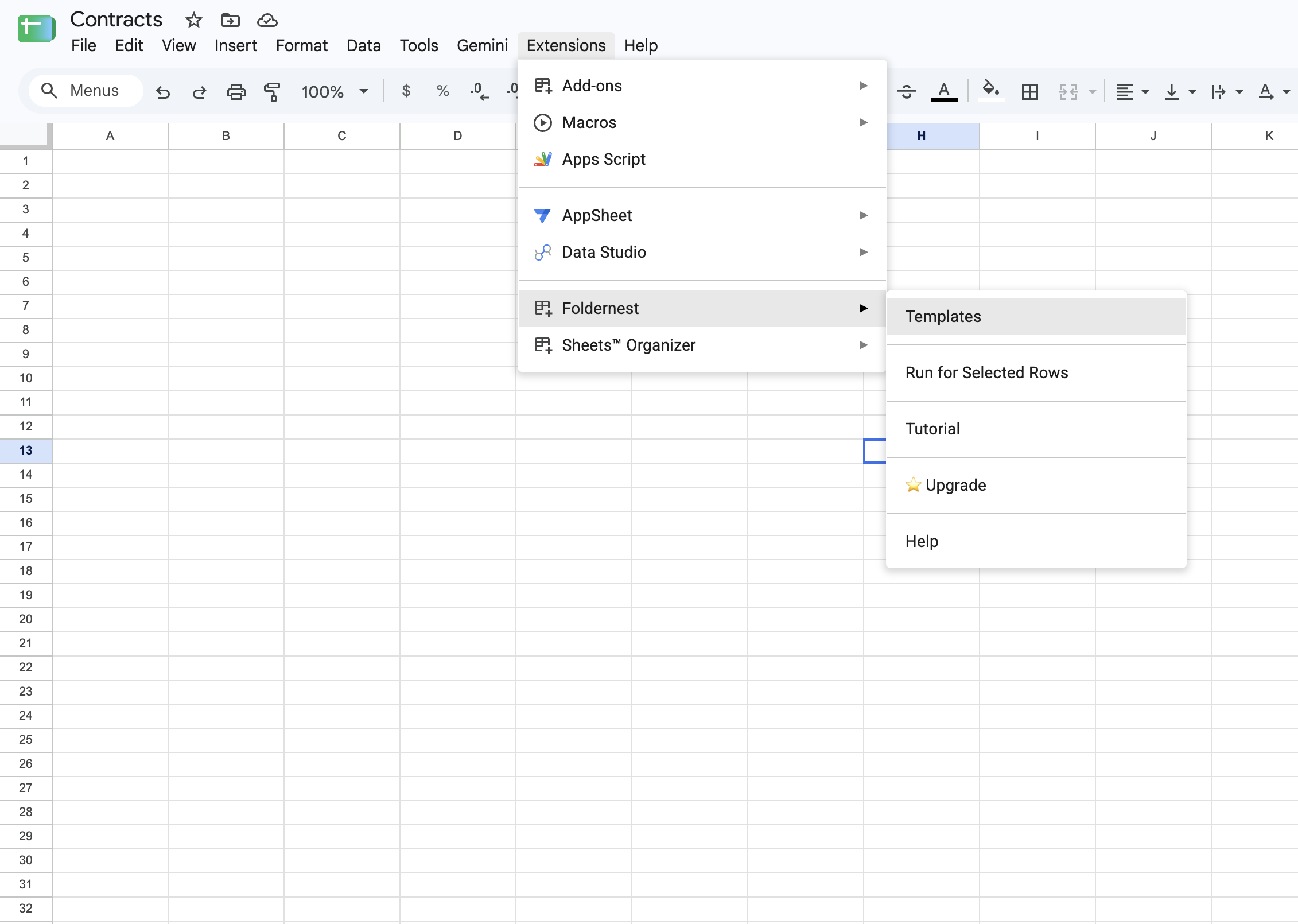
Begin by opening the Google Spreadsheet where your agency, sales team, or operations department tracks client engagements and active proposals. In the top navigation bar:
- 1. Click Extensions in the Google Sheets menu bar.
- 2. Select Foldernest > Document & Folder Templates (or Templates).
Step 2: Choose 'Single Document Template' Mode
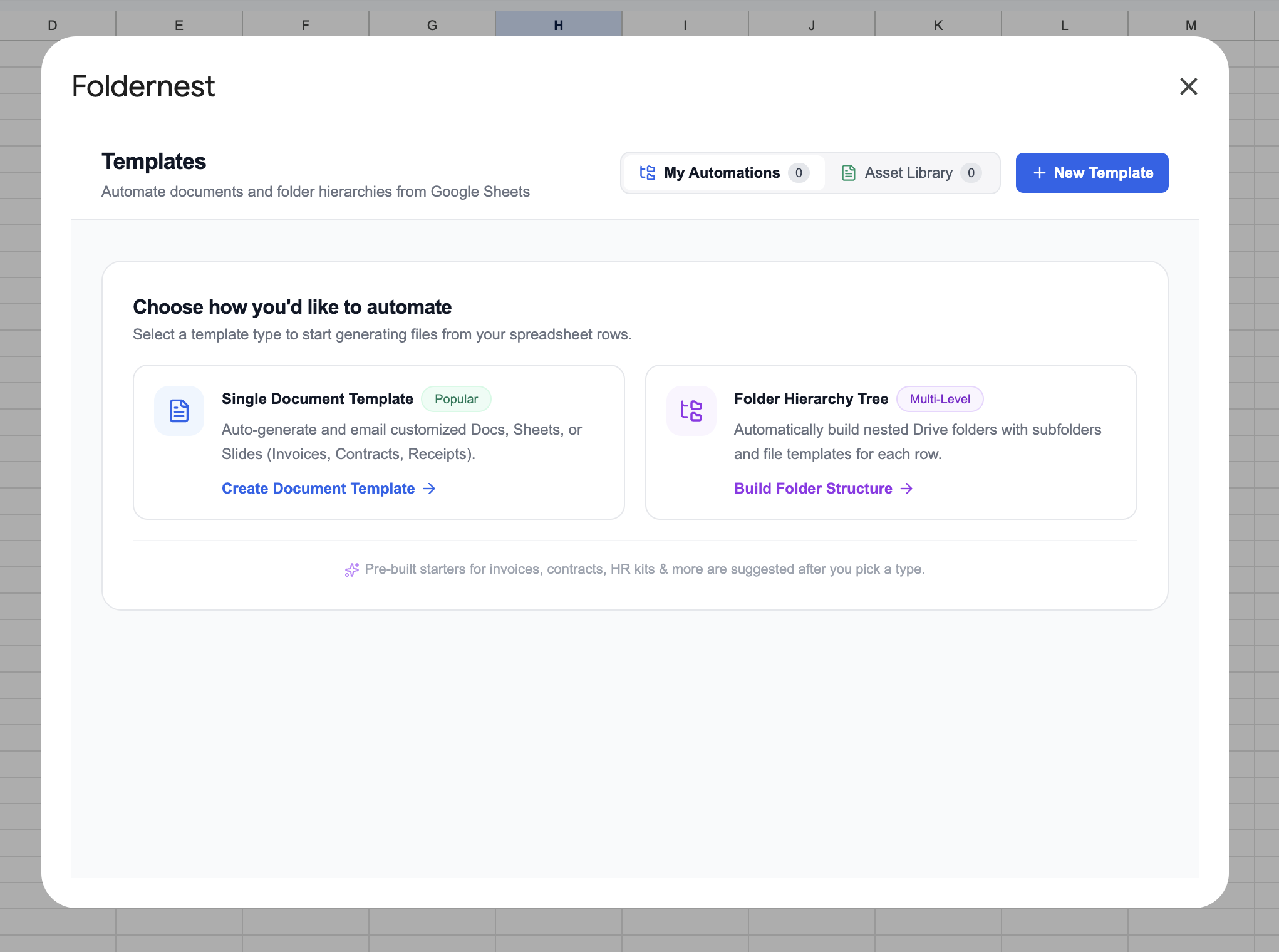
When the Foldernest template builder modal opens, you are presented with two powerful automation modes: generating complete folder structures or generating individual documents. For contract generation, select Single Document Template.
Step 3: Browse Pre-Built Starter Templates
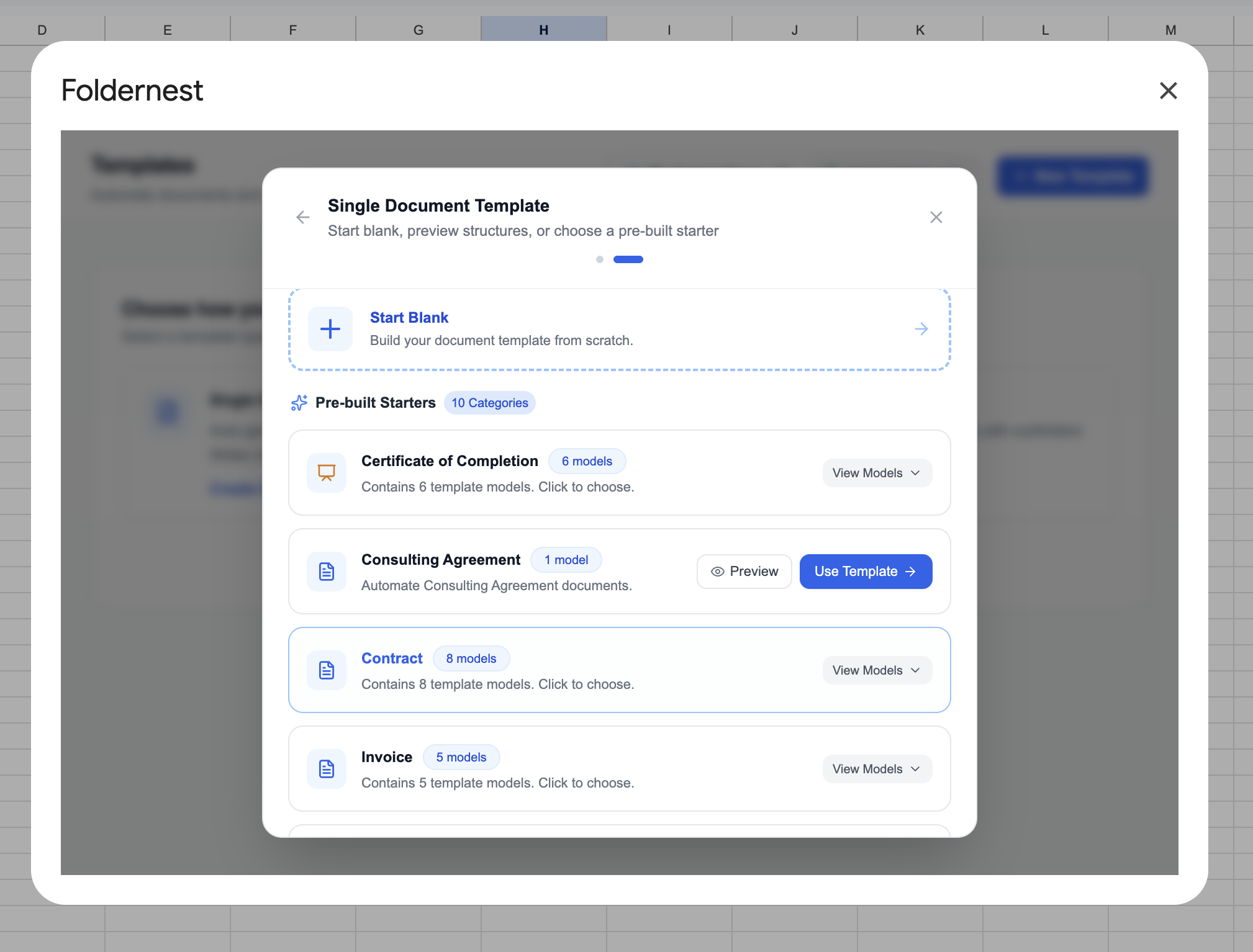
Foldernest includes an extensive library of production-ready templates curated for enterprise agencies, freelancers, HR teams, and property managers. Use the category filter bar at the top to explore starters for *Contract*, *Proposal*, *Invoice*, *Real estate*, and *Certificate*.
Step 4: Select the 'Service Contract' Template
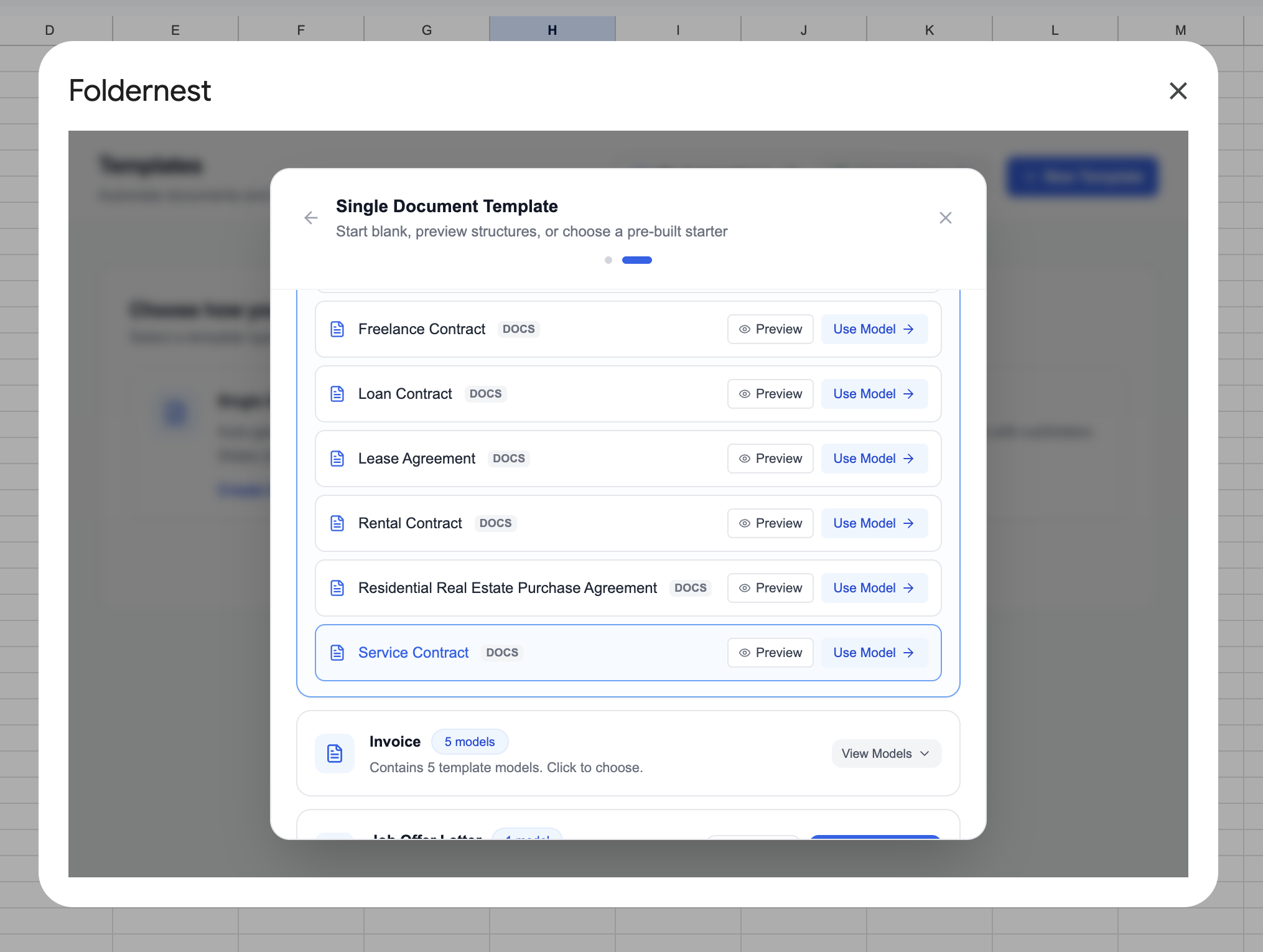
Click the Contract filter pill and locate the Service Contract card. Marked with the blue DOCS badge, this starter provides a comprehensive Master Service Agreement covering scope of services, term options, compensation models, warranties, liability caps, and independent contractor clauses. Click Use Model.
When you select Use Model, Foldernest executes several actions behind the scenes: it clones the master Google Doc template directly into your Google Drive, creates a dedicated sheet tab named 'Service Contract', establishes 29 standardized data columns, applies data validation dropdowns, and inserts realistic sample records ready for immediate testing.
Step 5: Master Google Doc Template & Dynamic Conditional Logic
Open your newly created master Google Doc to inspect the contract layout. Notice how Foldernest uses clean variable markers like `{{Service Provider Name}}` alongside sophisticated conditional evaluation tags `<<If: (condition)>>...<<EndIf>>` to make the agreement fully adaptive:
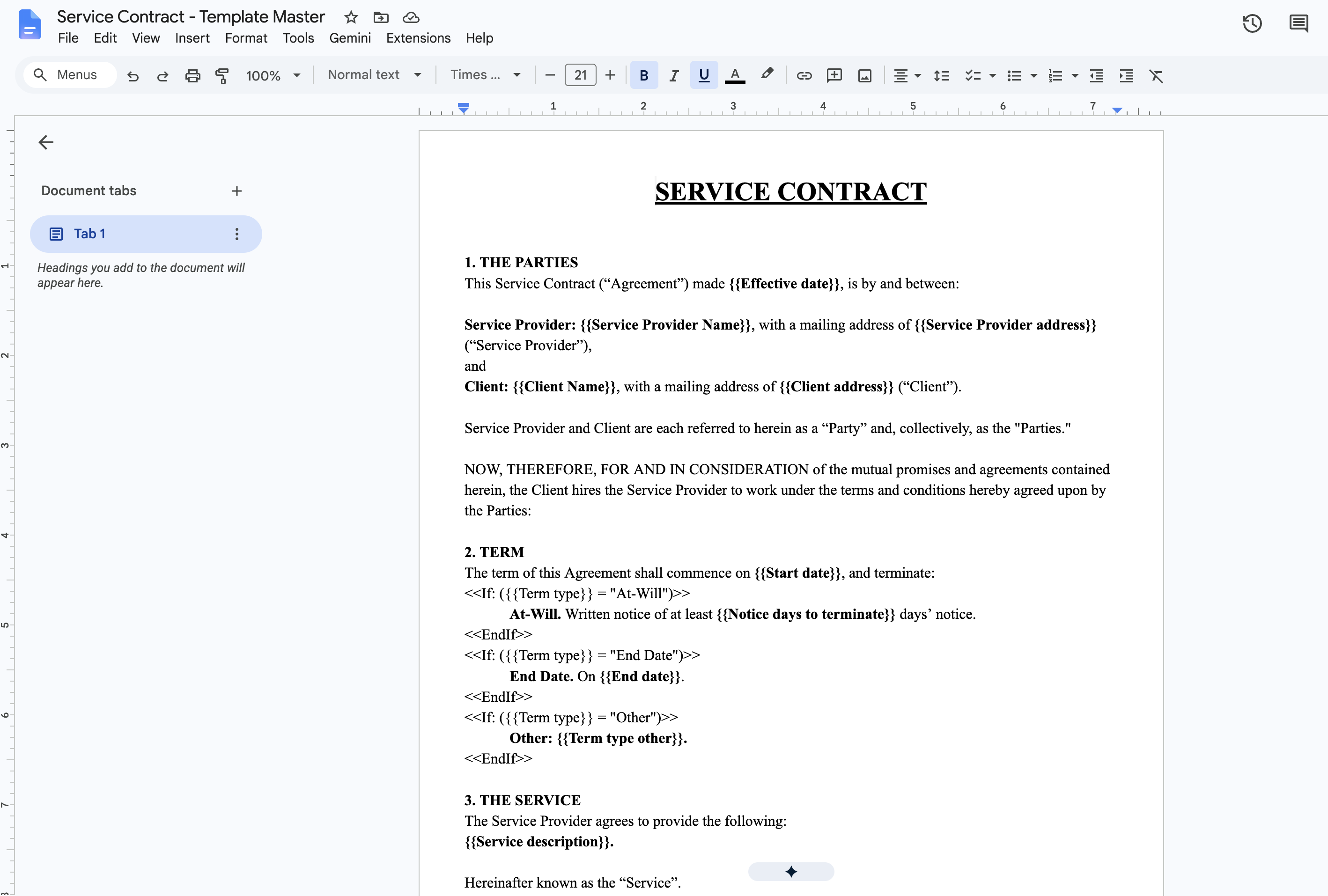
Here is how Foldernest structures the essential clauses of the Service Contract:
- Preamble & Parties: Captures `{{Effective date}}`, `{{Service Provider Name}}` (and address), and `{{Client Name}}` (and address).
- Section 1: Scope of Services: Injects the full project description using `{{Service description}}`.
- Section 2: Term and Termination: Conditionally activates `<<If: ({{Term type}} = "At-Will")>>` with `{{Notice days to terminate}}`, `<<If: ({{Term type}} = "End Date")>>` with `{{End date}}`, or custom terms `<<If: ({{Term type}} = "Other")>>`.
- Section 3: Compensation & Invoicing: Supports hourly rates `<<If: ({{Payment structure}} = "Per Hour")>>` (`{{Hourly rate}}`) and fixed fees `<<If: ({{Payment structure}} = "Per Job")>>` (`{{Job amount}}`).
- Payment Terms & Retainers: Dynamically includes retainer rules `<<If: ({{Retainer requirement}} = "A Retainer is Required")>>` (`{{Retainer amount}}` and `{{Retainer refund policy}}`), or prints standard terms if no retainer is needed.
- Warranties, Liability & Independent Contractor: Standard commercial protection terms guaranteeing contractor independence, mutual confidentiality, and liability limitation.
- Governing Law & Execution: Enforces legal jurisdiction via `{{Governing law state}}` and provides complete signature and title blocks for both parties.
Step 6: Configure Model & Source Sheet
Return to the Foldernest sidebar or setup modal. In Step 1: Model & Setup, confirm that the Template Name is set to `Service Contract` and the Source Sheet points to the active `Service Contract` tab.
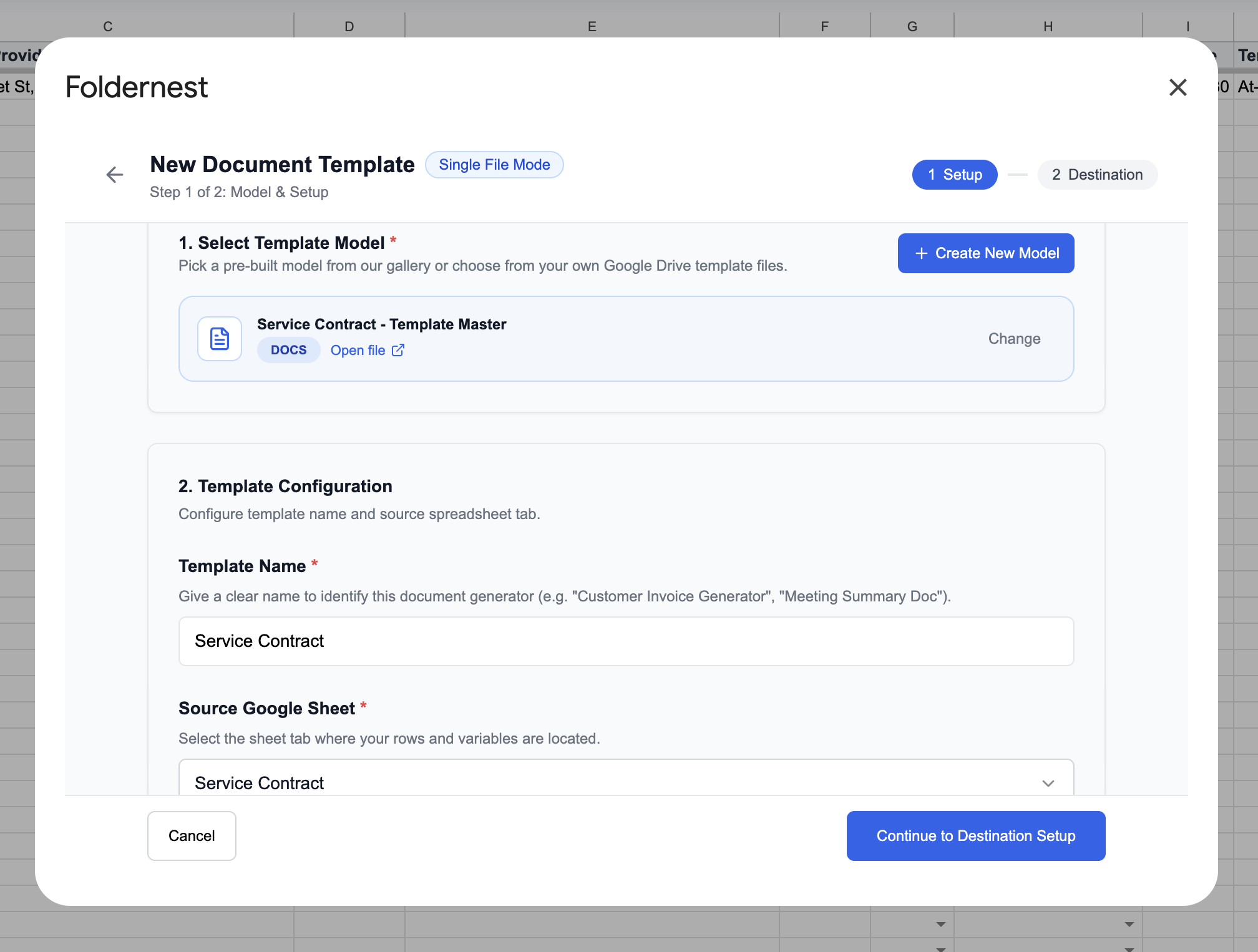
Step 7: Configure Generation Triggers
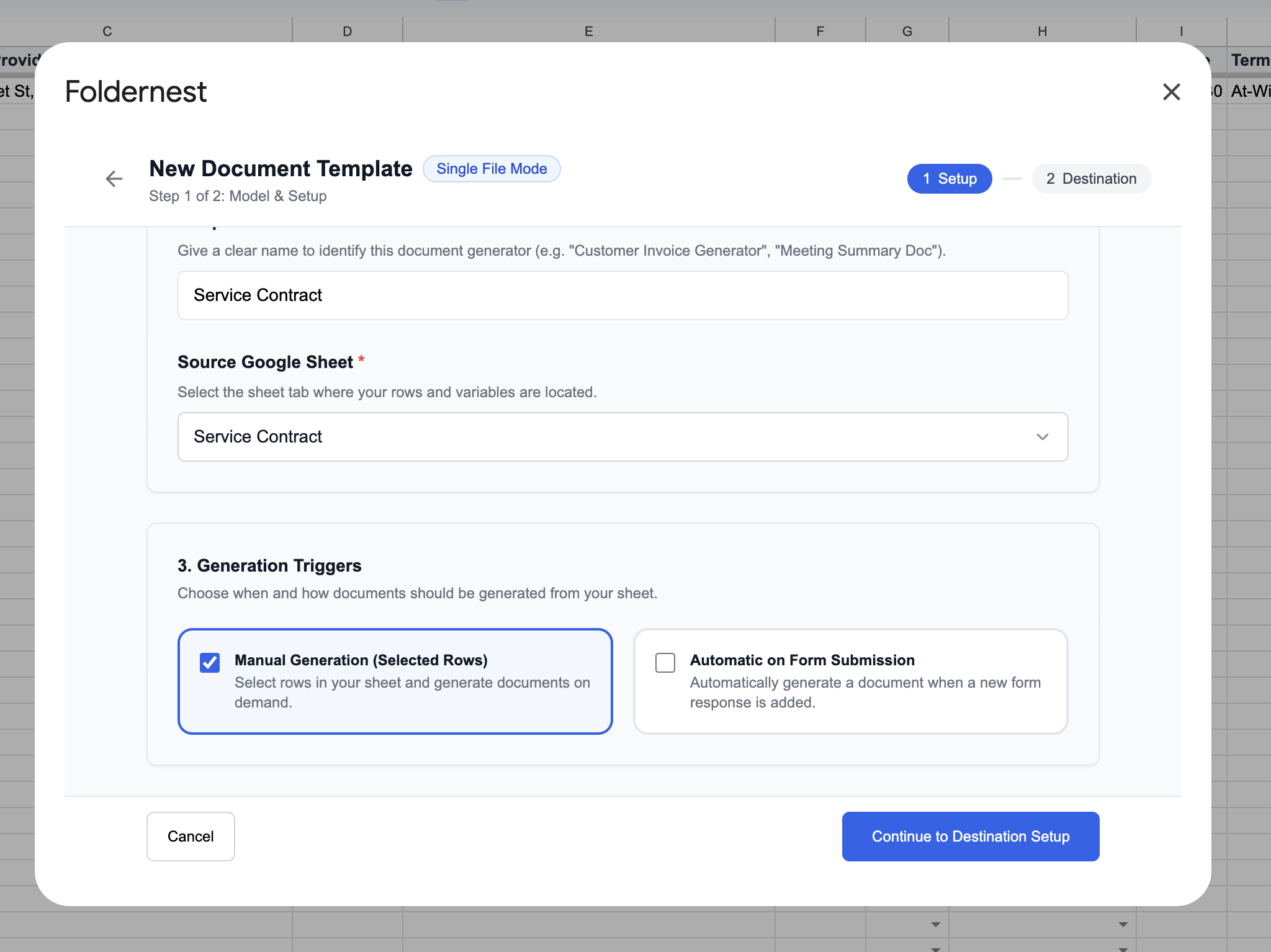
Next, choose when Foldernest should generate contracts. You can switch between two automated workflow modes:
- Manual Generation (On-Demand & Bulk): Ideal for sales teams, partners, and account executives who review terms, negotiate rates, and generate contracts on demand for single rows or batches of selected deals.
- On Google Form Submission: Perfect for client self-service, onboarding portals, or vendor intake forms. Whenever a prospect submits an intake questionnaire, Foldernest immediately compiles the contract and saves it to Drive.
Step 8: Set Dynamic Destination File Naming & Google Drive Folder
In Step 2: Destination & Markers, define how Foldernest names the compiled documents and where it stores them. Use dynamic markers in the filename field to maintain strict document hygiene across your organization:
Contract - {{Effective date}}You can also incorporate client names or company identifiers, such as `Service Contract - {{Client Name}} - {{Effective date}}`. Under Destination Folder, select the target Google Drive directory where finalized contracts should be filed.
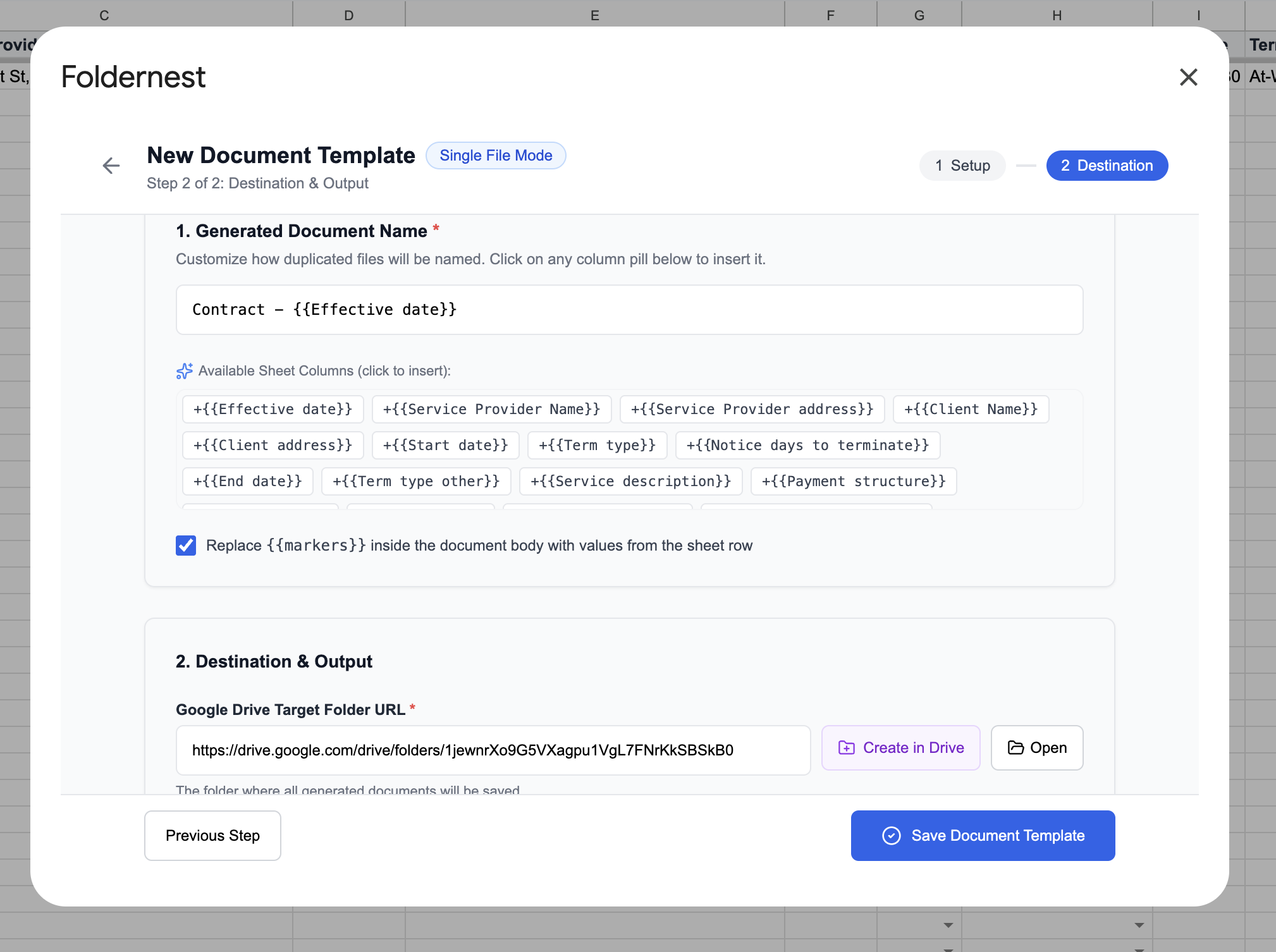
Step 9: Configure File URL Column & Available Markers Explorer
Scroll down in Step 2 to configure the document URL destination. Foldernest automatically detects Column AD (Generated File URL) as the logging column where direct links to generated Google Docs are recorded.
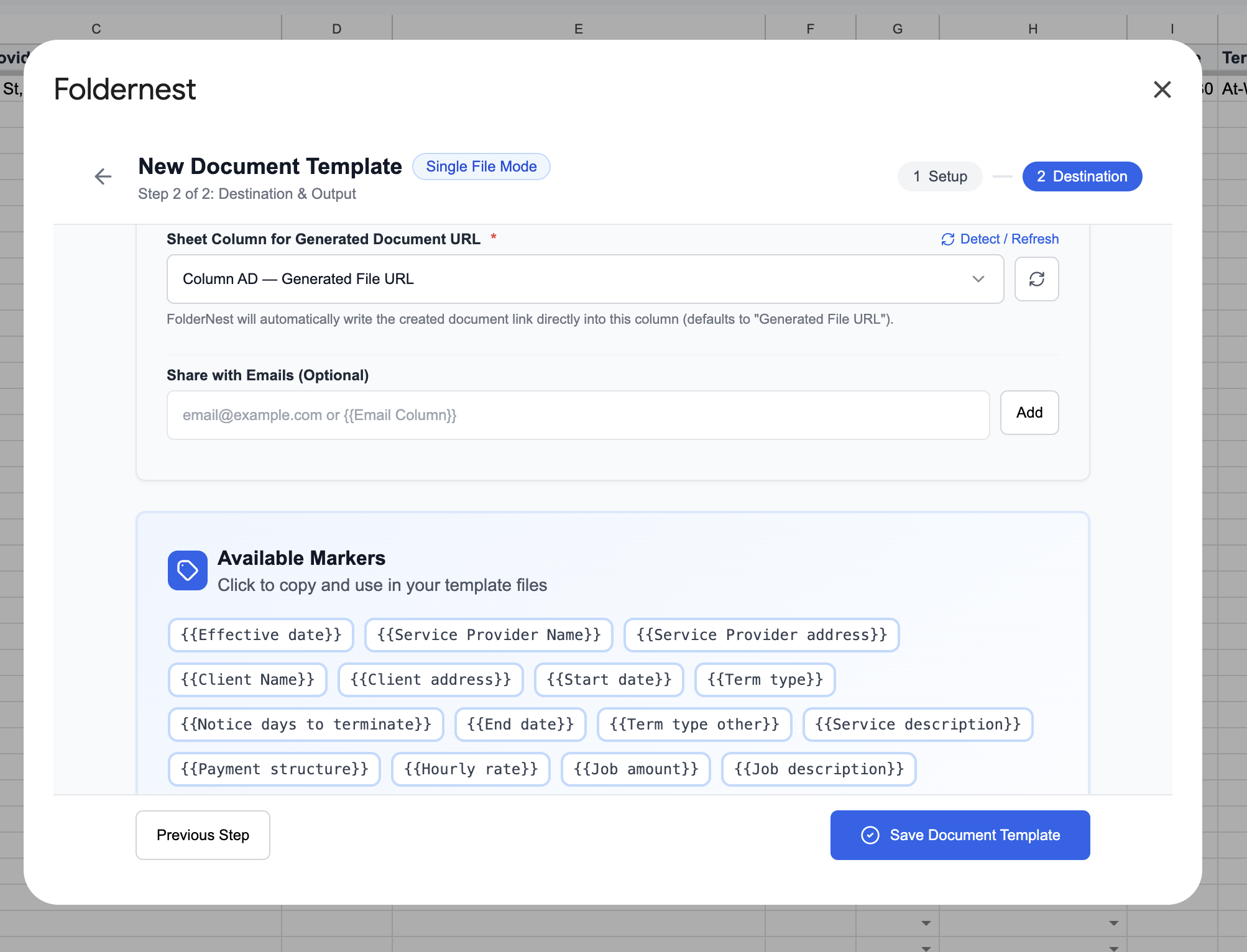
The Available Markers card provides an interactive explorer. Search for any column header to instantly copy its exact marker token (e.g., `{{Service Provider Name}}`, `{{Hourly rate}}`, `{{Retainer amount}}`) directly to your clipboard for quick insertion into your Google Doc master template.
Step 10: Test Automation on Row 2
Before generating agreements in bulk, run a test document using the sample data pre-populated in Row 2. In Step 3: Test, choose Row 2 and review the live data preview (featuring *Rivera Consulting Group LLC* and *Acme Global Technologies Inc*). Click Generate Test Document.
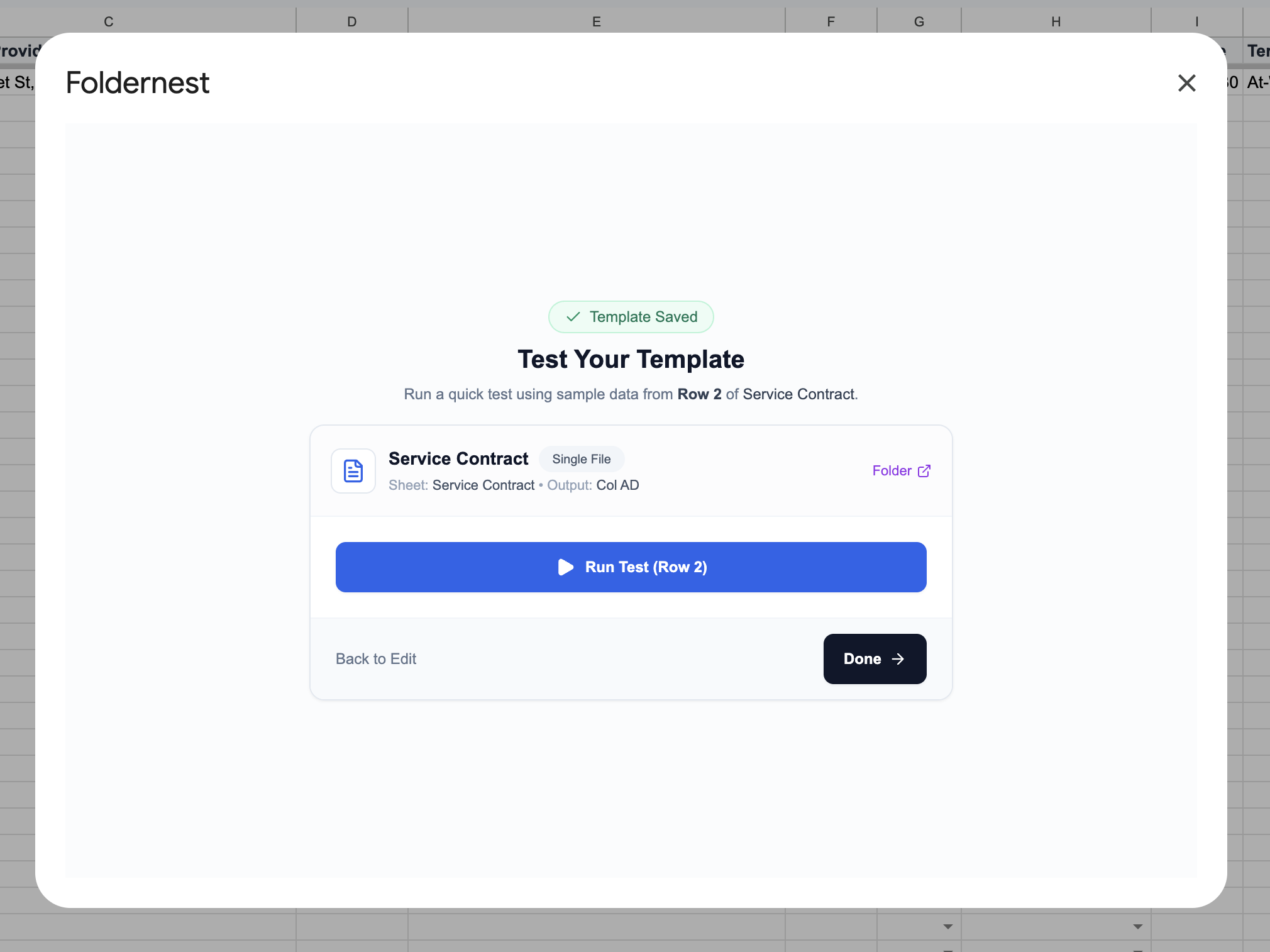
Step 11: Document Creation Success Confirmation
Within seconds, Foldernest compiles the contract, evaluates all conditional logic tags, creates the new Google Doc, and displays the Document Created Successfully! confirmation modal.
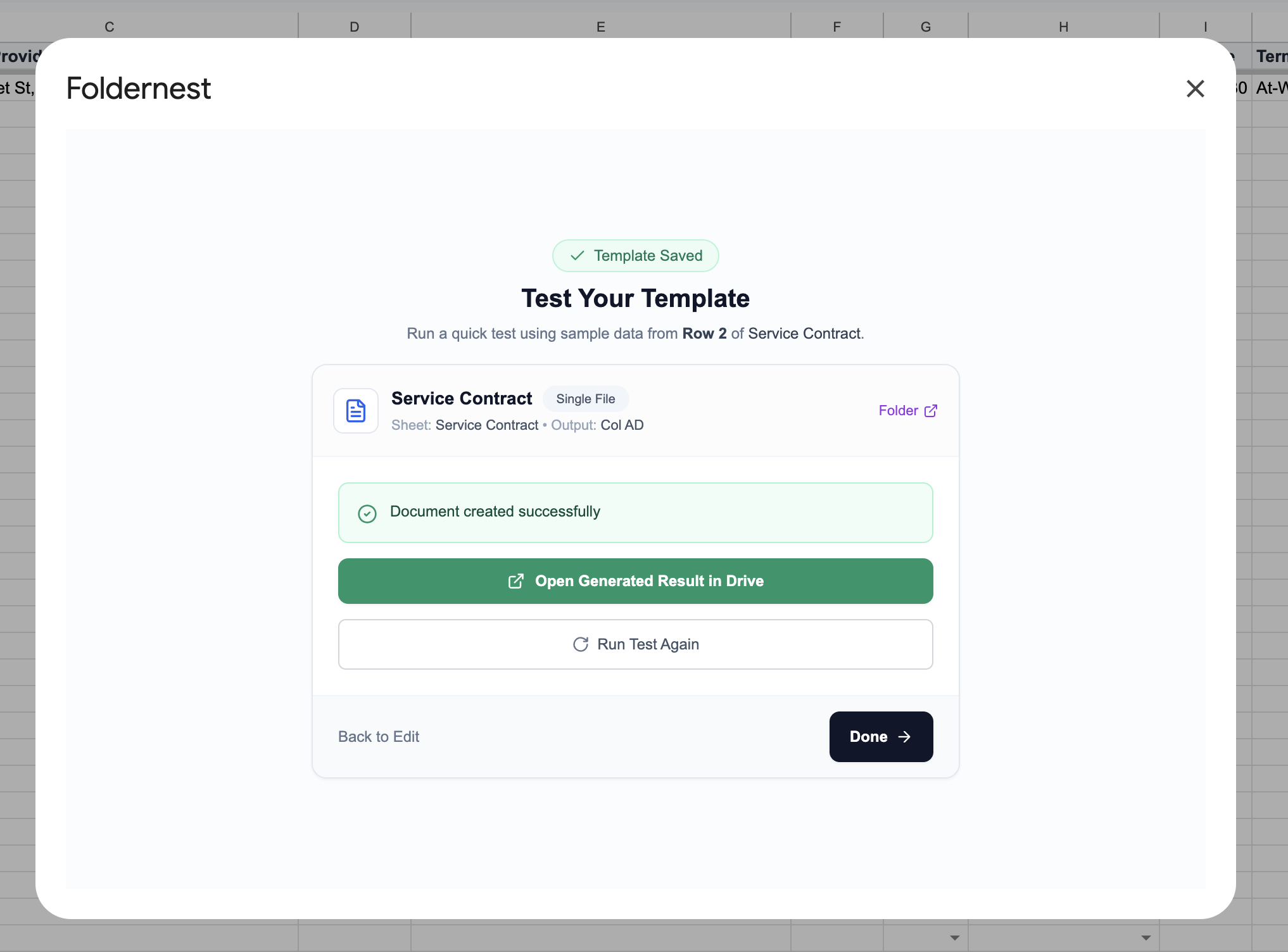
Step 12: Review the Generated Service Contract in Google Docs
Click View Document to inspect the finished contract. Every marker has been seamlessly replaced with clean, formatted data, and the conditional logic engine has stripped out non-applicable clauses:
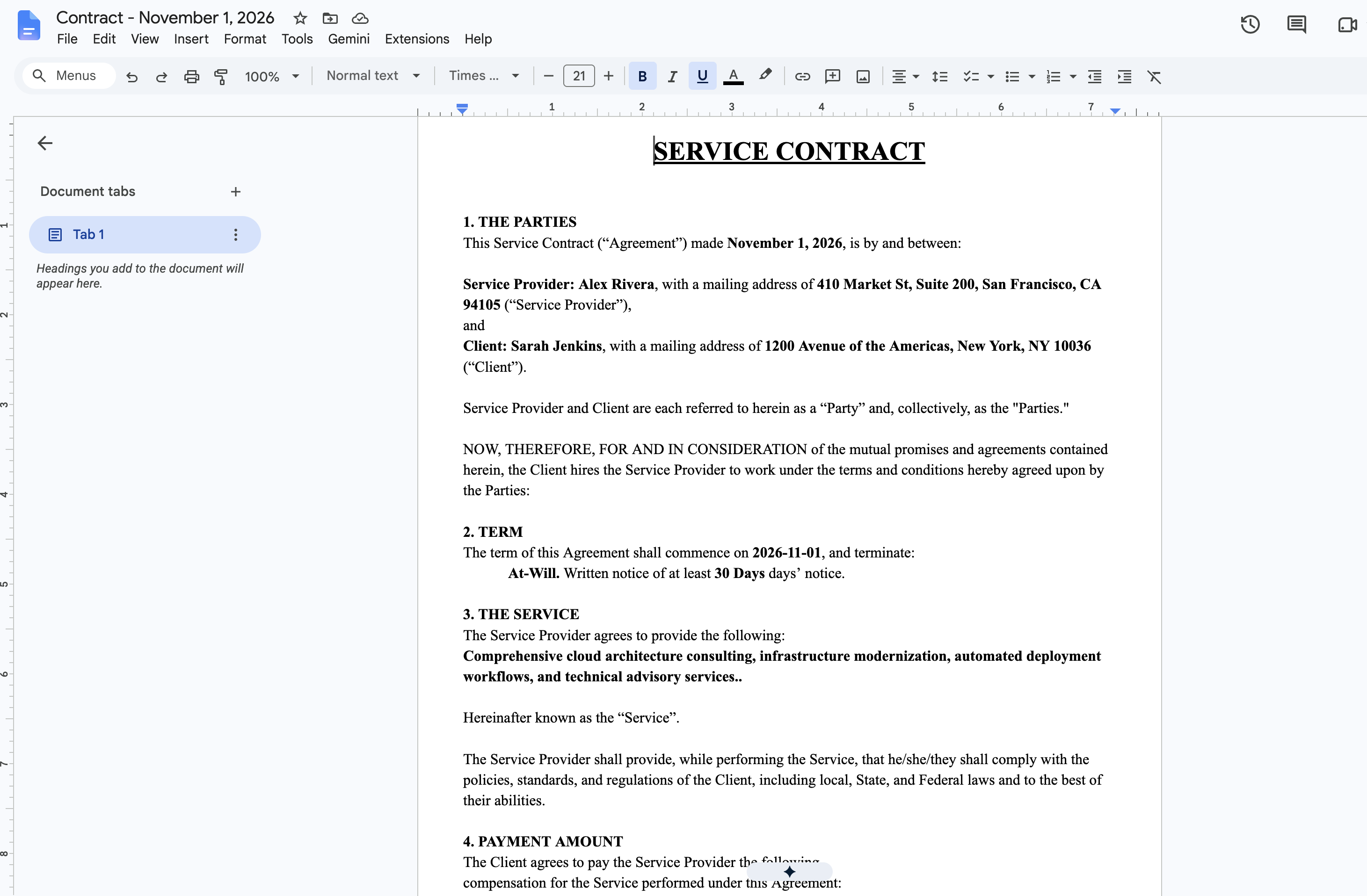
Notice how cleanly the document renders: the *At-Will* clause is retained while the fixed-date clause is removed; the hourly rate of `$175.00` is displayed; the `$2,500.00` refundable retainer is clearly stated; and the authorized signatures for Alex Rivera and Sarah Jenkins are correctly positioned with their official corporate titles.
Step 13: Manage Automations via the Foldernest Dashboard
Your new automation is permanently registered in the My Automations dashboard. From here, you can manage all your agency document workflows in one unified view.
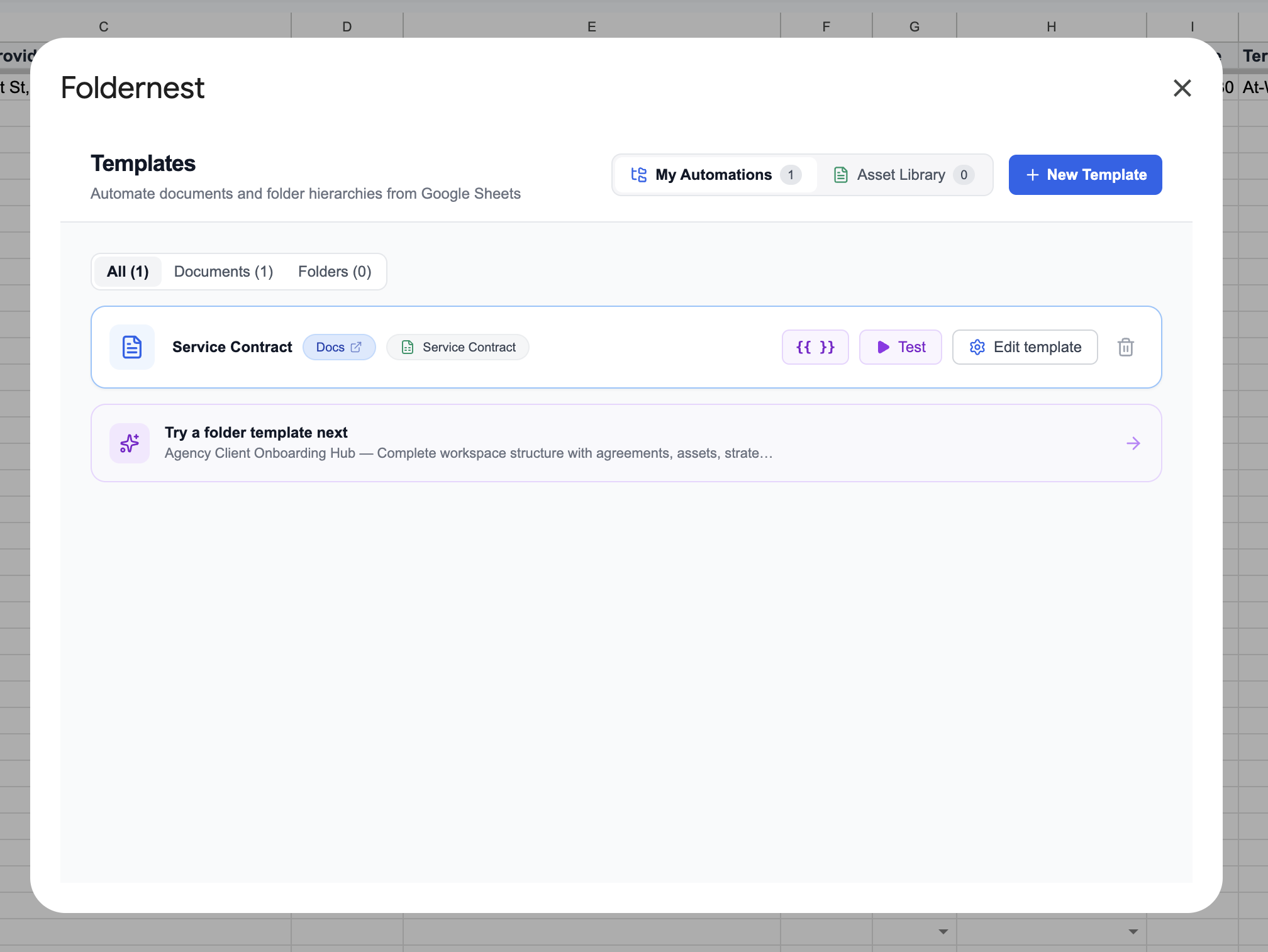
- Visual Model Badges: Clear DOCS and Service Contract tags identify the template format and target spreadsheet tab at a glance.
- Markers Quick Inspector (`{{ }}`): Re-open the available markers palette whenever you want to add new columns or customize template wording.
- One-Click Testing: Run instant test generations on any spreadsheet row directly from the dashboard.
- Edit & Duplicate: Seamlessly adjust destination Drive folders, alter trigger rules, or update logging columns as your operations expand.
Step 14: Google Drive Smart Chip in Google Sheets Column AD
When Foldernest creates a contract, it logs the document URL back into Column AD (Generated File URL) in your Google Sheet. Google Sheets automatically renders this link as a native Google Drive Smart Chip:
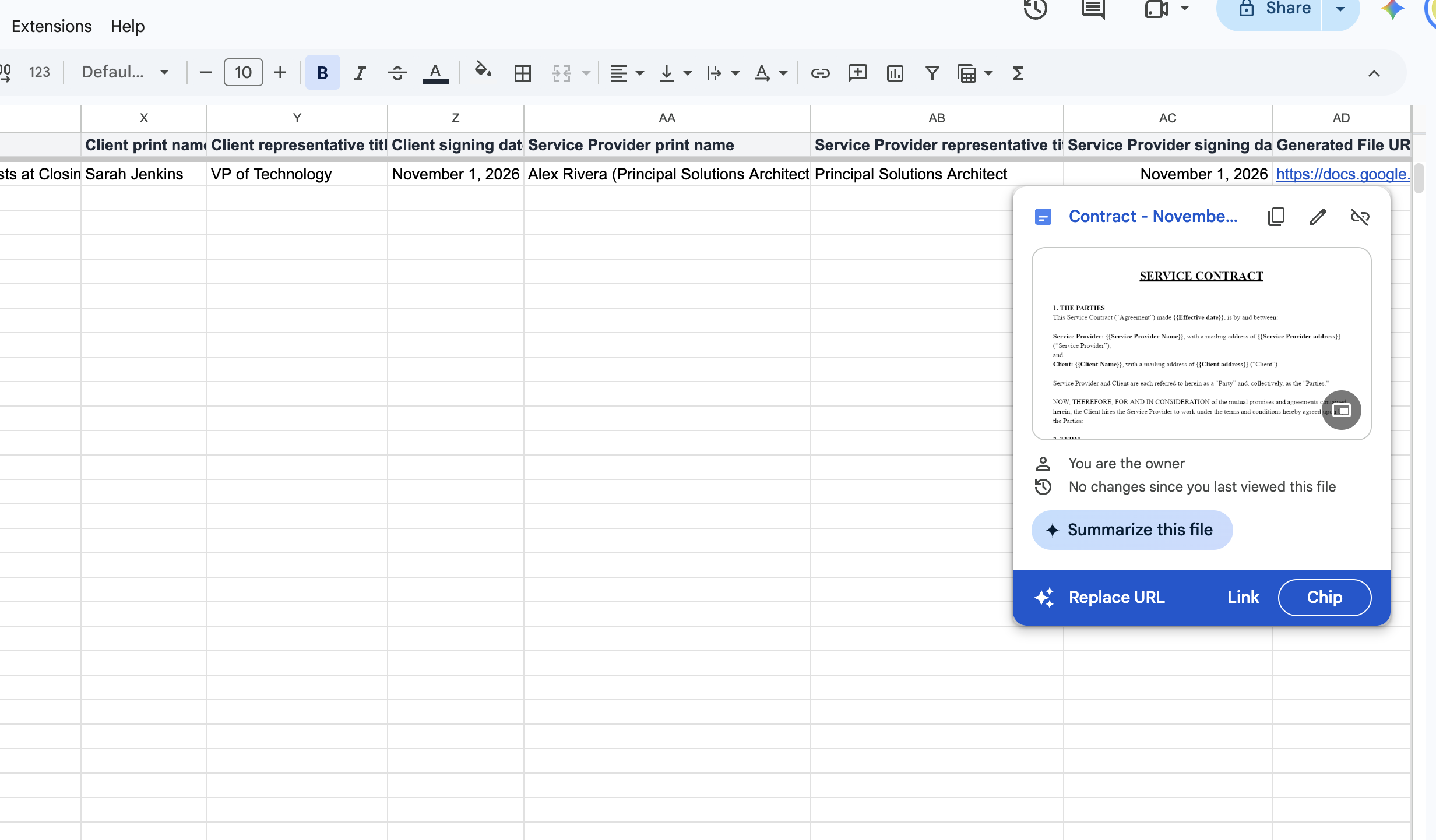
Account executives and operations managers can hover over the smart chip to view an instant document snapshot, verify completion, or click through to forward the document for client signature—all without leaving Google Sheets.
Deep Dive: Flexible B2B Service Contract Configurations
Every client engagement has unique commercial requirements. Rather than maintaining dozens of separate document templates, Foldernest allows you to handle every billing structure, engagement timeline, and retainer policy inside a single master template using conditional logic:
- Term Structure Flexibility (At-Will vs. End Date vs. Other): Select *At-Will* for ongoing retainer arrangements that require 30 days written notice to terminate. Choose *End Date* for time-boxed projects with defined completion deadlines.
- Compensation Models (Hourly Rate vs. Fixed Job Fee): Toggle between *Per Hour* (e.g., $175/hr) and *Per Job* (e.g., $7,500 fixed project fee). Foldernest activates the corresponding compensation language and purges the alternative, keeping legal clause numbering intact.
- Retainer Handling (Refundable vs. Non-Refundable): When *A Retainer is Required*, the contract specifies the exact deposit amount and whether it is refundable or credited against final invoices. If *No Retainer Required* is selected, the clause cleanly states standard invoicing terms.
- Invoicing Cycles & Late Payment Terms: Standardize net payment windows (e.g., 15 Days) and default monthly interest fees (e.g., 1.5% per month) to protect agency cash flow and prevent payment delays.
- Jurisdiction & Governing Law: Set the governing state (e.g., *California*, *New York*, *Delaware*) dynamically so that regional legal requirements are consistently respected.
Manual Contract Drafting vs. Automated with Foldernest
| Workflow Dimension | Manual Copy-Paste | Automated with Foldernest |
|---|---|---|
| Time Required per Contract | 30–60 minutes per document | Under 3 seconds per row |
| Data Bleed & Confidentiality Risk | High (residual names, rates, or old client scopes) | Zero (compiled fresh from validated spreadsheet rows) |
| Conditional Logic (Rates, Terms, Retainers) | Manual clause deletion prone to leftover text | Automated via dynamic <<If: ...>> tags |
| Google Drive File Organization | Scattered files across personal folders | Standardized naming in centralized Drive folders |
| Pipeline Tracking & Record Keeping | Lost links across Slack and email threads | Logged in Column AD with Google Drive Smart Chips |
| Scalability for Growing Agencies | Administrative backlog slows new client onboarding | Generate 1, 10, or 50 customized contracts instantly |
Advanced Best Practices for Agencies & Consultancies
Pro Tip
Accelerate Client Onboarding: Send new clients a Google Form intake questionnaire to capture legal entity names, addresses, and authorized signatories. Connect the form responses to Foldernest using the 'On Google Form Submission' trigger to generate ready-to-sign agreements automatically.
- Standardize Numeric & Financial Formats: Keep your spreadsheet columns cleanly formatted (e.g., `$175.00` for hourly rates and `2,500.00` for retainers) so your generated contracts reflect institutional financial formatting.
- Pair with Folder Automation: Combine your Service Contract template with a Foldernest Folder Template to automatically create organized client dossiers (e.g., `Client Name / Contracts`, `Client Name / Invoices`, `Client Name / Deliverables`) simultaneously.
- Add Deal Tracking Status Columns: Insert tracking columns adjacent to Column AD—such as *Contract Status* (*Drafted*, *Sent for Signature*, *Signed*), *Effective Date*, and *Counter-Signatory*—to manage your sales pipeline.
- Direct E-Signature Integration: Export the completed Google Doc as a PDF or connect your Google Drive folder directly to e-signature platforms (DocuSign, PandaDoc, Adobe Sign) for automated signature dispatch.
Frequently Asked Questions (FAQ)
Is a service contract generated via Foldernest legally binding?
Yes. Foldernest generates official Google Docs documents based on your approved master template. Once signed by authorized representatives of both parties (either wet signature or electronically via an ESIGN/UETA compliant platform like DocuSign, Adobe Sign, or HelloSign), the contract is as legally binding and enforceable as any traditionally drafted contract.
Can I customize the clauses or use my agency's existing contract?
Yes. While Foldernest includes a comprehensive pre-built Service Contract starter, you can automate any existing Google Doc contract. Simply choose Start Blank in the Foldernest template picker, select your agency's standard document, and place `{{Column Header}}` markers and `<<If: ...>>` conditional tags wherever spreadsheet variables belong.
How does Foldernest prevent blank lines when clauses are omitted?
Foldernest uses strict conditional syntax: `<<If: (condition)>>clause content<<EndIf>>`. During document compilation, if a condition evaluates to false (for example, if a contract has no retainer requirement), Foldernest removes the enclosed content, clause numbering, and paragraph breaks entirely, leaving no awkward whitespace or formatting gaps.
What happens if our team adds or rearranges columns in Google Sheets?
You never have to rebuild your automation. Open Step 2 in the Foldernest setup wizard and click Detect / Refresh. Foldernest scans your spreadsheet, recognizes the new column order, updates the Column AD logging destination if columns were shifted, and updates all available variable markers immediately.
Does Foldernest preserve agency branding, fonts, and headers?
Yes. Foldernest creates copies of your master Google Doc using Google Drive APIs. All logos, company headers, custom typography, table styles, paragraph spacing, and footers remain 100% intact in every generated contract.
Can we generate service contracts in bulk for multiple clients?
Yes. Highlight multiple client rows in your Google Sheet and click Run for Selected Rows in the Foldernest sidebar. Foldernest compiles individual, customized agreements for each client, logs each direct Google Doc link in Column AD, and files every document in your designated Google Drive folder.
Start Automating Service Contracts Today
Manual contract drafting drains valuable billable hours, delays deal closures, and introduces costly legal risks. By uniting Google Sheets data tracking with dynamic, conditional Google Docs generation in Foldernest, you can produce flawless service agreements in seconds and onboard new clients faster.
Ready to accelerate your agency operations? Install Foldernest from the Google Workspace Marketplace and generate your first automated Service Contract today.