
Every client engagement starts with an essential legal foundation: a consulting contract that outlines the scope of work, timeline, compensation model, retainer requirements, termination rules, and governing law. But for independent consultants, boutique agencies, and professional service firms onboarding new clients every month, creating these contracts manually is a tedious, repetitive chore.
The traditional workflow — duplicating a previous agreement, hunting through clauses to change names and addresses, recalculating fees, and fixing dates — is painfully slow and fraught with risk. In this comprehensive step-by-step guide, you will learn how to turn your Google Sheets client pipeline into polished, customized consulting contracts in Google Docs in seconds using Foldernest and its free Consulting Contract starter template.
The Hidden Cost of Manual Contract Drafting
Copying, editing, and manually adjusting contracts introduces significant legal and business vulnerabilities:
- Party Data Leaks: Reusing past documents frequently leaves a previous client's business name, confidential rate, or corporate address buried inside an overlooked clause.
- Complex Compensation Mismatches: Real-world consulting contracts aren't one-size-fits-all. Some clients pay hourly, others pay a fixed milestone fee, and others require upfront retainers or performance commissions. Manually deleting and adjusting these clauses leads to drafting inconsistencies and errors.
- Bottlenecked Sales Velocity: Spending 30 to 60 minutes preparing and formatting each agreement delays client onboarding and dampens deal momentum.
- Disorganized Google Drive Archives: Contracts get scattered across random folders with haphazard naming like `Consulting_Contract_Final_v2_edit.docx`, making contract auditing impossible.
The Modern Solution: Smart Sheets + Dynamic Conditional Docs
With Foldernest, contract automation goes far beyond basic mail merge. Your master contract lives as an editable Google Doc equipped with dynamic variable tags (`{{Column Name}}`) and conditional content logic (`<<If: ...>>...<<EndIf>>`):
- Dedicated Party Personas: Separate fields for Consultant (*Alex Rivera*) and Client (*Sarah Jenkins*), ensuring party names, mailing addresses, and legal notice locations never overlap.
- Intelligent Conditional Clauses: Include hourly rates, fixed fees, retainer obligations, or expense reimbursement sections *only* when the corresponding sheet column contains a value. If a client doesn't pay a retainer, the retainer clause is cleanly omitted with zero leftover whitespace.
- Automated Output Logging: The URL of each generated Google Doc is instantly logged into a dedicated column in Google Sheets, giving you a centralized contract register with interactive hover cards.
- One-Click Column Detection: Added or rearranged columns in your sheet? Foldernest's smart column refresh re-indexes your structure instantly.
Step 1: Open Foldernest in Google Sheets
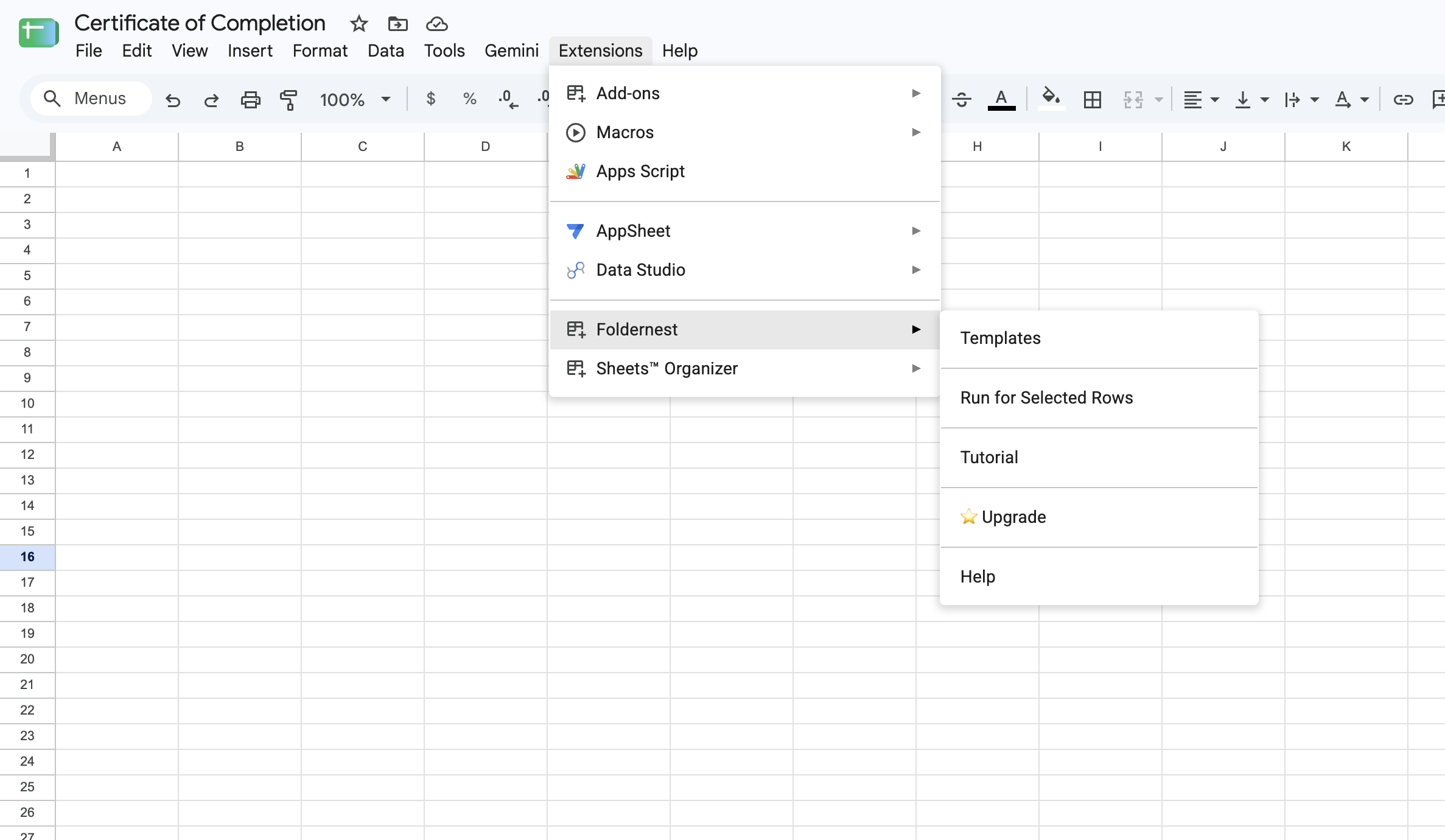
Open the Google Sheet where you track client engagements or proposals. In the top menu bar:
- 1. Click Extensions in the Google Sheets toolbar.
- 2. Select Foldernest > Templates.
Step 2: Choose 'Single Document Template'
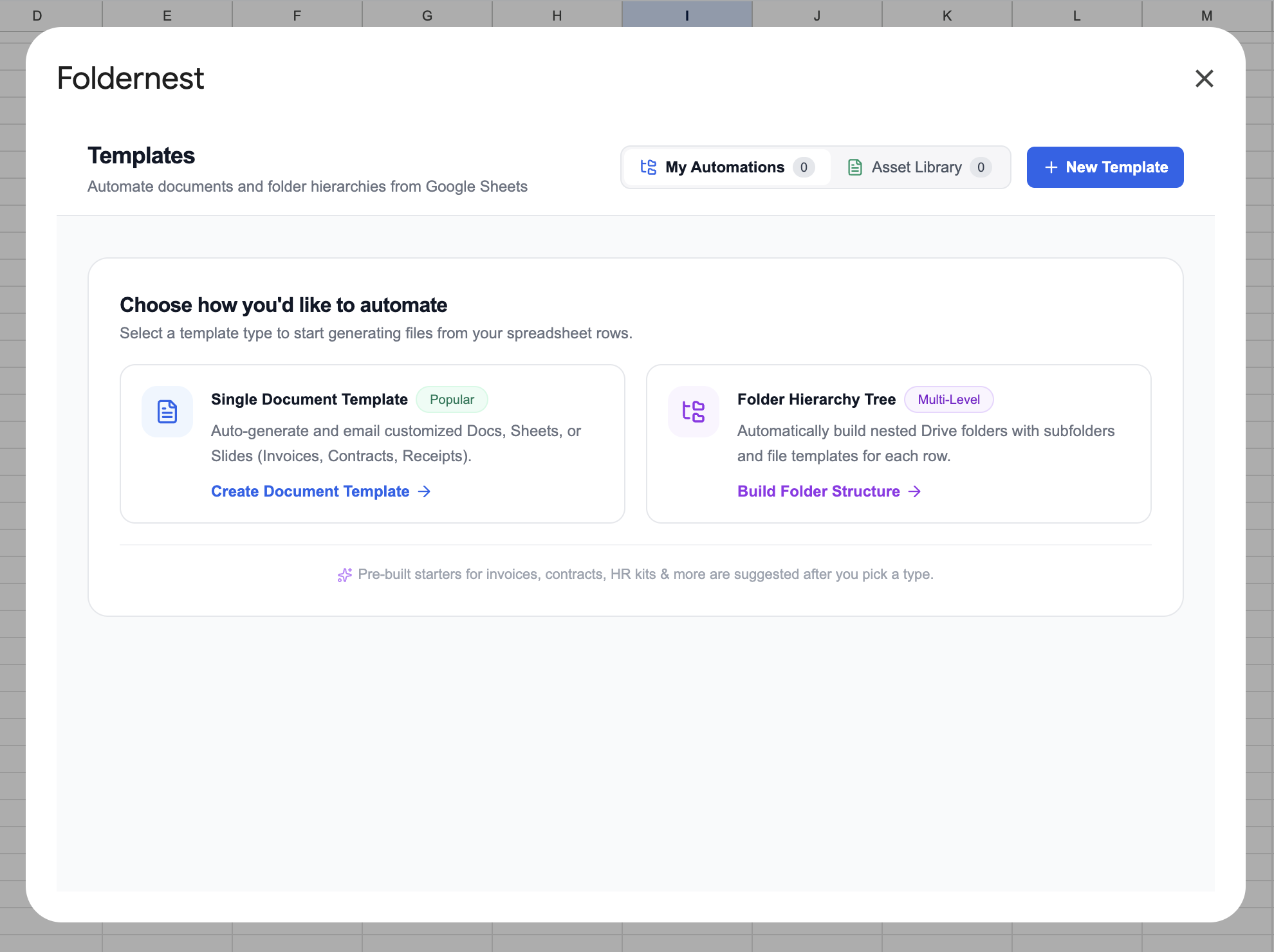
In the creation dialog, click Single Document Template. This automation mode generates one tailored Google Docs, Slides, or Sheets file for every selected row in your spreadsheet.
Step 3: Browse the Pre-Built Starters Gallery
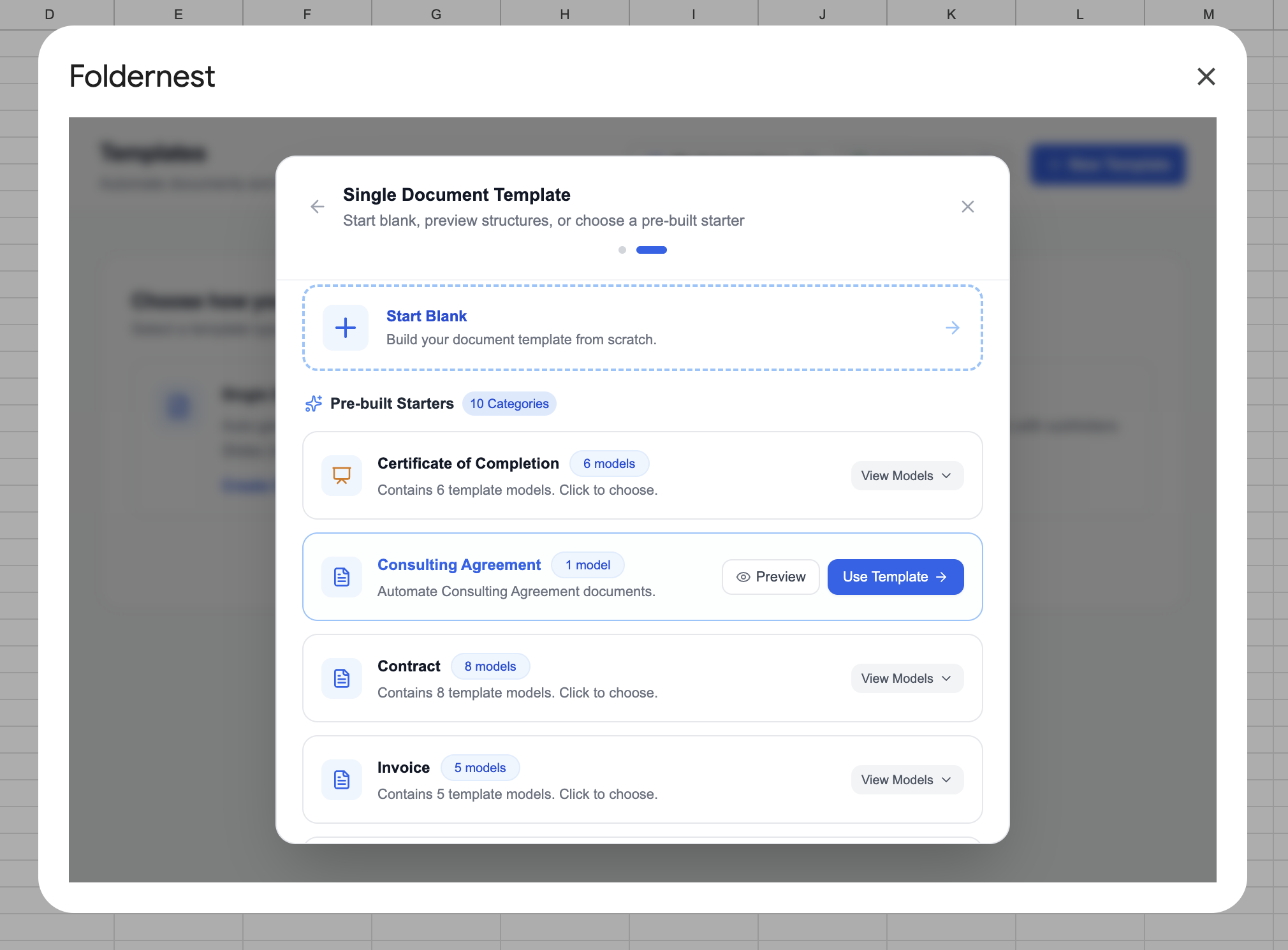
Foldernest provides 10 pre-configured document categories — from HR onboarding kits and invoices to complex commercial agreements. Scroll down to the Pre-built Starters section.
Step 4: Select the 'Consulting Contract' Model
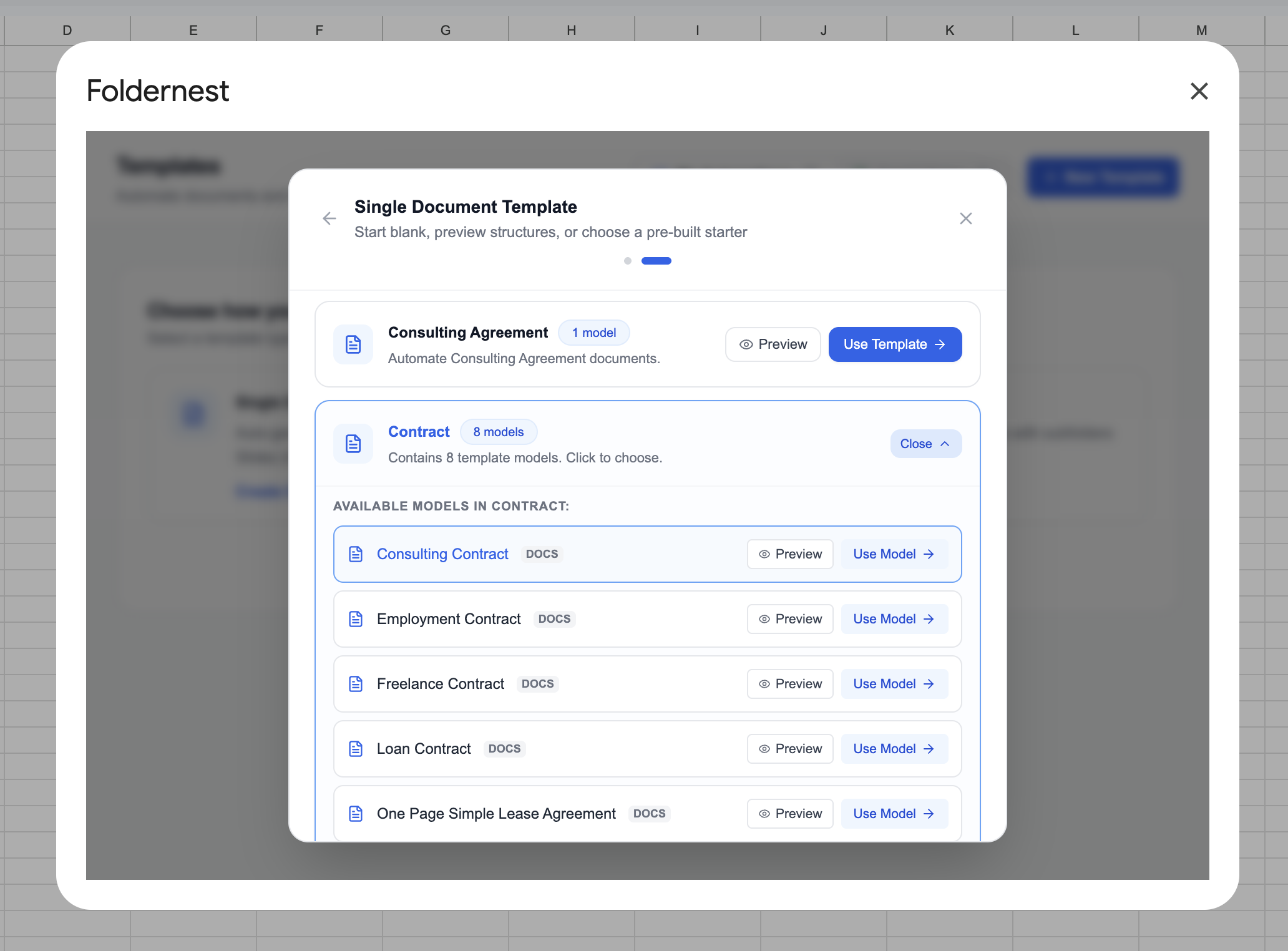
Expand the Contract category (which houses 8 commercial contract types including freelance, employment, and lease agreements). Locate Consulting Contract (DOCS) and click Use Model.
When you select this model, Foldernest automatically provisions your Google Workspace in three ways:
- Generates a Sheet Tab: Creates a dedicated Consulting Contract tab containing curated columns for dates, parties, services, hourly rates, fixed fees, commission bases, retainers, expense rules, and notice addresses.
- Populates Realistic Sample Data: Injects a complete test client row with distinct parties (*Alex Rivera* as Consultant and *Sarah Jenkins* as Client).
- Copies the Master Template: Places an editable Consulting Contract - Template Master Google Doc in your own Google Drive.
Step 5: Inspect the Master Template & Conditional Logic
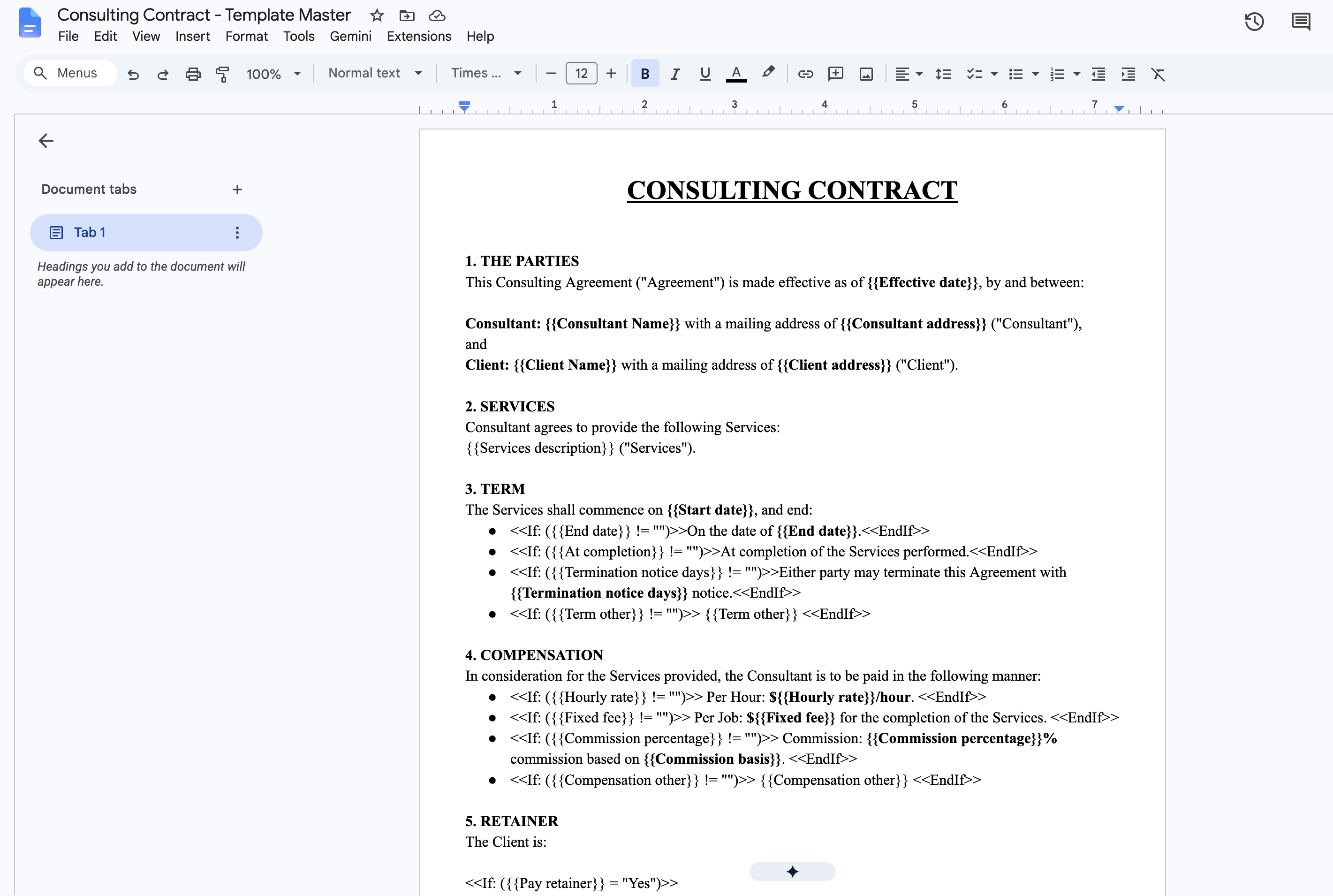
Open your newly created Consulting Contract - Template Master in Google Docs. You'll see standard contract provisions embedded with dynamic `{{markers}}` and powerful conditional syntax:
Pro Tip
How Conditional Content Works: Foldernest evaluates expressions like `<<If: ({{Hourly rate}} != "")>>Per Hour: ${{Hourly rate}}/hour.<<EndIf>>` in real time. If a row has an hourly rate, that bullet point is rendered. If the field is empty, Foldernest strips out the entire statement without leaving empty bullets or awkward blank lines!
Key conditional clauses built directly into the template include:
- Term & Completion: `<<If: ({{End date}} != "")>>On the date of {{End date}}.<<EndIf>>` and `<<If: ({{At completion}} != "")>>At completion of the Services performed.<<EndIf>>`.
- Compensation Options: Supports hourly billing, fixed job fees, commission percentages (`{{Commission percentage}}% based on {{Commission basis}}`), or custom compensation structures.
- Retainer Requirements: `<<If: ({{Pay retainer}} = "Yes")>>` dynamically toggles whether retainer deposit terms and refundable/non-refundable rules appear.
Step 6: Name Your Generator & Select the Source Sheet
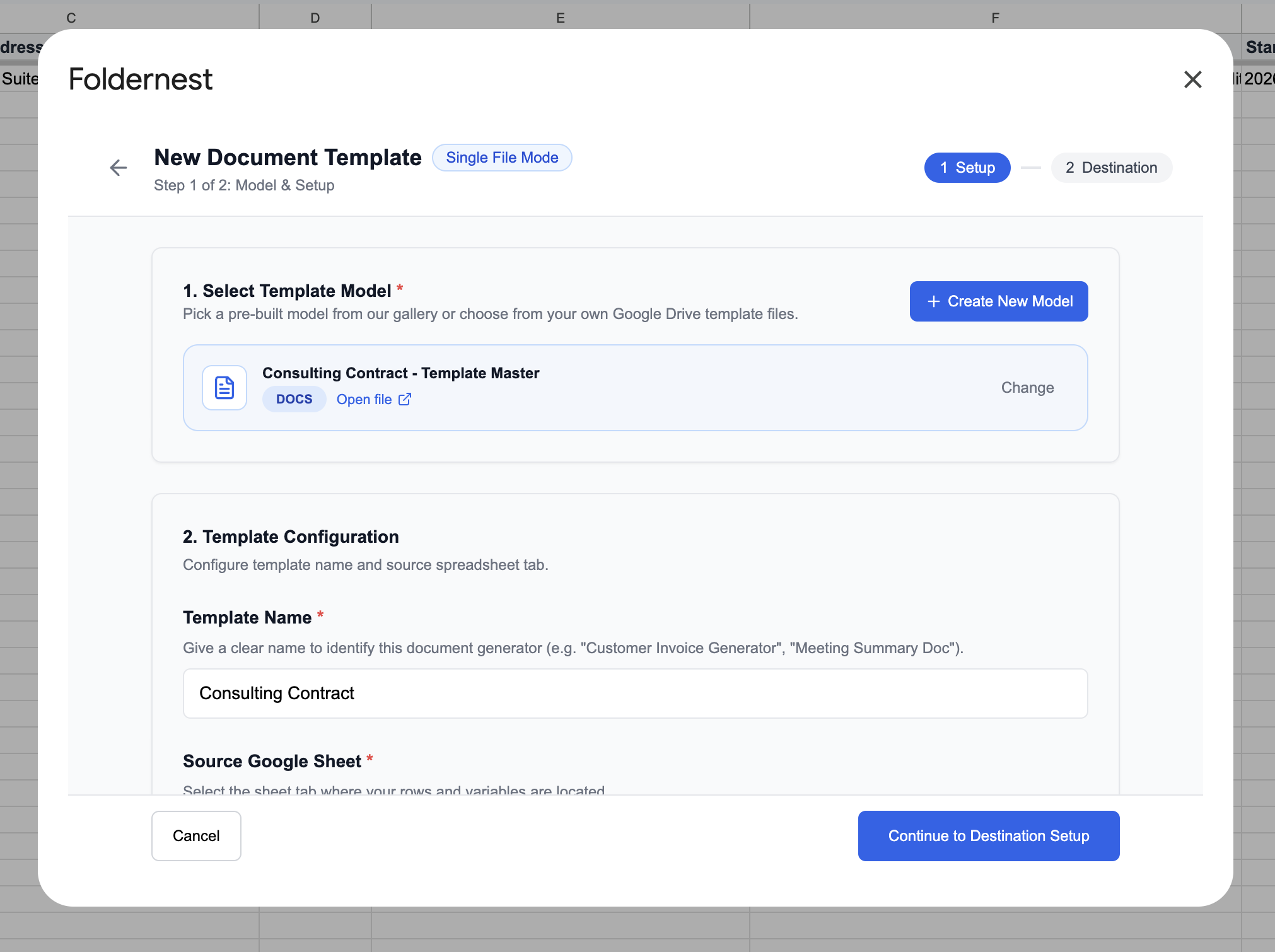
Return to the Foldernest wizard (Step 1 of 2: Model & Setup). The Template Master is automatically linked. Give your automation a friendly name (e.g. *Consulting Contract*) and ensure the source sheet is set to Consulting Contract.
Step 7: Choose Generation Triggers
Under Generation Triggers, select how you want contracts to be produced:
- Manual Generation (Selected Rows): Recommended when drafting contracts on demand. Simply highlight the rows in your sheet and click generate.
- Automatic on Form Submission: Perfect if your prospects fill out a Google Form, Typeform, or Jotform client intake questionnaire. Each submission instantly generates a ready-to-review contract.
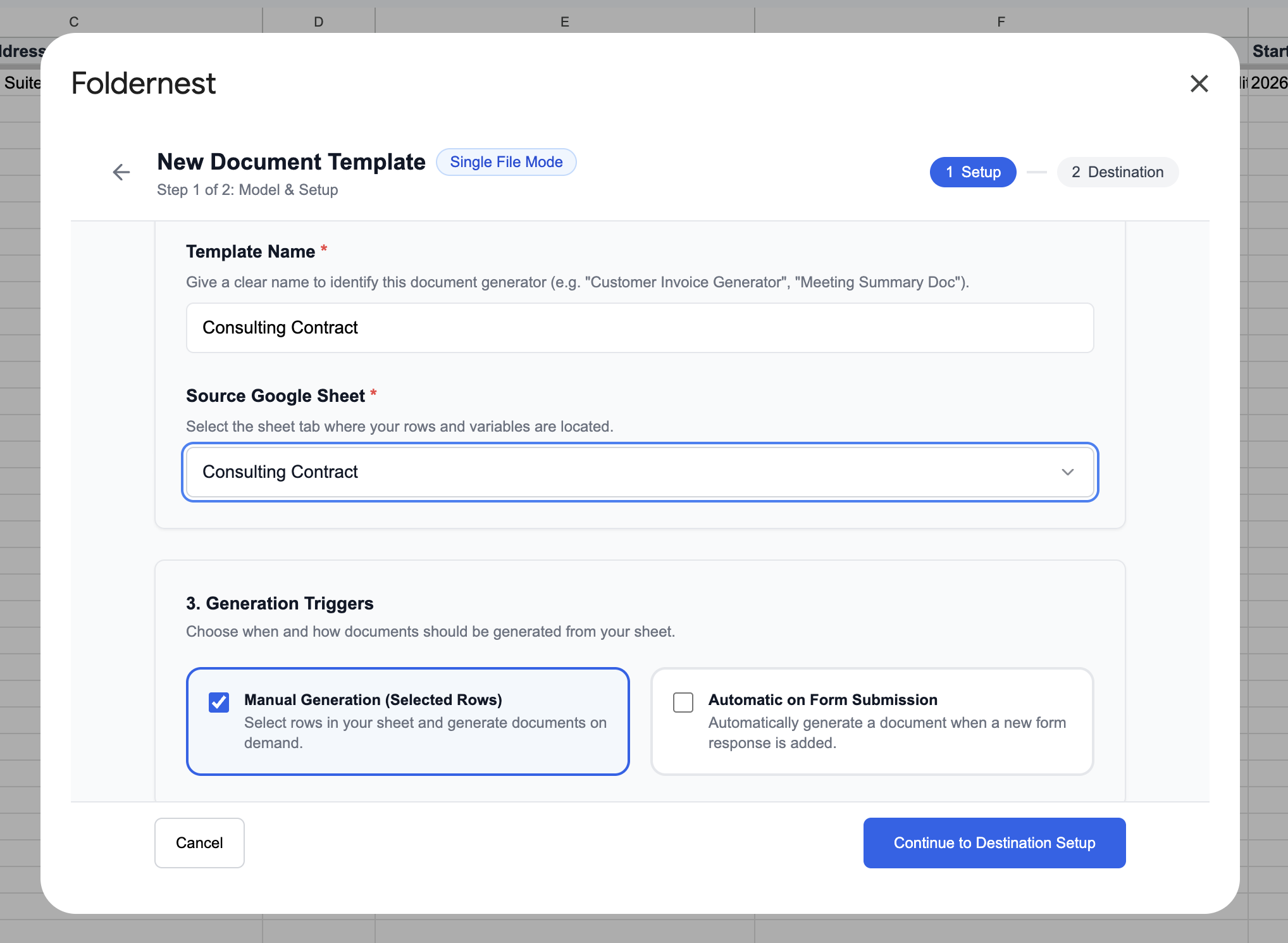
Click Continue to Destination Setup to proceed.
Step 8: Set Dynamic File Naming & Target Drive Folder
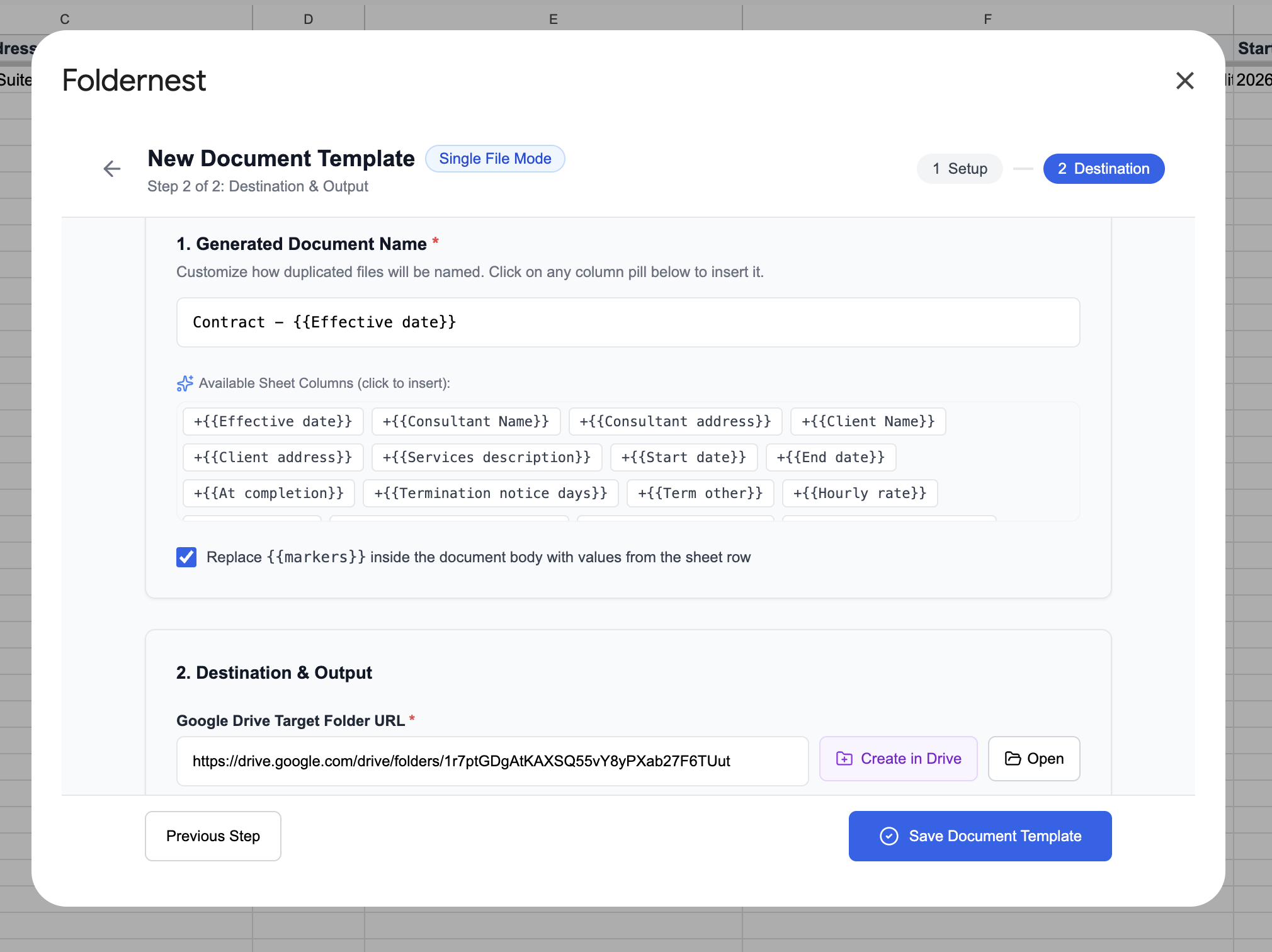
In Step 2 of 2: Destination & Output, configure how files are named and organized in Google Drive:
- 1. Generated Document Name: Click any column pill to build a dynamic file name pattern, such as `Contract - {{Client Name}} - {{Effective date}}` or `Contract - {{Effective date}}`.
- 2. Replace {{markers}} inside document body: Ensure this box is checked so all client fields and conditional logic are evaluated within the document text.
- 3. Google Drive Target Folder URL: Paste the URL of your preferred Drive folder (e.g. *Client Contracts*), or click Create in Drive to provision a brand-new folder with a single click.
Step 9: Output URL Column Auto-Detection & Available Markers
Foldernest automatically creates and binds Column AD — Generated File URL in your spreadsheet. This column stores direct links to every created document.
Pro Tip
Smart Column Refresh: If you add or delete columns in your sheet, simply click the Detect / Refresh button next to the dropdown. Foldernest instantly re-scans row 1, finds your URL column, and re-binds it without breaking your setup.
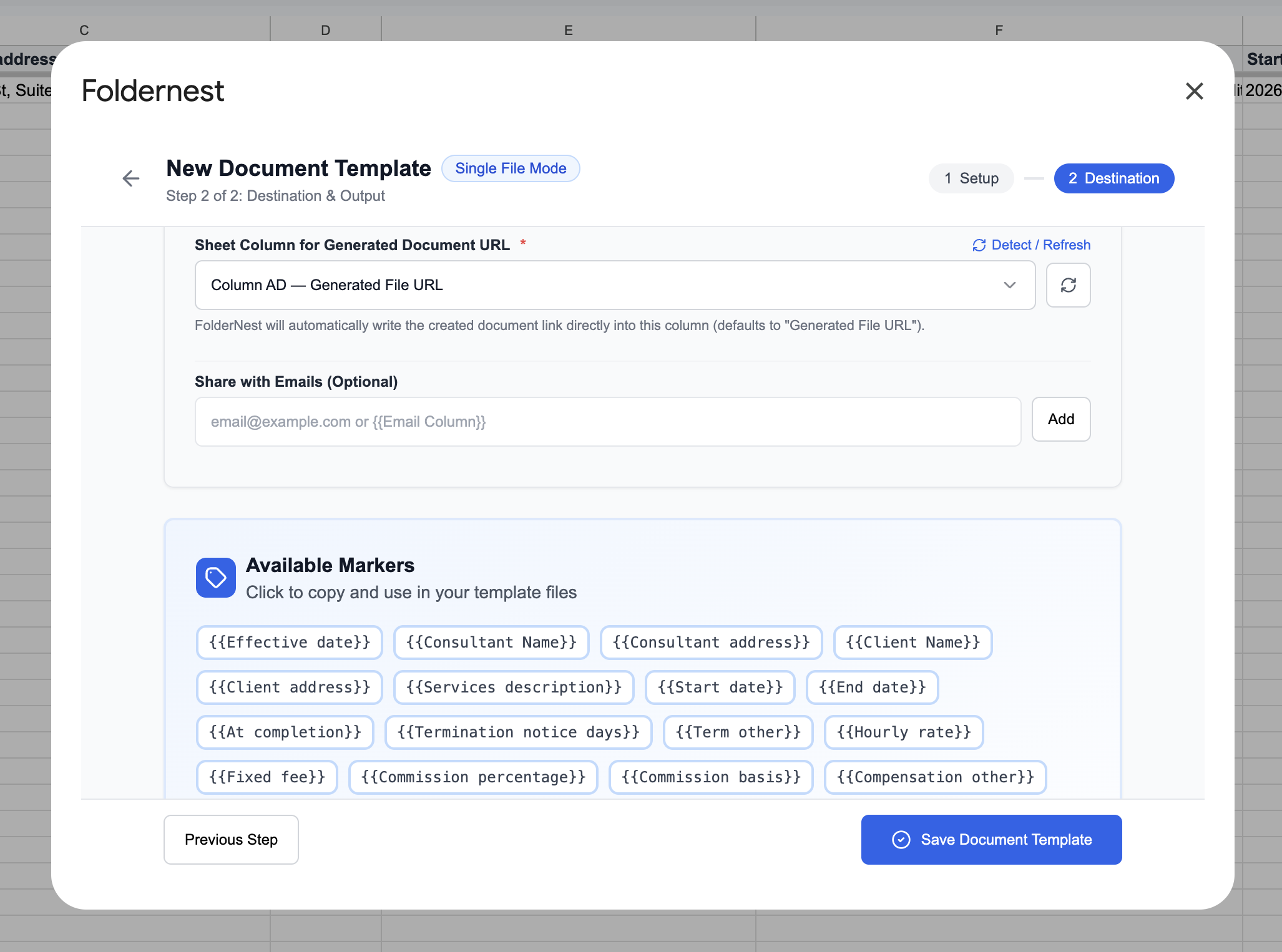
Review the Available Markers panel at the bottom of the screen. Clicking any marker copies it to your clipboard so you can paste it into your Google Doc master. Then click Save Document Template.
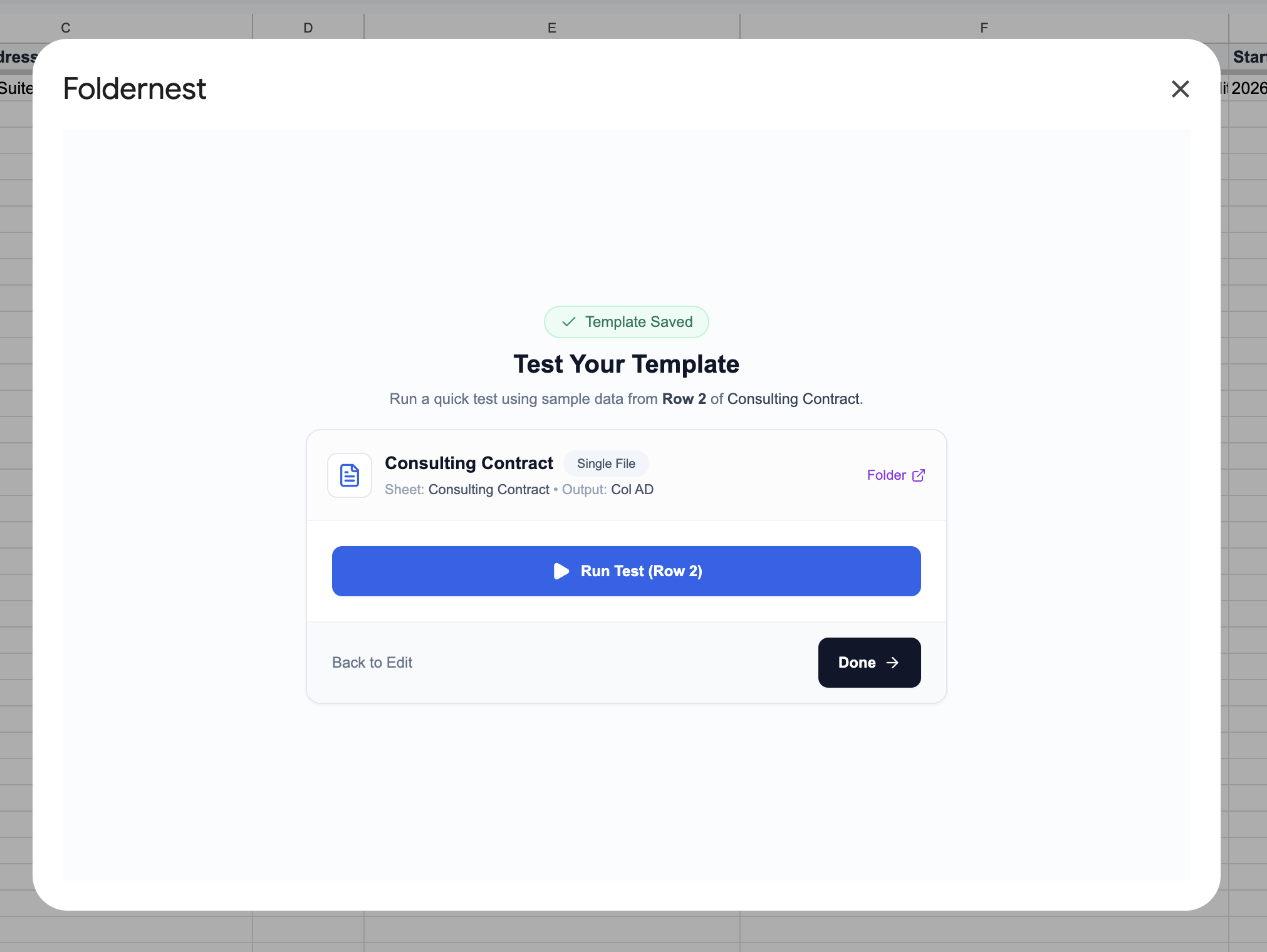
Step 10: Test Run on Sample Client (Row 2)
Before generating agreements for active clients, run a quick test using the sample row created by the starter template. Click Run Test (Row 2).
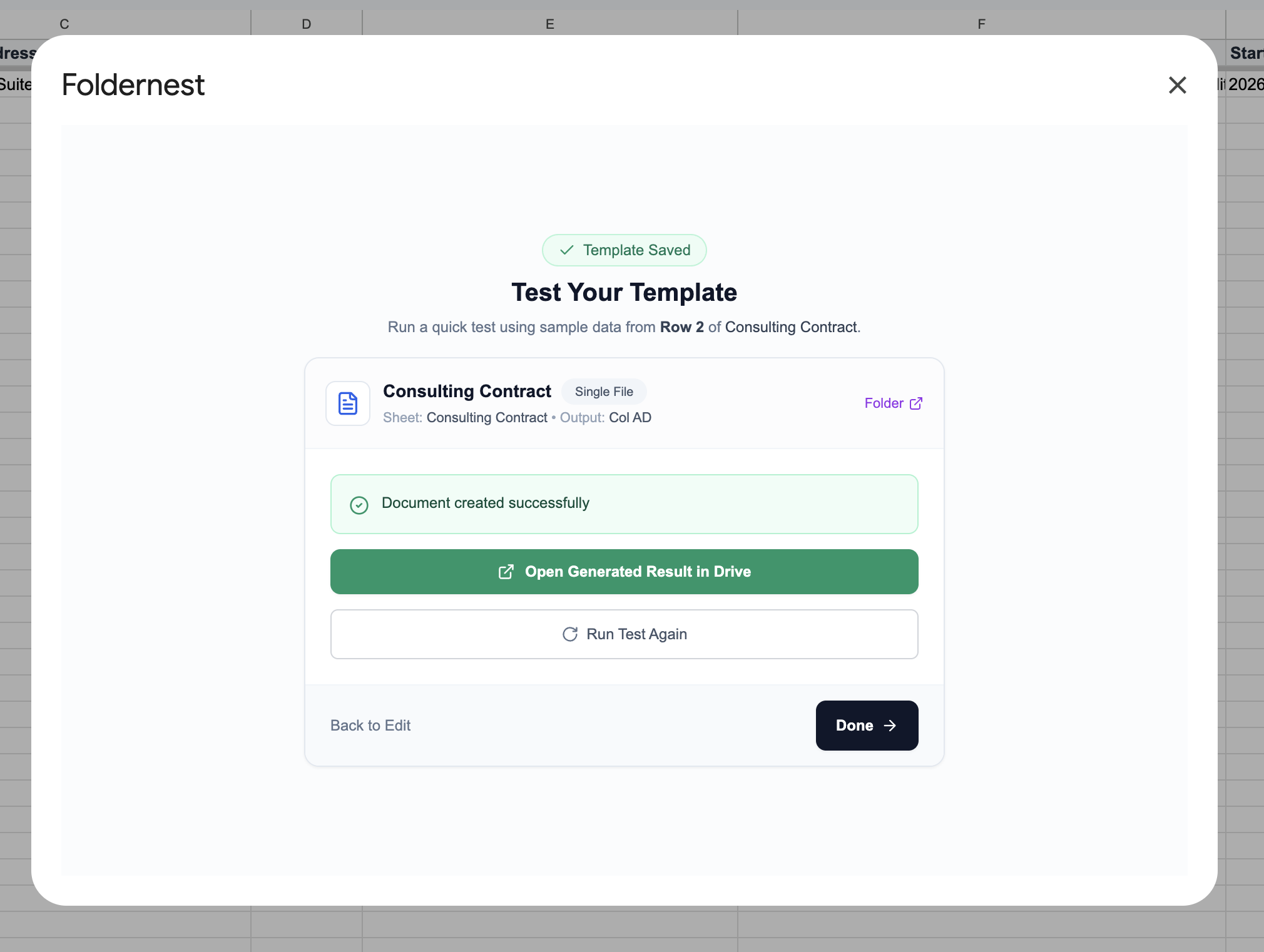
Step 11: Generation Success Confirmation
Within seconds, Foldernest confirms: Document created successfully. Click Open Generated Result in Drive to inspect your new contract.
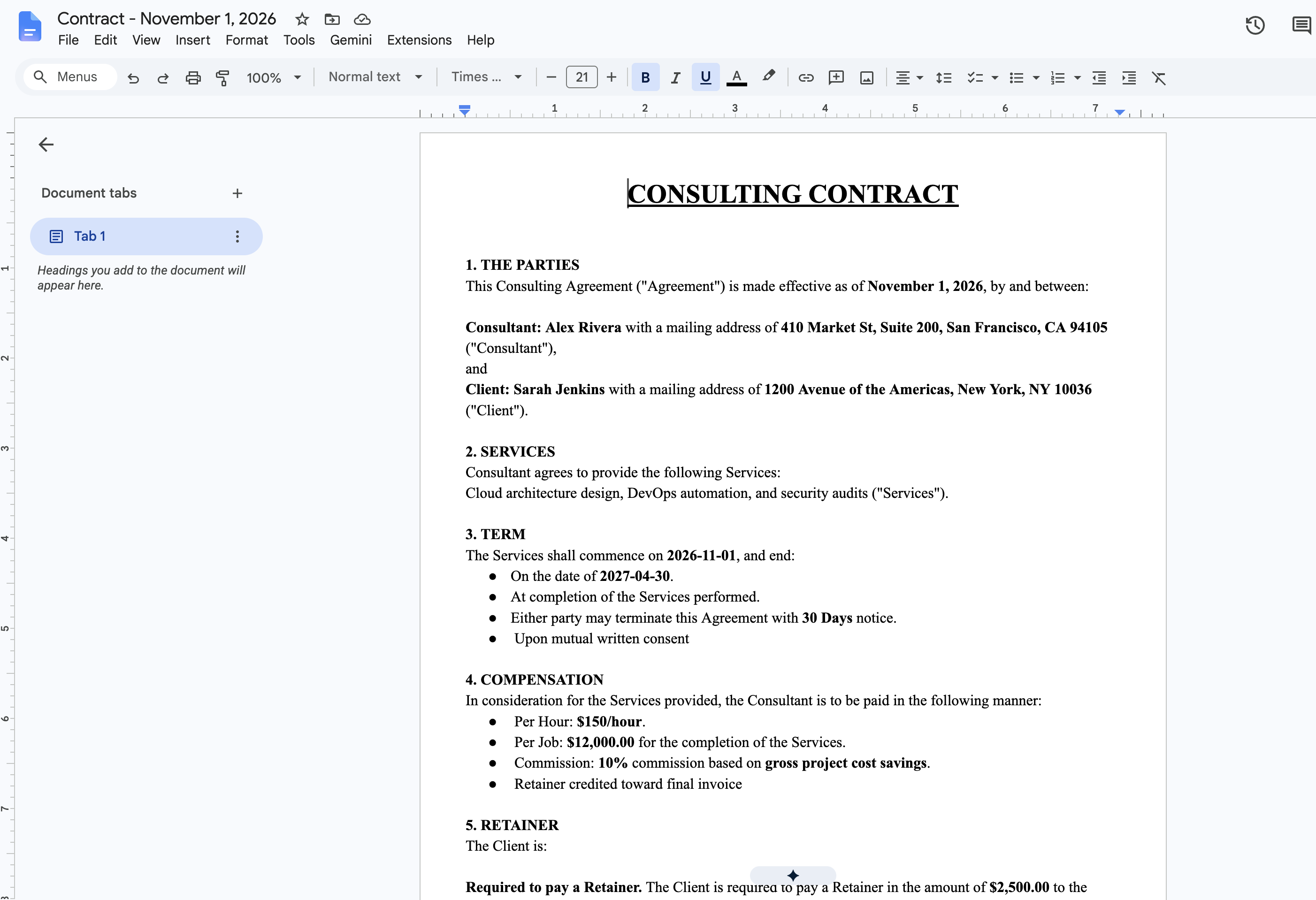
Step 12: Review the Generated Consulting Contract
Open the generated document (Contract - November 1, 2026). Notice how flawlessly all data and formatting were merged:
- Distinct Counterparties: Consultant is correctly populated as Alex Rivera (San Francisco, CA), and Client is populated as Sarah Jenkins (New York, NY).
- Clear Scope: Services description is inserted seamlessly into Clause 2.
- Evaluated Conditional Clauses: Under Term, bullet points for End Date (*2027-04-30*), Services completion, and termination notice (*30 Days*) appear cleanly.
- Multi-Tier Compensation: Hourly rate (*$150/hour*), fixed job fee (*$12,000.00*), and commission (*10% on gross project cost savings*) are rendered cleanly, with retainer terms set to *$2,500.00*.
- Pristine Formatting: No leftover brackets, syntax tags, or stray empty lines remain in the finished agreement.
Step 13: Your Saved Automation Dashboard
Clicking Done brings you back to the Foldernest Templates dashboard. Your Consulting Contract automation is permanently saved under *My Automations*.
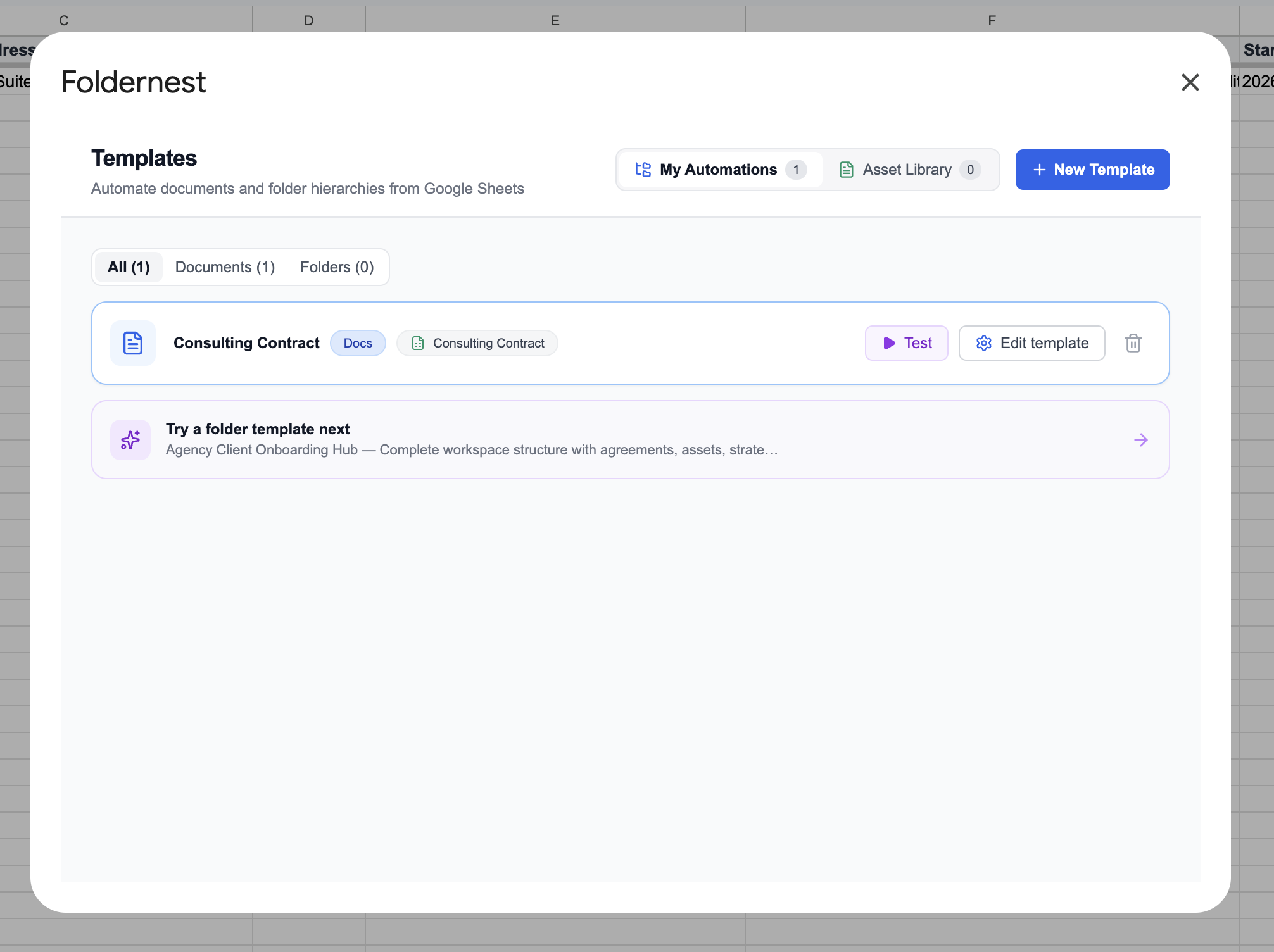
From this screen, you can run batch tests, edit template settings, or create additional workflows (such as client onboarding folder structures or billing invoices).
Step 14: Centralized Contract Register in Google Sheets
Switch back to your Google Sheets tab. In Column AD (Generated File URL), the generated contract link is recorded automatically. Hovering over the URL brings up Google Docs' rich Smart Chip preview, allowing you to preview or open the document without leaving your spreadsheet.
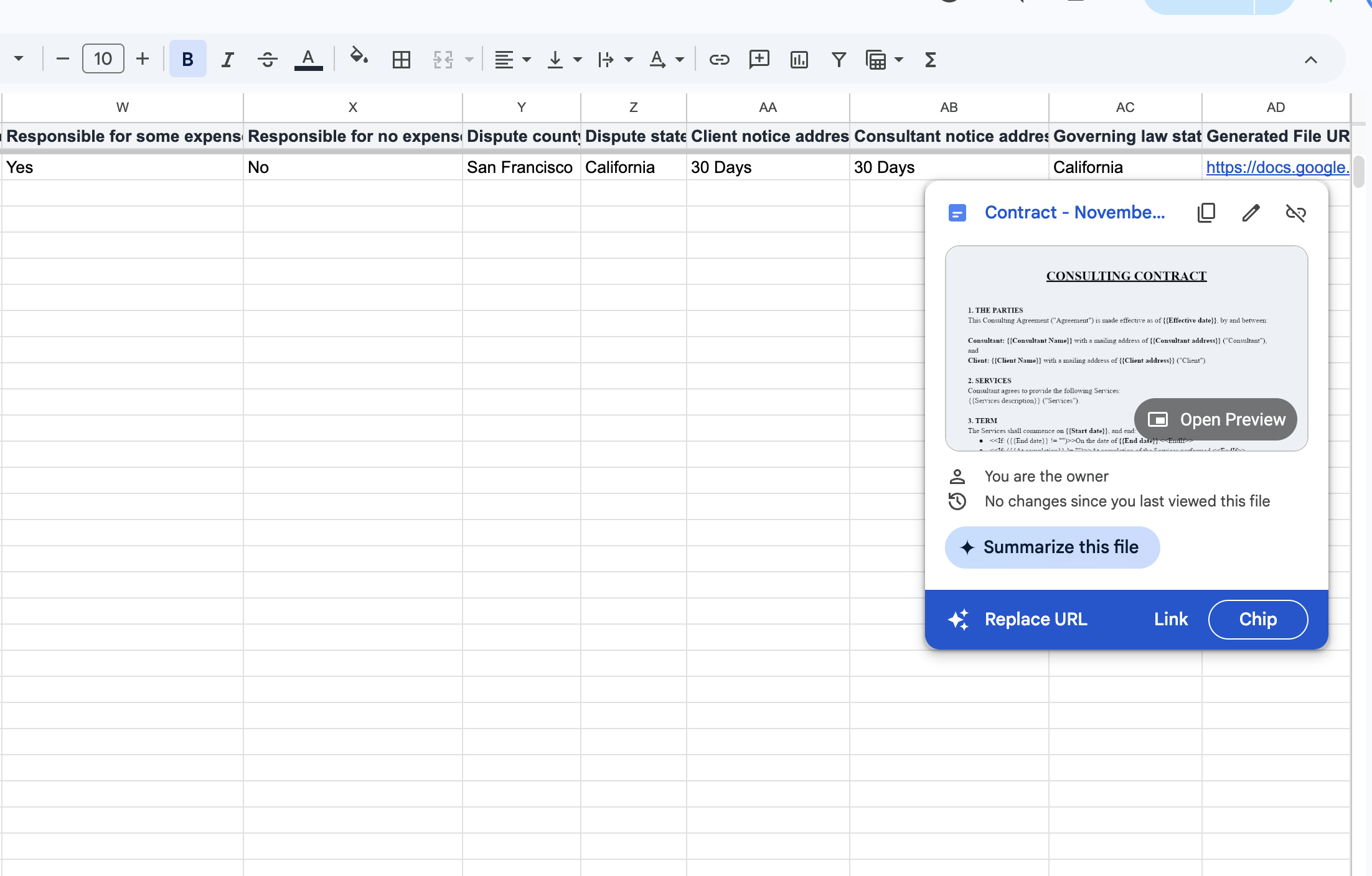
Your spreadsheet is now a living commercial contract register: every client's scope, financial terms, and signed contract link are organized in a single searchable database.
Manual Drafting vs. Automated with Foldernest
| Workflow Capability | Manual Copy-Paste | Automated with Foldernest |
|---|---|---|
| Drafting Time per Contract | 30–60 minutes per client | Under 5 seconds per row |
| Risk of Data Cross-Contamination | High (residual names/rates from old files) | Zero (built fresh from clean sheet data) |
| Handling Variable Compensation | Manually deleting & editing clauses | Automated via dynamic <<If: ...>> blocks |
| File Organization in Drive | Manual filing, inconsistent filenames | Automated pattern naming in target folder |
| Contract Tracking & Audit Trail | Scattered links across email threads | Direct link logged in Column AD of Google Sheets |
| Scalability for Growth | Linear workload increase with each client | Batch-generate 10, 50, or 100 contracts at once |
Best Practices for Scalable Contract Automation
Pro Tip
Legal Review Once, Deploy Everywhere: Have your legal counsel review and approve the Master Google Doc template once. Because Foldernest only injects validated row data and activates pre-approved conditional clauses, every generated agreement maintains 100% legal compliance.
- Standardize Column Formats: Keep date columns formatted as `YYYY-MM-DD` or `Month DD, YYYY`, and numeric fees as clean currency strings.
- Add Lifecycle Tracking Columns: Insert columns like *Contract Status* (*Draft*, *Sent*, *Executed*) and *E-Signature Date* right next to the Generated File URL column.
- Combine with Form Intake: Pair your Google Sheet with Google Forms, Typeform, or Tally. When a prospect confirms proposal terms, their submission triggers automated contract generation instantly.
- One-Click PDF & E-Signature: Once generated in Google Docs, download the contract as a PDF or route it into your preferred electronic signature workflow.
Frequently Asked Questions (FAQ)
Can I use my firm's existing consulting contract template?
Yes! While the free Consulting Contract starter gets you running in under two minutes, you can automate any existing Google Doc. Simply choose Start Blank in Foldernest, select your document, and insert `{{Column Name}}` tags wherever dynamic spreadsheet data should be inserted.
How does conditional content syntax work in Google Docs?
Foldernest supports inline conditional statements using `<<If: (condition)>>content<<EndIf>>`. You can check whether a field is not empty (`{{Hourly rate}} != ""`) or matches a specific value (`{{Pay retainer}} = "Yes"`). If the condition is met, the enclosed text is included; otherwise, it is seamlessly removed along with any bullet points or line breaks.
What happens if I add or reorder columns in Google Sheets?
You never have to rebuild your automation. Simply click the Detect / Refresh button next to the *Sheet Column for Generated Document URL* field in Foldernest. It automatically scans your sheet, detects the `Generated File URL` column wherever it moved, and re-binds it instantly.
Does Foldernest preserve fonts, headers, and document styling?
Yes. Unlike markdown or basic text-replacement tools, Foldernest duplicates your master Google Doc using native Google Drive APIs. Your custom fonts, font sizes, colors, margins, headers, footers, and bold formatting remain perfectly intact.
Is there a limit on how many contracts I can generate?
No. You can select single rows for one-off drafting, or select dozens of rows to batch-generate contracts for your entire client roster simultaneously.
Start Generating Consulting Contracts in Minutes
Drafting contracts by hand is one of the highest-friction, lowest-value tasks in professional consulting. By uniting Google Sheets and Google Docs with Foldernest, you transform contract generation into an automated, error-free workflow that scales with your business.
Ready to streamline your client onboarding? Install Foldernest from the Google Workspace Marketplace and generate your first automated consulting contract today.