
First impressions matter. When a talented new hire signs their offer letter, they expect a polished, welcoming, and organized onboarding experience. Yet behind the scenes, Human Resources and People Operations teams often spend 30 to 45 minutes per employee manually creating Google Drive folders, duplicating contract agreements, customizing orientation slide decks, setting up NDA forms, and sharing access permissions.
As your company scales from 10 to 100+ hires a year, manual HR administration quickly leads to misplaced confidential files, compliance risks, and wasted team hours. In this step-by-step guide, you will learn how to build an automated employee hiring and HR onboarding pipeline using Google Sheets, Google Drive, and Foldernest. With one click or an intake form submission, your complete new hire workspace will generate instantly.
The Hidden Cost of Manual HR Onboarding
Manually assembling employee personnel records and onboarding kits creates significant operational bottlenecks:
- Compliance & Data Privacy Risks: Storing sensitive legal agreements (I-9s, NDAs, compensation data) haphazardly across unorganized drives violates privacy regulations.
- Copy-Paste Document Errors: Manually updating employment agreements risks leaving former candidate names, wrong salaries, or incorrect job titles in legal documents.
- Delayed Day-One Readiness: Managers and IT teams scramble to prepare equipment lists and welcome decks after the employee has already started.
- Disorganized Employee Records: Inconsistent folder naming makes auditing personnel records difficult during annual compliance and SOC 2 audits.
The Standardized Employee HR Dossier Blueprint
A standardized Google Drive folder hierarchy ensures that every new hire receives an identical, professional onboarding experience while maintaining strict document security:
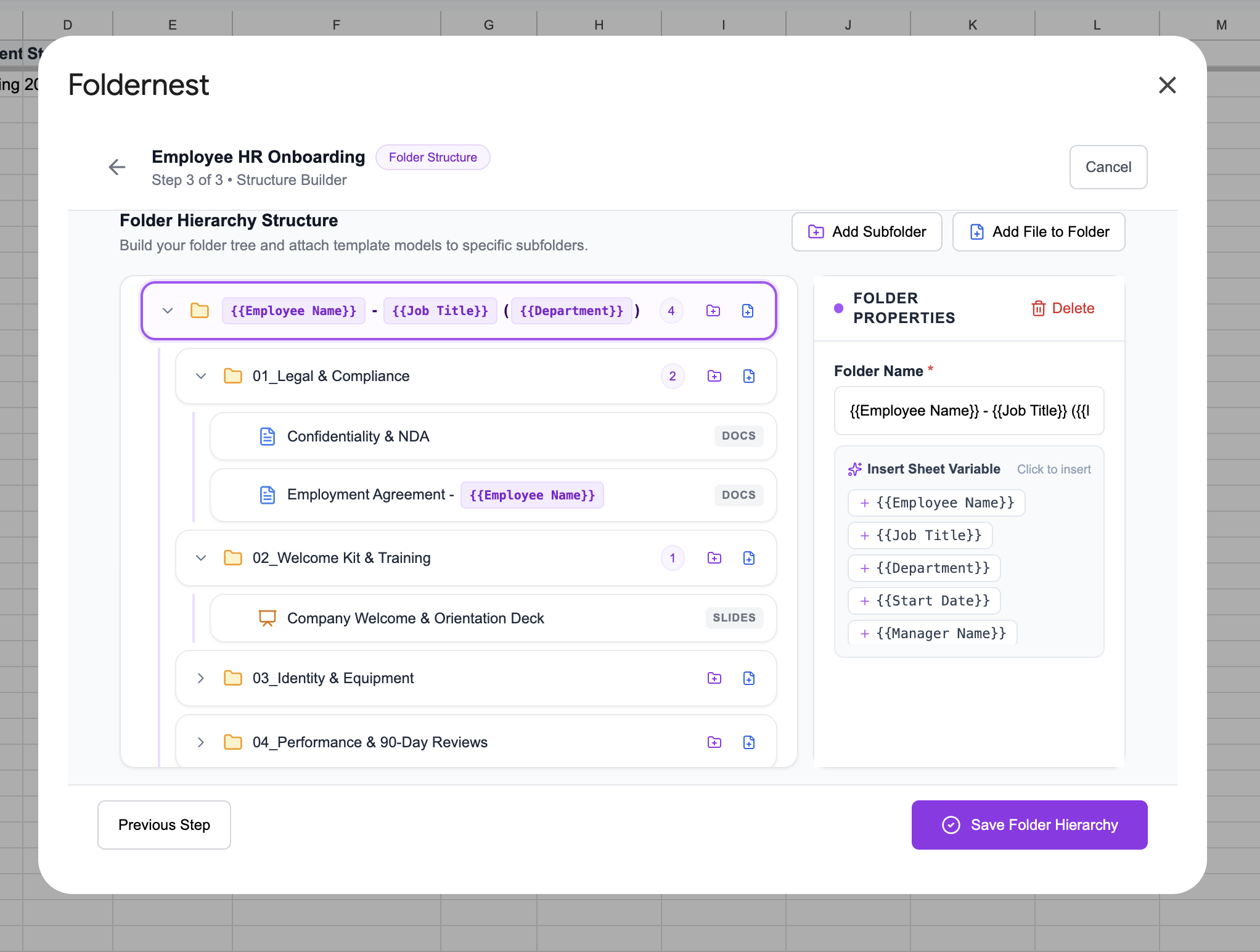
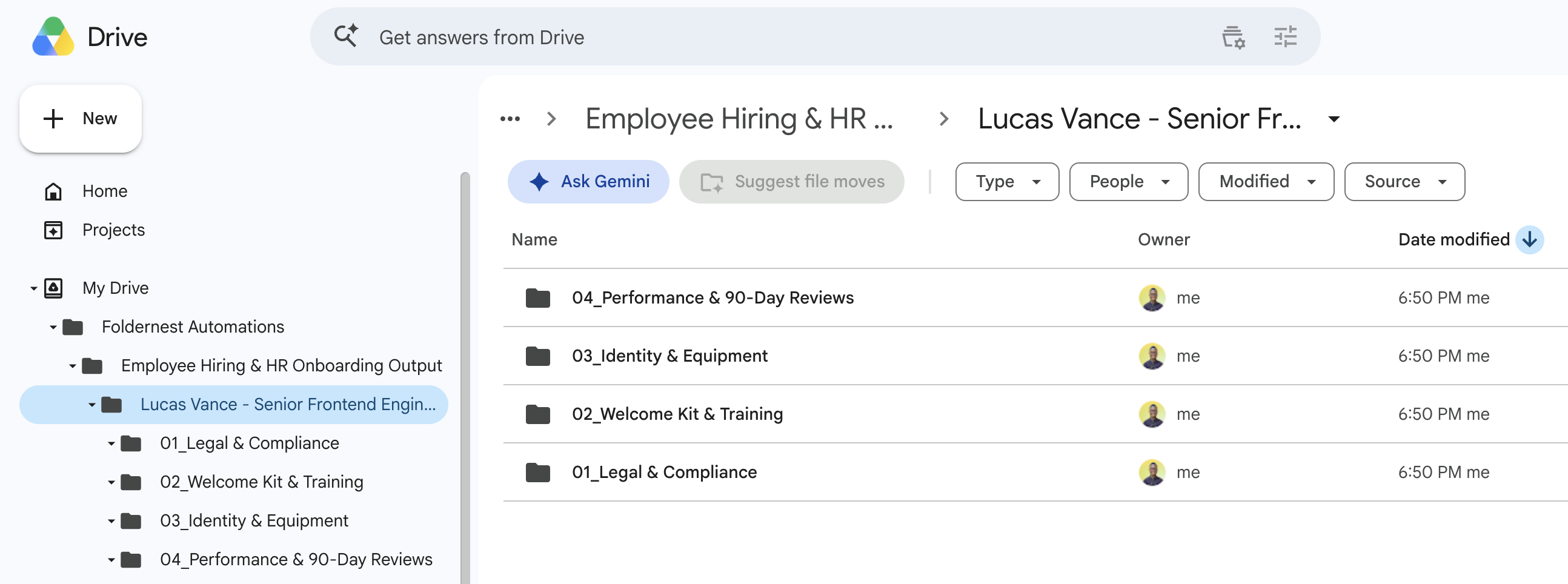
- Root Employee Folder: Dynamic naming such as `{{Employee Name}} - {{Job Title}} ( {{Department}} )` (e.g. *Lucas Vance - Senior Frontend Engineer (Engineering)*)
- 01_Legal & Compliance: Contains pre-populated Google Docs for *Employment Agreement - {{Employee Name}}* and *Confidentiality & NDA*
- 02_Welcome Kit & Training: Houses the personalized Google Slides *Company Welcome & Orientation Deck* and 30-60-90 day ramp plans
- 03_Identity & Equipment: Dedicated subfolder for IT asset receipts, ID badge verification, and hardware distribution agreements
- 04_Performance & 90-Day Reviews: Private repository for probationary check-ins, quarterly evaluations, and promotion tracking
- Automatic Spreadsheet Link Tracking: Direct Google Drive folder links recorded in your HR spreadsheet
Step 1: Open FolderNest from Google Sheets
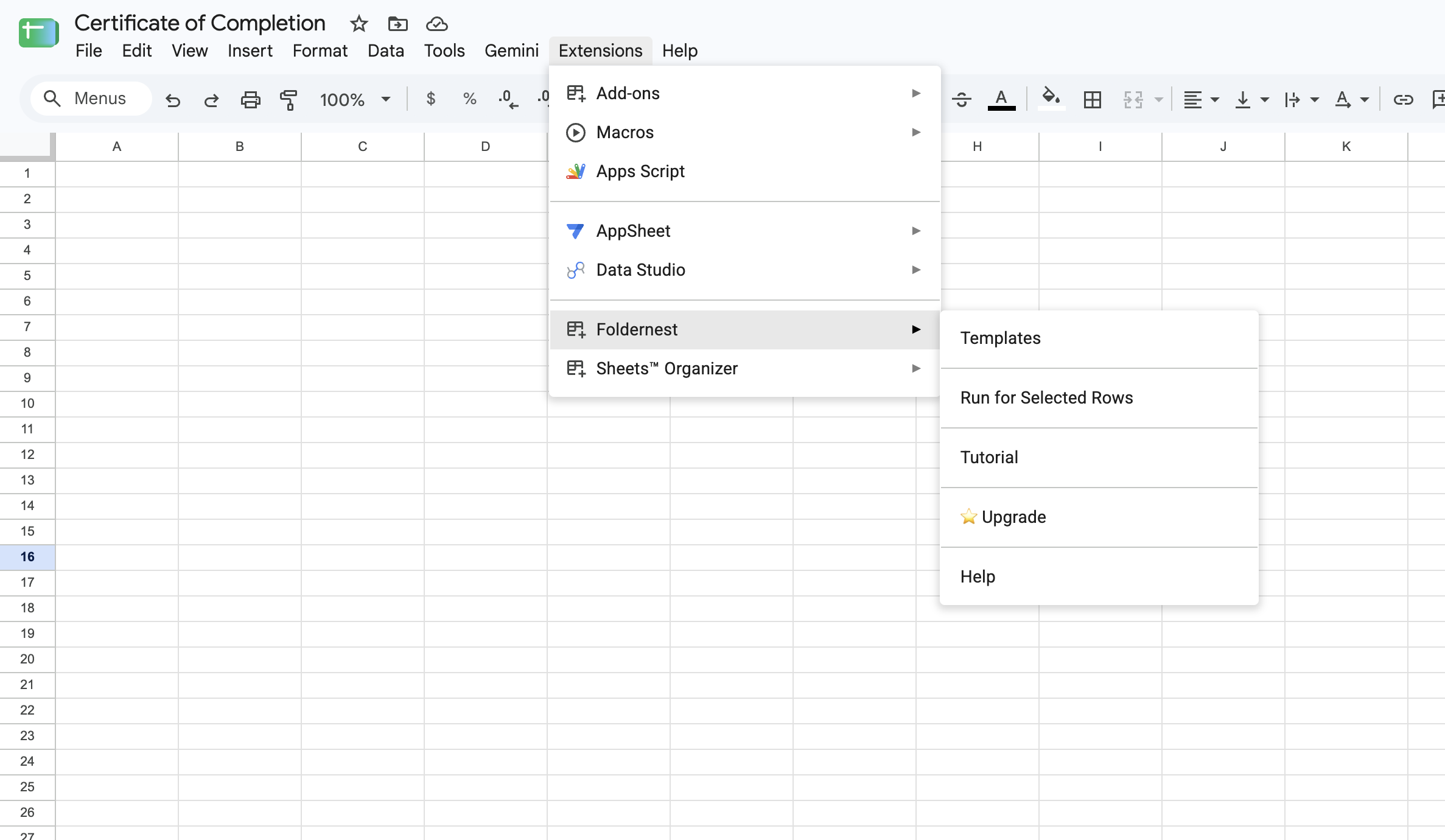
Open your Google Sheet where you track new hires, candidates, or employee rosters (containing columns like *Employee Name*, *Job Title*, *Department*, *Start Date*, *Manager Name*, and *Employee Email*). Launch FolderNest from the top menu:
- 1. Click Extensions in the Google Sheets top menu.
- 2. Select Foldernest > Templates.
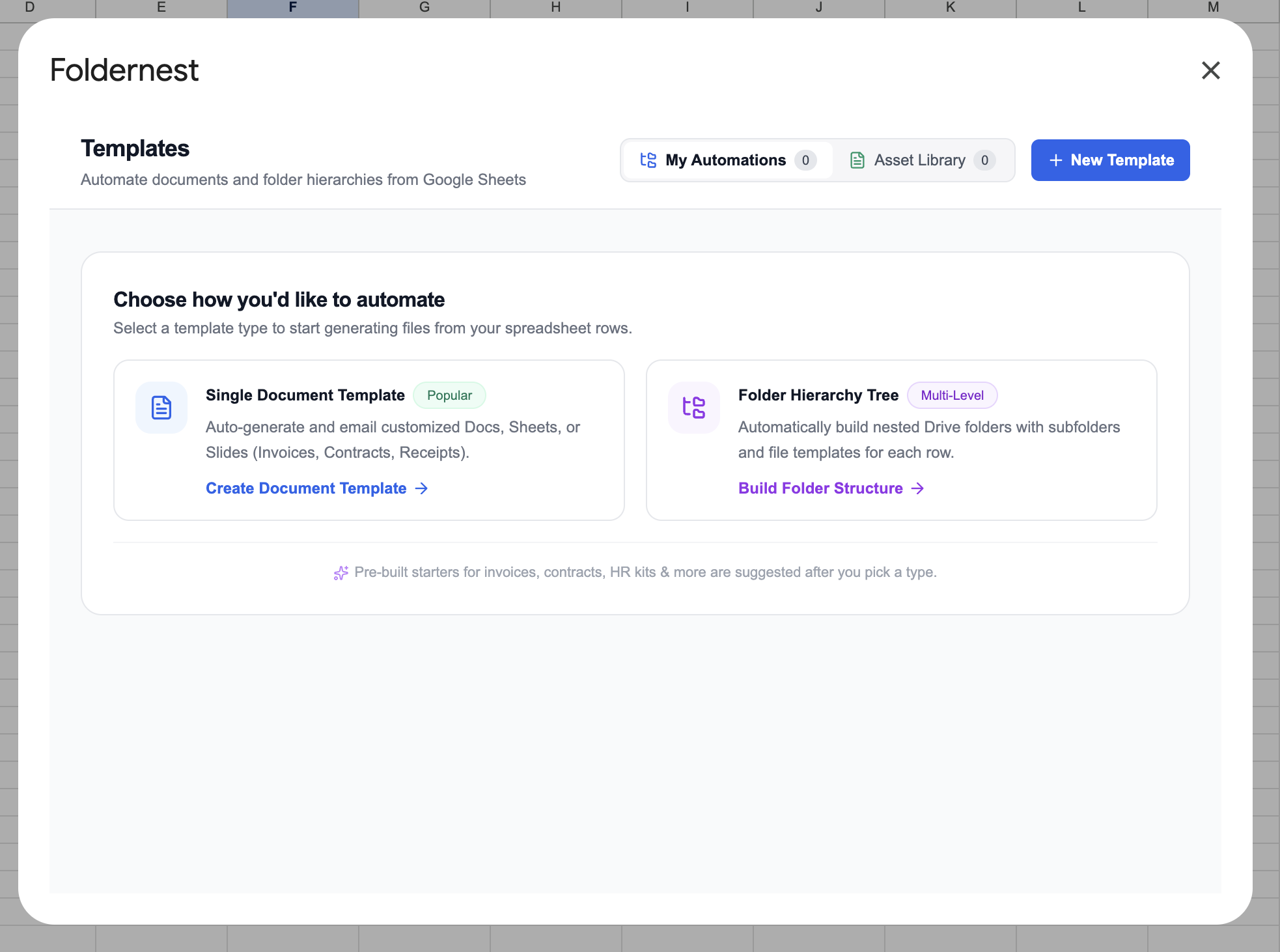
Step 2: Choose 'Folder Hierarchy Tree'
FolderNest supports both single document workflows and multi-level folder trees. For employee dossiers with attached agreements and orientation slides, select Folder Hierarchy Tree (Multi-Level).
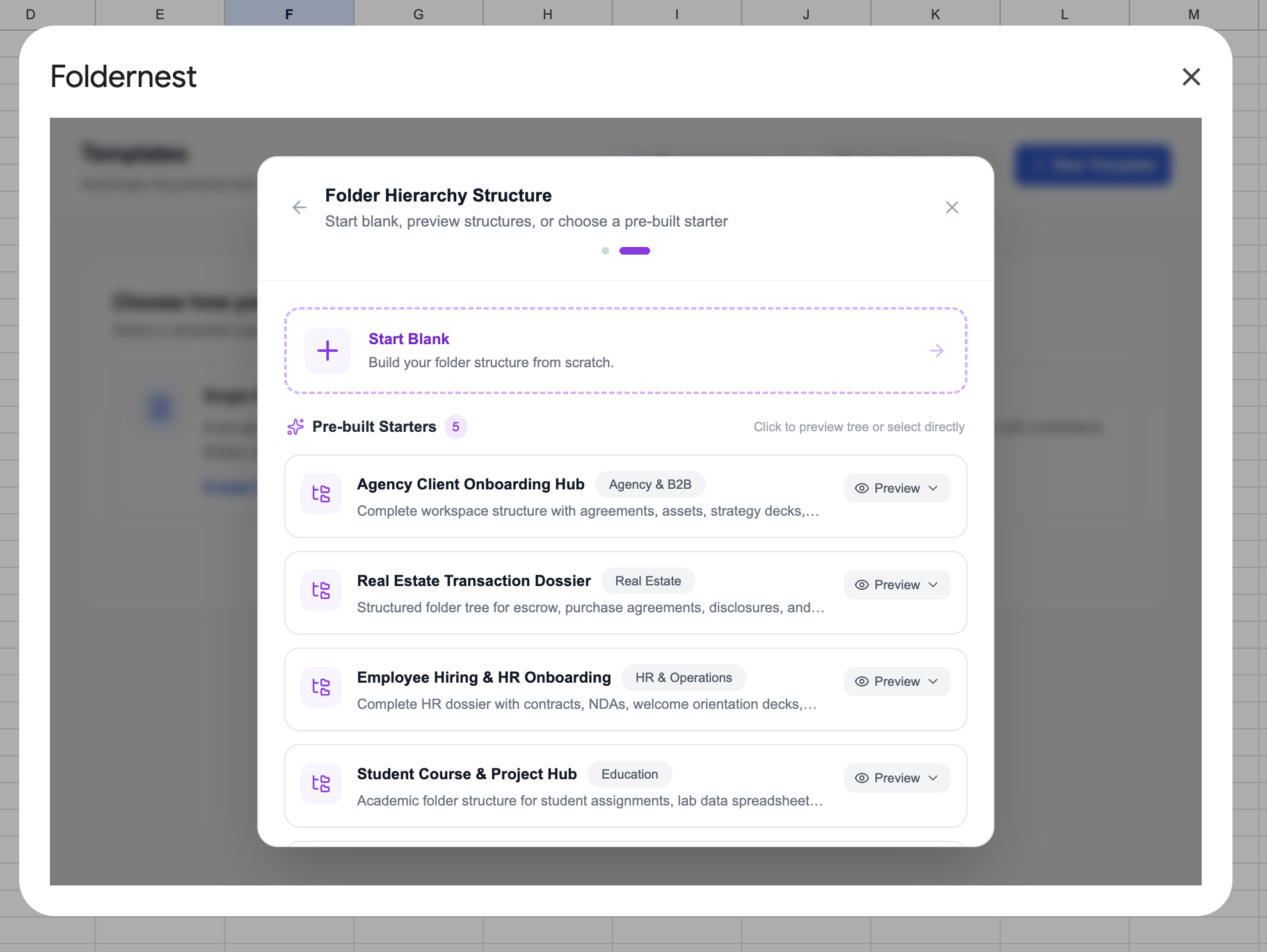
Step 3: Browse Pre-Built Starters & Select 'Employee Hiring & HR Onboarding'
FolderNest includes pre-configured blueprints tailored for HR & Operations, Agency Client Onboarding, and Real Estate so you can deploy proven structures instantly.
Under the HR & Operations category, select Employee Hiring & HR Onboarding. This starter includes 5 structured folders, 3 file templates (*Employment Agreement*, *Confidentiality & NDA*, and *Welcome Deck*), and 6 dynamic tags.
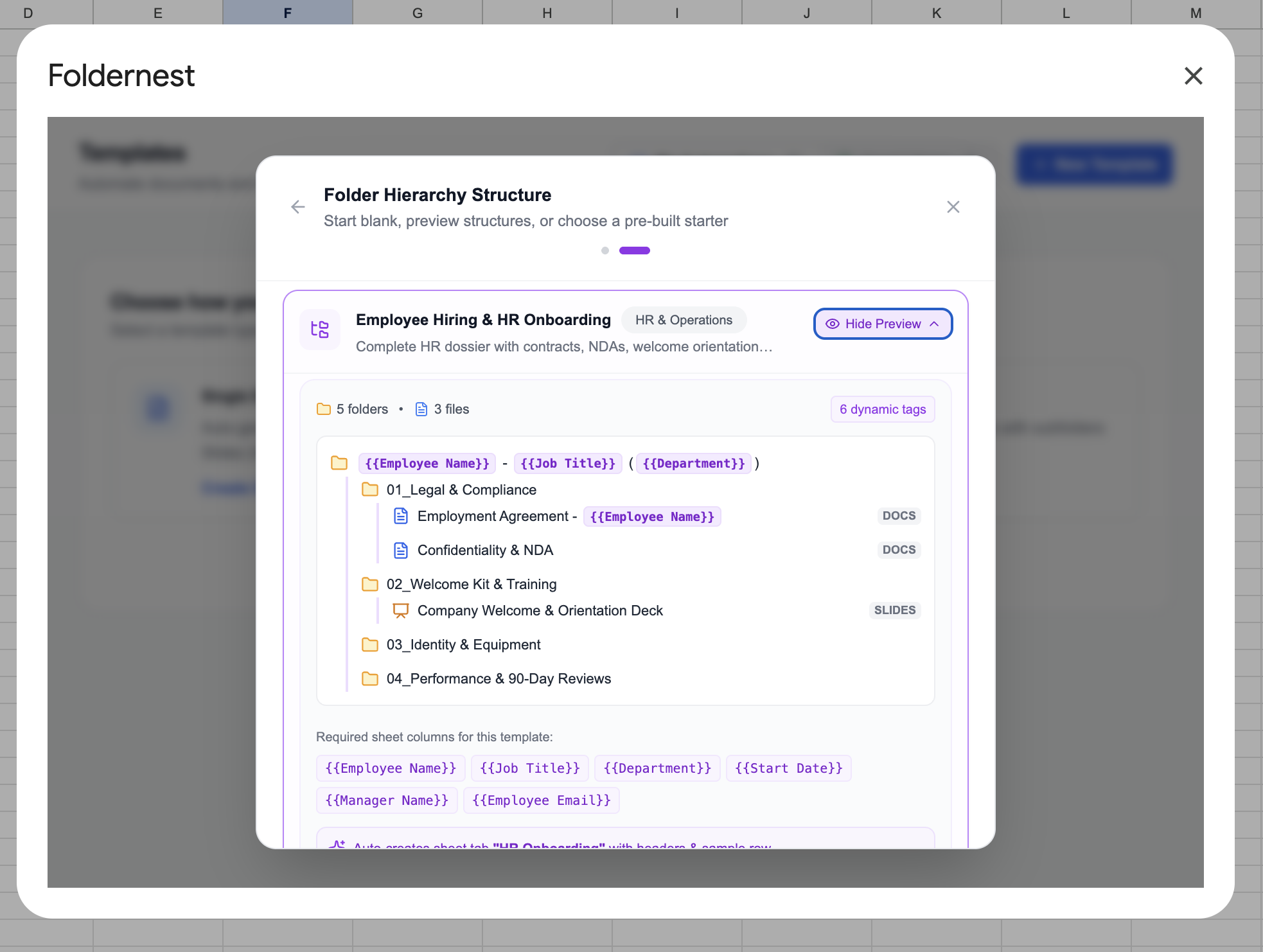
Foldernest automatically detects required spreadsheet variables: `{{Employee Name}}`, `{{Job Title}}`, `{{Department}}`, `{{Start Date}}`, `{{Manager Name}}`, and `{{Employee Email}}`. Clicking Use This Folder Template generates a dedicated spreadsheet tab named 'HR Onboarding' complete with headers and sample records.
Step 4: Configure Generation Triggers (Manual & ATS / Form Ingestion)
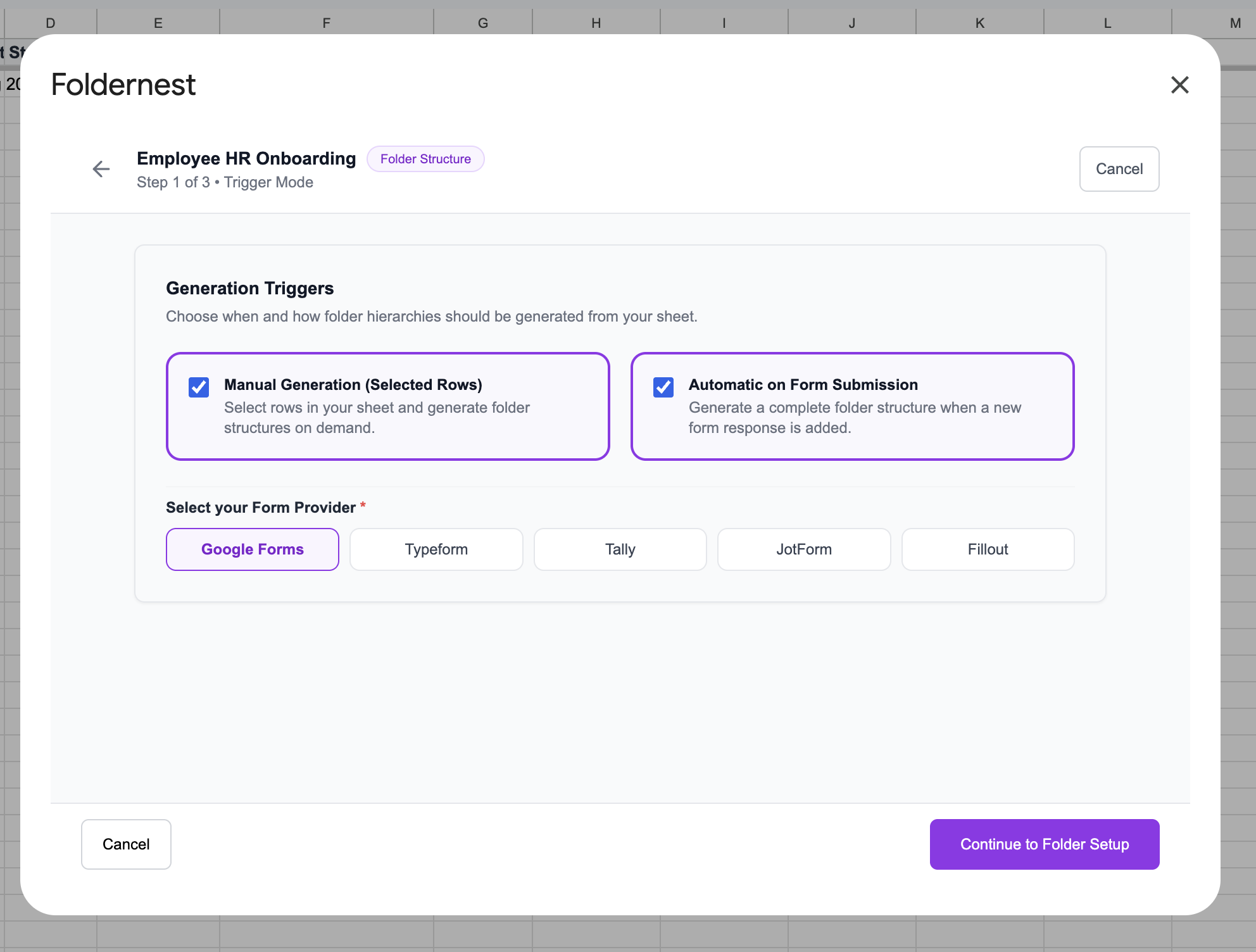
In Step 1 of the configuration wizard, select how employee onboarding workspaces should be triggered:
- Manual Generation (Selected Rows): Generate employee dossiers on-demand when you highlight candidate rows in Google Sheets.
- Automatic on Form Submission: Auto-generate complete employee dossiers the second a hiring manager or candidate submits an intake form via Google Forms, Typeform, Tally, JotForm, or Fillout.
Step 5: Define Target Folder & Automation Name
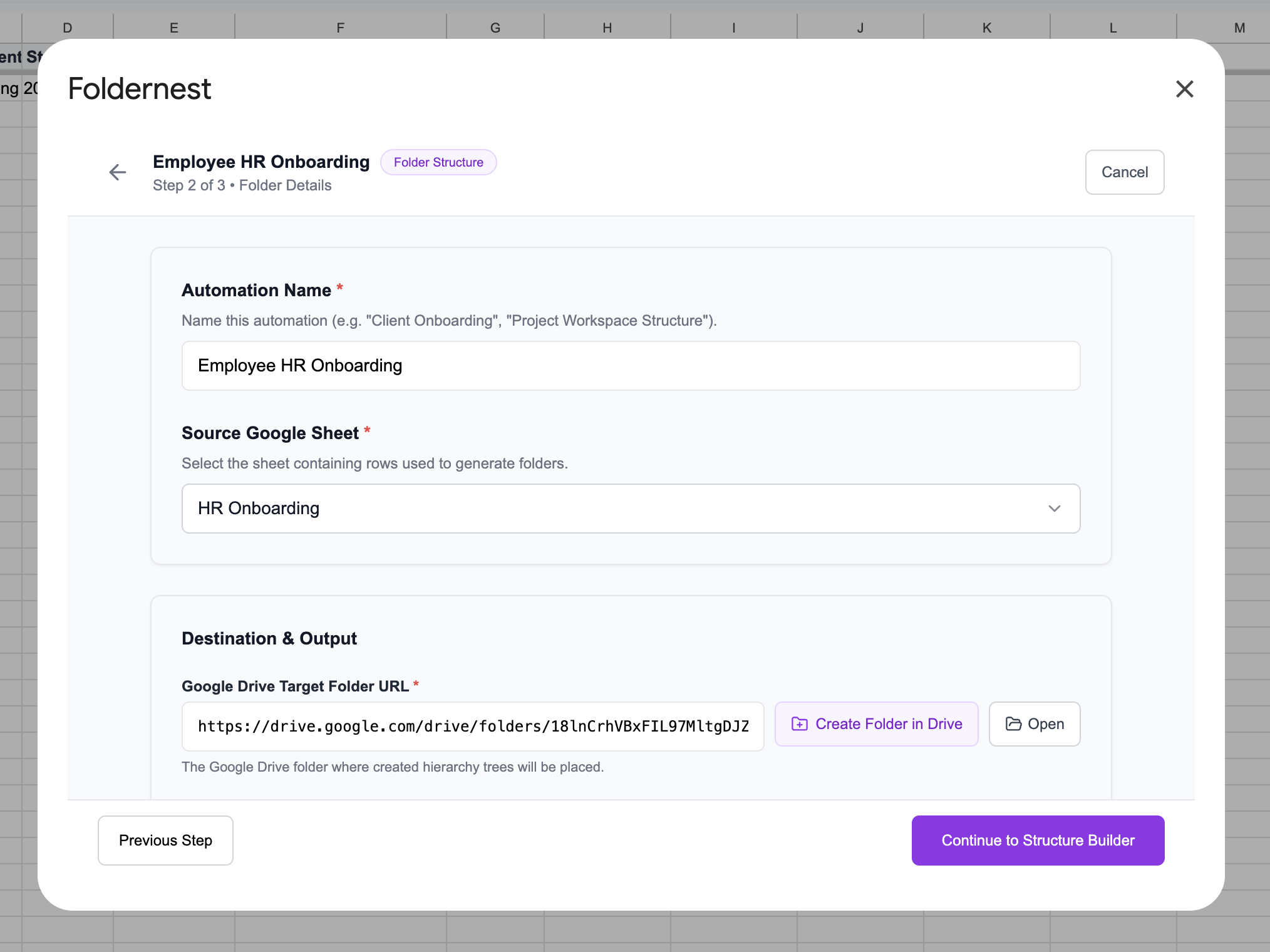
In Step 2 of the wizard, set your Automation Name (*Employee HR Onboarding*), confirm your Source Google Sheet (*HR Onboarding*), and paste your Google Drive Target Folder URL (e.g. *Employee Hiring & HR Onboarding Output*).
Step 6: Configure Output URL Column & Dynamic Sharing Permissions
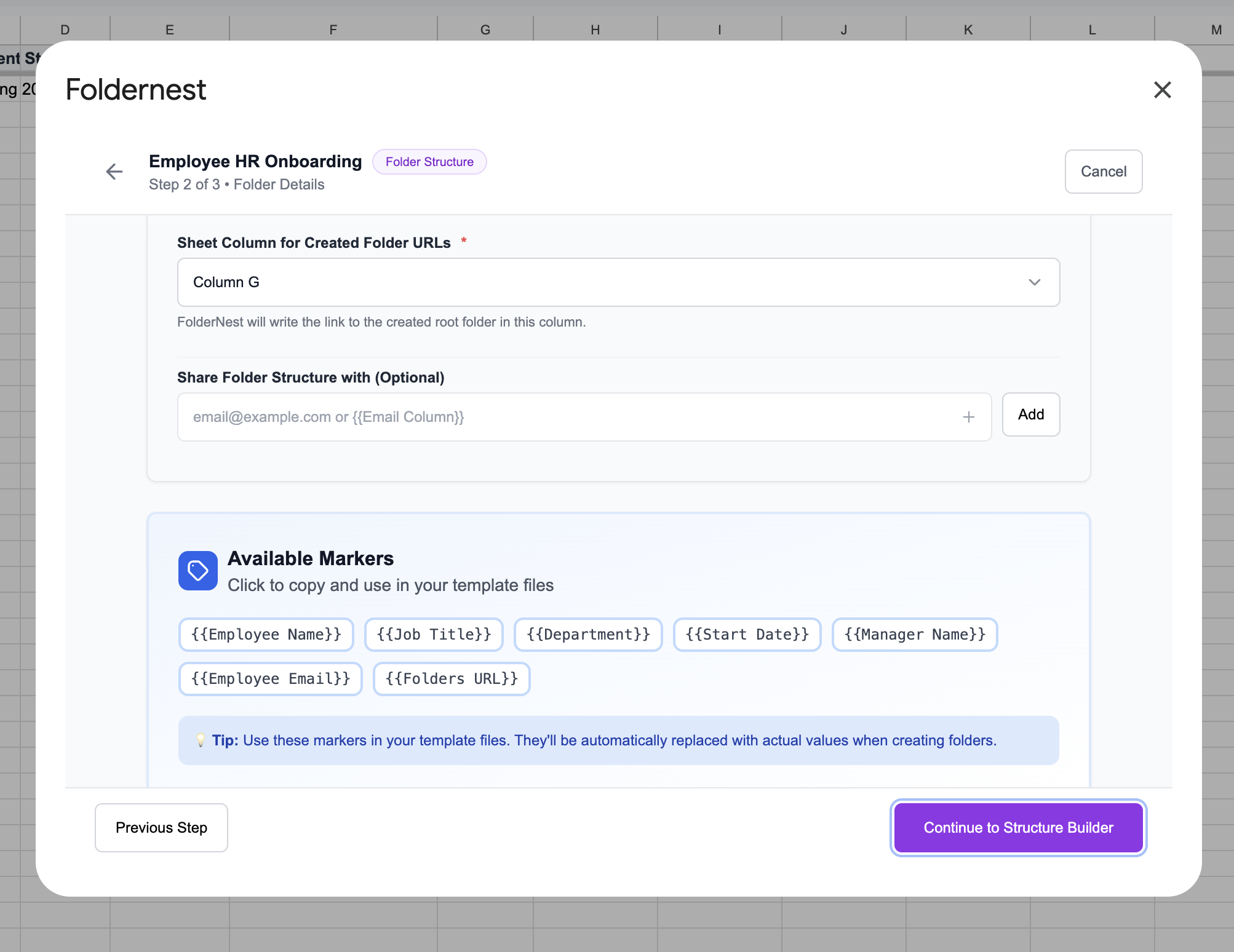
Specify the spreadsheet column (e.g. `Column G - Folders URL`) where Foldernest will automatically record the direct Google Drive link for each employee. You can also configure dynamic email sharing (e.g. `{{Employee Email}}` or `{{Manager Email}}`) so stakeholders receive instant viewing access.
Step 7: Customize Subfolders & Documents in Structure Builder
Step 3 opens Foldernest's visual Structure Builder. You can add new subfolders (such as *05_Benefits & Health Insurance* or *06_Visa & Immigration*), attach additional Google Docs or PDFs, and customize folder naming using variable pills like `+ {{Employee Name}}` or `+ {{Department}}`.
Step 8: Run a Safe Test Simulation Before Production
Before generating dossiers for your entire team, Foldernest includes a safe testing screen. Click Run Test (Row 2) to create a sample employee dossier using test data (*Lucas Vance - Senior Frontend Engineer*).
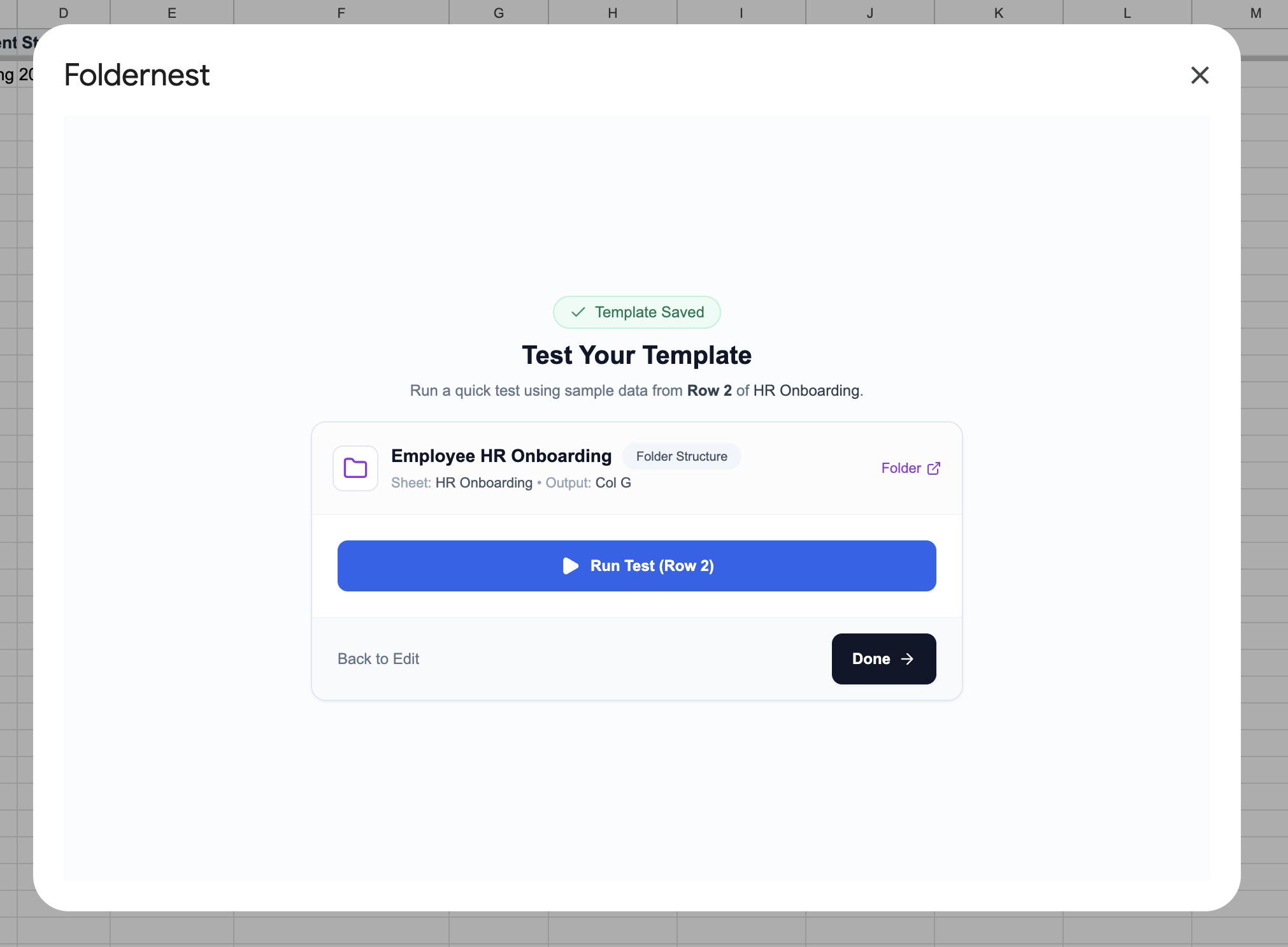
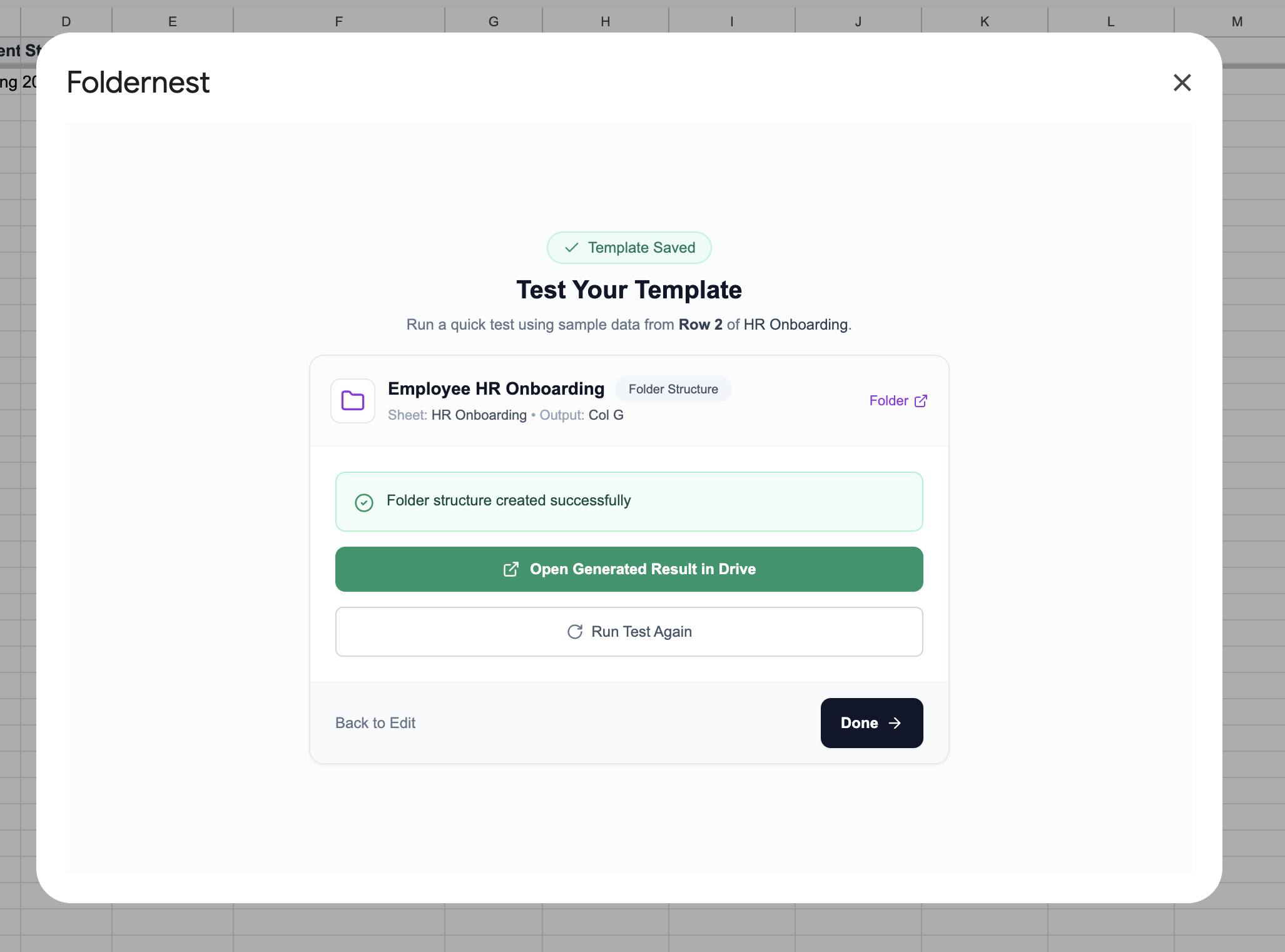
Within seconds, Foldernest creates the personalized folder structure and documents in your Google Drive and confirms 'Folder structure created successfully' with a direct button to Open Generated Result in Drive.
Step 9: Inspect the Generated Google Drive Employee Dossier
Opening Google Drive reveals the generated employee workspace: `Lucas Vance - Senior Frontend Engineer (Engineering)`. Inside, all 4 structured subfolders and pre-populated documents (*Employment Agreement*, *Confidentiality & NDA*, and *Orientation Deck*) are generated and ready for day one.
Step 10: Manage Automations & Real-Time Spreadsheet Tracking
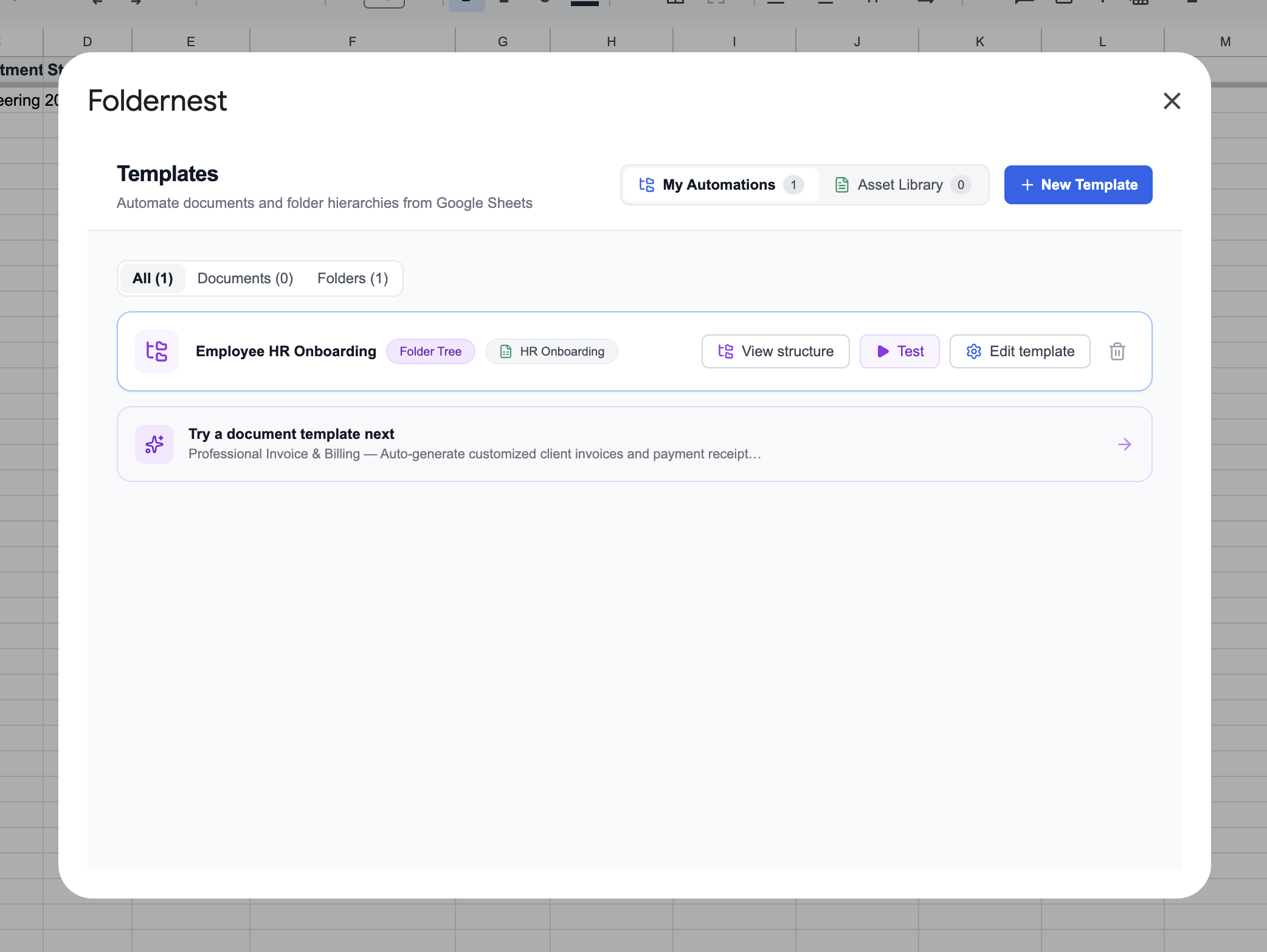
Click Done to save your template. Your automation is now active under My Automations in the Foldernest dashboard, allowing you to edit structures, view blueprints, or duplicate templates for different departments at any time.
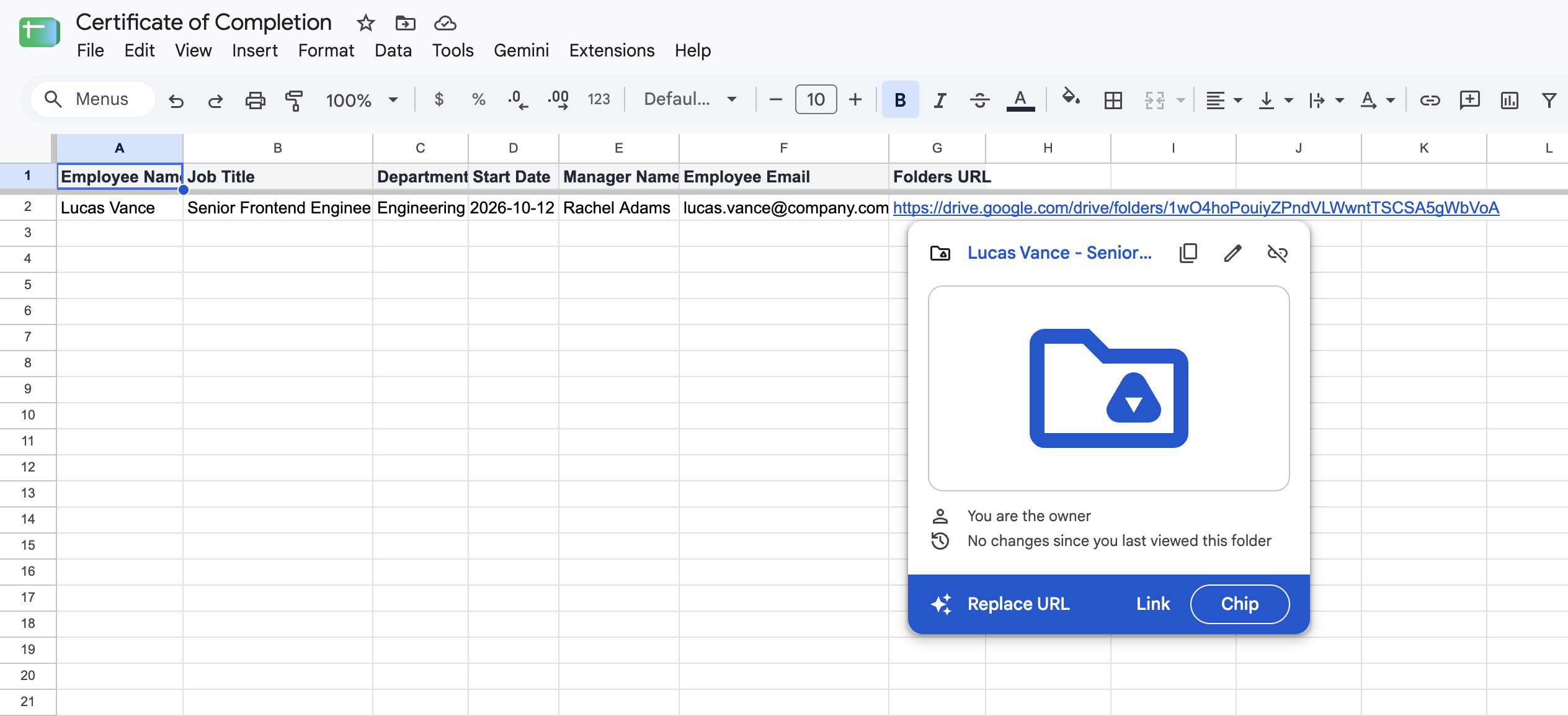
Back in your Google Sheet, the generated folder link is instantly inserted into Column G (`Folders URL`), featuring interactive Google Drive hover preview chips for quick access.
Comparison: Manual HR Setup vs. Foldernest Automation
| HR Workflow Metric | Manual New Hire Setup | Foldernest Automation |
|---|---|---|
| Time per New Hire Setup | 30 to 45 minutes | Under 3 seconds |
| Legal Document Accuracy | Prone to copy-paste errors | 100% exact placeholder replacement |
| Intake Form Triggers | Manual data re-entry from forms | Auto-trigger on Typeform/Google Forms/Tally |
| Folder Structure Consistency | Varies by HR coordinator | Standardized blueprint across company |
| Sharing & Access Control | Manual Drive permission invites | Automated manager & employee sharing |
| Compliance Audit Readiness | Disorganized scattered files | Audit-ready standardized personnel records |
Best Practices for Modern People Ops Teams
Pro Tip
Pro Tip for Departmental Onboarding: Create specialized blueprints for different teams (e.g. *Engineering Onboarding*, *Sales Onboarding*, *Executive Onboarding*). Each blueprint can attach department-specific ramp documentation, tech setup guides, and manager check-in templates.
Frequently Asked Questions (FAQ)
Can I connect my Applicant Tracking System (ATS) or HR intake forms?
Yes! Foldernest integrates with Google Forms, Typeform, Tally, JotForm, and Fillout. When a new hire or recruiter submits the onboarding form, the spreadsheet updates and Foldernest creates the folder hierarchy immediately.
Can I pre-fill employee offer letters and NDAs with custom compensation terms?
Yes. Any text wrapped in `{{placeholders}}` inside your attached Google Docs or Google Slides templates (e.g. `{{Salary}}`, `{{Start Date}}`, `{{Reporting Manager}}`) will be dynamically replaced with the exact values from that employee's spreadsheet row.
Can I generate folders for existing employees in bulk?
Yes! Simply select multiple rows in your Google Sheet and click Extensions > Foldernest > Run for Selected Rows to generate structured dossiers for entire cohorts in seconds.