
Hiring top talent is hard enough — but once a candidate accepts an offer, preparing their formal employment contract shouldn't become an administrative roadblock. Whether you are onboarding one key executive or hiring dozens of employees every quarter, manually copying, editing, and checking contracts is time-consuming, repetitive, and vulnerable to costly human errors.
In this comprehensive step-by-step guide, you will learn how to turn candidate rows in Google Sheets into customized, ready-to-sign employment agreements in Google Docs in seconds using Foldernest and its free Employment Contract template master.
The Hidden Cost of Manual Employment Contract Drafting
Most growing companies manage candidate pipelines in Google Sheets, Airtable, or an ATS. But when generating the final employment contract, HR managers often resort to duplicating a previous employee's document in Google Docs. This legacy habit introduces serious operational and legal vulnerabilities:
- Sensitive Data Leaks: Reusing past agreements can accidentally leave a former employee's salary, bonus percentage, or home address buried inside overlooked paragraphs.
- Mismatched Employment Terms: At-will employment differs drastically from fixed-term contracts. Manually modifying termination notice periods, probationary windows, or severance rules across multiple pages invites compliance inconsistencies.
- Formatting Disasters: Copy-pasting numbers and job titles often ruins line spacing, font sizes, and table alignments, leaving an unprofessional first impression on your new hire.
- Scattered Drive Files: New hire contracts get saved in random Drive folders with conflicting file names like `Employment_Agreement_Final_Lucas_v3.docx`, making HR audits and employee records tracking chaotic.
The Modern Alternative: Smart Spreadsheets + Conditional Docs
Foldernest bridges the gap between spreadsheet data and document workflows. Instead of static mail merge tools that only replace simple text strings, Foldernest pairs dynamic variable tags (`{{Column Name}}`) with conditional logic blocks (`<<If: ...>>...<<EndIf>>`):
- Distinct Multi-Party Personas: Predefined fields cleanly separate the hiring Employer (*Acme Global Technologies Inc*) from the incoming Employee (*Lucas Vance*).
- In-Cell Dropdown Menus: Columns like *Employment term type*, *Pay structure*, and *Payment schedule* feature native Google Sheets dropdowns, preventing typos.
- Smart Conditional Clauses: At-Will vs. Specified Term clauses, equity provisions, and bonus structures adapt automatically based on spreadsheet values.
- Centralized Output Register: The URL of every generated Google Doc is instantly logged into a dedicated spreadsheet column, complete with interactive Google Drive hover preview cards.
Step 1: Open Foldernest in Google Sheets
Open your Google Sheet containing candidate records, or create a fresh spreadsheet. In the Google Sheets top menu bar:
- 1. Click Extensions in the Google Sheets toolbar.
- 2. Hover over Foldernest and click Templates.
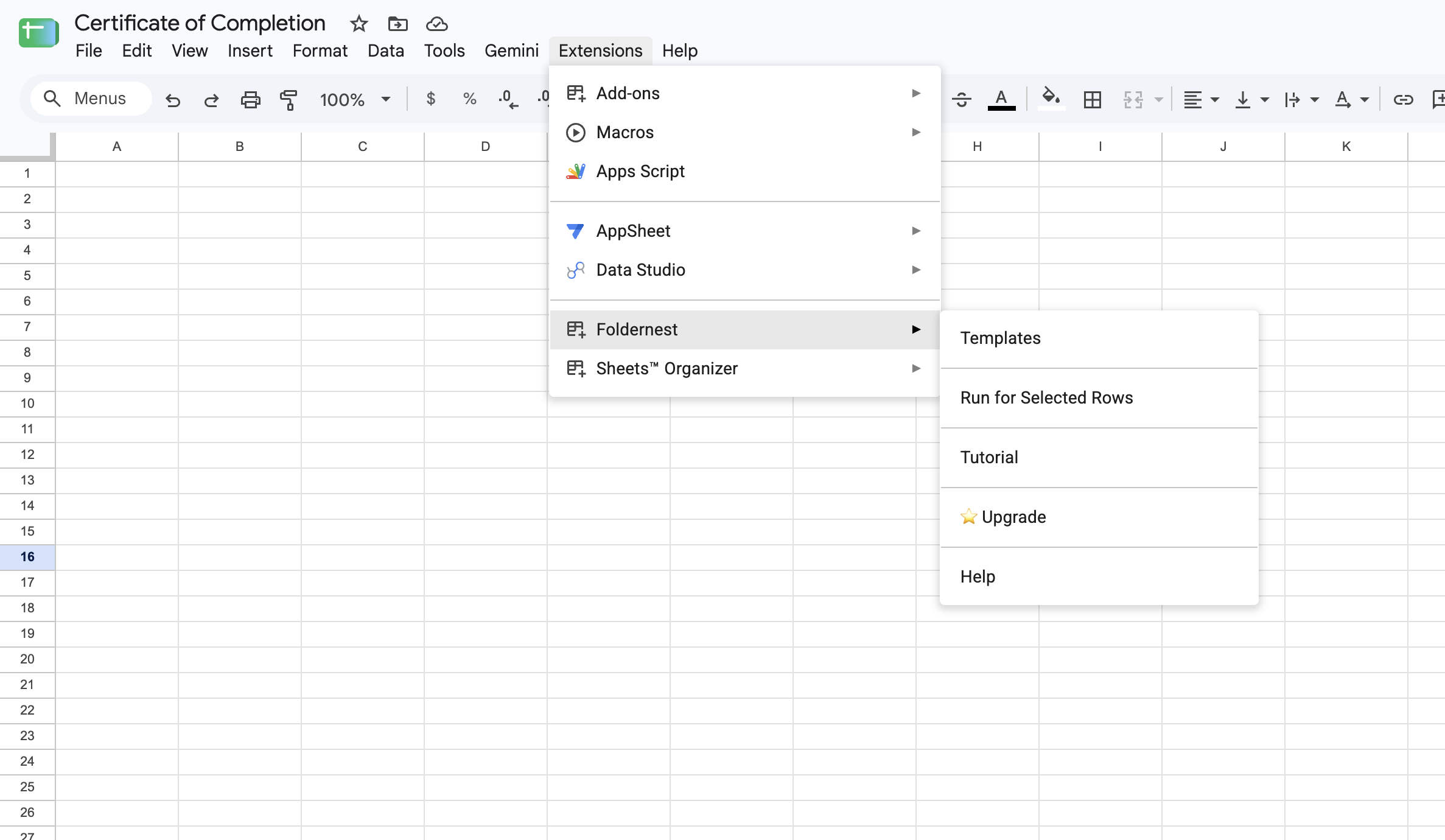
Step 2: Browse Pre-Built Starters & Choose 'Contract'
In the creation modal, click Single Document Template. Foldernest presents a curated gallery of Pre-built Starters spanning 10 common business categories, including Certificates, Invoices, and Commercial Contracts.
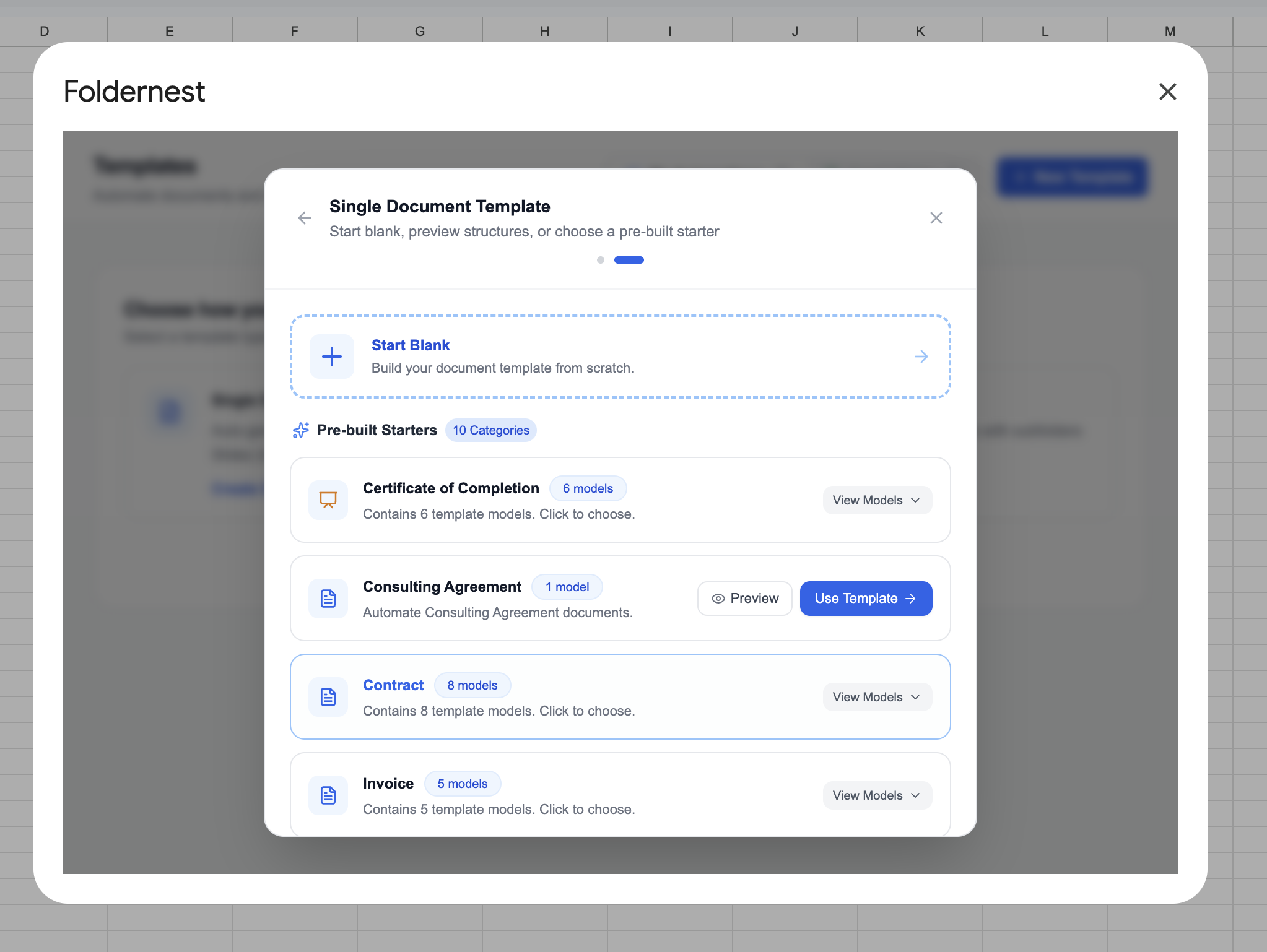
Scroll to the Contract category (housing 8 business and employment templates) and click View Models.
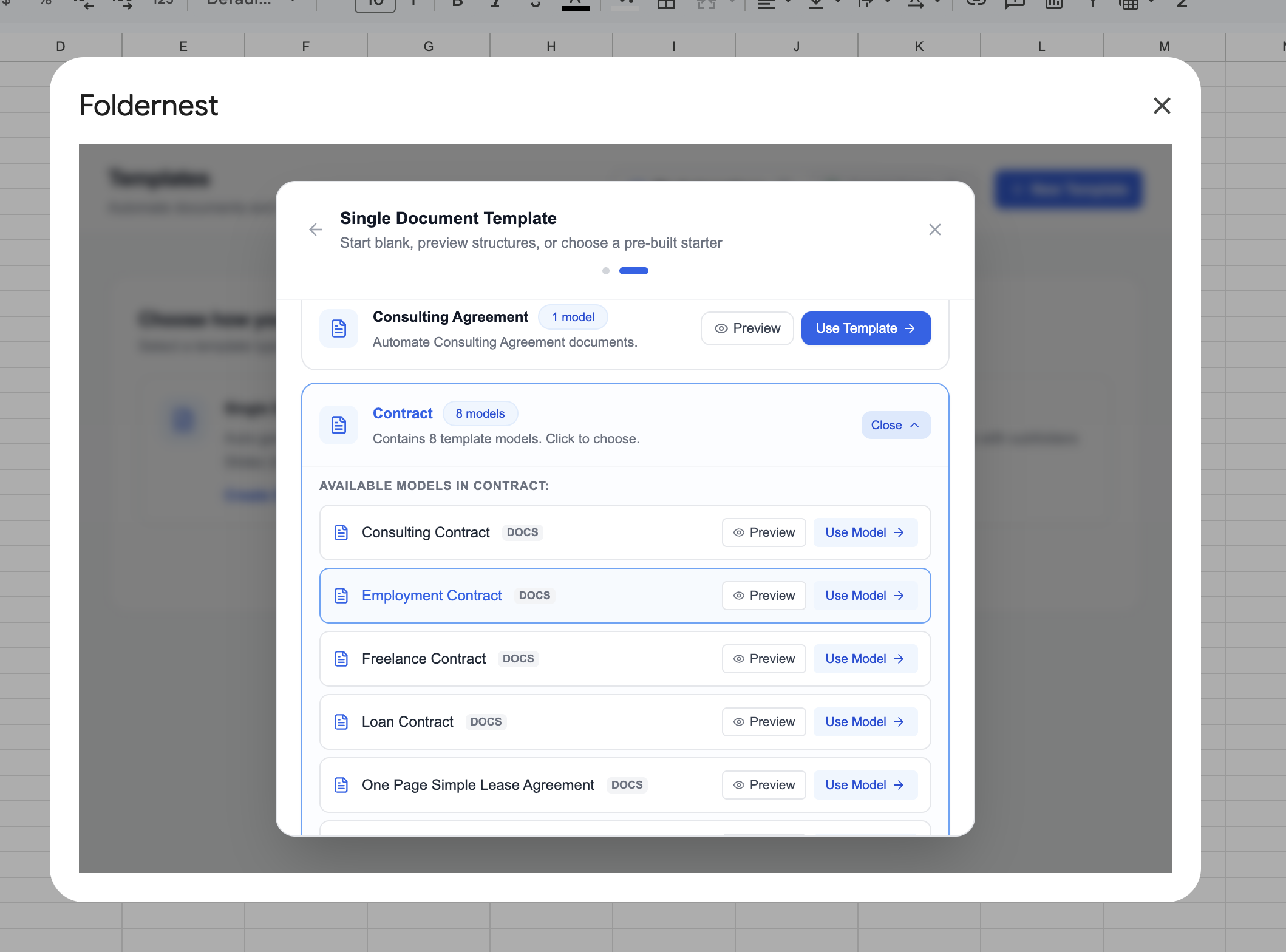
Locate Employment Contract (DOCS) and click Use Model. Foldernest instantly prepares your workspace by creating:
- A Dedicated Sheet Tab: A pre-formatted tab with all 39 standard employment columns (Job title, Salary, Schedule, Benefits, Leave policies, etc.).
- Native In-Cell Dropdowns: Pre-configured dropdown lists for employment type, payment intervals, severance periods, and leave rules.
- Realistic Starter Data: A complete test employee profile (*Lucas Vance*) hired by *Acme Global Technologies Inc*.
- A Master Template in Google Drive: A fully customizable Employment Contract - Template Master Google Doc placed in your Drive.
Complete Column Mapping & Pre-Configured Dropdowns
Unlike generic mail merge add-ons that leave you guessing what columns to create, Foldernest provisions a comprehensive contract schema mapped to standard corporate employment law. Key columns and their built-in dropdowns include:
| Contract Section | Spreadsheet Column | Dropdown Options / Format |
|---|---|---|
| Parties & Dates | Effective date | November 1, 2026 (Formatted Date) |
| Employer Details | Employer Name, Employer address | Acme Global Technologies Inc (100 Pine St, SF) |
| Employee Details | Employee Name, Employee address | Lucas Vance (650 Mission St, SF) |
| Position & Hours | Job title, Job duties | Senior Full Stack Engineer / Custom duty summary |
| Work Schedule | Work schedule | Full-time (40h/wk), Part-time (20h/wk), Part-time (30h/wk) |
| Employment Term | Employment term type | At-Will, Specified Time-Period |
| Termination Rules | Employee termination notice days | 14 Days, 30 Days, 60 Days |
| Severance Terms | Employer severance period | None, 30 Days, 60 Days, 90 Days, 6 Months |
| Compensation | Compensation amount in words, Amount | One Hundred Forty-Five Thousand, $145,000 |
| Pay Frequency | Pay structure, Payment schedule | Salary on an annual basis vs. Per hour / Bi-weekly basis |
| Incentives | Commission frequency, Bonus frequency | Quarterly, Annual, Performance-based, N/A |
| Probation Window | Trial period days | 30 Days, 60 Days, 90 Days, 180 Days |
| Paid Time Off | Vacation days per year, Personal leave | 15 Days, 10 Days, 20 Days, Unlimited / Paid, Unpaid |
| Covenants | Confidentiality term, Non-compete duration | 2 Years, 1 Year, 5 Years / 12 Months, 6 Months, None |
| Jurisdiction | Governing law state | California, New York, Delaware, Texas, etc. |
Step 3: Inspect the Master Template & Conditional Logic
Open your newly created Employment Contract - Template Master Google Doc. You will notice that it contains standard legal sections populated with dynamic merge tags (`{{Marker}}`) and smart conditional blocks:
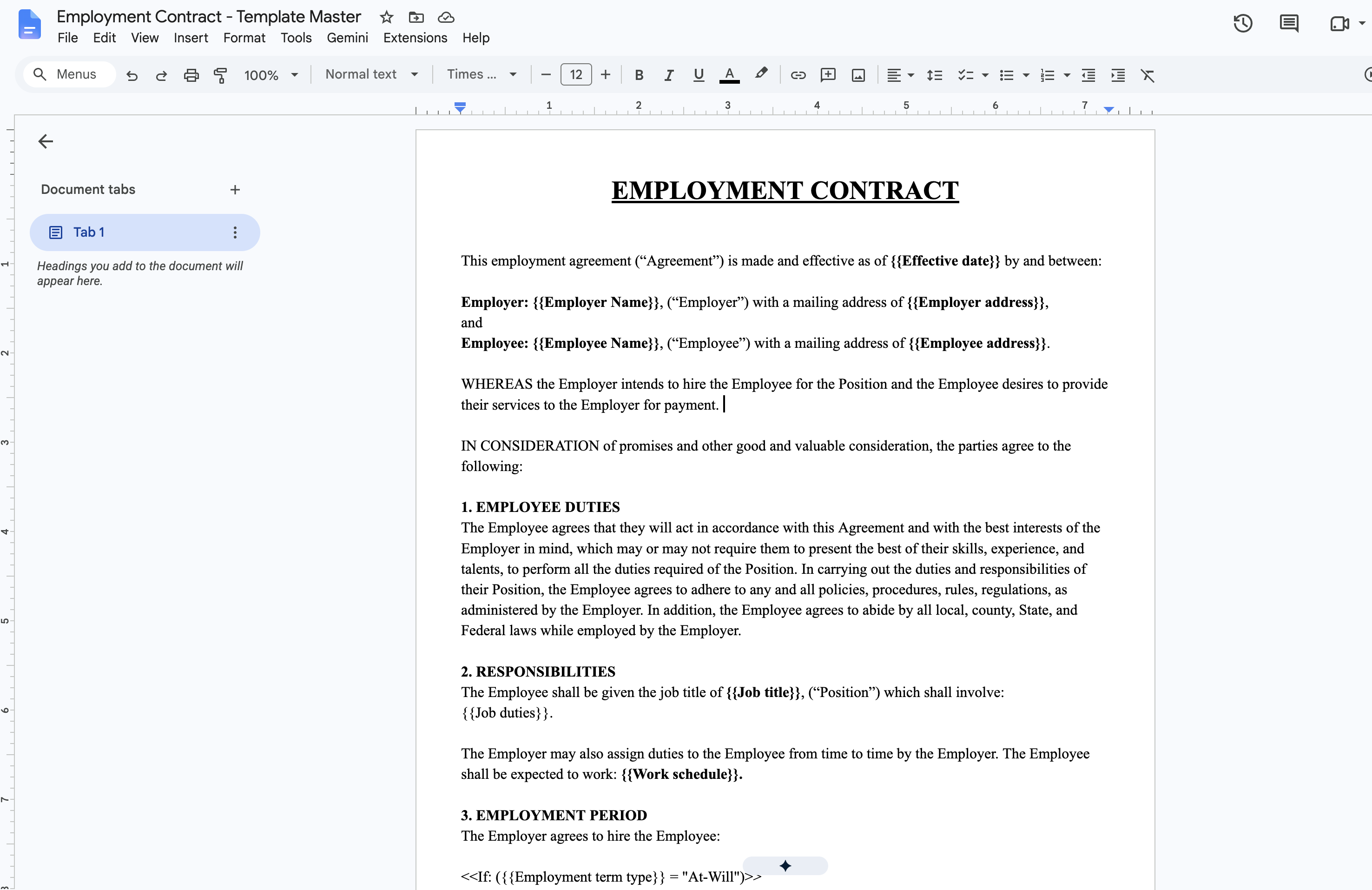
Pro Tip
How Conditional Content Works: Foldernest evaluates expressions like `<<If: ({{Employment term type}} = 'At-Will')>>...<<EndIf>>` in real time. If true, the standard At-Will termination clause is included. If false, it is cleanly removed without leaving awkward blank lines or broken bullet points.
Core conditional clauses pre-built into the template include:
- At-Will vs. Specified Period: `<<If: ({{Employment term type}} = "At-Will")>>` activates standard at-will clauses with reciprocal notice periods (`{{Employee termination notice days}}` and `{{Employer termination notice days}}`), while `<<If: ({{Employment term type}} = "Specified Time-Period")>>` introduces fixed start/end dates and non-renewal terms.
- Hourly vs. Salaried Structure: `<<If: ({{Pay structure}} = "Salary on an annual basis")>>` renders annual salary terms, while hourly provisions display hourly rates with overtime guidelines.
- Commissions & Bonuses: `<<If: ({{Commission calculation}} != "")>>` and `<<If: ({{Bonus calculation}} != "")>>` render commission cadence (`paid every {{Commission frequency}}`) and milestone formulas only when present in the row.
- Post-Termination Non-Compete: `<<If: ({{Non-compete duration}} != "None")>>` dynamically includes geographic restrictions (`{{Non-compete geographical area}}`) and restricted industry lists for authorized states.
Step 4: Configure Model & Source Sheet Setup
Back in the Foldernest setup wizard, Step 1 of 2: Model & Setup displays your selected template file and allows you to name your automation:
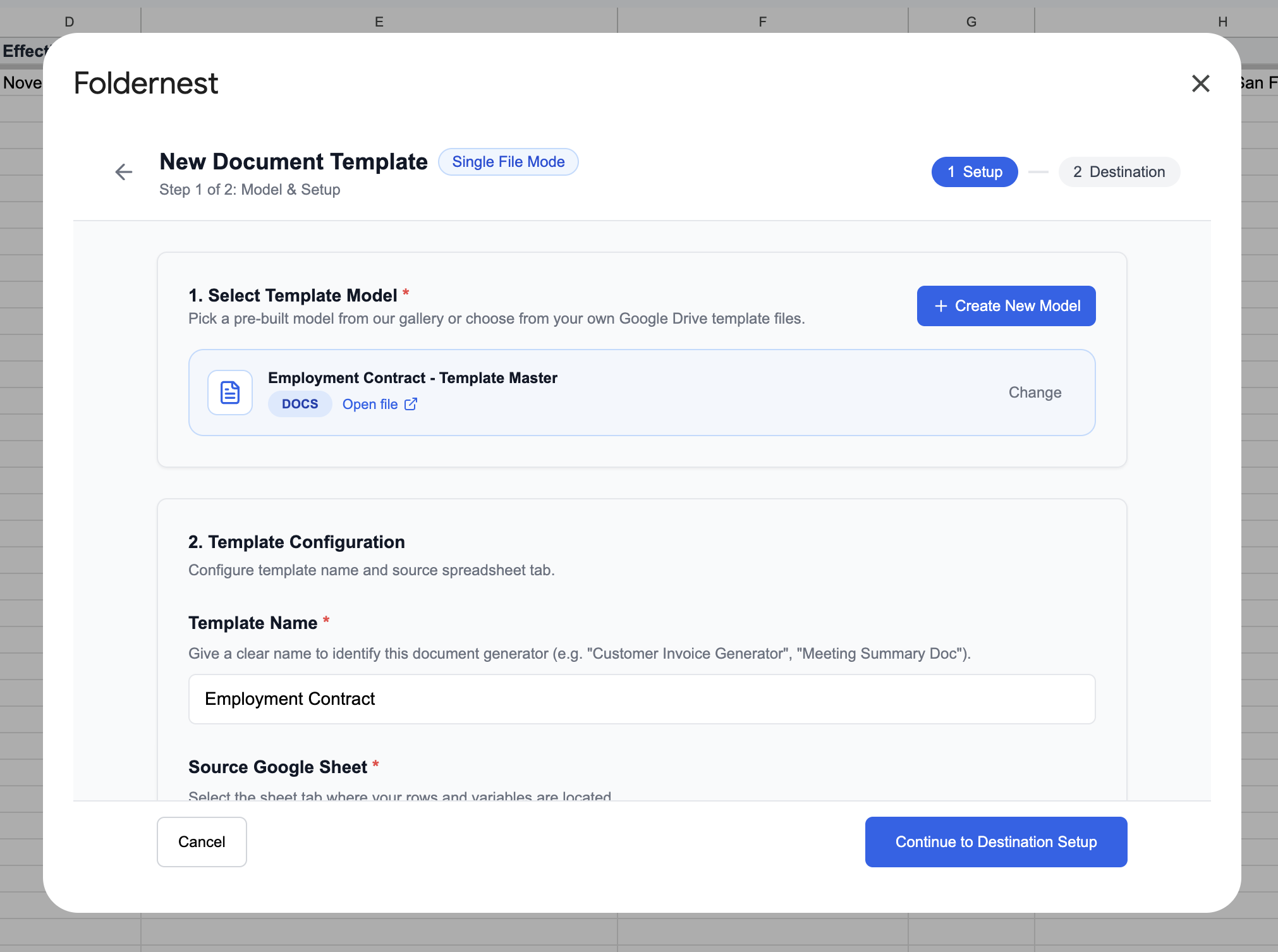
Scroll down to select the Source Google Sheet tab where candidate rows are stored (e.g., `Contract` or `Employment Contract`), and pick your Generation Trigger:
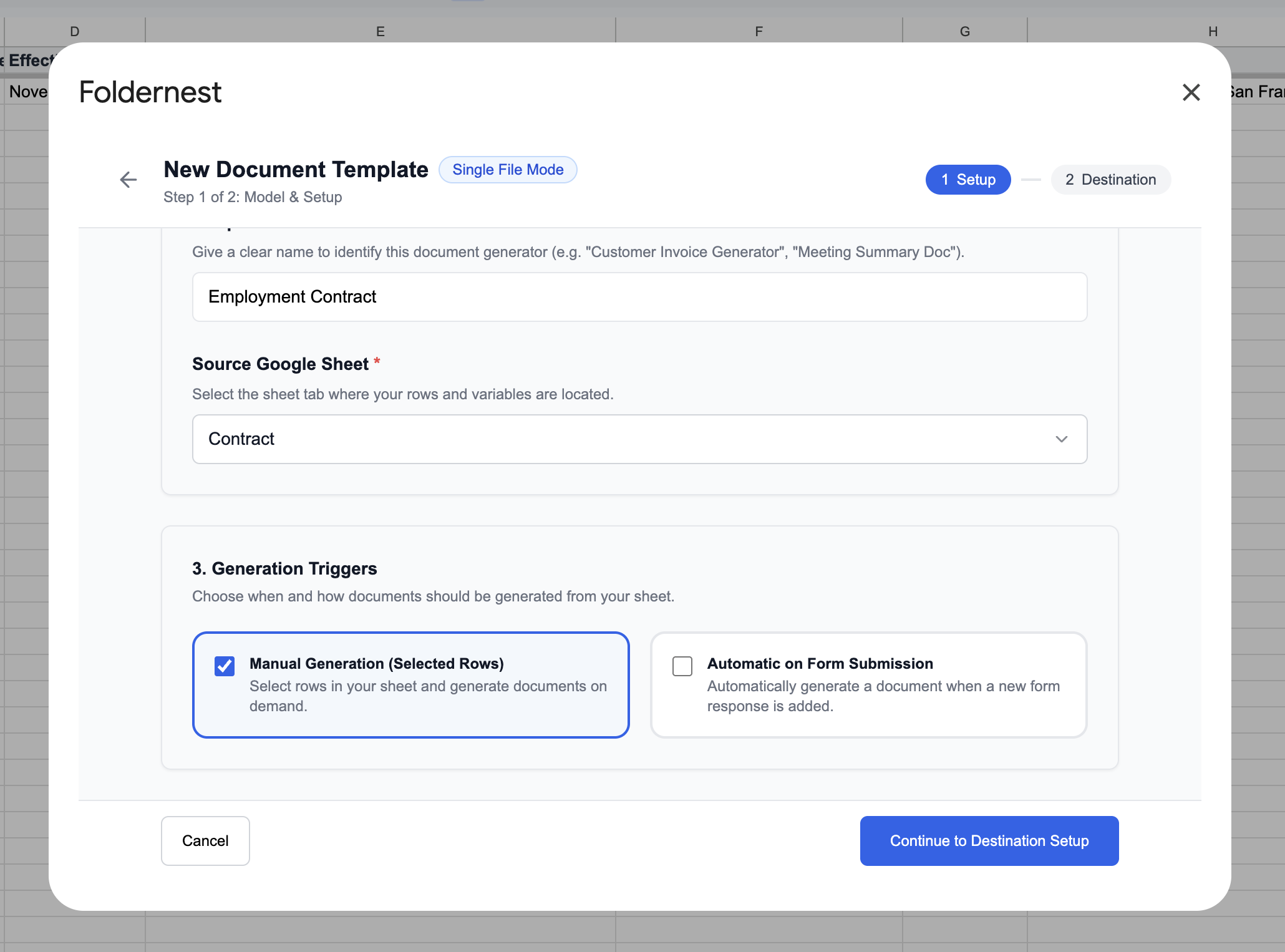
- Manual Generation (Selected Rows): Perfect for HR teams who review candidates in batches and click generate when an offer is ready to send.
- Automatic on Form Submission: Ideal for companies using Google Forms for new hire intake, generating the draft contract automatically upon submission.
Step 5: Configure Dynamic Document Naming
Click Continue to Destination Setup. In Step 2 of 2: Destination & Output, define how generated contract files should be named in Google Drive:
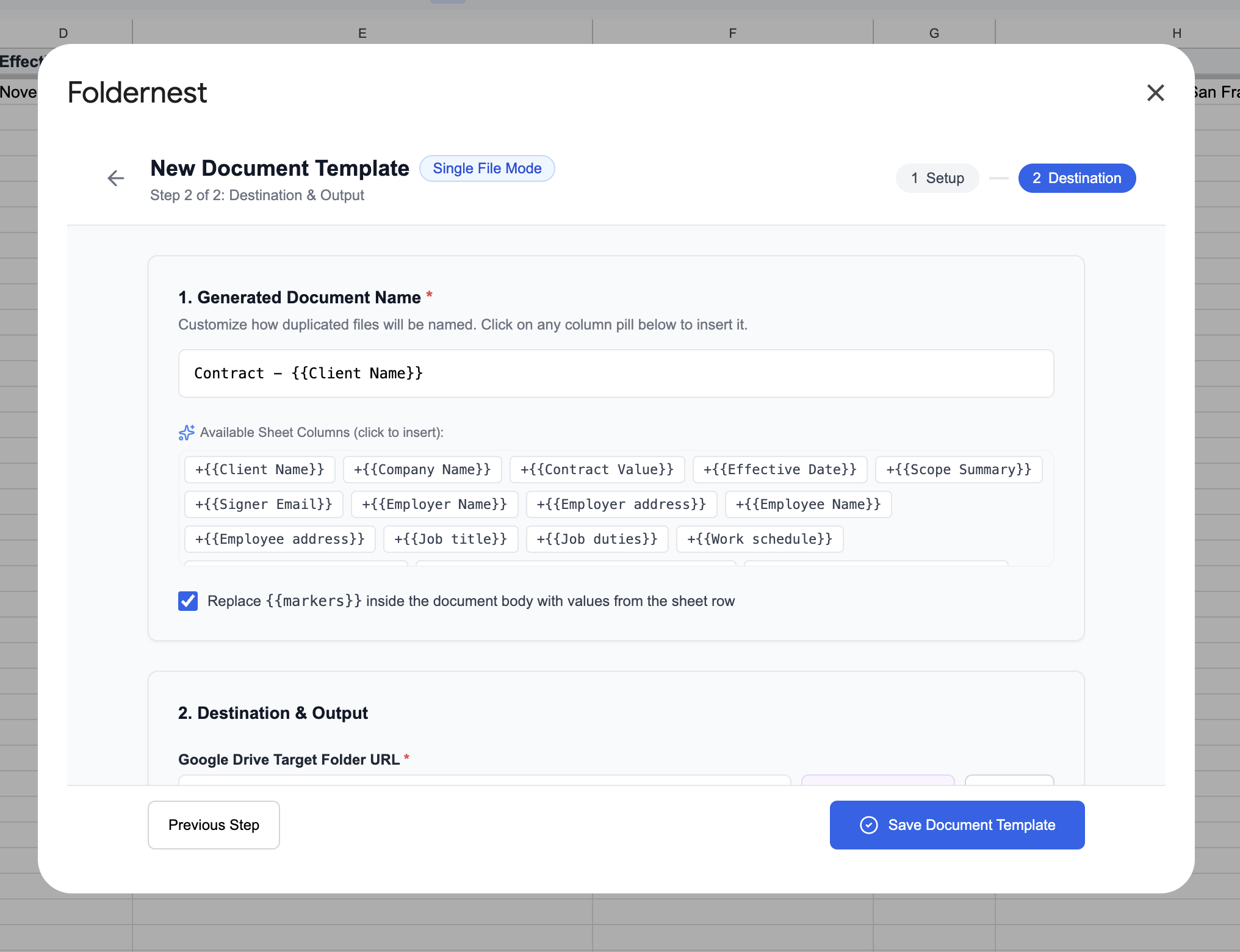
Click on any column pill below the input field to insert tags automatically (e.g., `Employment Contract - {{Employee Name}} - {{Job title}}`). Ensure the checkbox Replace {{markers}} inside the document body with values from the sheet row is checked.
Step 6: Select Drive Destination & Output Link Column
Next, set the destination in Google Drive where generated employment agreements should be stored:
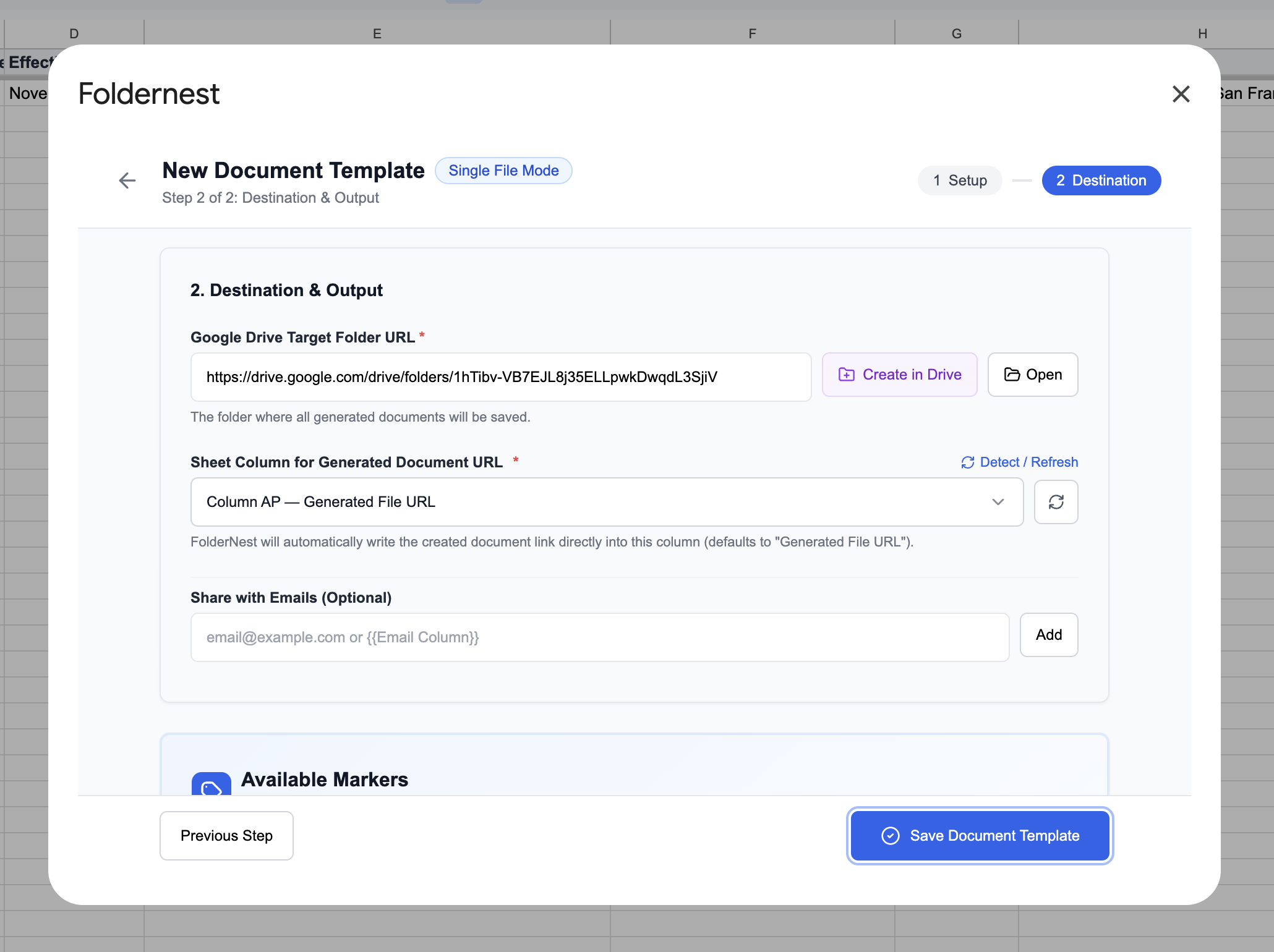
- Google Drive Target Folder URL: Paste the URL of your HR contracts folder, or click Create in Drive to provision an organized output folder.
- Sheet Column for Generated Document URL: Select the column (e.g., `Column AP — Generated File URL`) where direct Google Docs links will be recorded.
- Detect / Refresh Button: If you add or rearrange columns in your sheet, click the refresh button to re-scan the sheet headers instantly.
Step 7: Review Extracted Markers & Save Template
Foldernest automatically inspects your master Google Doc and lists all recognized tags in the Available Markers card:
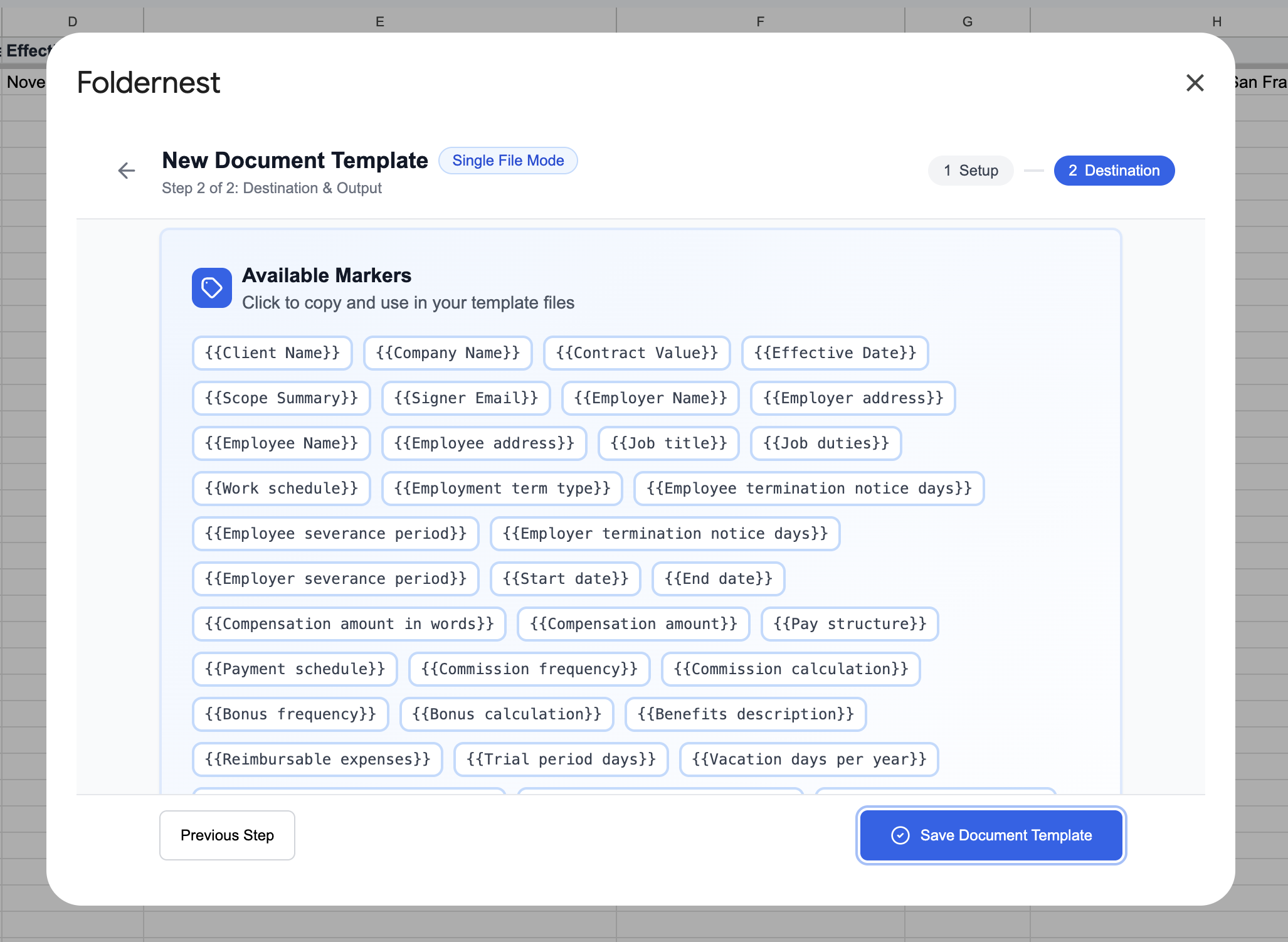
Verify that tags like `{{Employer Name}}`, `{{Employee Name}}`, `{{Job title}}`, `{{Work schedule}}`, and `{{Compensation amount}}` match your column headers, then click Save Document Template.
Step 8: Run a Test Generation (Row 2)
Before generating agreements for all candidate rows, Foldernest displays the Test Your Template screen:
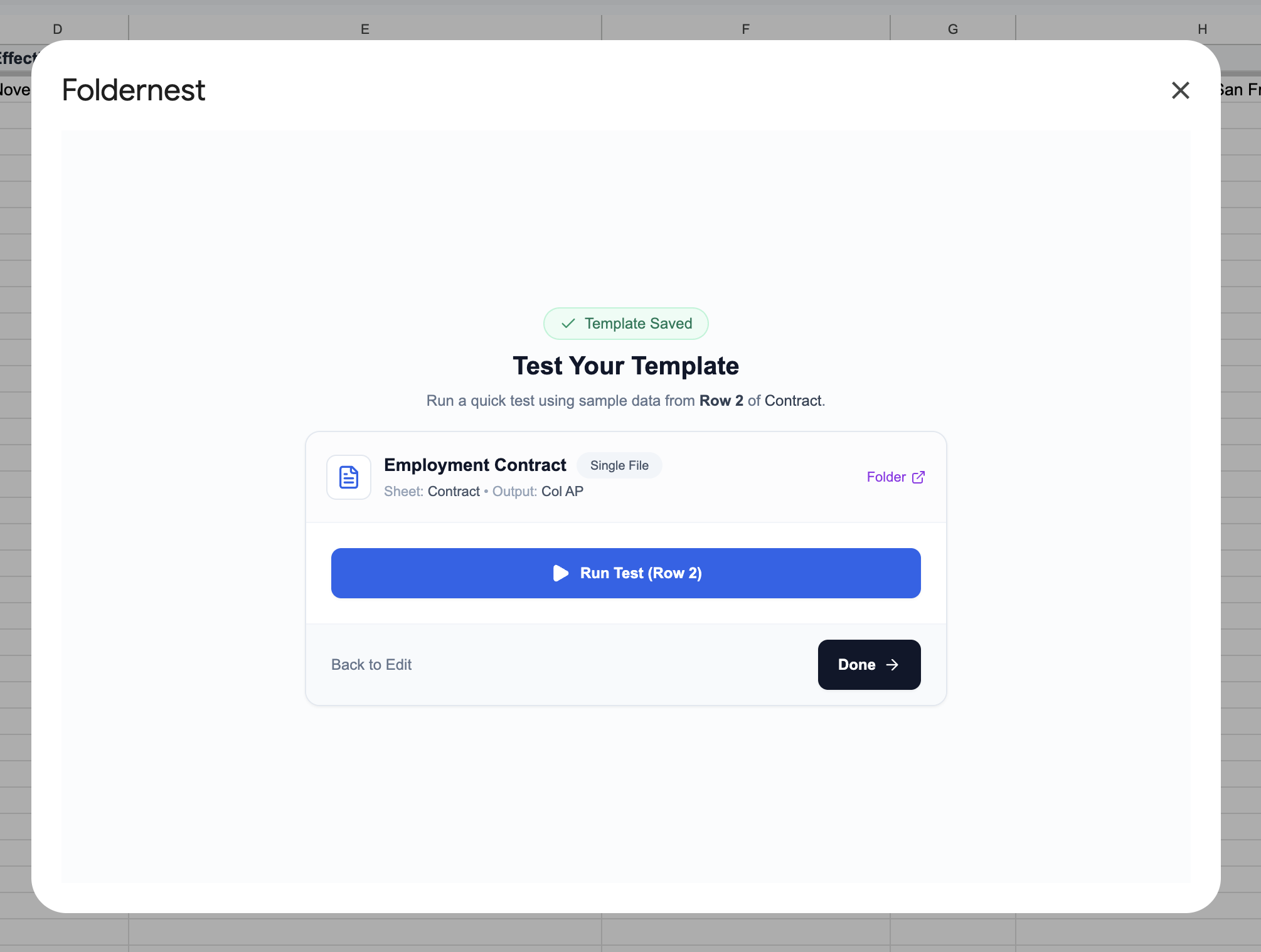
Click Run Test (Row 2). In approximately 2 to 3 seconds, Foldernest duplicates the template master, injects row values, evaluates conditional logic, saves the new Google Doc to your target folder, and writes the document link into your sheet.
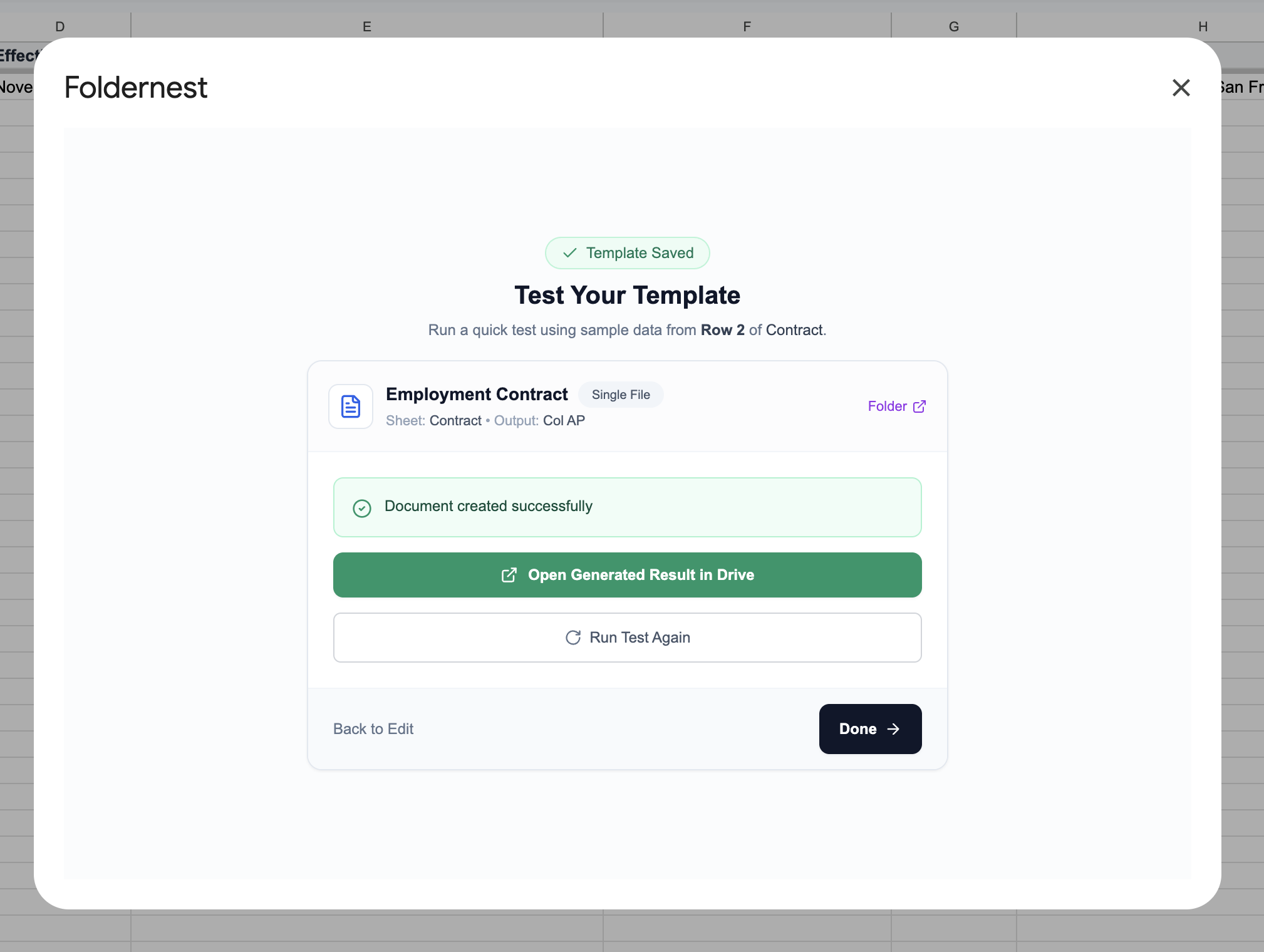
Step 9: Verify the Generated Employment Contract in Google Docs
Click Open Generated Result in Drive to inspect your newly minted employment contract:
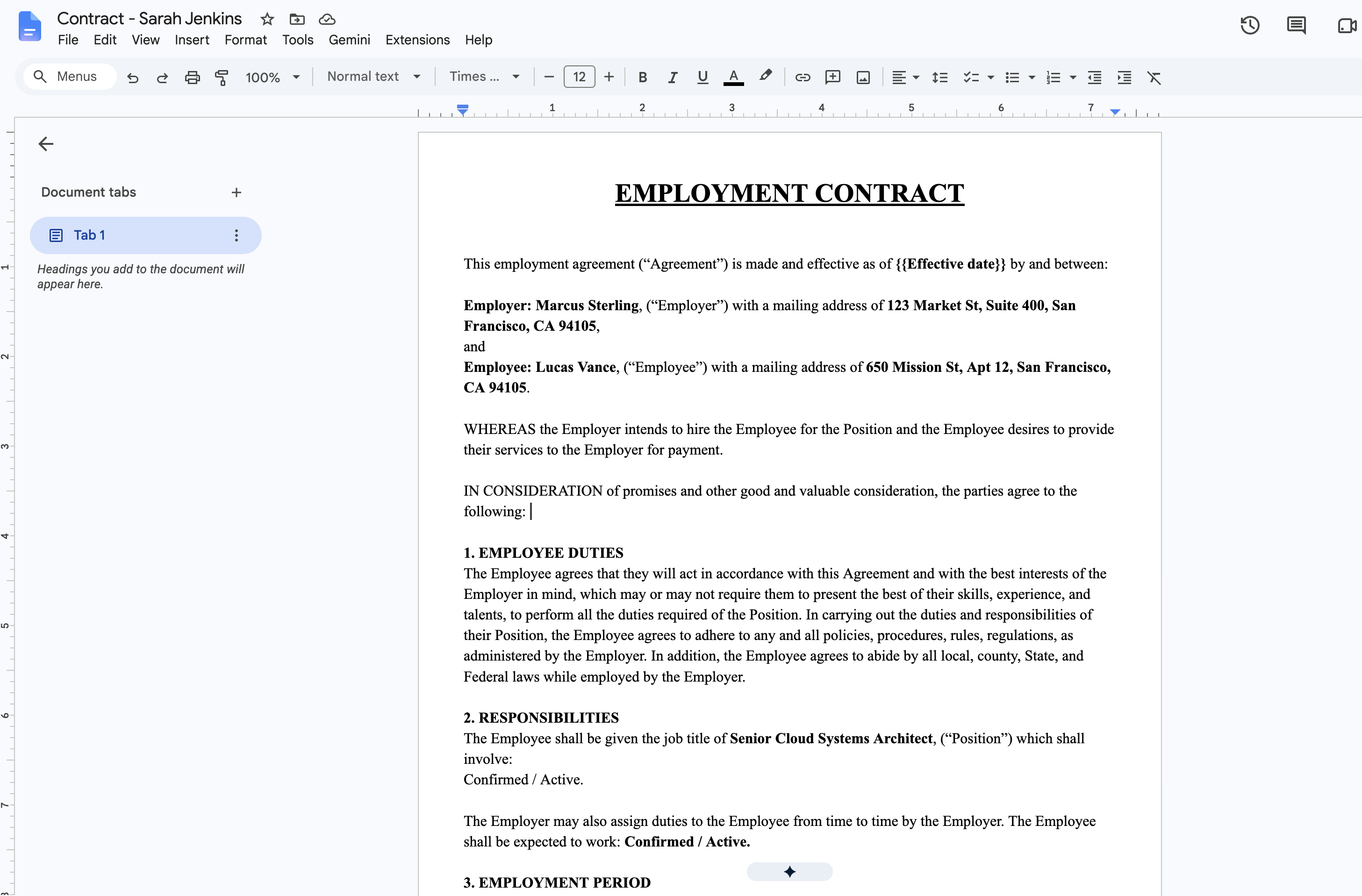
As shown in the output document:
- Employer & Employee Details: *Marcus Sterling* (Employer) and *Lucas Vance* (Employee) are cleanly positioned with their respective mailing addresses.
- Job Responsibilities: Position title *Senior Cloud Systems Architect* and responsibilities are populated without disrupting document typography.
- Zero Residual Markup: All merge tags and conditional markers have vanished, leaving a pristine, professional legal contract ready for e-signatures.
Step 10: Manage Automations from the Template Dashboard
Click Done to return to the Foldernest template management dashboard:
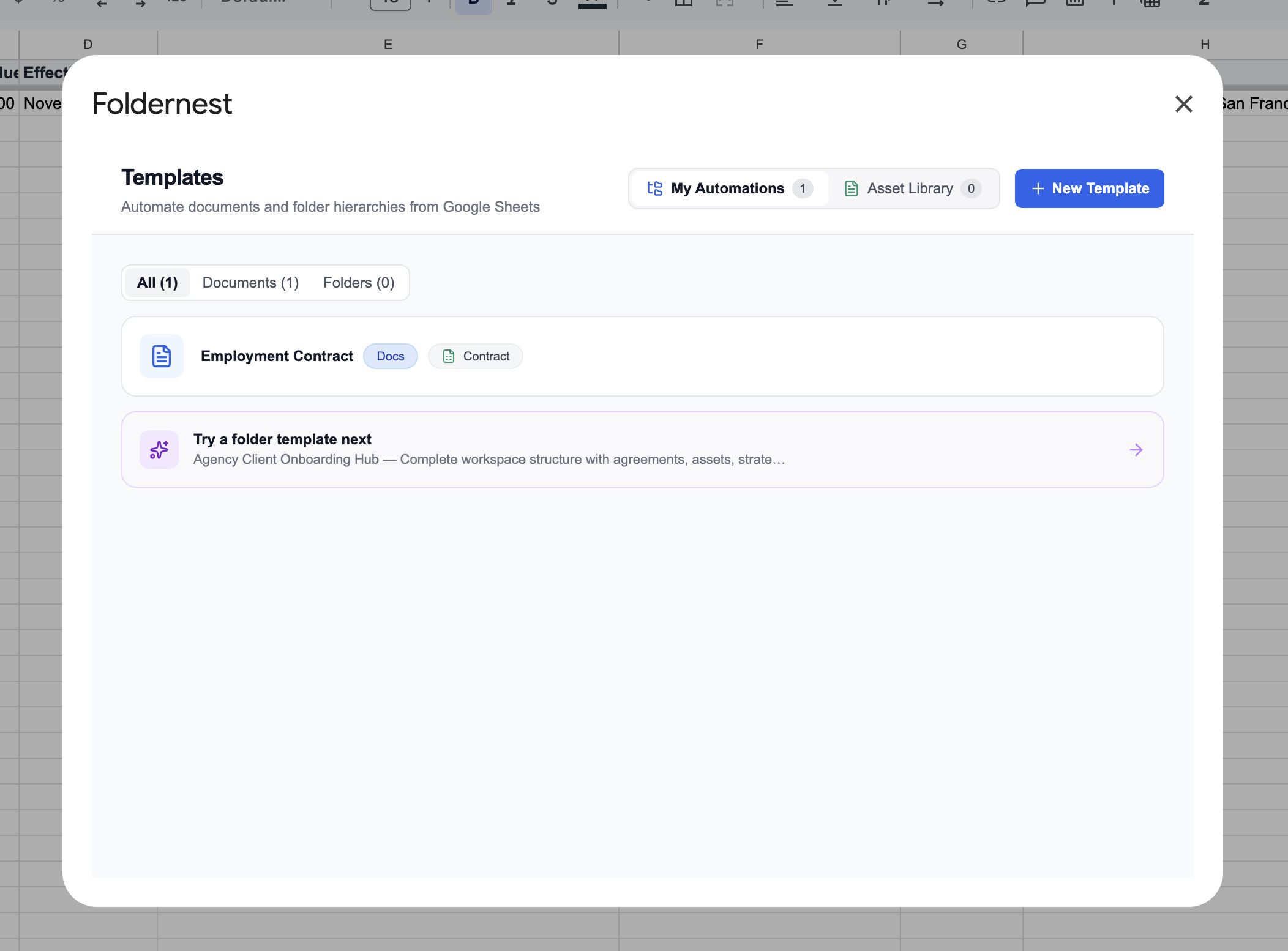
From here, you can edit settings, duplicate the automation for contractor agreements, or launch folder hierarchy automations for new employee onboarding kits.
Step 11: Interactive Link Logging & Google Drive Previews
Switch back to your Google Sheet. Look at the rightmost column (Column AP — Generated File URL):
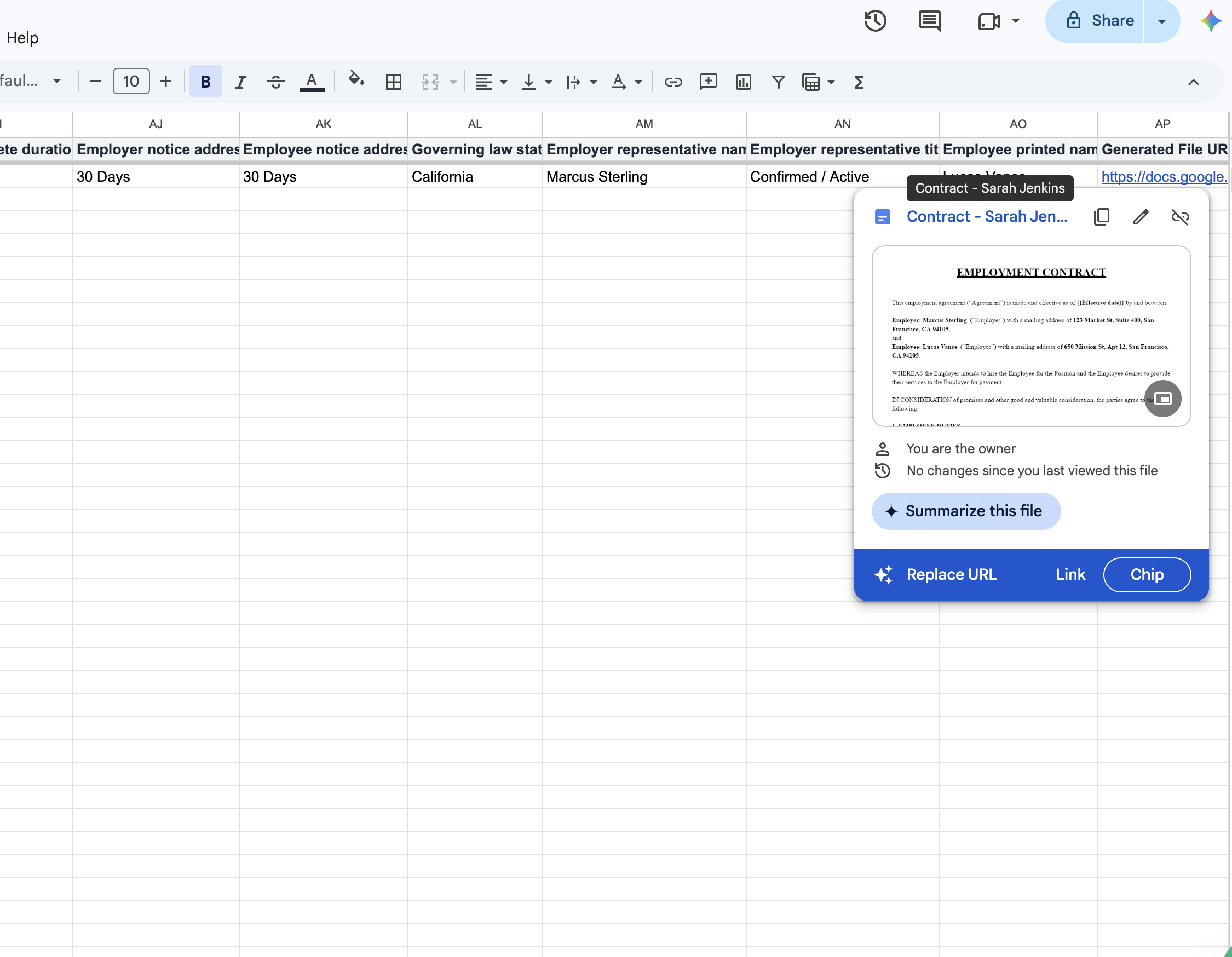
Hovering over the generated URL displays a native Google Drive preview card showing the document title (*Contract - Sarah Jenkins*), last modified date, and quick access buttons to open, edit, or copy the link directly. Your spreadsheet becomes an organized, real-time HR contract tracking system.
Manual HR Drafting vs. Automated with Foldernest
| Workflow Capability | Manual Copy-Paste | Automated with Foldernest |
|---|---|---|
| Time to Generate Contract | 30–45 minutes per candidate | Under 3 seconds per contract |
| Risk of Data Leaks | High (residual names/rates from past docs) | Zero (fresh merge from vetted row data) |
| At-Will vs. Fixed Term Clauses | Manually deleting & rewriting clauses | Automated via dynamic <<If: ...>> logic |
| Input Data Validation | Prone to typos in pay rates & notice days | Native in-cell Google Sheets dropdowns |
| File Organization in Drive | Scattered in random personal folders | Automated naming in dedicated target folder |
| Audit Register in Sheets | Manual copy-pasting of Drive URLs | Auto-logged in Column AP with Drive preview cards |
| Batch Scaling | Linear manual grind with each new hire | Select 10, 20, or 50 rows & batch-generate |
Best Practices for HR & Legal Operations Teams
Pro Tip
Legal Review Once, Deploy Everywhere: Have your labor counsel or legal team review and approve the Master Google Doc template once. Because Foldernest only injects validated row data and activates pre-approved conditional clauses, every generated agreement maintains 100% legal compliance.
- Standardize With In-Cell Dropdowns: Use the built-in dropdown validations for pay structures, notice periods, and leave rules to keep your recruiting team from entering malformed data.
- Combine Document Generation with Onboarding Folders: Once the contract is signed, use Foldernest's Folder Hierarchy Automation to instantly create the employee's onboarding Drive workspace (e.g., `Employee Hub - Lucas Vance/` with subfolders for `Contracts/`, `Benefits/`, `Performance/`, and `Tax Forms/`).
- Add HR Workflow Tracking Columns: Add helper columns right next to the Generated File URL column, such as *Offer Status* (*Draft*, *Sent*, *Signed*), *Offer Expiration Date*, and *Hiring Manager Email*.
- Automate Onboarding via Forms: Connect a Google Form or Typeform candidate intake questionnaire directly to your sheet to auto-trigger contract drafts when a candidate accepts an offer.
Frequently Asked Questions
Can I use our company's existing employment agreement template?
Yes! While the free Employment Contract starter model includes all standard provisions, you can automate any existing Google Doc. Simply choose Start Blank in Foldernest, select your existing document, and insert `{{Column Name}}` tags wherever candidate data should be dynamically injected.
Can I batch generate contracts for an entire hiring cohort?
Yes! Highlight multiple candidate rows in your Google Sheet, open Extensions > Foldernest > Run for Selected Rows, and select your Employment Contract template. Foldernest will batch generate personalized documents for all selected hires in parallel.
How do I send generated contracts for e-signature?
Because generated contracts are native Google Docs saved directly in your Google Drive, you can send them via Google Docs native e-signature tools, download them as high-resolution PDFs, or route them through signature services like DocuSign, PandaDoc, or Adobe Sign.
Can I add non-disclosure (NDA) or non-compete clauses conditionally?
Yes! You can add `<<If: ({{Non-compete duration}} != 'None')>>...<<EndIf>>` in your Google Doc template. If the candidate's spreadsheet row has 'None', Foldernest removes the non-compete section automatically without leaving blank paragraphs.
What happens if I add or reorder columns in Google Sheets?
You never have to rebuild your automation. Simply click the Detect / Refresh button next to the *Sheet Column for Generated Document URL* field in Foldernest. It automatically re-scans row 1, finds the `Generated File URL` column wherever it moved, and re-binds it instantly.
Is candidate salary and personal data secure?
Yes. Foldernest runs directly within your Google Workspace account via Google Apps Script and official Google Drive APIs. Your candidate information, compensation numbers, and contract files never leave your Google Drive organization.
Ready to Automate Your Hiring Documents?
Stop wasting hours manually retyping candidate details into contracts. Install Foldernest from the Google Workspace Marketplace today and generate polished, error-free employment contracts in Google Docs directly from your spreadsheet.