
Whether you are an independent freelancer landing new clients or an agency managing a growing roster of contractor talent, every project requires an enforceable, well-drafted freelance contract (independent contractor agreement). A solid contract protects both parties by detailing scope of work, deliverables, payment structures, intellectual property ownership, confidentiality, and termination terms.
Yet for most creatives, developers, and hiring managers, drafting contracts remains one of the most frustrating bottlenecks. Copying a previous agreement, manually scouring text to swap out names and addresses, recalculating milestone payments, and deleting irrelevant clauses is slow, tedious, and fraught with legal hazards. In this guide, you will discover how to turn a Google Sheets row into a customized, professionally formatted freelance contract in Google Docs in seconds using Foldernest and its free pre-built Freelance Contract starter template.
The Cost and Risk of Manual Freelance Contract Drafting
Drafting freelance agreements by manually editing Word or Google Docs files creates recurring business and legal liabilities:
- Accidental Data Leaks: Copy-pasting old agreements frequently leaves a past client's company name, confidential hourly rate, or corporate address hidden inside an overlooked clause.
- Payment Structure Inconsistencies: Freelance engagements vary widely. One client pays $120/hour, another pays a $5,000 fixed milestone fee, and another pays a sales commission. Manually deleting and reformatting these clauses creates awkward formatting gaps and conflicting legal language.
- Bottlenecked Project Kickoffs: Spending 30 to 45 minutes formatting agreements delays signatures, stalls initial deposit payments, and slows down deal momentum.
- Disorganized Google Drive Storage: Contracts saved manually end up scattered across disjointed folders with arbitrary names like `Contract_Final_v2_Alex.docx`, making contract auditing and retrieval a nightmare.
The Modern Solution: Smart Sheets + Dynamic Conditional Docs
With Foldernest, contract creation is completely automated. Your master contract template lives in Google Docs and pairs with your Google Sheets pipeline using dynamic variable tags (`{{Column Name}}`) and conditional logic rules (`<<If: ...>>...<<EndIf>>`):
- Dedicated Party Identification: Client (*Sarah Jenkins*) and Contractor (*Alex Rivera*) details stay strictly partitioned, ensuring names, corporate entities, and notice addresses never mix.
- Dynamic Payment Clauses: The template dynamically selects whether to display an hourly rate, a fixed project fee, or a commission model based on a single column in your sheet. Non-applicable payment sections are cleanly removed with zero leftover whitespace.
- Automated Sheet URL Tracking: Each generated Google Doc's URL is immediately recorded back into your spreadsheet with rich Google Drive hover preview cards.
- One-Click Deployment: The pre-built starter provisions a ready-to-use Google Sheet tab, sample rows, and an editable Google Docs master template in under 30 seconds.
Step 1: Open Foldernest in Google Sheets
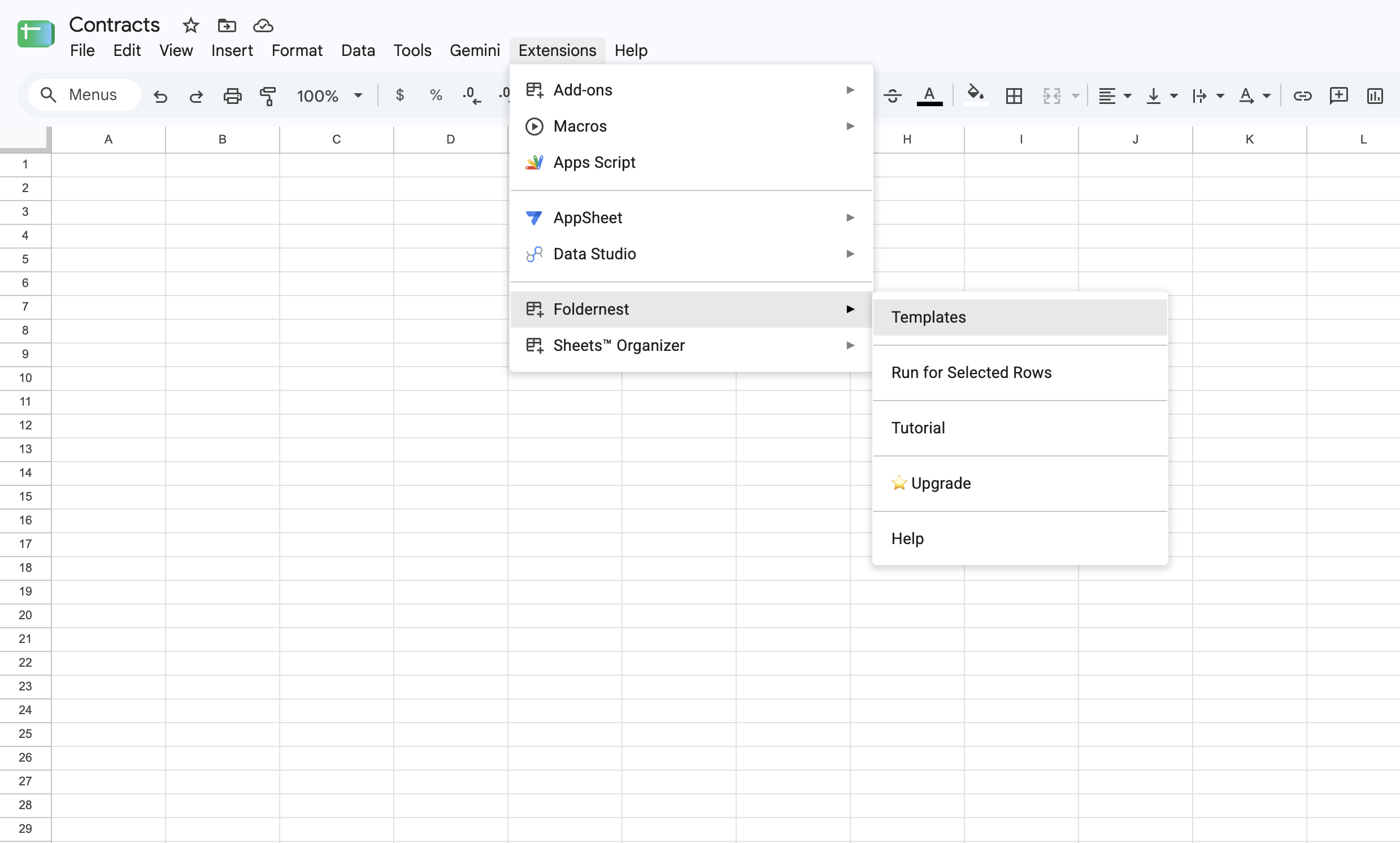
Open your Google Spreadsheet where you track client engagements or incoming contractor assignments. From the top menu bar:
- 1. Click Extensions in the Google Sheets navigation bar.
- 2. Select Foldernest > Document & Folder Templates > Create & Manage.
Step 2: Choose 'Single Document Template' & Pre-Built Starters
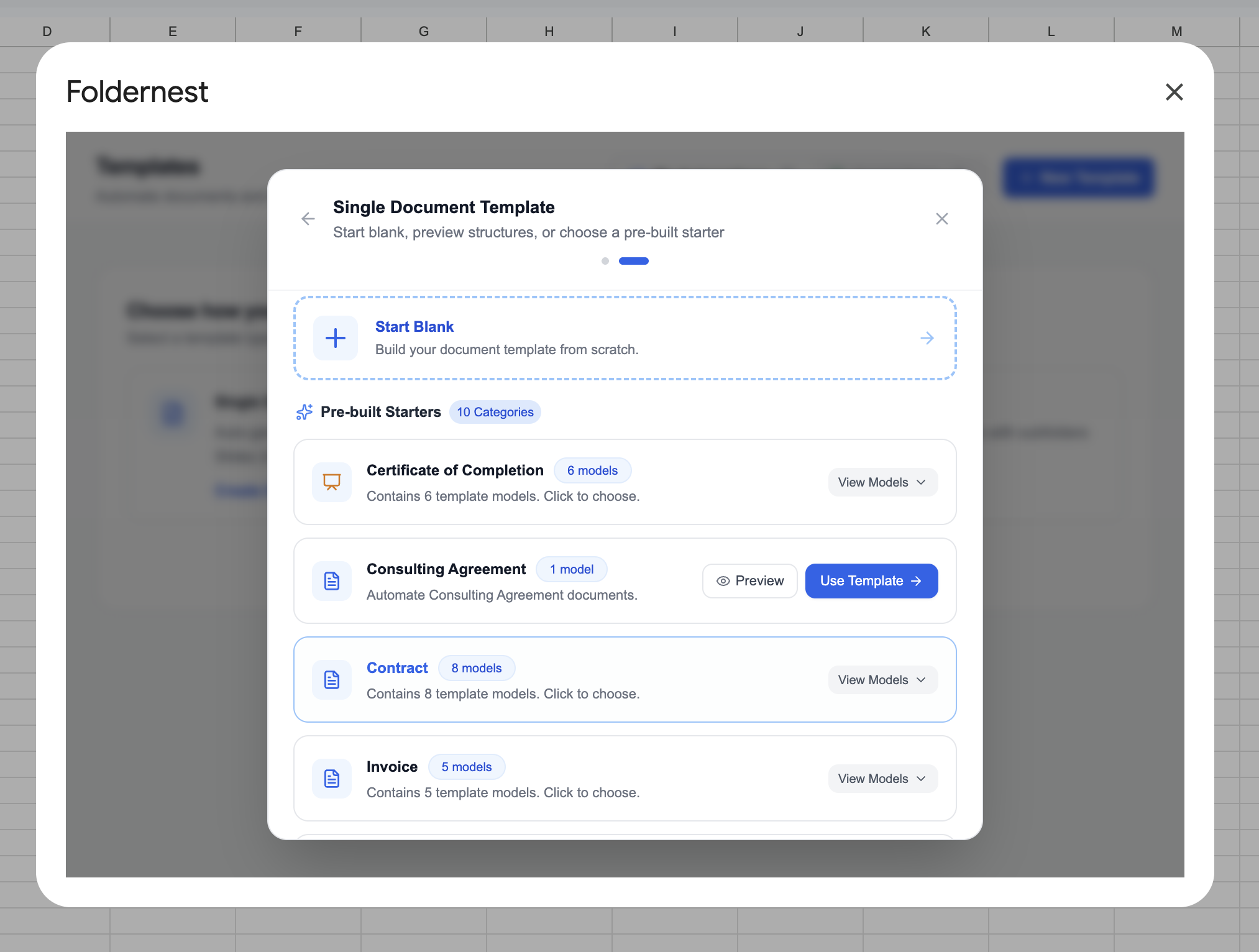
In the template creation modal, choose Single Document Template. This automation mode merges spreadsheet rows into individual, customized Google Docs, Slides, or Sheets files. Scroll down to browse the Explore Pre-built Starters library.
Step 3: Select the 'Freelance Contract' Starter
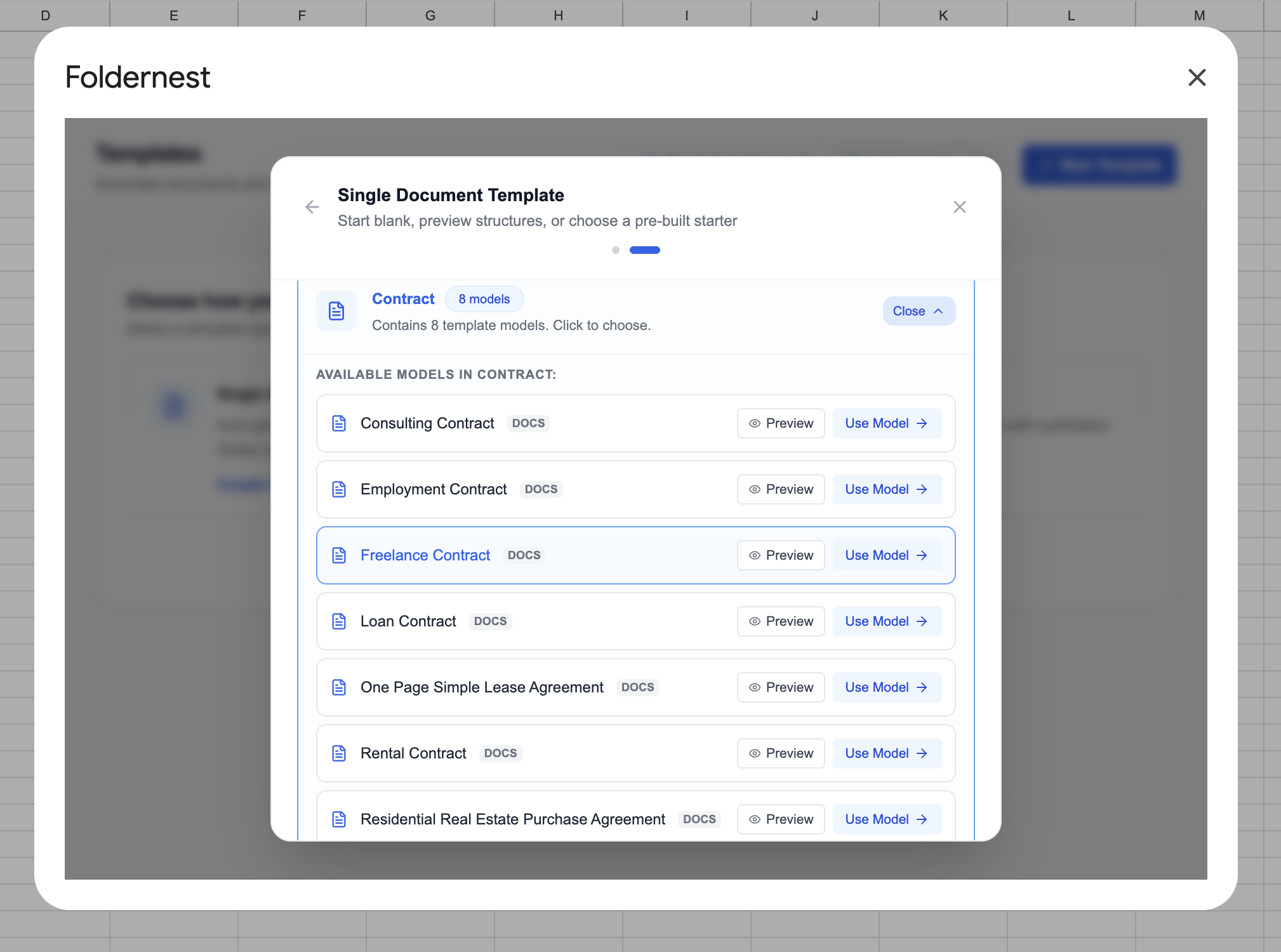
Click the Contract category to view commercial agreements. Find Freelance Contract (Docs) — designed for independent contractor agreements with dynamic milestones, compensation structures, and IP rights. Click Use Model.
When you select this model, Foldernest instantly prepares your Google Workspace environment:
- Creates the 'Freelance Contract' Sheet Tab: Adds a tab with 32 structured columns for parties, scope of services, compensation structures, payment schedules, and signing details.
- Populates Realistic Sample Data: Injects a complete test row featuring *Sarah Jenkins* as Client and *Alex Rivera* as Contractor.
- Copies the Template Master: Saves an editable Freelance Contract - Template Master Google Doc directly to your Google Drive.
Step 4: Inspect the Master Template & Conditional Logic in Google Docs
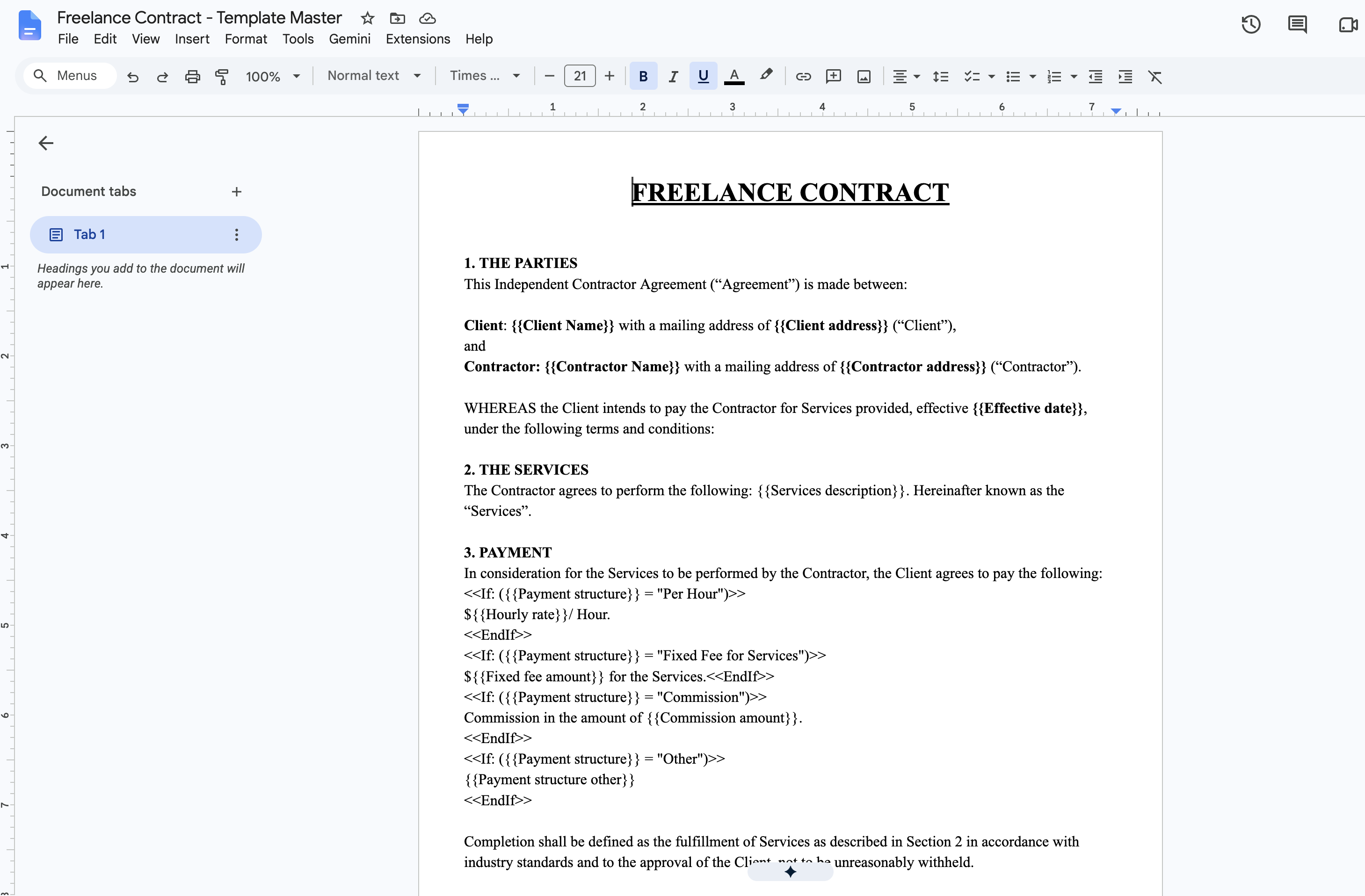
Open your newly created Freelance Contract - Template Master in Google Docs. You'll see professional independent contractor language pre-wired with dynamic tags (`{{...}}`) and conditional statements (`<<If: ...>>`):
Pro Tip
Mastering Conditional Statements: Notice Section 3 (Payment). The template contains clauses like `<<If: ({{Payment structure}} = "Per Hour")>>${{Hourly rate}}/ Hour.<<EndIf>>` and `<<If: ({{Payment structure}} = "Fixed Fee for Services")>>${{Fixed fee amount}} for the Services.<<EndIf>>`. When Foldernest generates the contract, it only includes the payment method selected in that row, deleting all inactive options seamlessly!
Essential clauses automated in the freelance starter include:
- Parties & Effective Date: Injects Client Name, Client Address, Contractor Name, Contractor Address, and Effective Date.
- Services Description: Populates specific project scope and deliverables from the spreadsheet into Section 2.
- Dynamic Compensation: Supports hourly billing, fixed lump sums, commission structures, and custom payment schedules.
- Termination Notice & Legal Authority: Dynamically binds termination notice windows (`{{Termination notice days}}`), representative signing names, and execution dates.
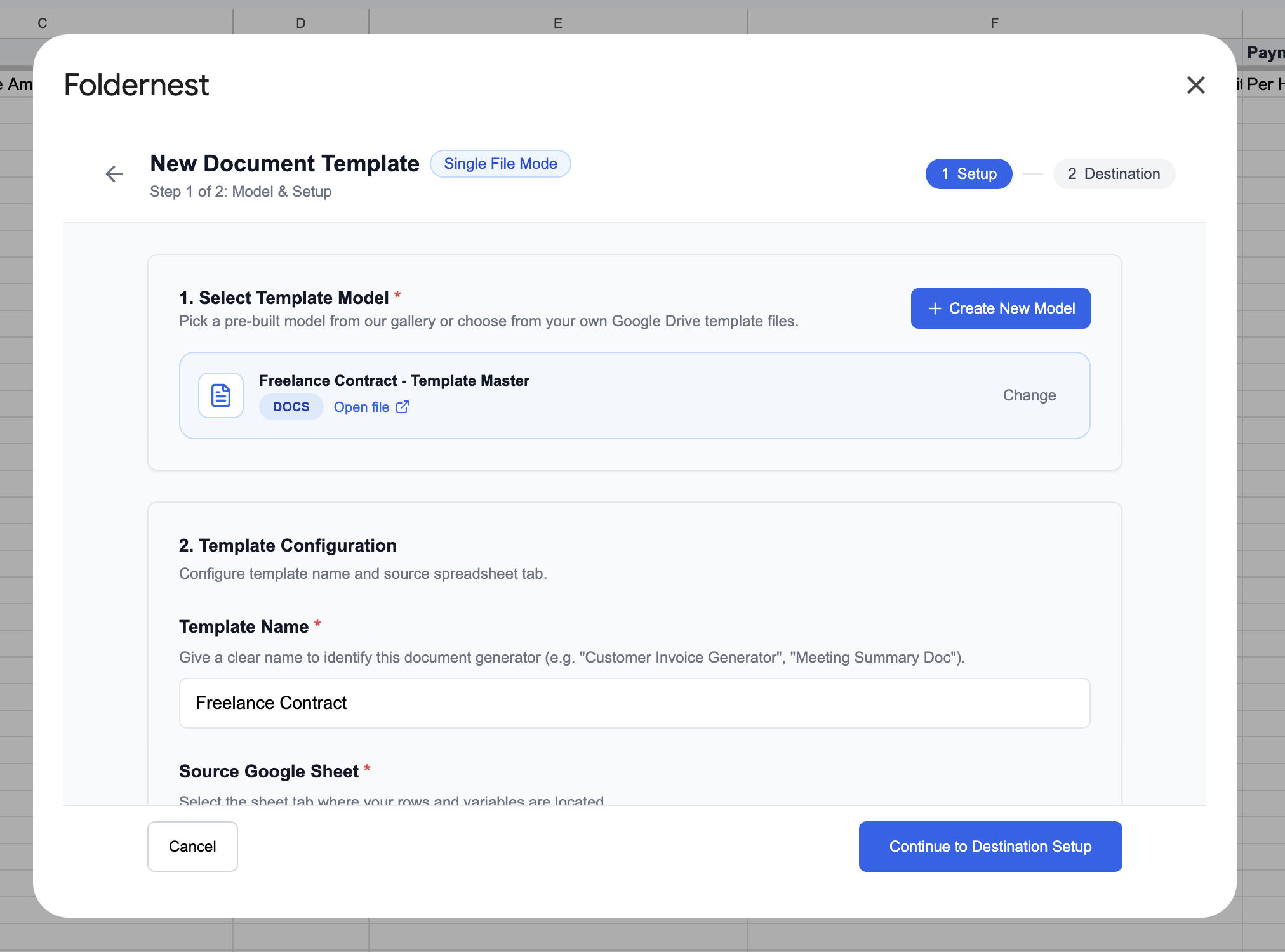
Step 5: Configure Model & Template Setup
Return to the Foldernest setup wizard (Step 1 of 2: Model & Setup). The Template Master document is already linked. Set your template name (e.g. *Freelance Contract*).
Step 6: Connect the 'Freelance Contract' Sheet & Set Triggers
Scroll down to select the Freelance Contract tab as your source sheet. Under Generation Triggers, define how your documents will be generated:
- Run on manual test / row selection: Generate agreements on demand by selecting rows and clicking generate.
- Run automatically when a form is submitted: Automatically create a freelance agreement whenever a new client or contractor submits a linked Google Form or intake survey.
- Run when a row status changes: Automatically trigger generation when a column like *Status* changes to *Approved* or *Send Contract*.
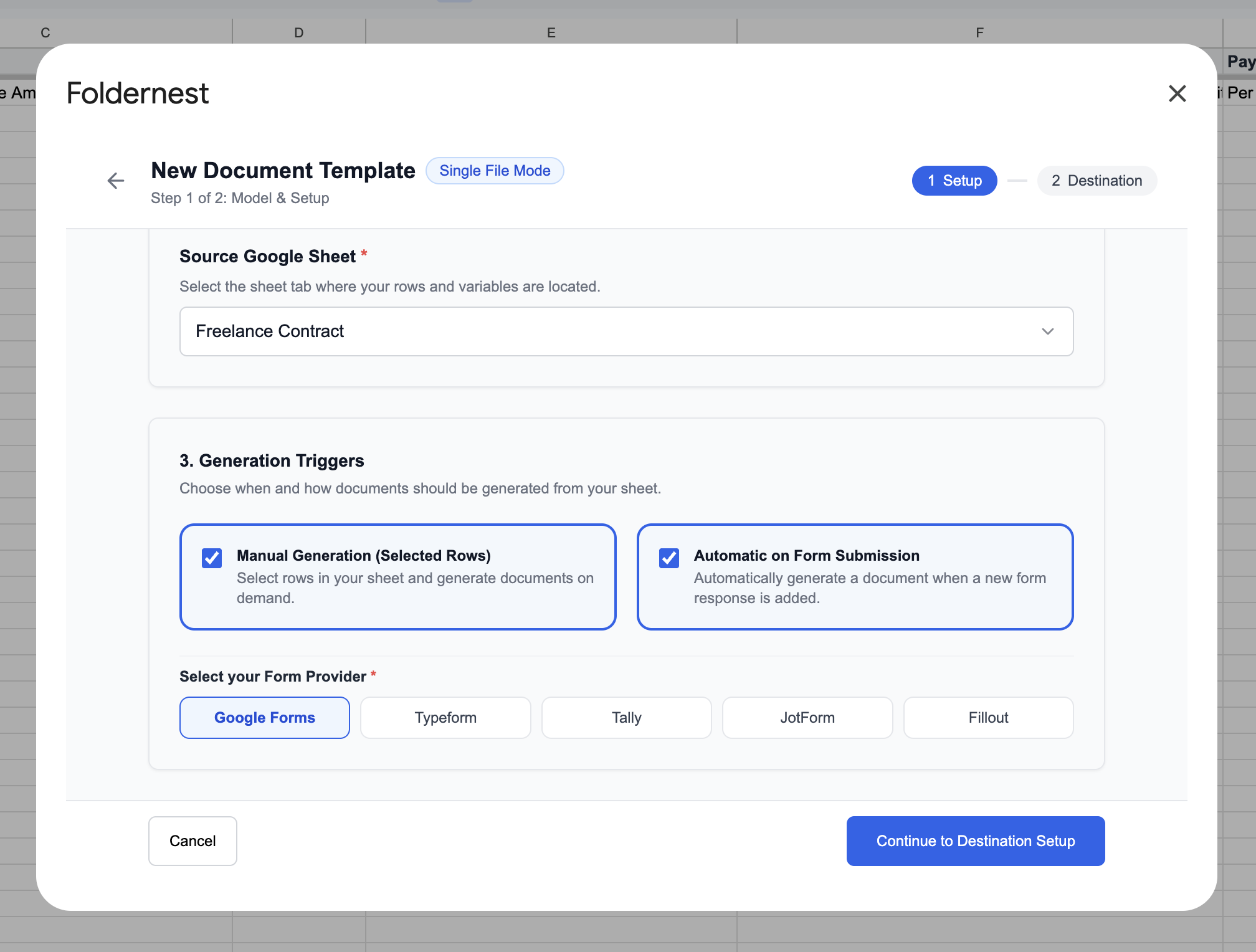
Click Continue to Destination Setup to proceed.
Step 7: Set Dynamic Document Naming & Destination Drive Folder
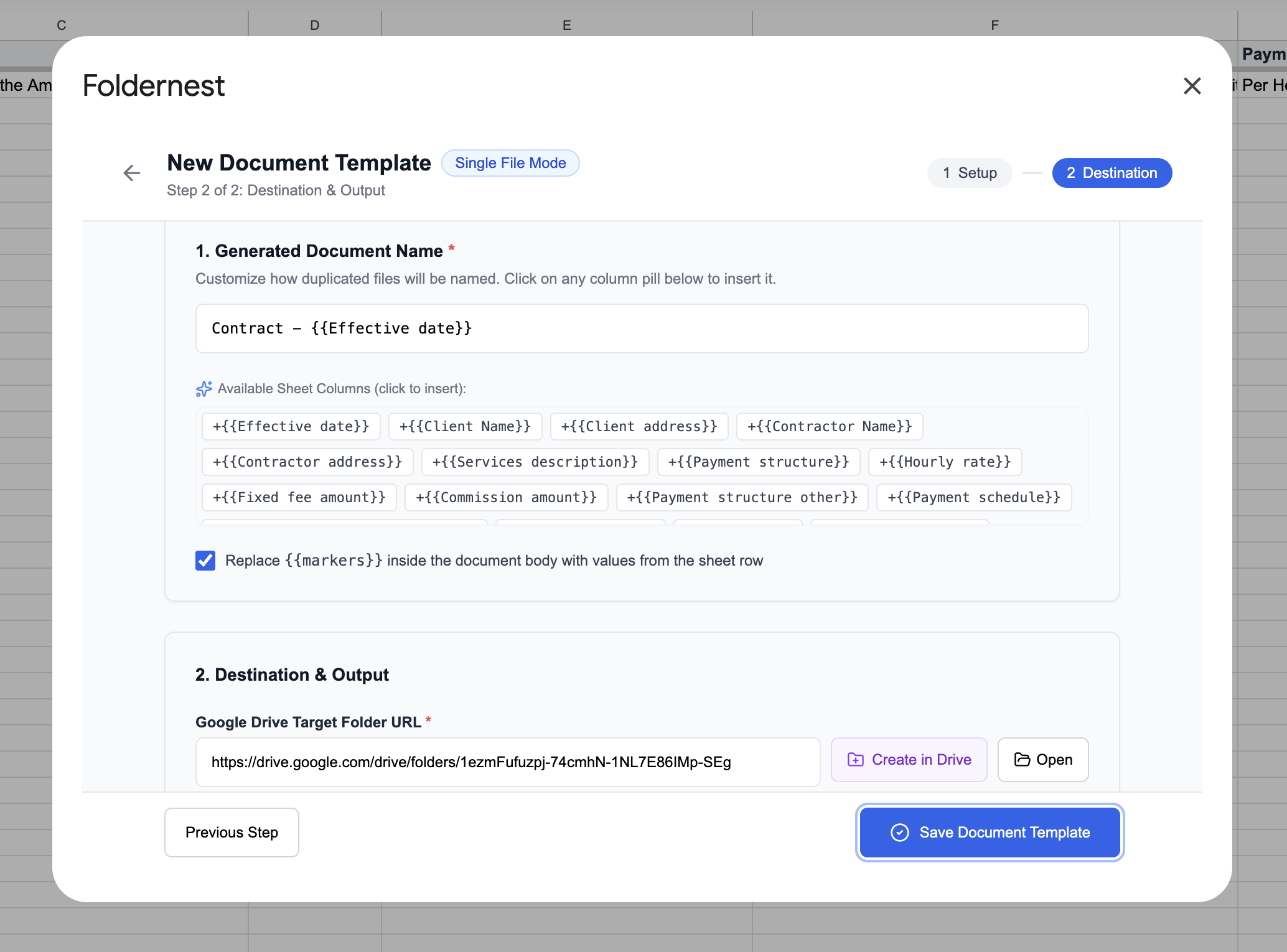
In Step 2 of 2: Destination & Output, configure file organization and dynamic naming in Google Drive:
- 1. Dynamic Document Name: Click any column pill to build structured, searchable file names, such as `Contract - {{Effective date}} - {{Client name}} - {{Contractor name}}`.
- 2. Replace {{markers}} inside document body: Ensure this box is checked so all spreadsheet values and conditional blocks resolve within the document.
- 3. Target Drive Folder: Select your designated Google Drive folder (e.g. *Freelance Contracts*) or keep root Google Drive.
Step 8: Auto-Detect Output URL Column & Review Markers
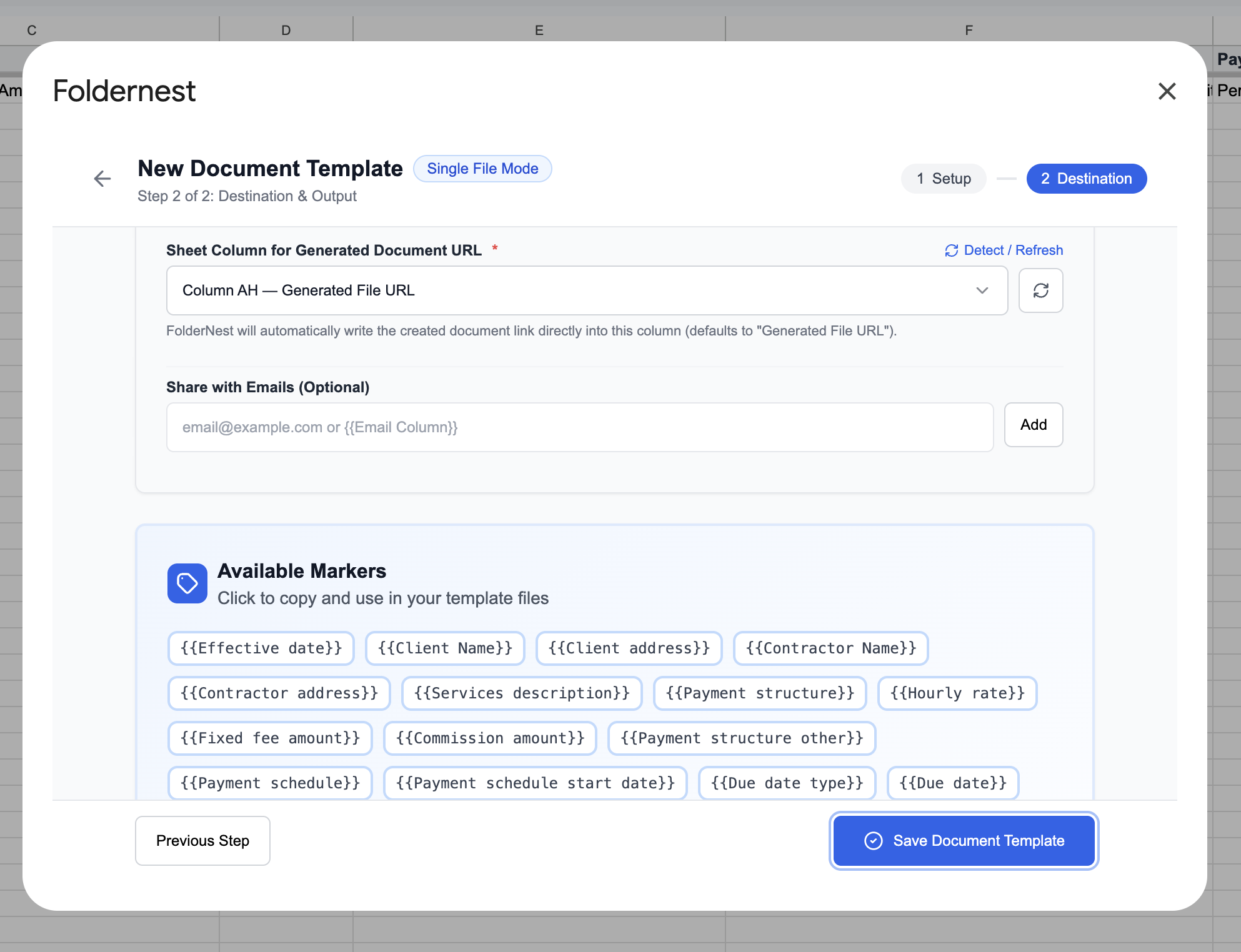
Foldernest automatically detects Column AH — Generated File URL in your spreadsheet. This column records the direct Google Drive link for every generated contract.
Pro Tip
Smart Column Refresh: If you add custom columns to your sheet (such as *Tax ID*, *GitHub Handle*, or *Payment Currency*), click the Detect / Refresh button. Foldernest instantly updates the marker list without requiring you to restart setup.
Click Save Document Template to finalize your setup.
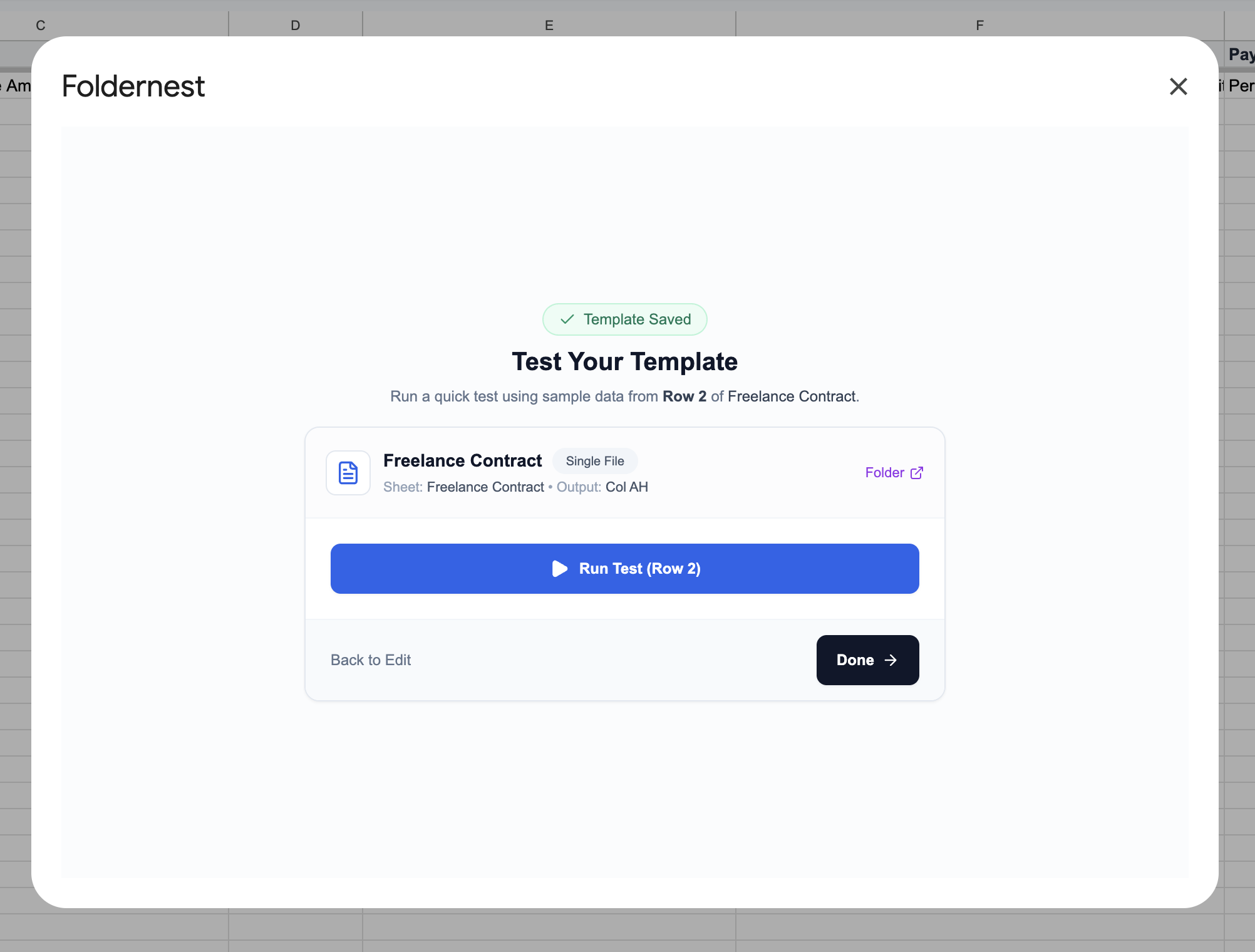
Step 9: Run a Live Test Generation on Row 2
In the Test Your Template step, Foldernest inspects the sample client data in Row 2. You will see mapped preview values: Client Name (*Sarah Jenkins*), Contractor Name (*Alex Rivera*), and Effective Date (*November 1, 2026*). Click Run Test (Row 2).
Step 10: Generation Success Confirmation
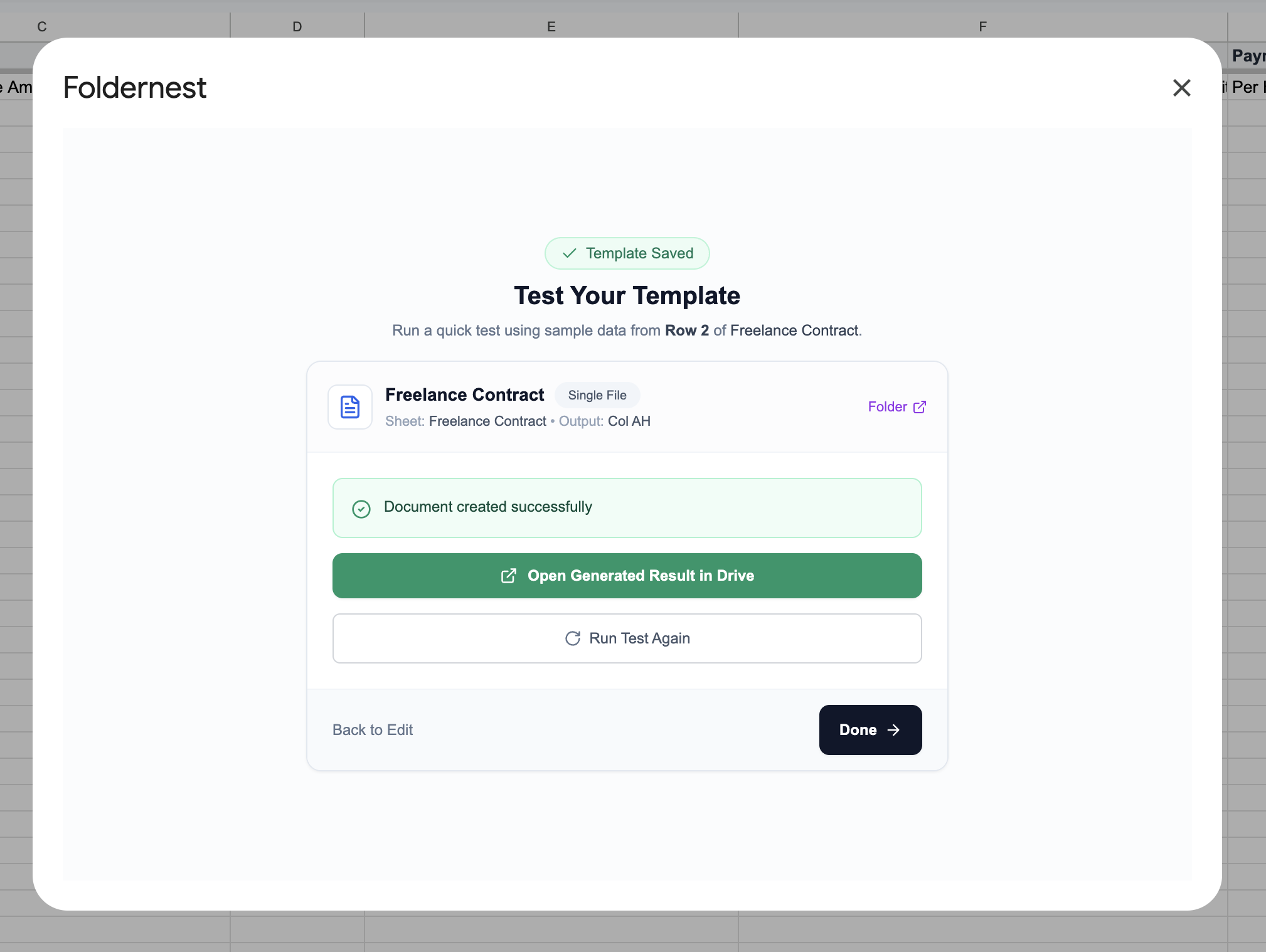
In less than 3 seconds, Foldernest confirms: Document created successfully. You can immediately click Open in Google Drive to inspect your freshly rendered freelance contract.
Step 11: Real-Time Contract Logging & Drive Smart Chip Previews
Switch over to your Google Sheets tab. In Column AH (Generated File URL), the direct link to the generated contract is automatically recorded. Hovering over the link opens Google Drive's rich Smart Chip preview, allowing you to review the populated agreement without ever leaving the sheet.
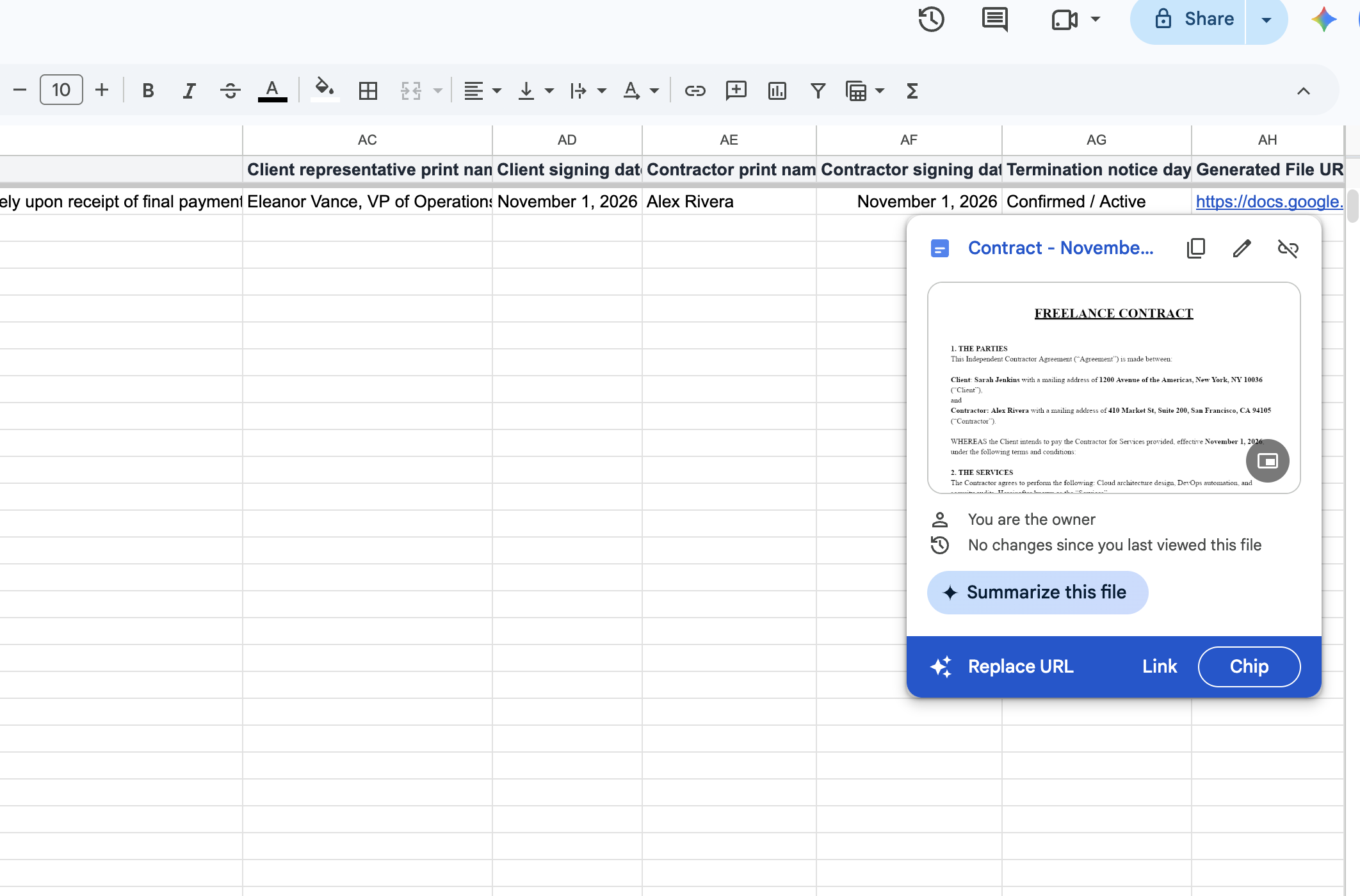
Notice how the generated document (Contract - November 1, 2026 - Sarah Jenkins - Alex Rivera) is completely polished:
- Counterparties Formatted: Sarah Jenkins (New York, NY) and Alex Rivera (San Francisco, CA) are correctly positioned.
- Services Defined: The specific deliverables (Cloud architecture design, DevOps automation) are injected cleanly.
- Conditional Logic Resolved: Only the active payment terms appear — all non-applicable clauses were removed with no empty brackets or awkward gaps.
- Native Typography Intact: Heading hierarchies, underlines, bold formatting, and legal margins remain crisp.
Step 12: Production-Ready Automation in 'My Automations'
Click Done to return to the Foldernest Templates manager. Your Freelance Contract automation is permanently saved under My Automations (1).
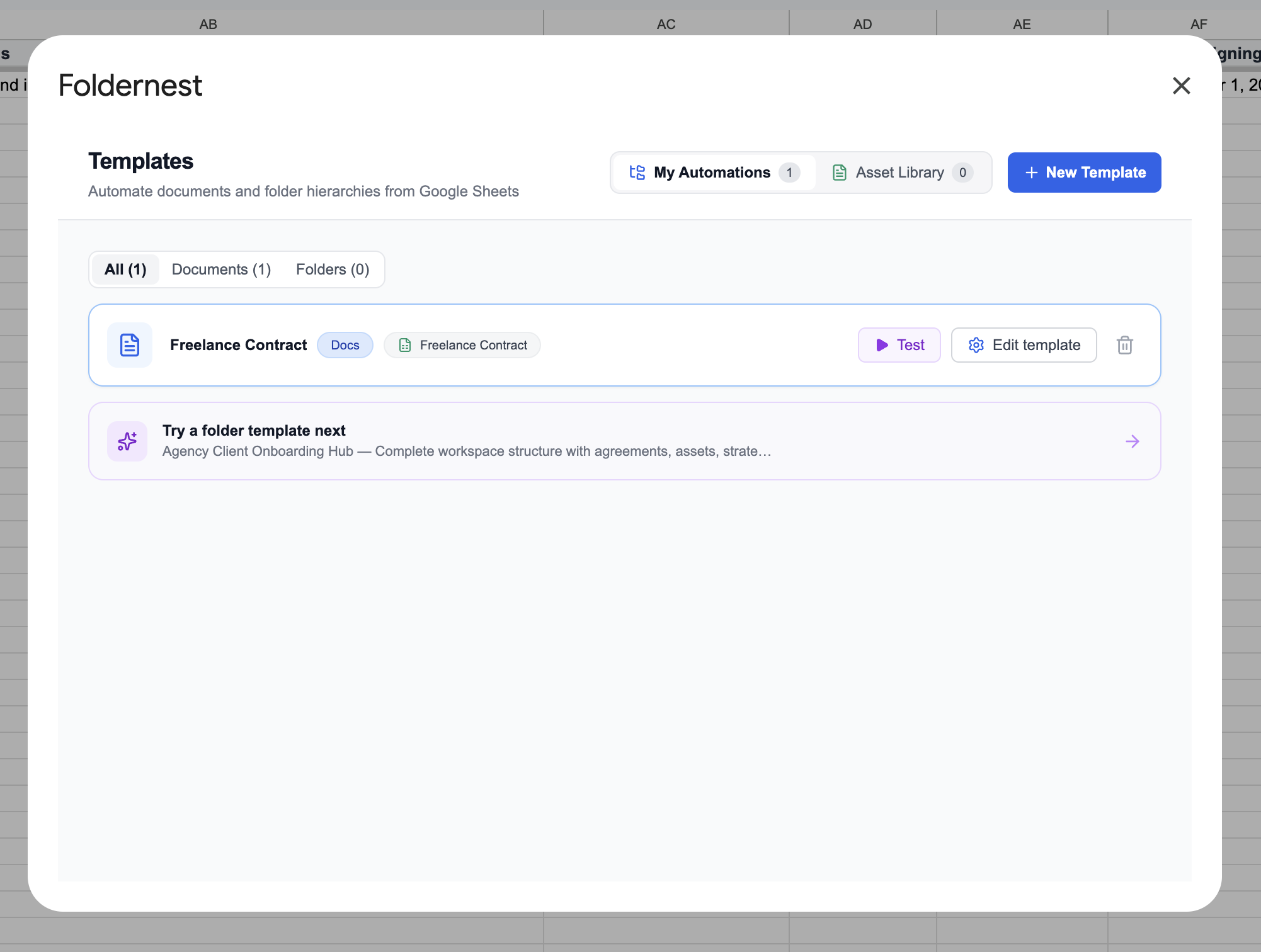
Whenever you add new client rows, simply select them and click Test / Run, or let automated triggers create contracts hands-free as rows are added.
Manual Drafting vs. Automated with Foldernest
| Workflow Capability | Manual Copy-Paste | Automated with Foldernest |
|---|---|---|
| Drafting Time per Contract | 30–45 minutes per client | Under 3 seconds per row |
| Risk of Data Leaks | High (residual names/rates from past clients) | Zero (built fresh from clean spreadsheet data) |
| Handling Variable Rates | Manually deleting & formatting clauses | Automated via conditional <<If: ...>> blocks |
| File Organization in Drive | Inconsistent filenames scattered in folders | Dynamic pattern naming in designated Drive folders |
| Audit Register & Tracking | Lost links across emails and chat apps | Instant URL logged in Column AH of Google Sheets |
| Batch Scalability | Linear burden with every new hire or client | Generate 1, 10, or 100 contracts simultaneously |
Advanced Automation Strategies for Agencies and Freelancers
Pro Tip
Client Intake to Signed Contract in Minutes: Connect your Google Sheet to Google Forms, Typeform, or Tally. When a client confirms scope and budget on your onboarding form, their answers populate a new row in your sheet, triggering Foldernest to generate the contract automatically.
- Pair with Folder Automations: Use Foldernest's Folder Templates (such as the *Agency Client Onboarding Hub*) to generate a full Google Drive project directory (Design Assets, Invoices, Deliverables) alongside the contract.
- Standardize Column Formats: Keep dates formatted as `YYYY-MM-DD` or `Month DD, YYYY`, and maintain clean values in your *Payment structure* column (`Per Hour`, `Fixed Fee for Services`, `Commission`).
- Status Pipeline Tracking: Add columns like *Contract Status* (*Draft*, *Sent*, *Signed*) right next to Column AH to track your onboarding pipeline in real time.
- Seamless E-Signature Integration: Download the generated Google Doc as a PDF or send it straight to signature tools like DocuSign, PandaDoc, or Adobe Sign.
Frequently Asked Questions (FAQ)
Can I use my own custom freelance contract in Google Docs?
Yes! While the pre-built Freelance Contract starter gets you started in seconds, you can automate any existing Google Doc. Select Start Blank in Foldernest, choose your document, and insert `{{Column Name}}` markers wherever dynamic spreadsheet values belong.
How does conditional logic handle empty or optional clauses?
Foldernest uses clean syntax: `<<If: (condition)>>content<<EndIf>>`. You can test for equality (`{{Payment structure}} = "Per Hour"`) or non-empty values (`{{Hourly rate}} != ""`). If the condition is false, Foldernest strips out the clause, bullet points, and blank lines completely.
What happens if I add new columns or reorder fields in my Google Sheet?
You never have to rebuild your automation. Just click the Detect / Refresh button in Step 2. Foldernest scans your headers, tracks the Generated File URL column wherever it moved, and refreshes the marker list instantly.
Does Foldernest preserve fonts, margins, and custom branding?
Yes. Foldernest generates documents via native Google Drive APIs. Your custom Google Fonts, brand colors, tables, headers, footers, and page margins remain 100% faithful to your master template.
Can I batch-generate contracts for multiple contractors at once?
Absolutely. Highlight multiple rows in your Google Sheet and run the automation. Foldernest generates a customized contract for every contractor, populates each file URL in Column AH, and saves all files directly to your target Google Drive folder.
Start Automating Freelance Contracts Today
Stop wasting billable hours editing contract boilerplate by hand. By combining the calculation and tracking power of Google Sheets with dynamic Google Docs templates in Foldernest, you can generate flawless freelance contracts in seconds and focus on delivering great work.
Ready to streamline your contractor and client onboarding? Install Foldernest from the Google Workspace Marketplace and generate your first automated freelance contract today.