
Creating folders and files in Google Drive is a routine task for many professionals. Whether you're onboarding new clients, managing projects, or organizing team resources, you probably find yourself creating the same folder structures over and over. This guide shows you how to automate the entire process using Foldernest.
The Problem: Manual Folder Creation is Tedious
If you work with Google Drive regularly, you've likely experienced the pain of manually creating folder structures. For each new client, project, or event, you need to:
- Navigate to the correct parent folder in Google Drive
- Create multiple nested folders one by one
- Add the same set of Google Docs, Sheets, or Slides templates inside each folder
- Repeat the exact same process every single time
This manual process is not only time-consuming but also error-prone. Forget one subfolder or misname a file, and your team's organization falls apart. For businesses handling dozens of clients or projects, this quickly becomes unsustainable.
What is Foldernest?
Foldernest is a Google Workspace add-on that automates folder and file creation in Google Drive. Instead of manually building folder structures, you define a template once and let Foldernest generate everything for you—either in bulk from a Google Sheet or automatically when a form is submitted.
It works directly inside Google Sheets as a sidebar, so there's no need to learn a new interface or leave your spreadsheet workflow.
Two Ways to Automate Folder Creation
Foldernest offers two powerful methods to create folders automatically. Choose the one that fits your workflow best, or use both together.
1. Bulk Create from Google Sheets Data
This method is perfect when you have a list of items (clients, projects, students, etc.) in a spreadsheet and need to generate a standardized folder structure for each one.
Here's how it works:
- Open your Google Sheet containing the data (e.g., a list of client names)
- Open Foldernest from the Extensions menu
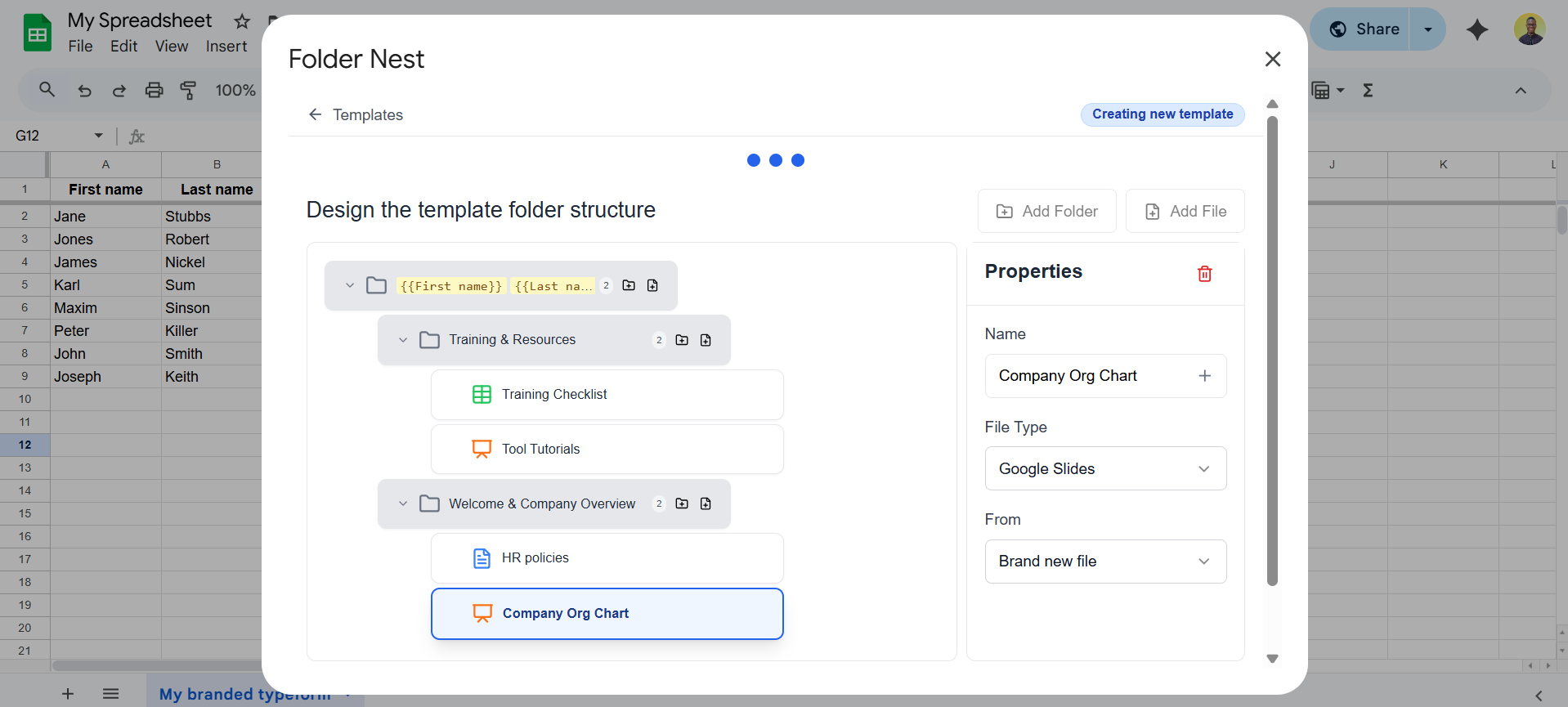
- Design your folder template—define the hierarchy of folders and which Google files (Docs, Sheets, Slides) to include
- Map your spreadsheet columns to folder name variables
- Click 'Create' and watch Foldernest generate all folder structures in seconds
For example, if you have 50 client names in your spreadsheet, Foldernest will create 50 complete folder structures in Google Drive, each with the same organized hierarchy of subfolders and template files.
2. Auto-Create on Form Submission
This method is ideal for automated workflows where you want folders created the moment someone submits a form—no manual intervention required.
Foldernest integrates with multiple form platforms:
- Google Forms — native integration
- Tally — via webhook
- JotForm — via webhook
- TypeForm — via webhook
- Fillout — via webhook
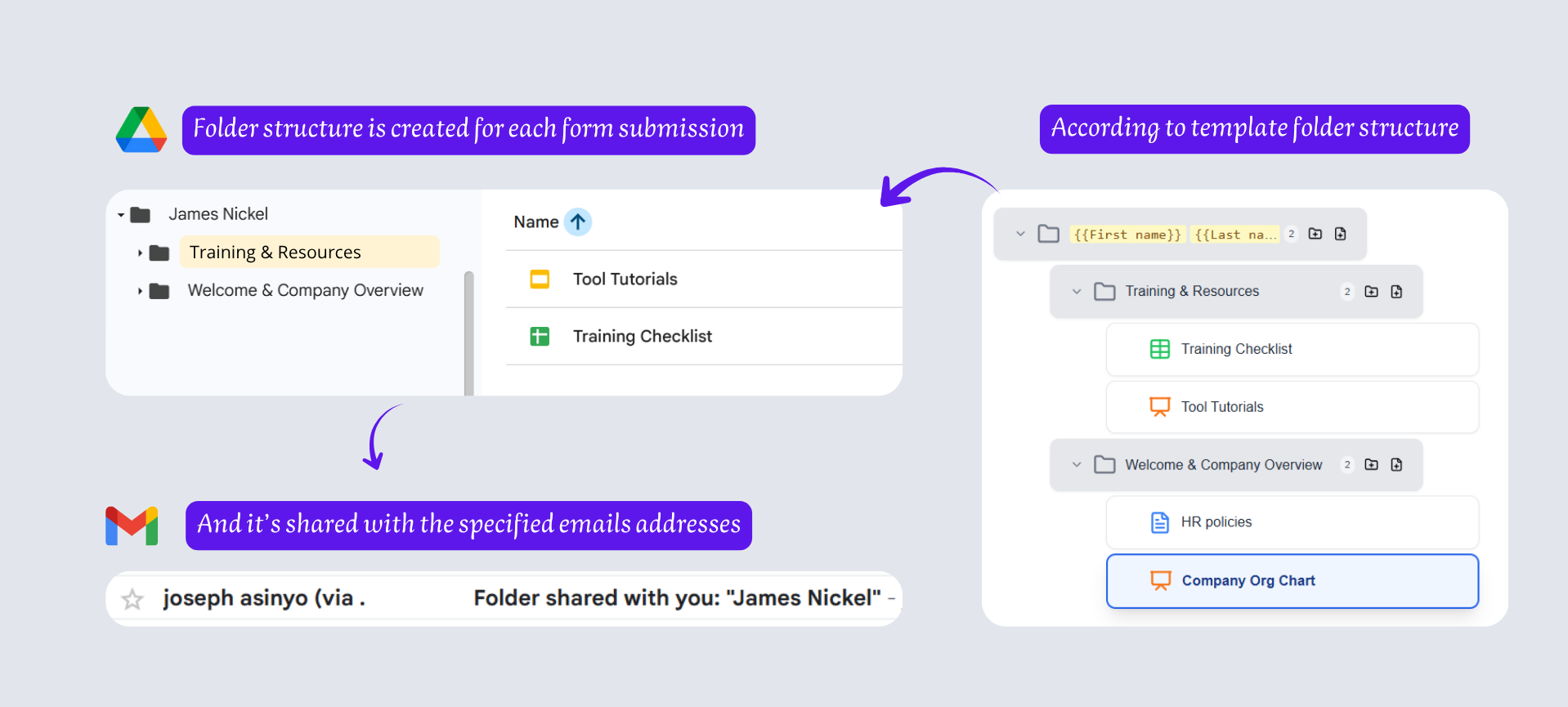
When a form response comes in, the data flows into your Google Sheet, and Foldernest automatically triggers folder creation using your predefined template. The folder names can include data from the form submission—like the respondent's name, company, or project title.
Pro Tip
Set up a form-triggered automation once and never worry about creating client folders again. Every new form submission gets its own perfectly structured folder hierarchy in Google Drive.
Designing Your Folder Template
The heart of Foldernest is the template designer. This is where you define exactly what folder structure should be created each time.
A template can include:
- Nested folders — create multi-level hierarchies (e.g., Client > Contracts > 2025)
- Google Docs — pre-formatted document templates
- Google Sheets — spreadsheet templates for data tracking
- Google Slides — presentation templates
- Dynamic naming — use spreadsheet column values as folder or file names
Once you've designed a template, it's saved and reusable. You can modify it anytime as your needs evolve.
Real-World Use Cases
Foldernest is used by professionals across many industries. Here are some common scenarios:
Client Onboarding
Agencies and service businesses use Foldernest to automatically create a complete client folder when a new client signs up. Each folder contains subfolders for contracts, deliverables, communications, and invoices—plus template documents ready to be filled in.
Project Management
Teams managing multiple projects use Foldernest to maintain a consistent folder structure across all projects. Every new project gets the same organized hierarchy, making it easy for any team member to find what they need.
Education & Administration
Schools and educational institutions use Foldernest to create student or course folders in bulk at the start of each semester. Each student gets their own folder with assignment templates, grade tracking sheets, and resource documents.
Event Planning
Event organizers create standardized folders for each event, containing subfolders for vendors, budgets, timelines, and marketing materials. When a new event registration form is submitted, the folder is created automatically.
Why Not Use Google Apps Script?
Some tech-savvy users might consider writing a Google Apps Script to automate folder creation. While this is technically possible, there are significant drawbacks:
- Requires coding knowledge in JavaScript/Apps Script
- Time-consuming to write, test, and debug
- Difficult to maintain and update as needs change
- No visual interface for designing folder structures
- Hard to share with non-technical team members
Foldernest eliminates all of these issues. You get a visual, no-code interface that anyone on your team can use. No programming required.
Getting Started with Foldernest
Setting up Foldernest takes just a few minutes:
- Install Foldernest from the Google Workspace Marketplace
- Open any Google Sheet and launch Foldernest from the Extensions menu
- Design your first folder template using the visual template designer
- Choose your creation method: bulk from data or auto on form submission
- Create your folders and enjoy the time saved!
Try It Risk-Free
Foldernest comes with a free trial period so you can test all features before committing. Set up your folder templates, run a few test creations, and see how much time it saves your team.
If you're spending more than a few minutes each week creating folders in Google Drive, Foldernest will pay for itself many times over in saved time and improved consistency.
Thanks for reading 🫶