
Managing residential rental properties requires flawless paperwork. Whether you manage single-family rentals, multi-family apartment communities, commercial units, or short-term vacation rentals, preparing an enforceable residential lease agreement is your foremost protection. A solid lease clearly establishes the tenancy term, monthly rent schedule, security deposits, last month's rent requirements, utility obligations, pet policies, maintenance covenants, and property disclosures.
Yet for property managers, landlords, and leasing agents, creating these contracts manually is a tedious, repetitive grind. Copying and pasting from old tenant agreements, manually retyping names, addresses, and monthly figures, and deleting non-applicable paragraphs frequently leads to costly clerical mistakes, contradictory clauses, and compliance exposure. In this guide, you will learn how to turn tenant rows in Google Sheets into custom, error-free lease agreements in Google Docs in under 3 seconds using Foldernest and its free pre-built Lease Agreement starter template.
The Hidden Cost of Manual Lease Agreement Drafting
Manually cloning old Google Docs or Word templates when onboarding new tenants introduces operational bottlenecks and legal risks:
- Privacy Violations & Residual Tenant Data: Reusing a past tenant's agreement often leaves previous tenant names, emergency contacts, old rental rates, or pet provisions buried inside a boilerplate paragraph.
- Fixed Term vs. Month-to-Month Conflicts: Leases vary by duration. A fixed-term lease requires defined start and end dates with renewal provisions, whereas a periodic month-to-month lease requires statutory termination notice periods. Manually editing these clauses often results in contradictory hybrid terms that cause tenant disputes.
- Financial & Deposit Discrepancies: Security deposit caps, last month's rent escrows, and utility allocations differ across properties. Manually editing payment clauses risks omitting required escrow terms or miscalculating move-in totals.
- Fragmented Google Drive Filing: Leases end up scattered across personal drives with haphazard names like `Lease_Final_Apt3B_v3.docx`, complicating portfolio management, audit readiness, and tenant turnover tracking.
The Modern Alternative: Smart Spreadsheets + Conditional Docs
Foldernest modernizes document generation by linking your Google Sheets tenancy ledger directly with dynamic variable markers (`{{Column Name}}`) and conditional logic syntax (`<<If: ...>>...<<EndIf>>`):
- Strict Counterparty Isolation: Distinct fields for Landlord (*Eleanor Vance*), Tenant (*Jonathan Miller*), and Property Address prevent accidental overwrites or signing confusion.
- In-Cell Data Validations: Critical columns—including *Residence type*, *Bedrooms*, *Bathrooms*, *Lease type*, *Notice days to terminate*, *Rent due day*, *Security deposit required*, and *Last month rent required*—include pre-configured dropdowns to stop typos at the source.
- Clean Conditional Logic: Fixed-term vs. month-to-month rules, security deposits, and last month's rent clauses render *only* when activated in your sheet. Non-applicable sections vanish completely with zero leftover blank lines.
- Centralized Tenancy Register: The direct Google Drive link for every generated lease is recorded back into your sheet in Column AB (Generated File URL) with interactive Google Drive Smart Chip previews.
Step 1: Open Foldernest in Google Sheets
Open the Google Spreadsheet where you manage your rental portfolio, tenant pipeline, or lease renewals. In the top navigation bar:
- 1. Click Extensions in the Google Sheets menu.
- 2. Select Foldernest > Document & Folder Templates > Create & Manage.
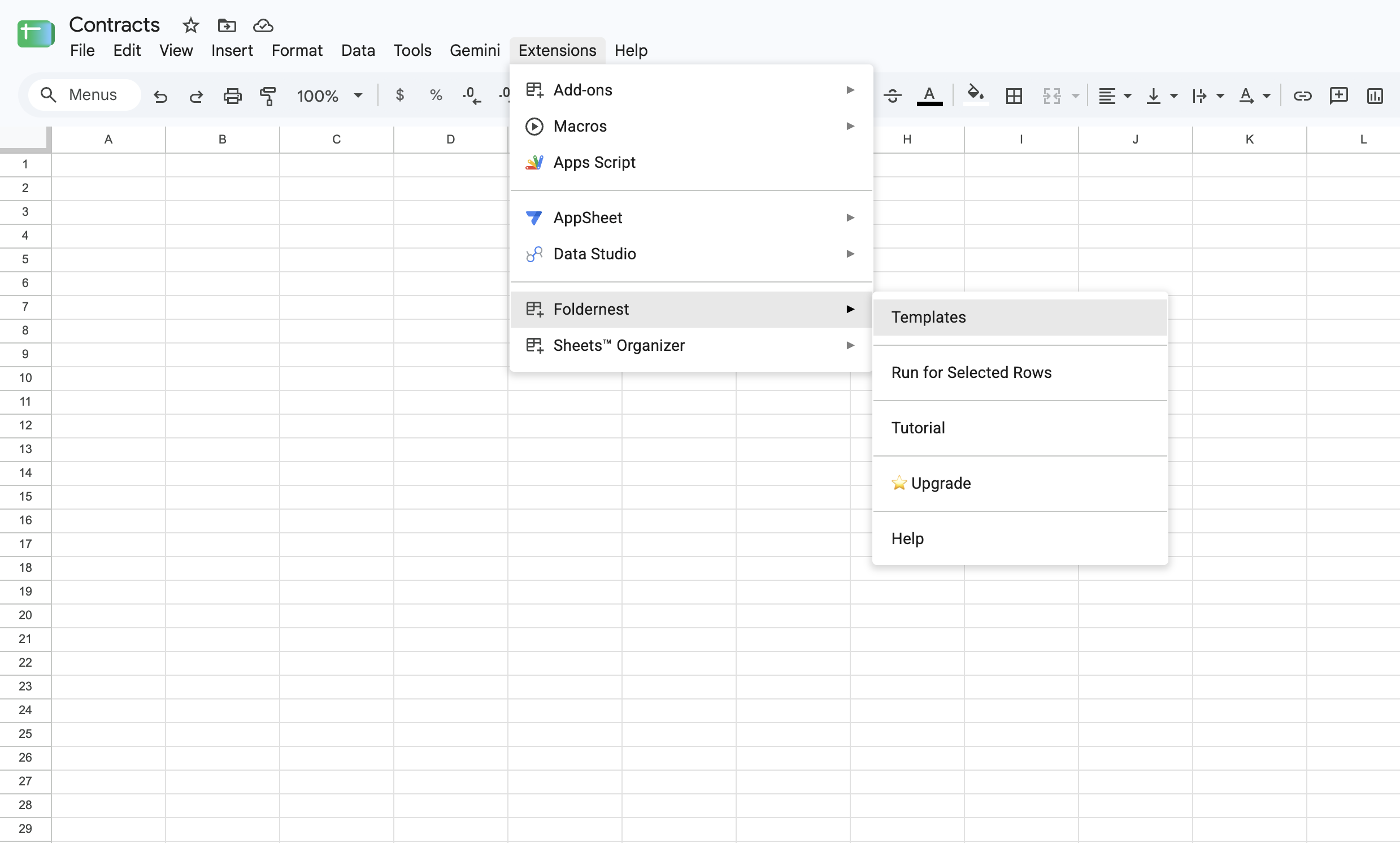
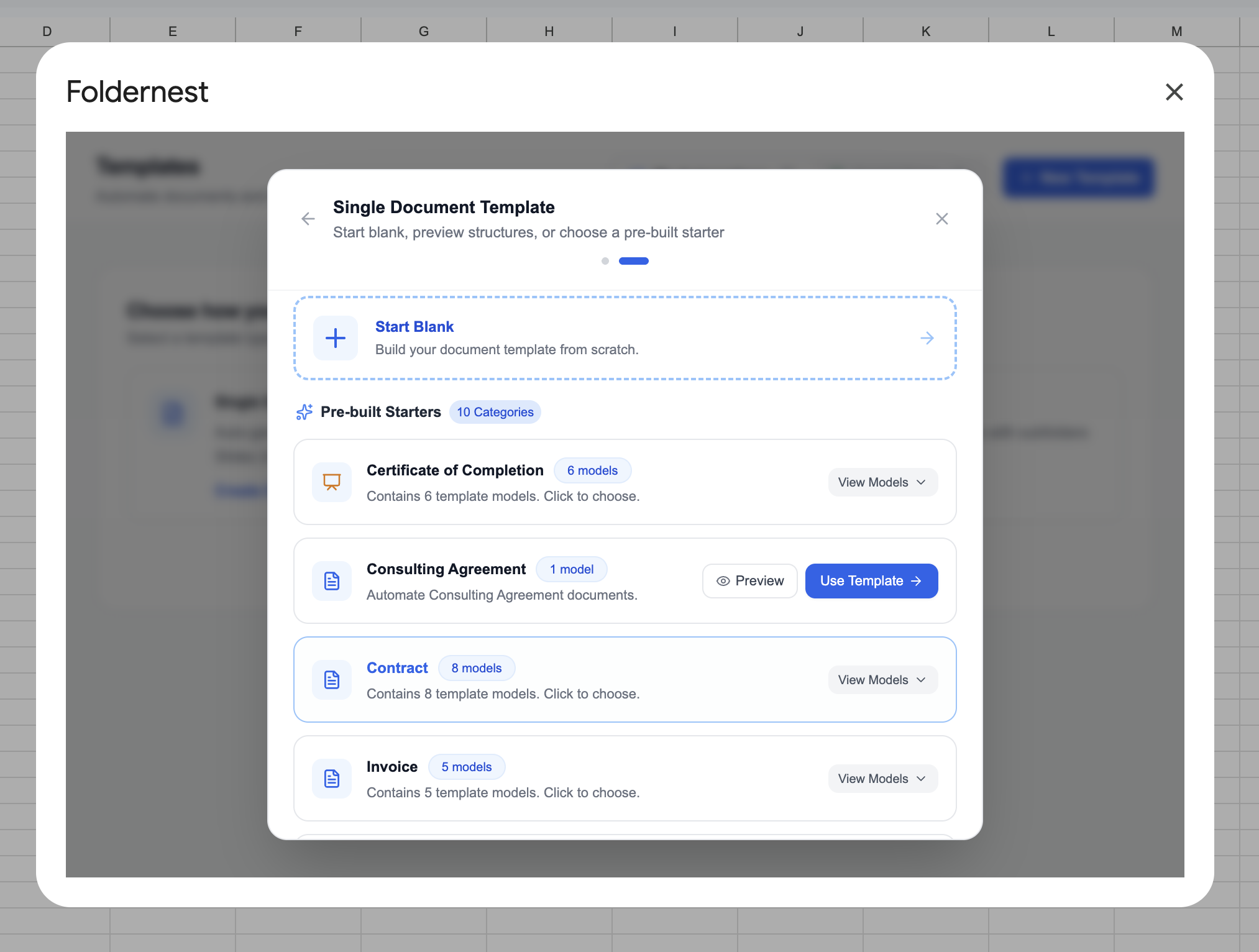
Step 2: Choose 'Single Document Template' & Pre-Built Starters
In the template selection modal, choose Single Document Template. This mode compiles each row into an independent, formatted Google Docs contract. Scroll down to review the Explore Pre-built Starters catalog.
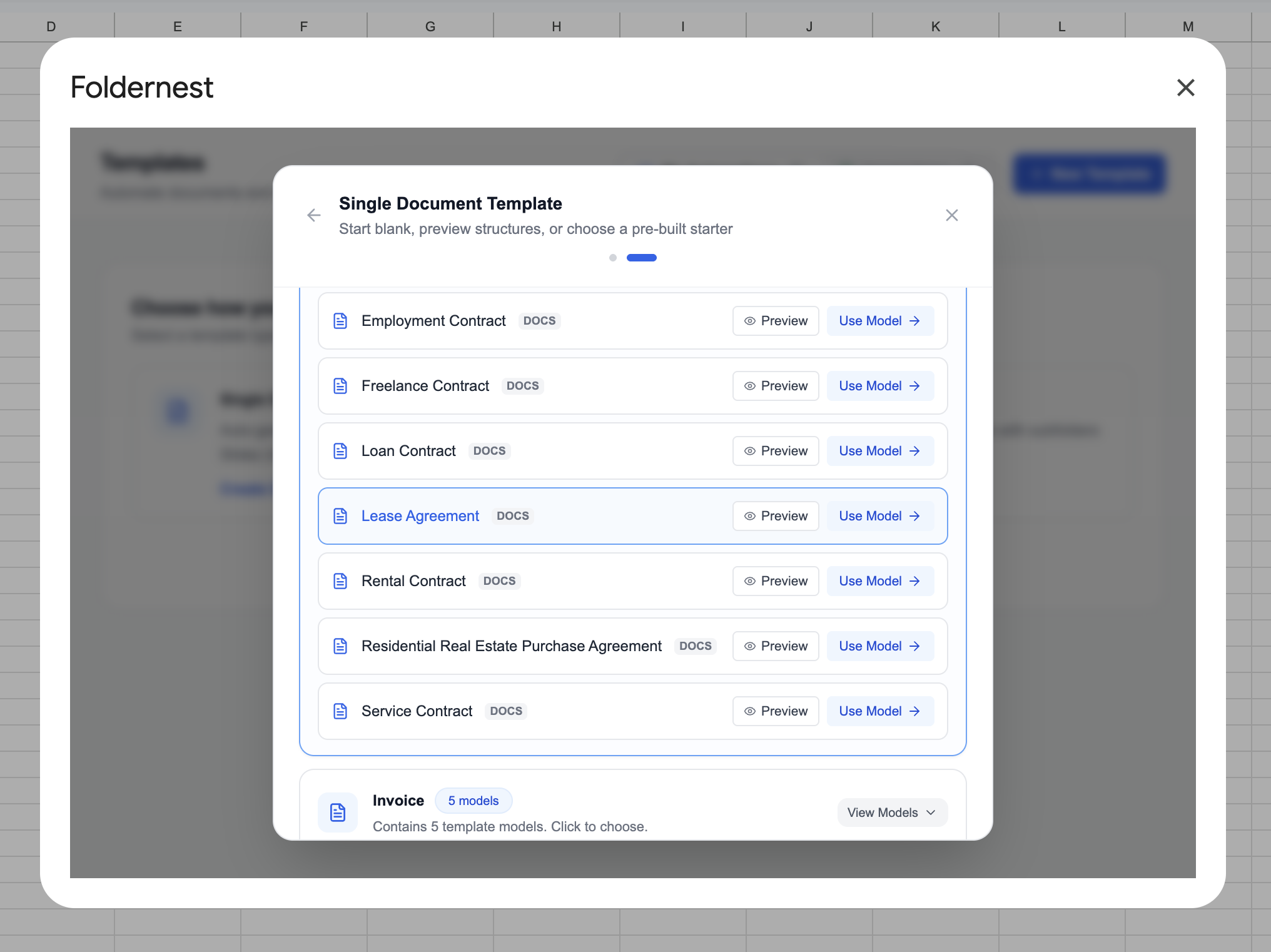
Step 3: Select the 'Lease Agreement' Starter
Expand the Contract category in the pre-built library. Locate Lease Agreement (DOCS) and click Use Model.
When you click Use Model, Foldernest configures your Google Workspace environment seamlessly:
- Creates the 'Lease Agreement' Sheet Tab: Adds a dedicated tab containing 27 curated tenancy headers spanning parties, property specs, lease terms, payment schedules, security deposits, utilities, and execution signatures.
- Configures Native Dropdowns: Injects in-cell dropdown data validations for key parameters (*Residence type*, *Bedrooms*, *Bathrooms*, *Lease type*, *Rent due day*, *Security deposit required*, etc.).
- Populates Realistic Starter Data: Inserts complete sample data in Row 2 (*Eleanor Vance* as Landlord, *Jonathan Miller* as Tenant, *$2,400.00* monthly rent, *742 Evergreen Terrace, Apt 3B*).
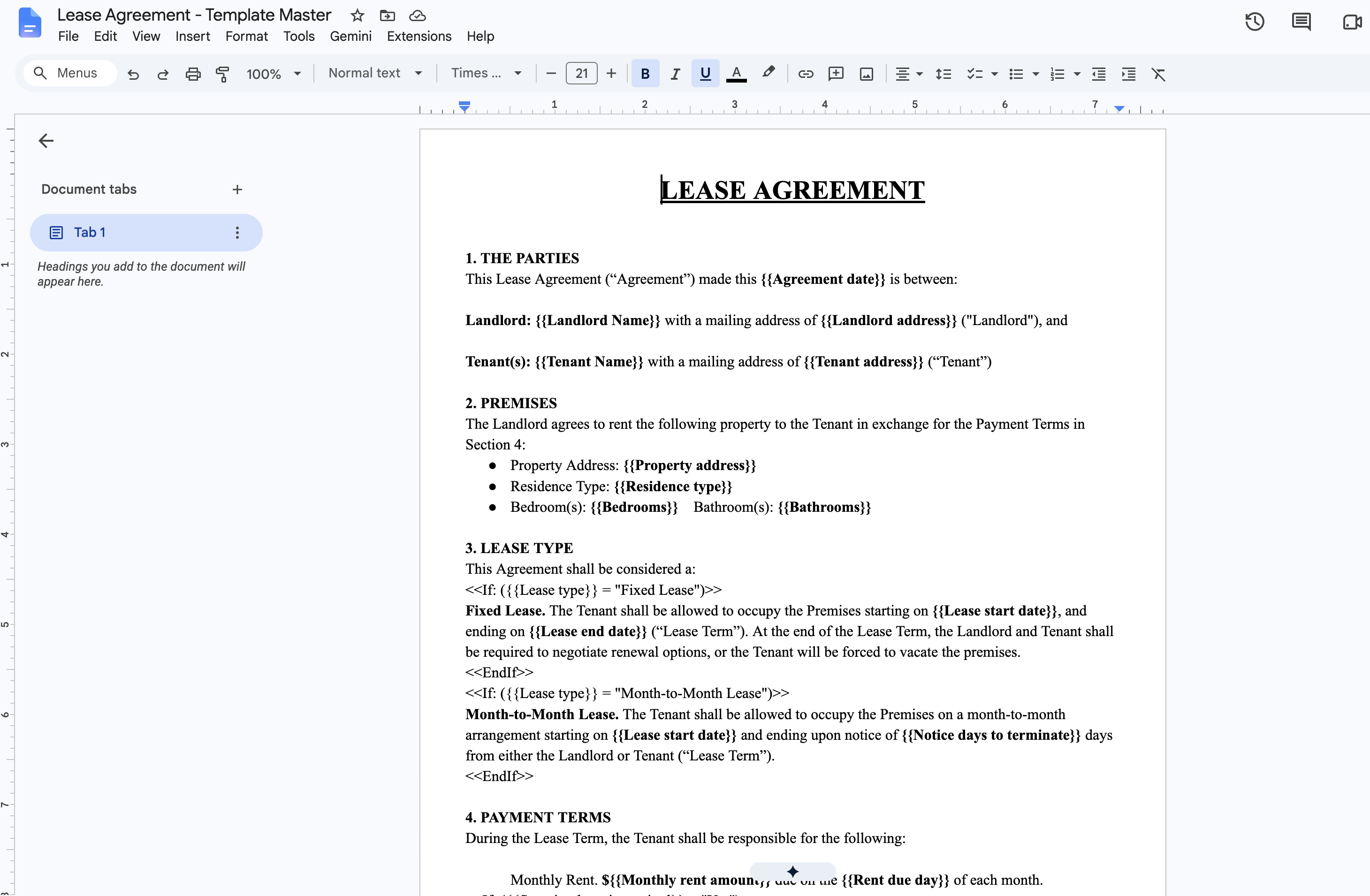
- Provisions the Master Template: Creates an editable Lease Agreement - Template Master Google Doc in your Google Drive, complete with professional legal styling and conditional logic tags.
Step 4: Inspect the Master Template & Conditional Logic in Google Docs
Open your newly created Lease Agreement - Template Master in Google Docs. The document incorporates standard legal covenants wired with dynamic markers (`{{...}}`) and conditional clauses (`<<If: ...>>`):
Pro Tip
Understanding Conditional Lease Logic: Section III (Lease Type) includes `<<If: ({{Lease type}} = "Fixed Lease")>>Fixed Lease. The Tenant shall be allowed to occupy the Premises starting on {{Lease start date}} and end on {{Lease end date}} ("Lease Term")...<<EndIf>>` alongside `<<If: ({{Lease type}} = "Month-to-Month Lease")>>`. Foldernest checks your spreadsheet value during generation, prints the matching section, and discards non-applicable clauses without empty lines or formatting artifacts.
Core dynamic and conditional provisions pre-wired into the lease template include:
- The Parties: `{{Agreement date}}`, `{{Landlord Name}}`, `{{Landlord address}}`, `{{Tenant Name}}`, and `{{Tenant address}}`.
- Premises Description: `{{Property address}}`, `{{Residence type}}`, `{{Bedrooms}}`, and `{{Bathrooms}}`.
- Lease Type: Automatic conditional branching between *Fixed Lease* (with start and end dates) and *Month-to-Month Lease* (with termination notice days).
- Payment Terms: Rent amount (`{{Monthly rent amount}}`) and due date (`{{Rent due day}}`), plus conditional clauses for Security Deposit (`{{Security deposit amount}}`) and Last Month's Rent (`{{Last month rent amount}}`).
- Utilities & Services: Itemized tenant responsibility exceptions (`{{Utilities exceptions}}` such as *Water, Sewer, and Trash Collection*).
- Execution Signatures: Printed names and signing dates for both Landlord (`{{Landlord print name}}`) and Tenant (`{{Tenant print name}}`).
Step 5: Configure Model & Source Sheet in Foldernest
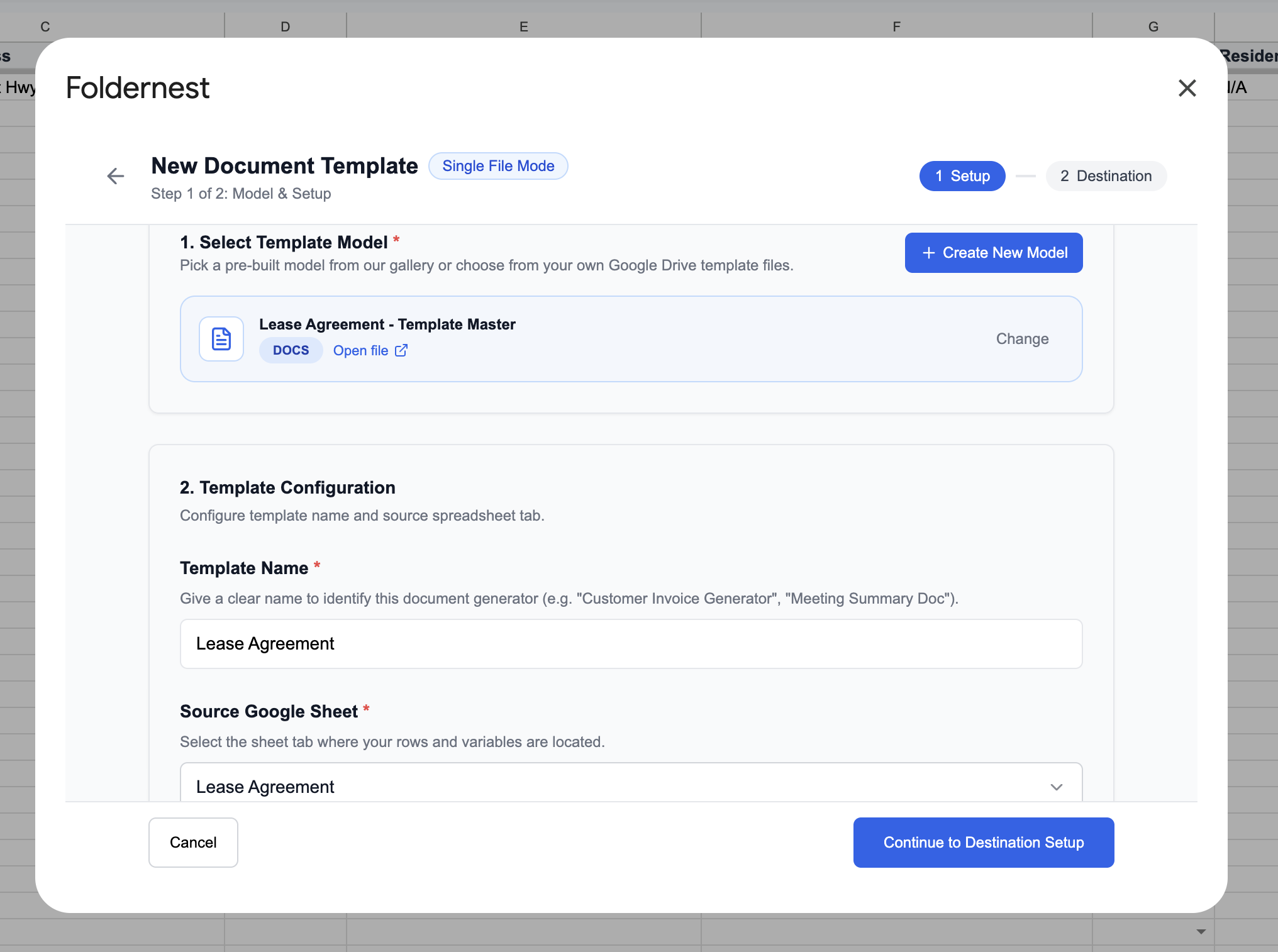
Return to the Foldernest wizard (Step 1 of 2: Model & Setup). The Template Master document is already connected. Give your automation a descriptive name (e.g. *Lease Agreement*) and confirm the source sheet tab is set to Lease Agreement.
Step 6: Select Generation Triggers
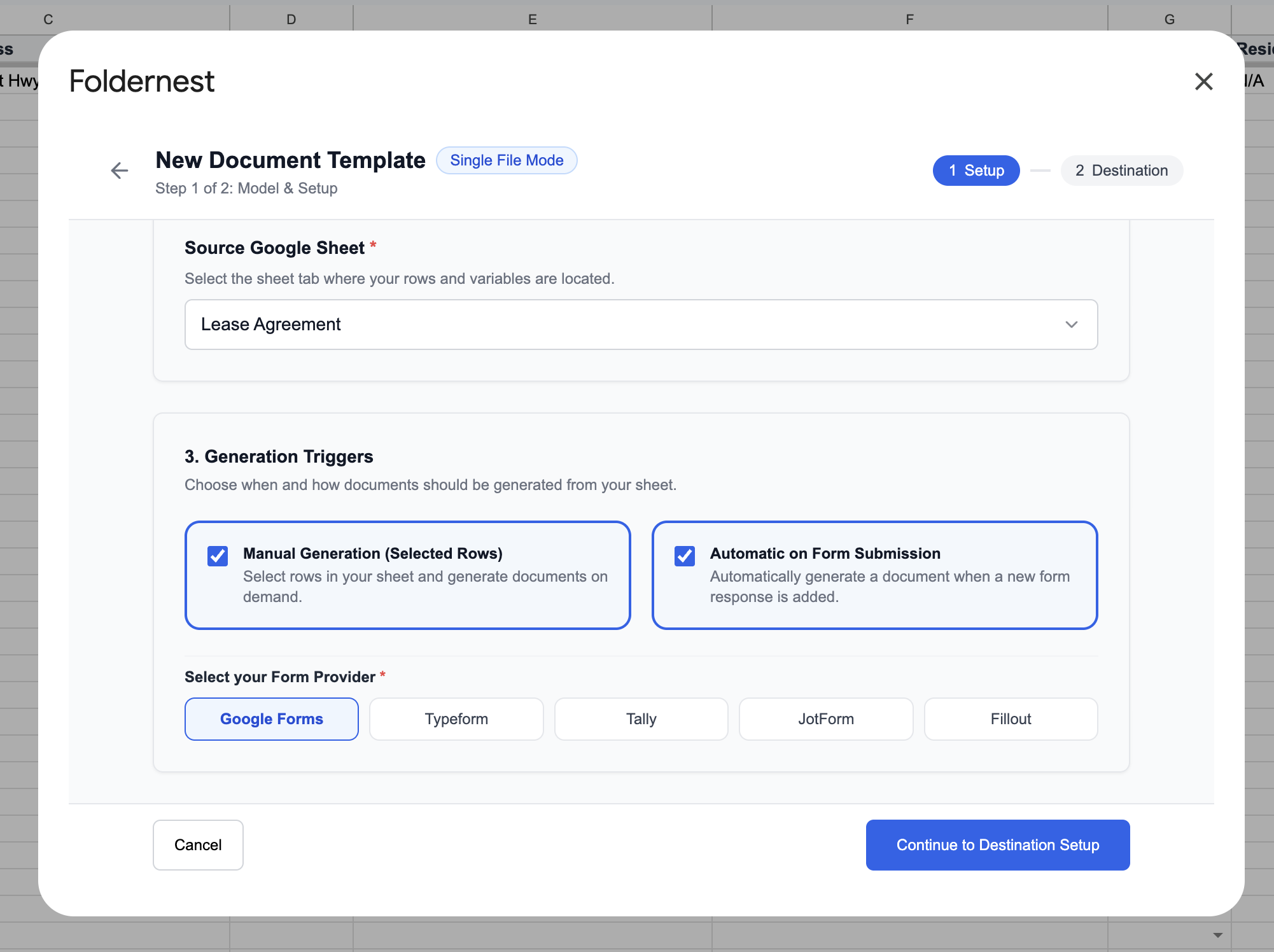
Under Generation Triggers, select how Foldernest will trigger lease creation:
- Manual Generation (Selected Rows): Recommended for property managers who finalize agreements after conducting background and credit checks. Highlight one or multiple tenant rows and click generate on demand.
- Automatic on Form Submission: Ideal if prospective tenants complete an approved rental application via Google Forms, Typeform, Tally, or JotForm. Foldernest instantly drafts a preliminary lease the moment the form is submitted.
Click Continue to Destination Setup to proceed.
Step 7: Configure Dynamic Naming & Destination Folder
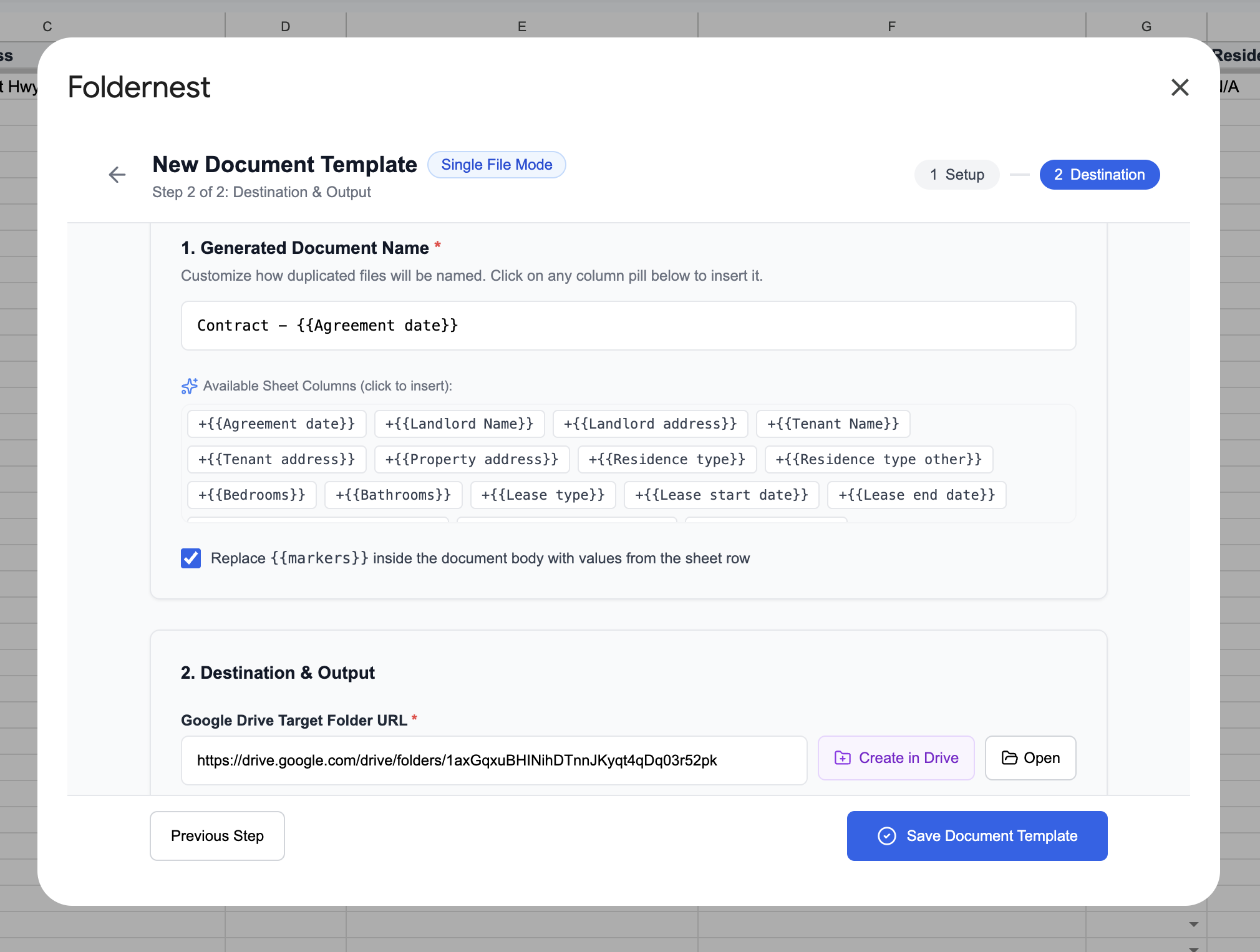
In Step 2 of 2: Destination & Output, configure file organization and dynamic naming in Google Drive:
- 1. Generated Document Name: Click any column pill to construct standardized, searchable document names, such as `Contract - {{Agreement date}}` or `Lease - {{Tenant Name}} - {{Property address}}`.
- 2. Replace {{markers}} inside document body: Ensure this checkbox remains enabled so all variables and conditional expressions evaluate inside the document.
- 3. Google Drive Target Folder URL: Paste the URL of your dedicated Google Drive destination folder (e.g. *Active Tenancy Agreements*), or click Create in Drive to generate one automatically.
Step 8: Auto-Detect Output URL Column & Review Markers
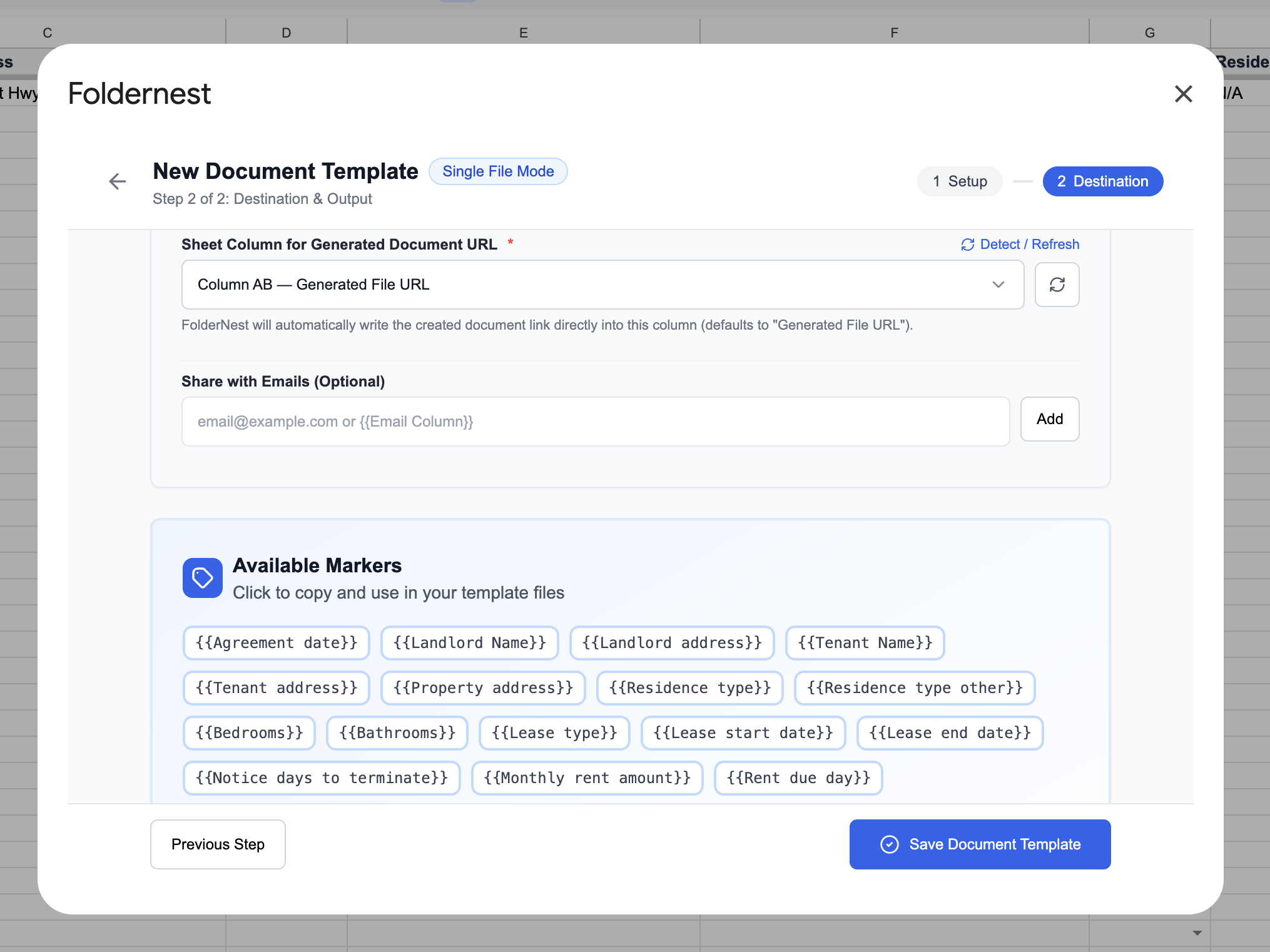
Foldernest automatically detects Column AB — Generated File URL in your spreadsheet. This column records the exact Google Docs link for each tenant row.
Pro Tip
Instant Marker Refresh: If you add custom property management columns (such as *Parking Spot #*, *Storage Locker ID*, or *Key Deposit*), click the Detect / Refresh button. Foldernest scans your headers immediately, keeping your template tags perfectly synced without requiring reconfiguration.
Click Save Document Template to finalize your automation.
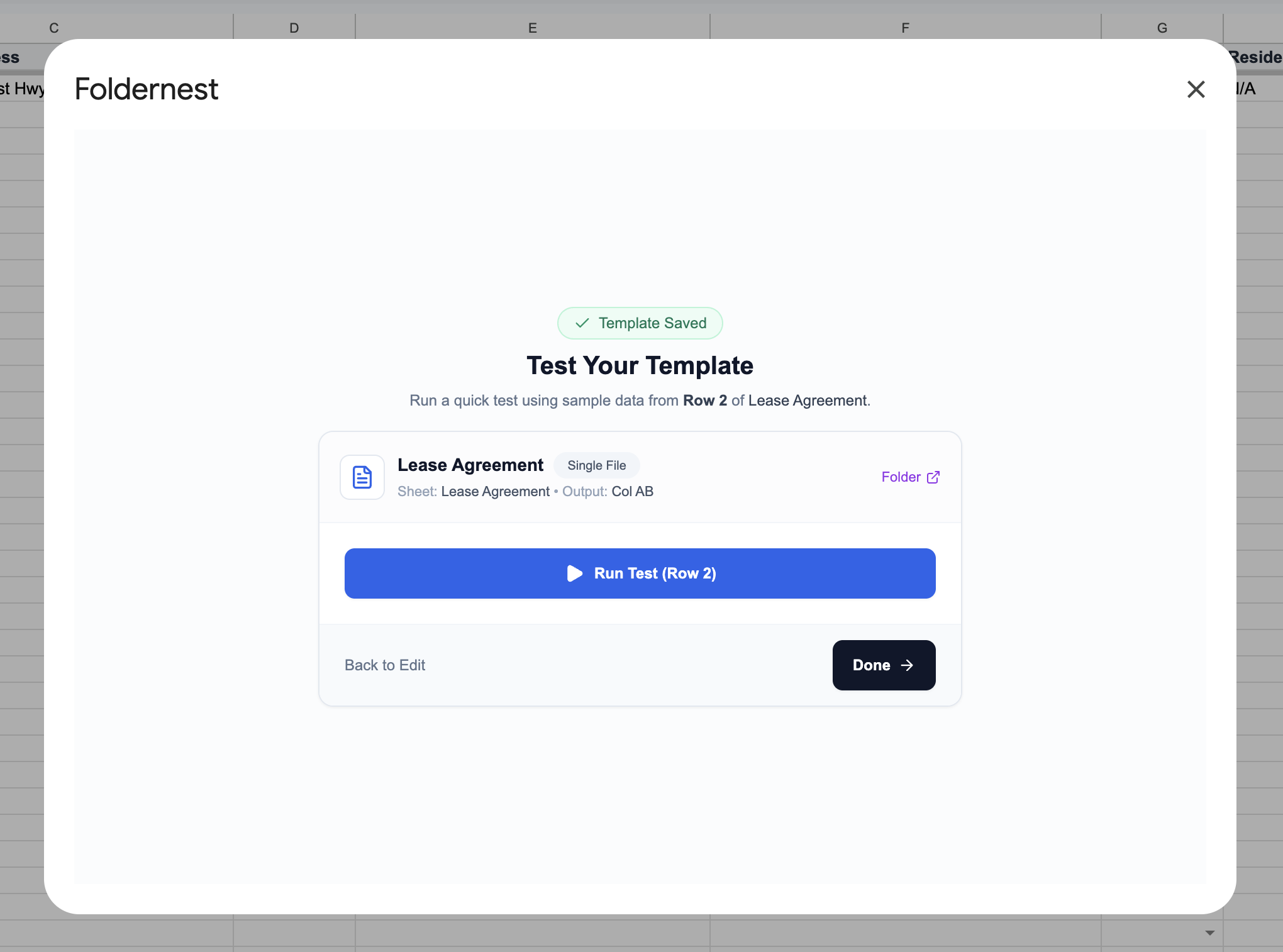
Step 9: Test Run on Sample Lease (Row 2)
Before generating agreements for active residents, run a quick validation test using the sample row created by the starter. In the Test Your Template modal, click Run Test (Row 2).
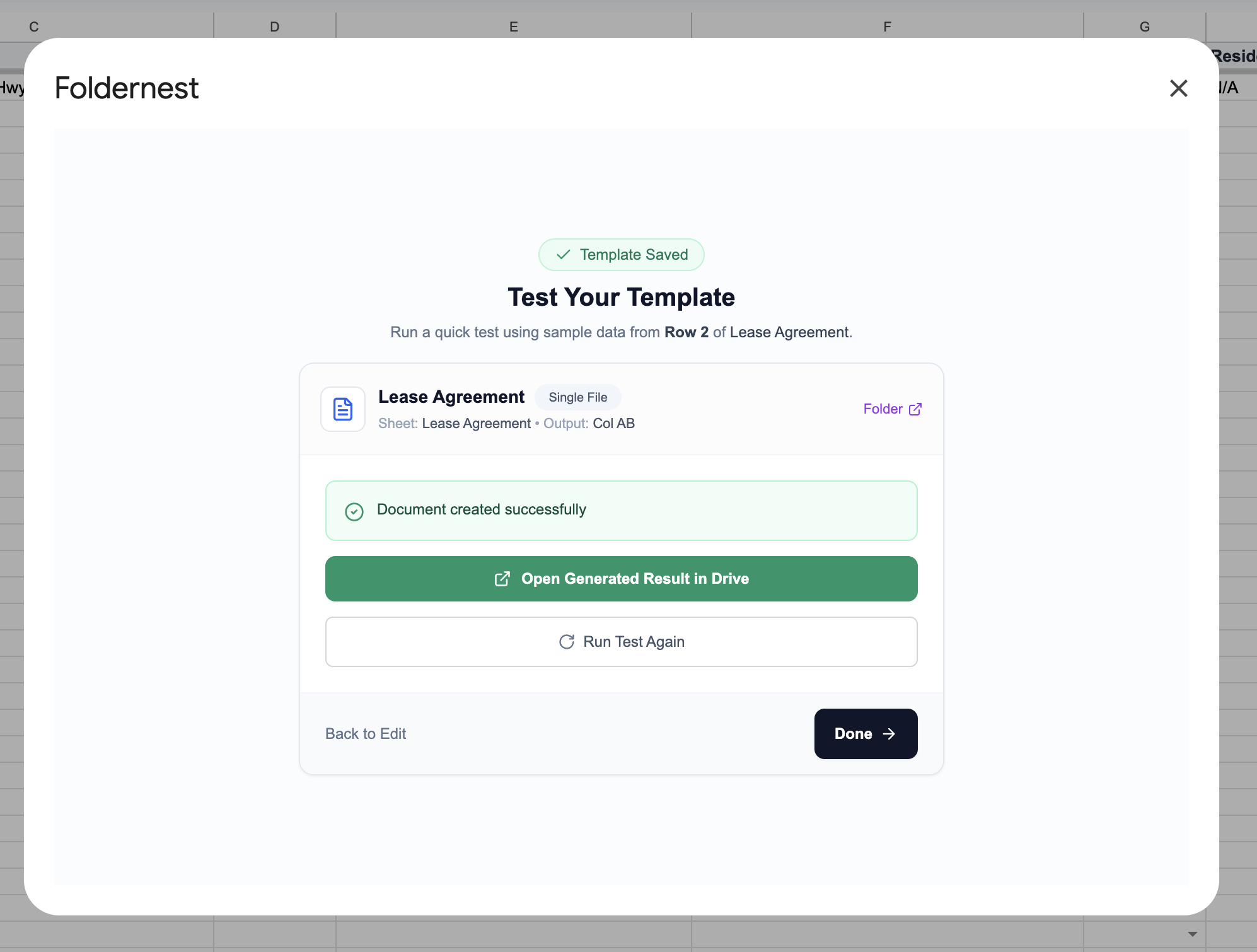
Step 10: Generation Success Confirmation
Within seconds, Foldernest displays: Document created successfully. Click Open Generated Result in Drive to review your newly drafted lease agreement.
Step 11: Review the Generated Lease Agreement in Google Docs
Open your newly generated document (Contract - November 1, 2026). Notice how cleanly party records, property terms, and conditional clauses were compiled:
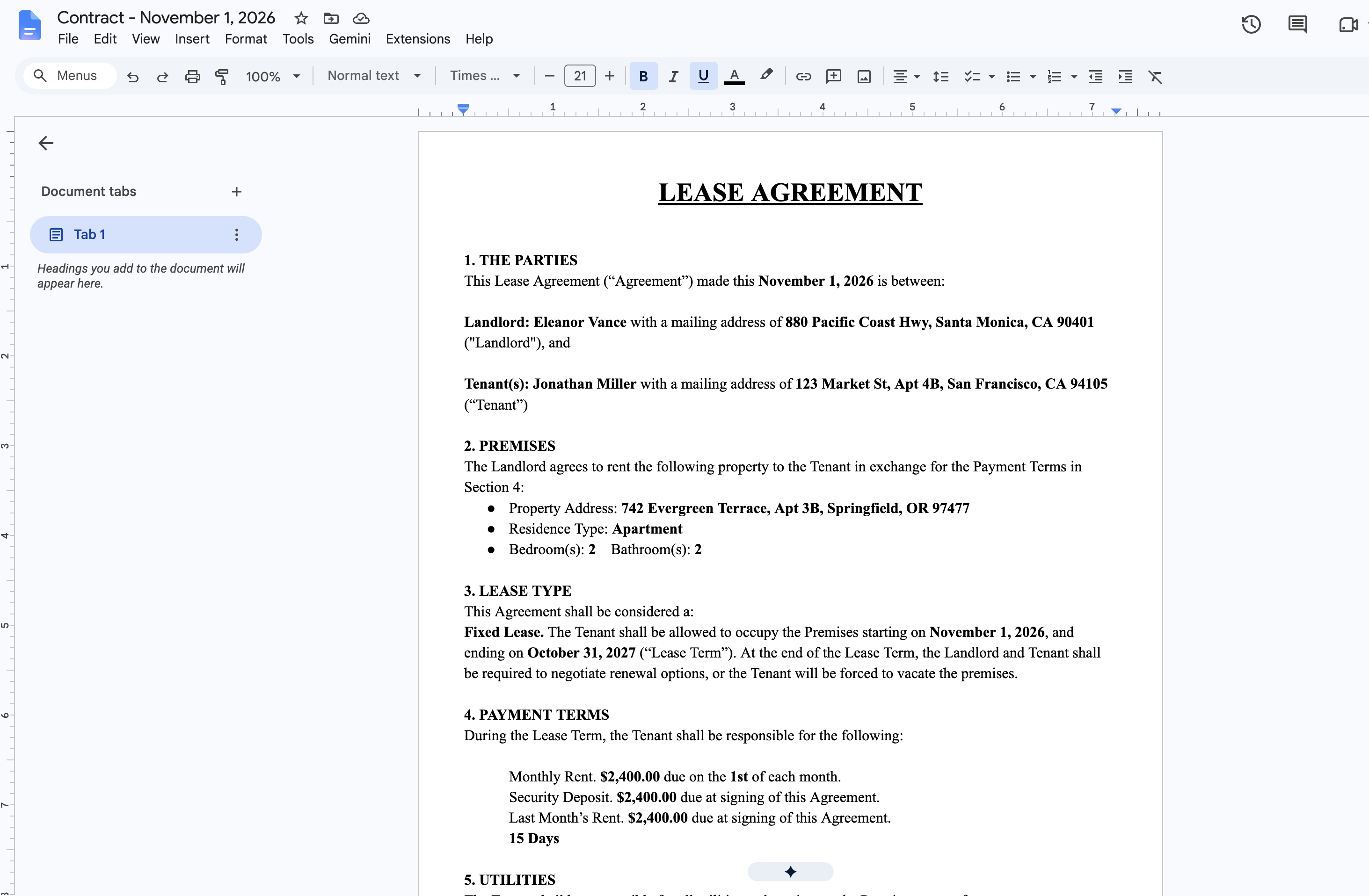
- Accurate Parties: Landlord is populated as Eleanor Vance (New York, NY) and Tenant is populated as Jonathan Miller (Springfield, OR).
- Premises Specifications: Property address is cleanly inserted as 742 Evergreen Terrace, Apt 3B, Springfield, OR 97477, designated as an Apartment with 2 Bedrooms and 2 Bathrooms.
- Resolved Lease Type Clause: Because *Lease type* was set to *Fixed Lease*, the document outputs the term starting November 1, 2026 and ending October 31, 2027. The Month-to-Month section was completely omitted.
- Evaluated Payment Terms: The Monthly Rent is recorded as $2,400.00 due on the 1st of each month. Both the Security Deposit ($2,400.00) and Last Month's Rent ($2,400.00) clauses rendered cleanly because their requirement flags were set to *Yes*.
- Utilities Clause: Lists tenant utility responsibility with explicit exceptions for Water, Sewer, and Trash Collection.
- Execution Ready: Signatures for Eleanor Vance and Jonathan Miller are dated November 1, 2026 with zero stray merge syntax.
Step 12: Production-Ready Automation in 'My Automations'
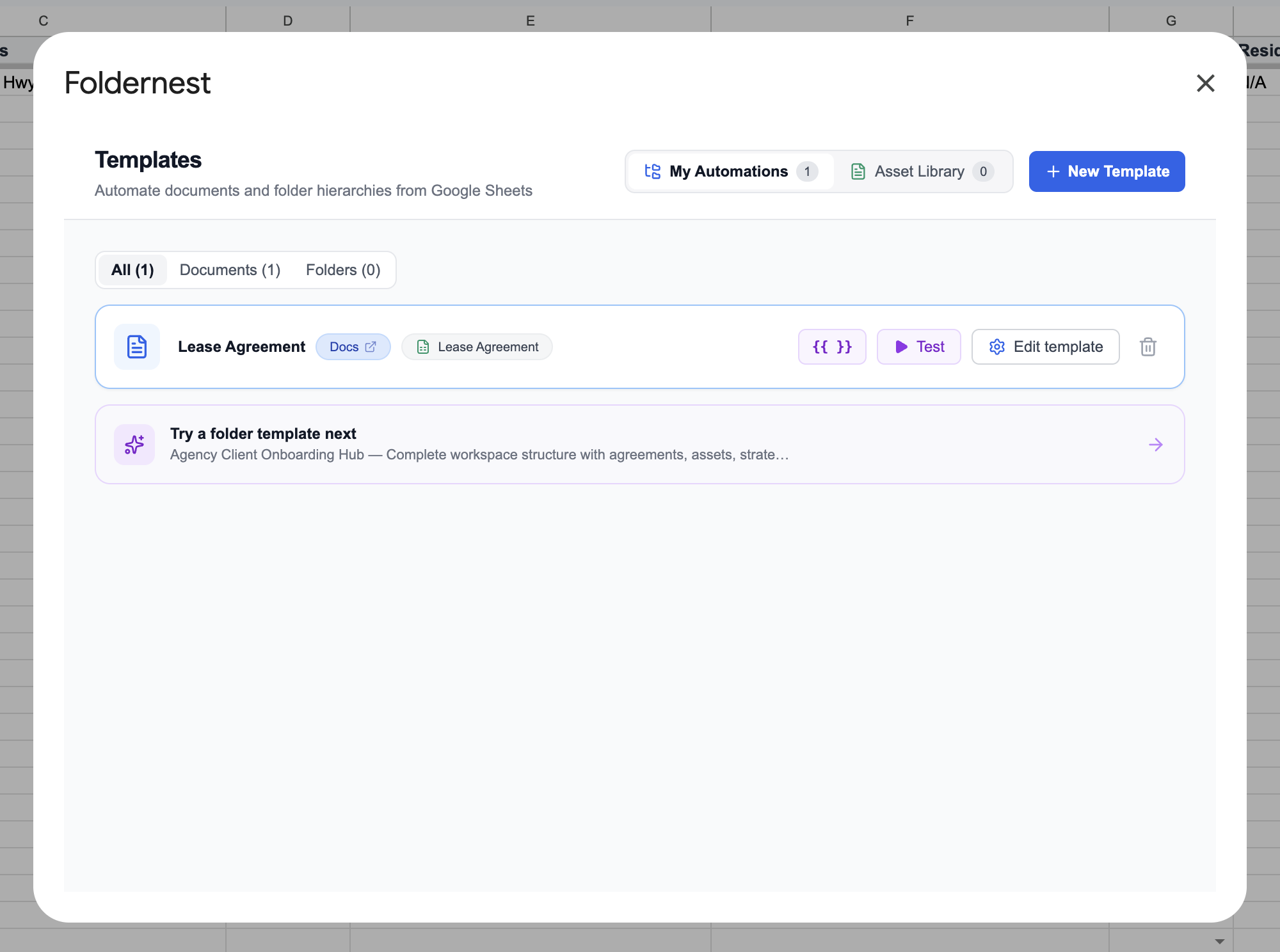
Click Done to return to the Foldernest Templates manager. Your Lease Agreement automation is permanently saved under My Automations (1).
Pro Tip
Power User Features in My Automations: Notice two productive shortcuts on your automation card: clicking the [Docs ↗] badge opens your master template in a new browser tab instantly for rapid edits, while clicking the {{ }} quick markers button next to Test reveals all available sheet markers right on your dashboard for fast copying into your document.
Step 13: Centralized Tenancy Register in Google Sheets
Switch back to your Google Sheets tab. In Column AB (Generated File URL), the generated document link is logged automatically. Hovering over the URL opens Google Drive's rich Smart Chip preview, enabling you to inspect or share the document without leaving the spreadsheet.
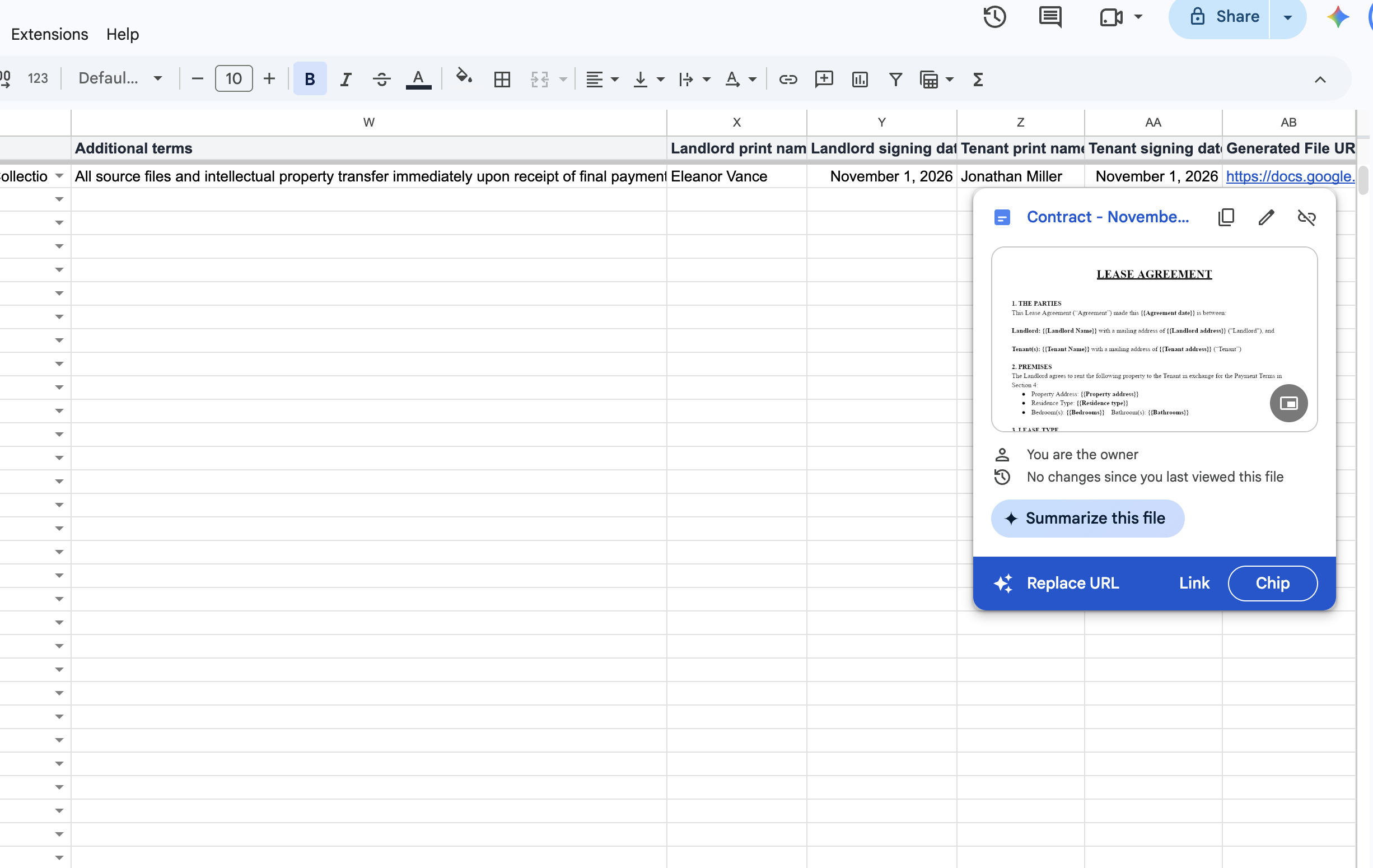
Your Google Sheet is now a centralized property management tenancy register: unit numbers, tenant contacts, lease types, rent amounts, deposit records, and signed contract links are organized in a single searchable database.
Deep Dive: Mastering Conditional Logic in Lease Agreements
Residential tenancy laws demand contractual clarity. Mislabeled lease terms or contradictory clauses can impede eviction proceedings or create deposit escrow disputes. Foldernest handles conditional clauses with precision:
- Fixed-Term vs. Month-to-Month Tenancy: Switch between traditional 12-month leases and flexible periodic arrangements without maintaining separate template files. Setting *Lease type* to *Month-to-Month Lease* automatically swaps the fixed calendar dates for statutory notice requirements.
- Conditional Security Deposit Obligations: In jurisdictions or tenancy types where security deposits are waived or held under separate surety bonds, toggle *Security deposit required* to *No*. Section IV completely removes the security deposit clause.
- Last Month's Rent Escrow: Some leases require prepayment of the final month's rent while others do not. The *Last month rent required* dropdown automatically toggles this provision without leaving empty gaps.
- Custom Residence Types & Property Notes: If *Residence type* is set to *Other*, the template can incorporate custom descriptions (`{{Residence type other}}`) such as accessory dwelling units (ADUs), live-work lofts, or townhouses.
Manual Lease Drafting vs. Automated with Foldernest
| Operational Factor | Manual Copy-Paste Drafting | Automated with Foldernest |
|---|---|---|
| Drafting Time per Lease | 25–45 minutes per tenant | Under 3 seconds per row |
| Risk of Data Cross-Contamination | High (residual tenant names and dates) | Zero (compiled fresh from validated sheet rows) |
| Handling Varied Lease Terms | Manual editing prone to contradictory clauses | Automated via conditional <<If: ...>> blocks |
| File Organization in Google Drive | Scattered files, inconsistent naming conventions | Standardized file names in designated Drive folders |
| Portfolio Tracking & Audit Trail | Lost links across emails and chat messages | Direct link logged in Column AB of Google Sheets |
| Multi-Unit Batch Scalability | Linear workload for every new lease | Generate 1, 10, or 50 tenancy agreements simultaneously |
Advanced Property Management Automation Strategies
Pro Tip
Seamless Tenant Application to Lease: Connect your Google Sheet to an online intake form (Google Forms, Typeform, or Tally). When an applicant is approved, Foldernest can generate a customized draft lease agreement instantly for property manager review.
- Standardize Currency & Date Formatting: Format rent and deposit values as currency (`2,400.00`) and dates as standard strings (`November 1, 2026` or `2026-11-01`).
- Pipeline Tracking Columns: Add operational status columns like *Application Status* (*Approved*, *Pending Co-Signer*), *Deposit Received*, and *Keys Handed Over* alongside Column AB.
- Combine with Folder Automation: Pair your document automation with Foldernest Folder Templates to create a structured Google Drive directory for every unit (Move-In Inspection, Photo Checklist, ID Copies, Signed Lease, Rent Receipts).
- One-Click E-Signature Routing: Once generated in Google Docs, export the agreement to PDF or send it directly to your e-signature provider (DocuSign, PandaDoc, Adobe Sign, or HelloSign).
Frequently Asked Questions (FAQ)
Are lease agreements generated via Foldernest legally binding?
Yes. Foldernest generates native Google Docs agreements using your approved master template. Once signed by both the landlord and tenant (either physically or electronically via an ESIGN/UETA compliant platform), the document carries the same legal weight as any conventionally drafted contract.
Can I bring my own customized landlord lease template?
Yes. While Foldernest's pre-built Lease Agreement starter provides an industry-standard foundation, you can automate any existing Google Doc. Select Start Blank in Foldernest, connect your document, and insert `{{Column Name}}` markers and `<<If: ...>>` conditional blocks wherever spreadsheet data belongs.
How does conditional logic handle optional tenancy clauses?
Foldernest uses boolean conditional syntax: `<<If: (condition)>>content<<EndIf>>`. When evaluating a row, if the condition evaluates to false (e.g. *Security deposit required* is *No*), Foldernest removes the enclosed text, bullet points, and trailing line breaks entirely, avoiding awkward gaps in your contract.
What happens if I add new columns or rearrange headers in my Google Sheet?
Your automation remains intact. Simply click the Detect / Refresh button in Step 2 of the Foldernest wizard. Foldernest scans your headers, tracks where the Generated File URL column is located, and updates the marker inventory instantly.
Does Foldernest preserve legal typography, custom clauses, and formatting?
Yes. Foldernest duplicates your master Google Doc using Google Drive APIs. Custom fonts, headers, footers, tables, bold text, underlines, section numbers, and page margins remain 100% faithful to your master design.
Can I generate leases for multiple tenants simultaneously?
Yes. Simply highlight multiple rows in your Google Sheet and run the automation. Foldernest processes each tenant row, creates a personalized agreement, logs each document URL in Column AB, and stores all files in your specified Google Drive folder.
Start Automating Lease Agreements Today
Manual lease drafting slows down your leasing cycles, increases administrative overhead, and exposes your rental business to drafting errors. By linking your Google Sheets tenancy ledger with dynamic Google Docs templates in Foldernest, you can generate compliant, professionally formatted residential lease agreements in seconds.
Ready to streamline your property management workflows? Install Foldernest from the Google Workspace Marketplace and generate your first automated lease agreement today.