
Whether you are a private lender, a business providing vendor financing, an angel investor issuing convertible debt, or a legal operations manager handling internal corporate loans, preparing a binding loan contract (or promissory note) is a mandatory legal safeguard. A comprehensive loan agreement establishes the exact principal amount, interest rate, compounding schedule, installment timetable, late payment penalties, prepayment rules, collateral security, and guarantor liabilities.
Yet for many lending professionals and finance teams, creating these agreements remains a high-friction administrative grind. Duplicating past documents, hunting through dense legal paragraphs to change borrower details and principal numbers, recalculating installment amounts, and manually pruning non-applicable clauses is slow, prone to errors, and legally risky. In this guide, you will learn how to transform borrower rows in Google Sheets into customized, ready-to-execute loan contracts in Google Docs in seconds using Foldernest and its free pre-built Loan Contract template starter.
The Hidden Cost of Manual Loan Contract Drafting
Drafting loan agreements by manually cloning old Google Docs or Word templates introduces severe operational and legal vulnerabilities:
- Confidentiality & Financial Data Leaks: Reusing past loan documents frequently leaves a previous borrower's full legal name, personal address, credit details, or financial terms buried inside an overlooked paragraph.
- Mismatched Interest & Repayment Terms: Loans vary significantly. Some loans bear interest (compounded monthly or annually), while others are interest-free. Some require monthly installments, others weekly payments, and others a lump-sum balloon payment upon maturity. Manually deleting and adjusting these clauses creates conflicting provisions, invalid covenants, and drafting inconsistencies.
- Collateral & Guarantor Omissions: Unsecured loans must not include collateral seizure remedies, while secured loans require detailed collateral descriptions. Manually editing security clauses often results in orphan definitions or contradictory default terms.
- Chaotic Google Drive Filing: Loan contracts get saved across personal drives with messy naming like `Loan_Agreement_Final_Marcus_v2.docx`, making portfolio audits, tracking, and compliance archiving difficult.
The Modern Alternative: Smart Spreadsheets + Conditional Docs
Foldernest replaces static mail-merge tools by combining spreadsheet data with dynamic variable markers (`{{Column Name}}`) and conditional logic syntax (`<<If: ...>>...<<EndIf>>`):
- Multi-Party Separation: Distinct fields for Borrower (*Marcus Sterling*), Lender (*Beacon Financial Trust / Eleanor Vance*), and Guarantor (*Jonathan Miller*) prevent address or signature overlaps.
- In-Cell Dropdown Data Validations: Essential columns — such as *Interest type*, *Interest compound frequency*, *Payment schedule*, *Late fee type*, *Prepayment penalty type*, and *Security type* — feature pre-configured dropdowns in Google Sheets to eliminate typos.
- Dynamic Conditional Logic: Clauses for interest accrual, monthly vs. weekly payments, late payment grace periods, prepayment penalties, and pledged collateral render *only* when selected in the spreadsheet. Non-applicable clauses vanish without leftover blank lines.
- Centralized Portfolio Register: The Google Drive link for every generated agreement is logged back into your sheet with interactive Google Drive Smart Chip previews.
Step 1: Open Foldernest in Google Sheets
Open your Google Spreadsheet where you track loan applications, borrower pipelines, or financing portfolios. In the top toolbar:
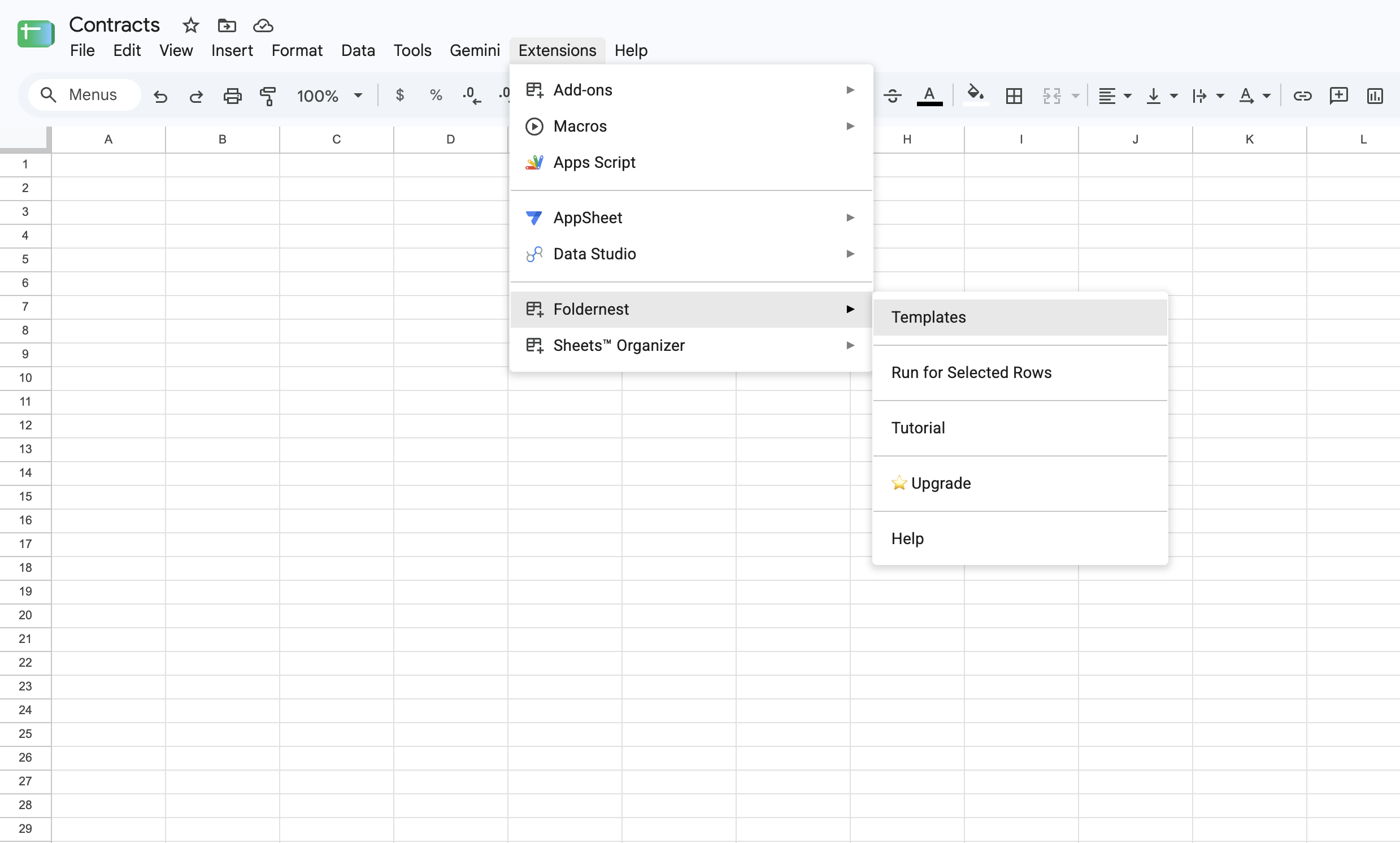
- 1. Click Extensions in the Google Sheets menu.
- 2. Select Foldernest > Document & Folder Templates > Create & Manage.
Step 2: Choose 'Single Document Template' & Pre-Built Starters
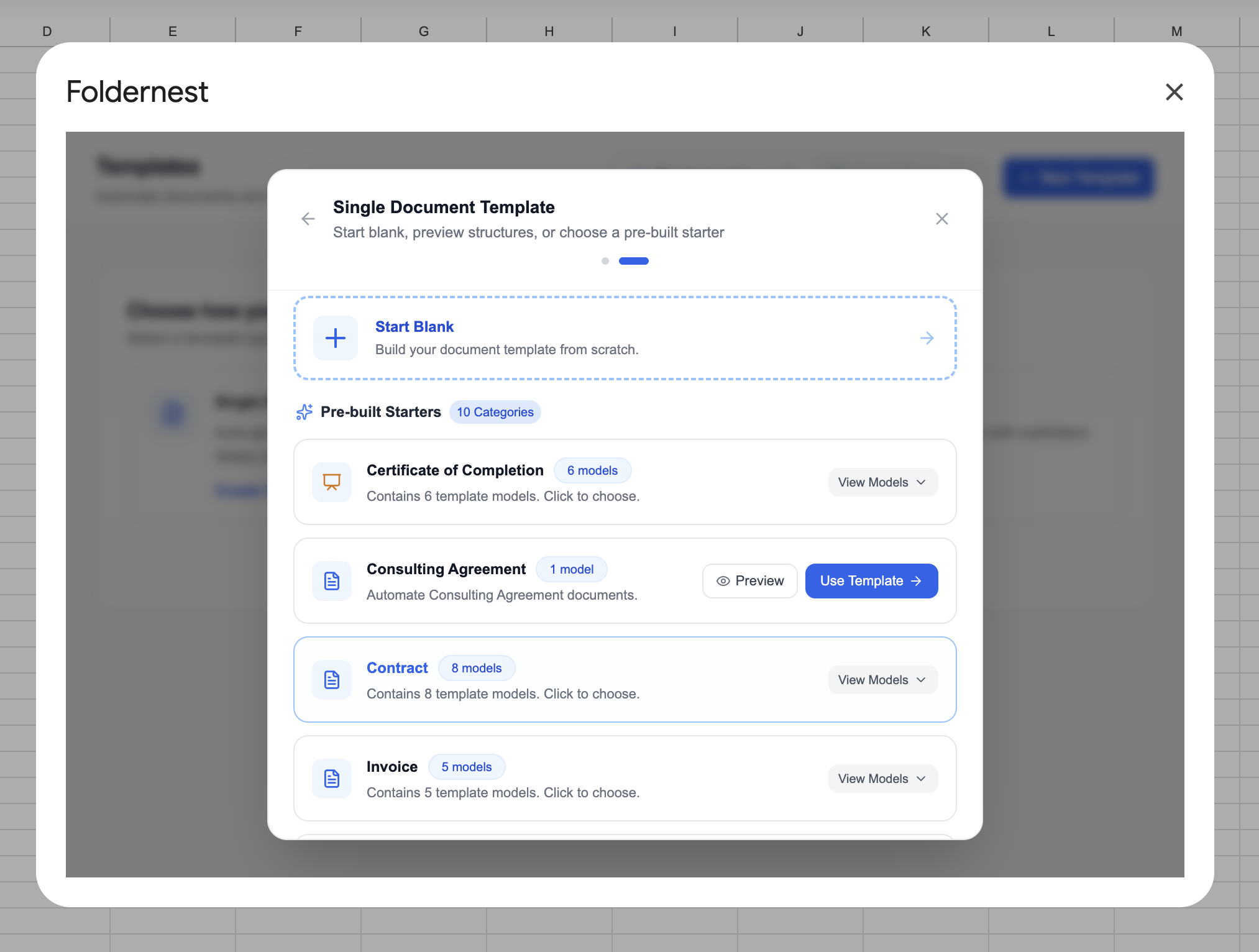
In the template creation dialog, select Single Document Template. This mode merges each spreadsheet row into an individual, fully formatted Google Docs agreement. Scroll down to the Explore Pre-built Starters catalog.
Step 3: Select the 'Loan Contract' Starter
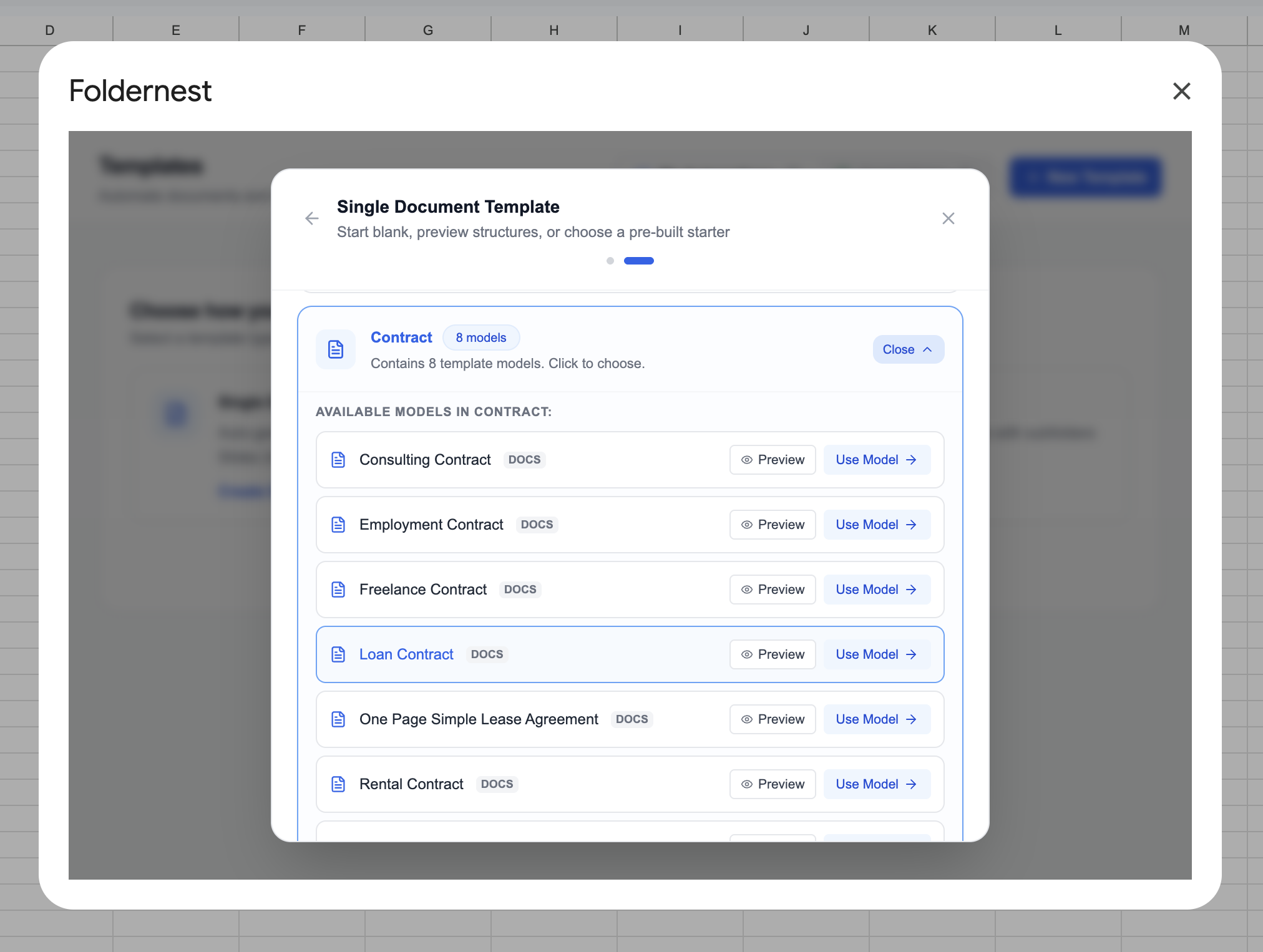
Expand the Contract category (which contains 8 pre-built commercial templates). Locate Loan Contract (DOCS) and click Use Model.
When you click Use Model, Foldernest automatically prepares your Google Workspace environment in three ways:
- Creates the 'Loan Contract' Sheet Tab: Generates a dedicated tab with 32 curated columns covering dates, parties, loan amounts, interest terms, payment schedules, late fees, prepayment rules, collateral, governing law, and guarantor details.
- Applies Native Dropdown Validations: Adds in-cell dropdowns for all selection columns (e.g. *Interest type*, *Payment schedule*, *Security type*) to prevent formatting errors.
- Injects Realistic Sample Data: Populates Row 2 with complete, realistic borrower information (*Marcus Sterling*, *$25,000.00* loan, *6.0%* interest).
- Provisions the Master Template: Copies the editable Loan Contract - Template Master Google Doc directly to your Google Drive.
Step 4: Inspect the Master Template & Conditional Logic in Google Docs
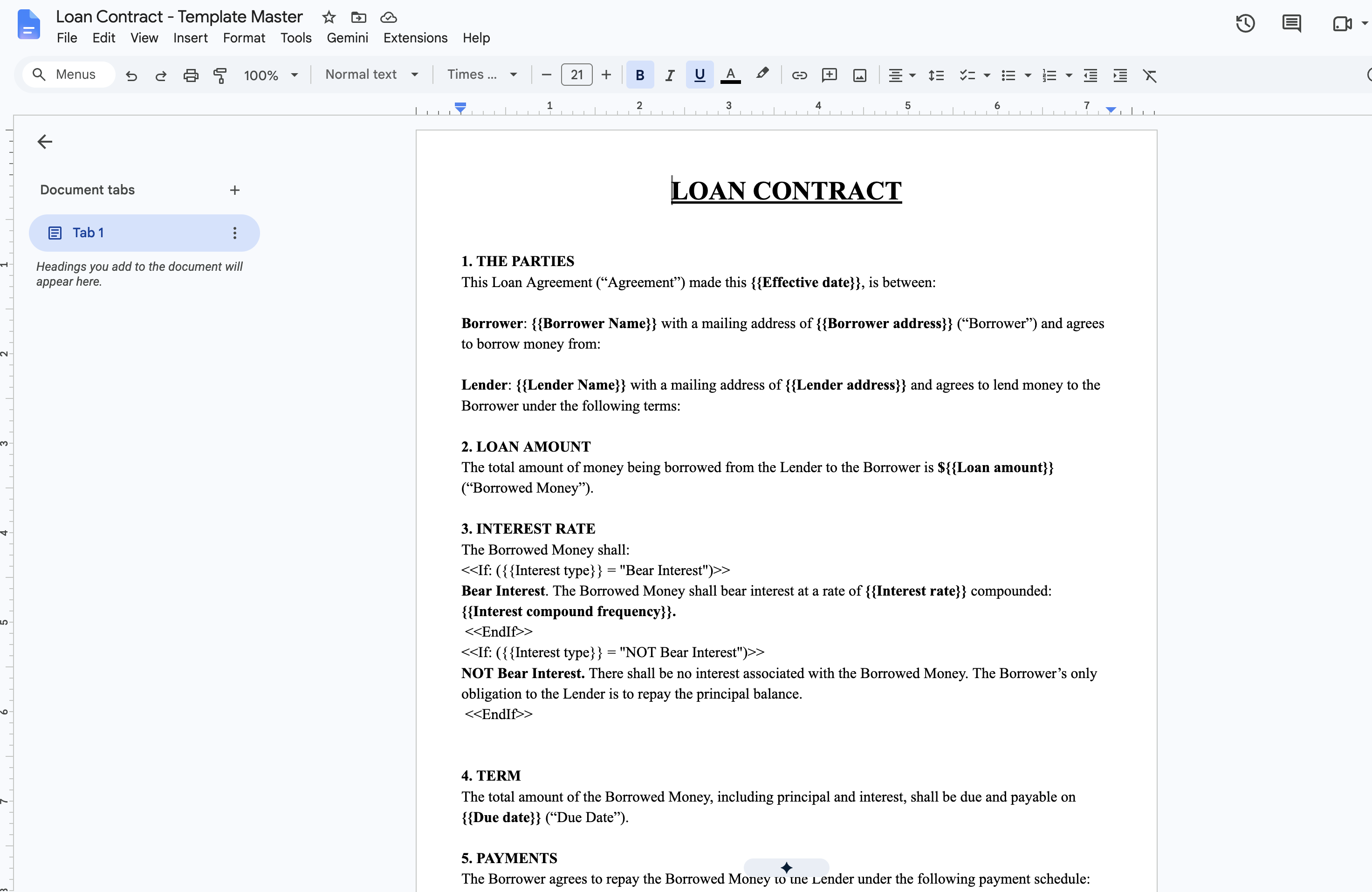
Open your newly created Loan Contract - Template Master in Google Docs. Notice how standard legal provisions are wired with dynamic tags (`{{...}}`) and conditional clauses (`<<If: ...>>`):
Pro Tip
How Conditional Statements Work: Take Section 3 (Interest Rate). The master document contains `<<If: ({{Interest type}} = "Bear Interest")>>Bear Interest. The Borrowed Money shall bear interest at a rate of {{Interest rate}} compounded: {{Interest compound frequency}}.<<EndIf>>` alongside an alternate `<<If: ({{Interest type}} = "NOT Bear Interest")>>` block. Foldernest evaluates your spreadsheet value and outputs only the active clause, cleanly deleting non-applicable sections with zero leftover whitespace.
Key dynamic and conditional sections automated in the template include:
- The Parties: `{{Borrower Name}}`, `{{Borrower address}}`, `{{Lender Name}}`, and `{{Lender address}}`.
- Principal & Term: `{{Loan amount}}`, `{{Effective date}}`, and maturity `{{Due date}}`.
- Payment Schedule: Dynamically selects between Weekly Payments, Monthly Payments, Lump Sum repayment, or custom terms.
- Late Payment & Prepayment: Evaluates grace days (`{{Late payment grace days}}`), late fees (`{{Late fee amount}}`), and prepayment penalty rules.
- Security & Collateral: Dynamically includes pledged collateral descriptions (`{{Security description}}`) and default sale remedies, or states that the loan is unsecured.
- Guarantor Guarantee: Renders personal guarantor liability blocks (`{{Guarantor name}}`) only when a guarantor is required.
Step 5: Configure Model & Source Sheet in Foldernest
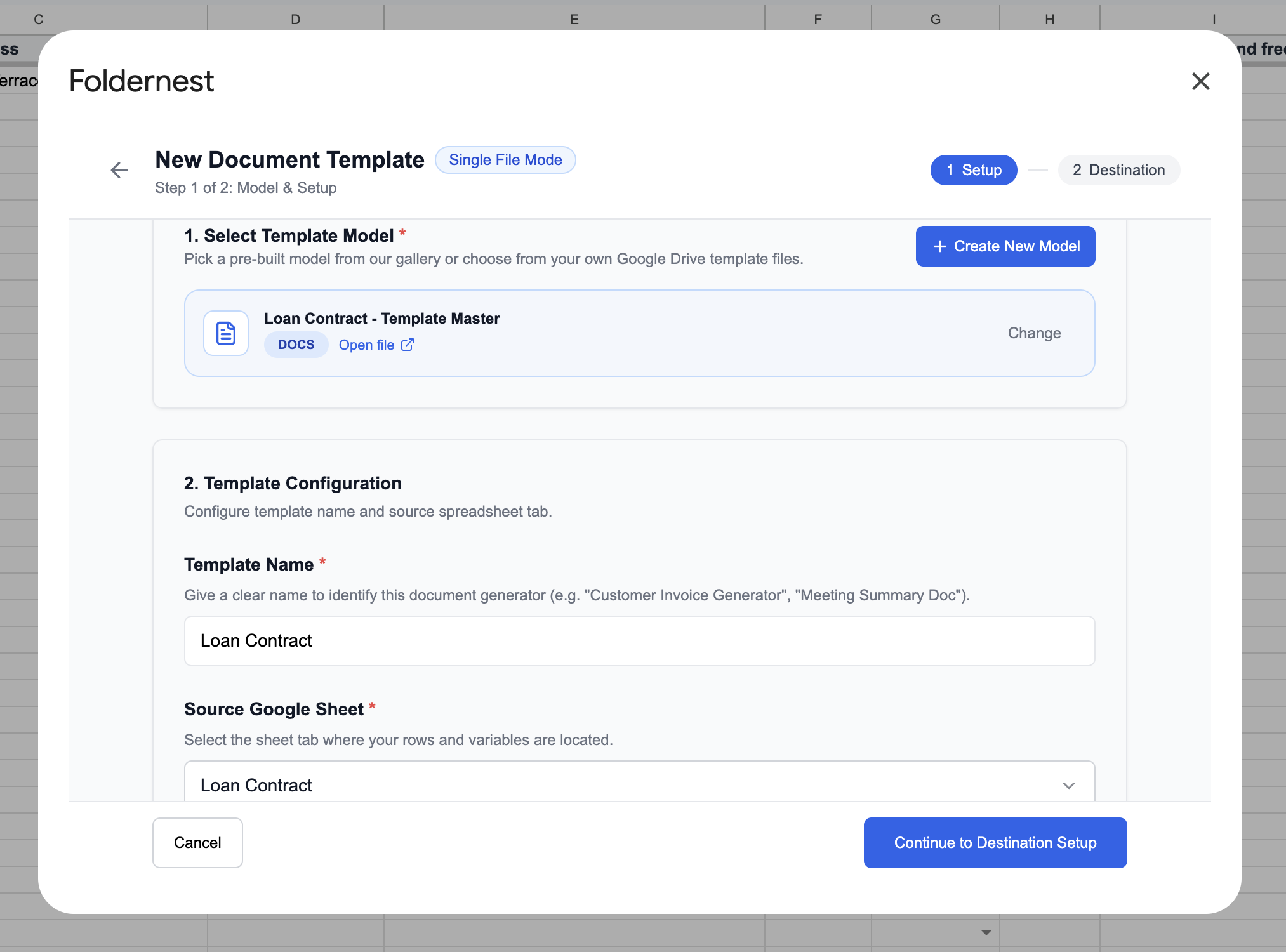
Return to the Foldernest wizard (Step 1 of 2: Model & Setup). The Template Master document is automatically linked. Set your template name (e.g. *Loan Contract*) and confirm that the source sheet is set to Loan Contract.
Step 6: Select Generation Triggers
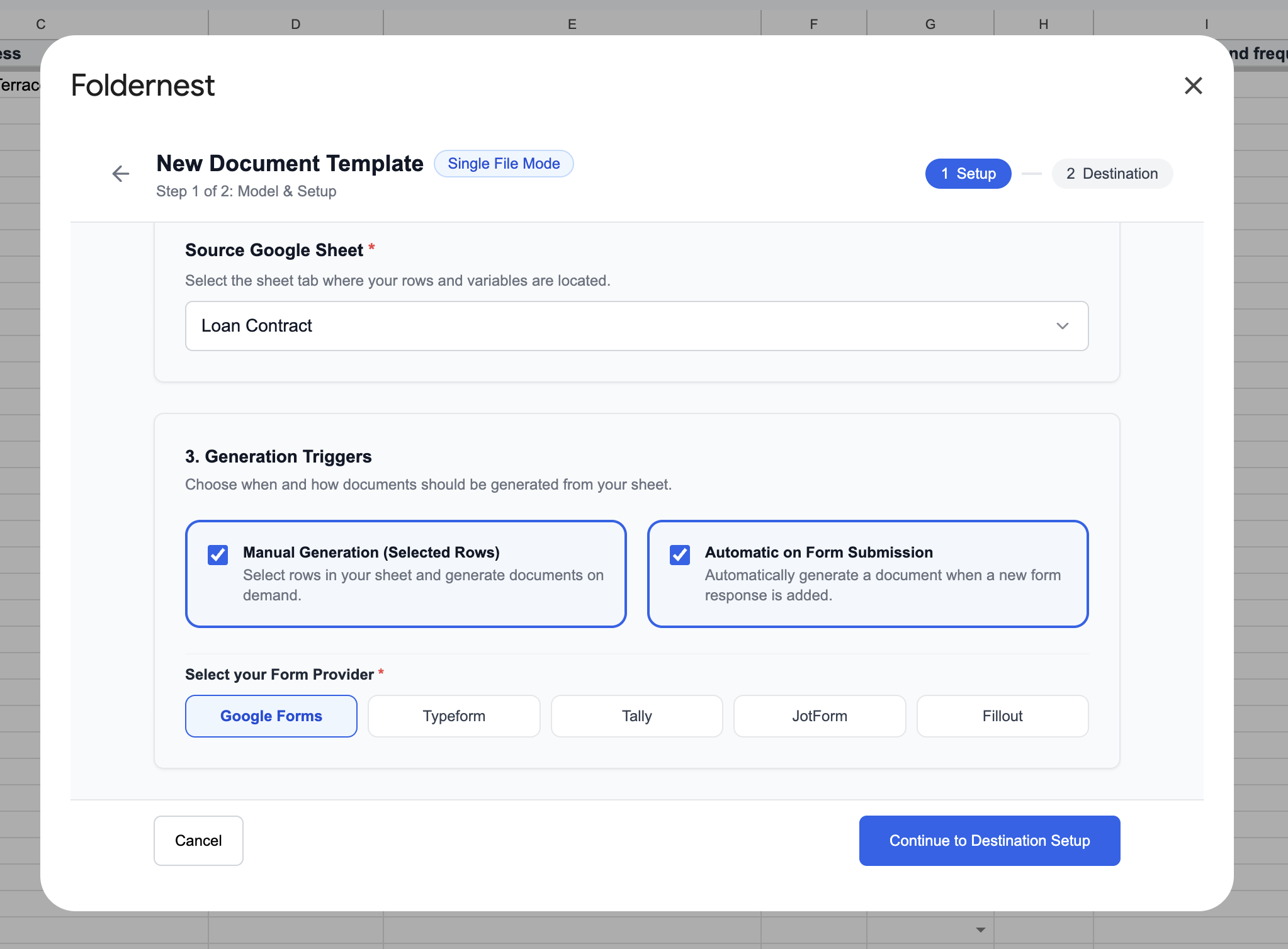
Under Generation Triggers, configure how documents should be generated from your spreadsheet:
- Manual Generation (Selected Rows): Best for underwriters and lenders who approve loans on demand. Highlight the borrower rows you wish to process and click generate.
- Automatic on Form Submission: Perfect if you collect loan applications via Google Forms, Typeform, Tally, JotForm, or Fillout. Whenever a borrower submits an application, Foldernest immediately generates a customized draft agreement.
Click Continue to Destination Setup to proceed.
Step 7: Configure Dynamic Naming & Destination Folder
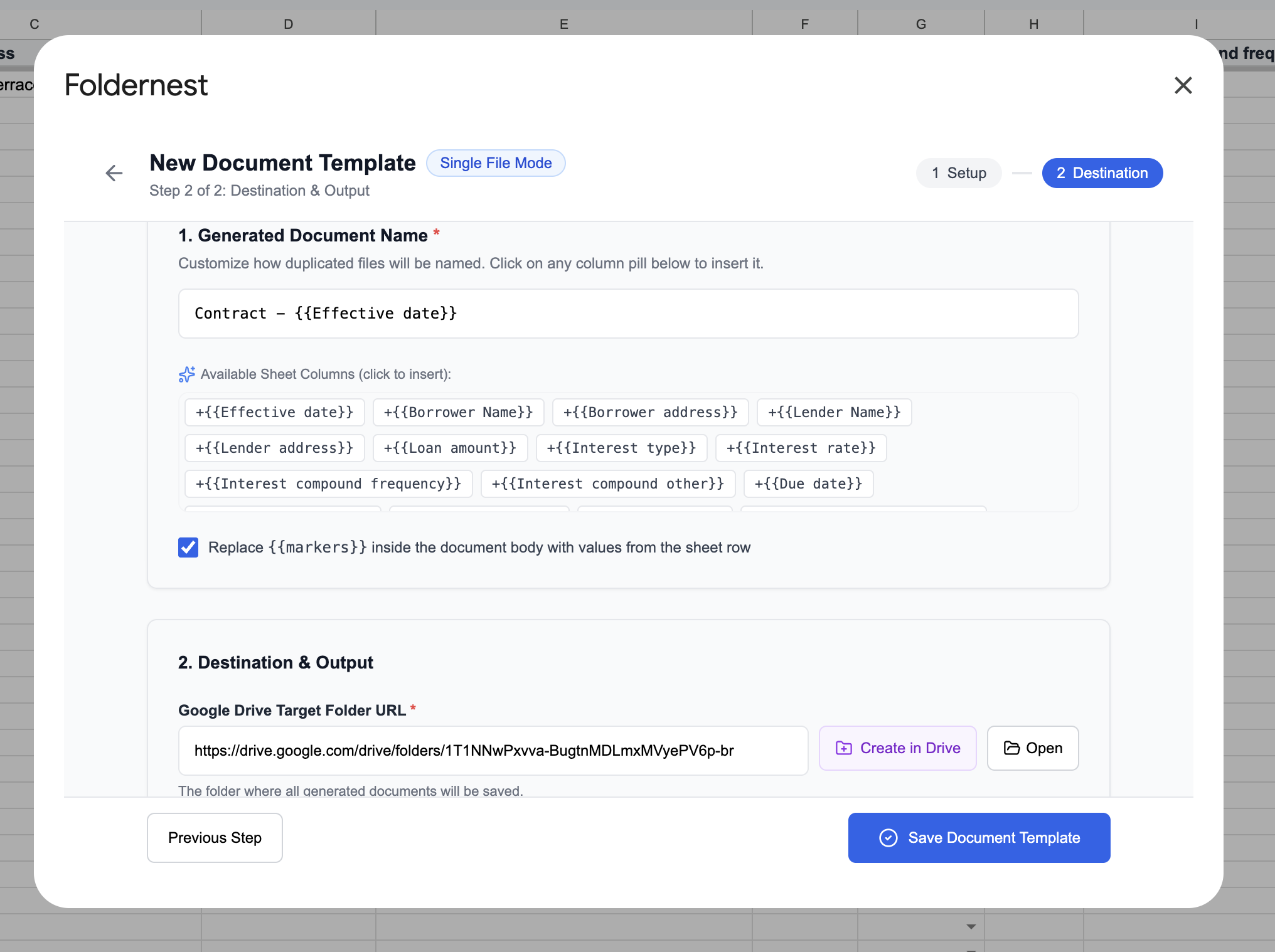
In Step 2 of 2: Destination & Output, configure file organization and dynamic naming in Google Drive:
- 1. Generated Document Name: Click any column pill to build structured, searchable filenames, such as `Contract - {{Effective date}}` or `Loan Agreement - {{Borrower Name}} - {{Effective date}}`.
- 2. Replace {{markers}} inside document body: Ensure this box is checked so all borrower fields and conditional logic evaluate throughout the agreement body.
- 3. Google Drive Target Folder URL: Specify the destination Google Drive folder (e.g. *Executed Loan Contracts*), or click Create in Drive to provision a new folder automatically.
Step 8: Auto-Detect Output URL Column & Review Markers
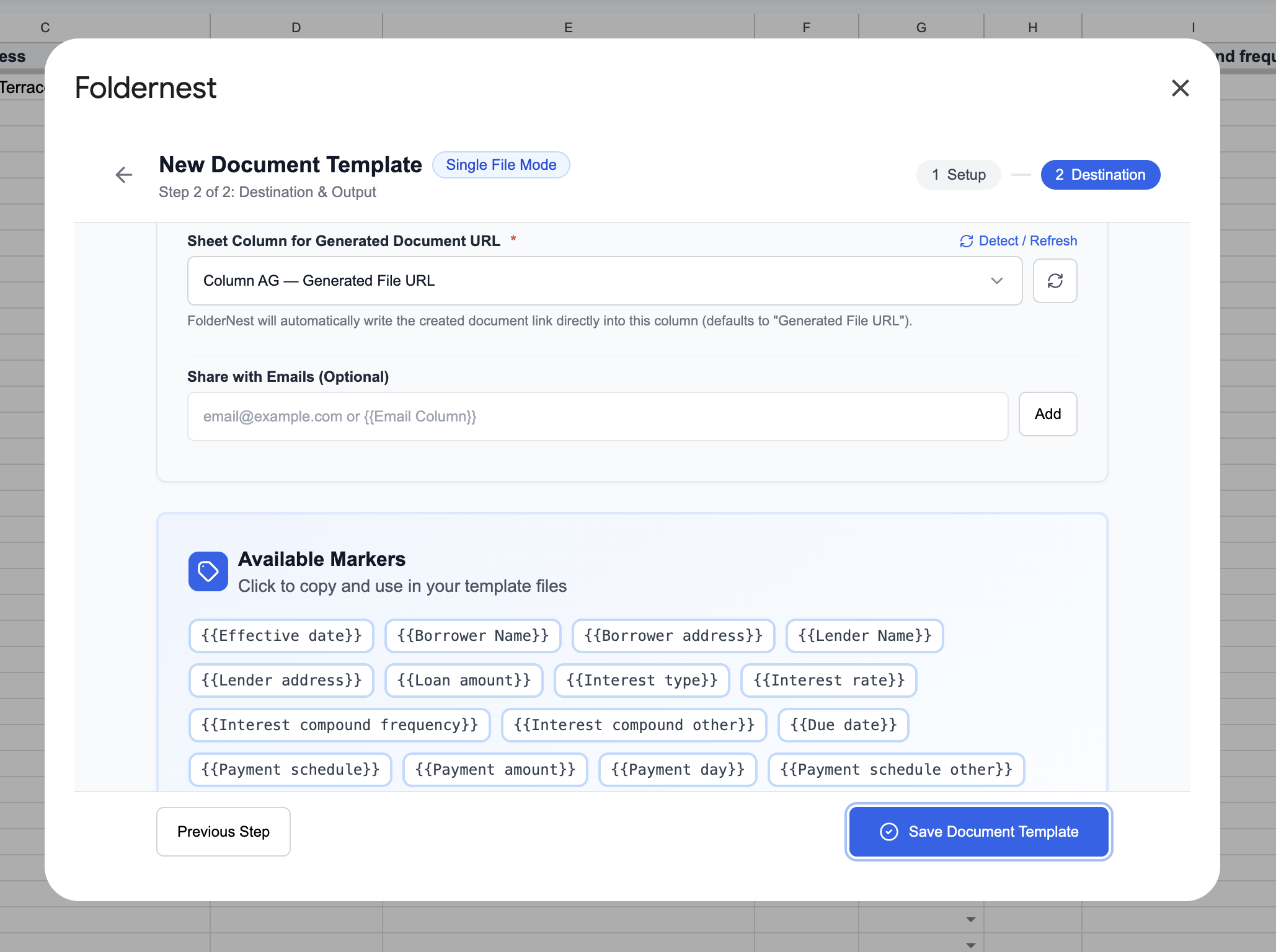
Foldernest automatically detects and binds Column AG — Generated File URL in your spreadsheet. This column stores the direct link to every generated agreement.
Pro Tip
Smart Column Refresh: If you add custom underwriting columns to your sheet (such as *Credit Score*, *Internal Loan ID*, or *Wire Instructions*), click the Detect / Refresh button. Foldernest scans your headers and refreshes the marker list instantly without disrupting your setup.
Click Save Document Template to finalize your automation.
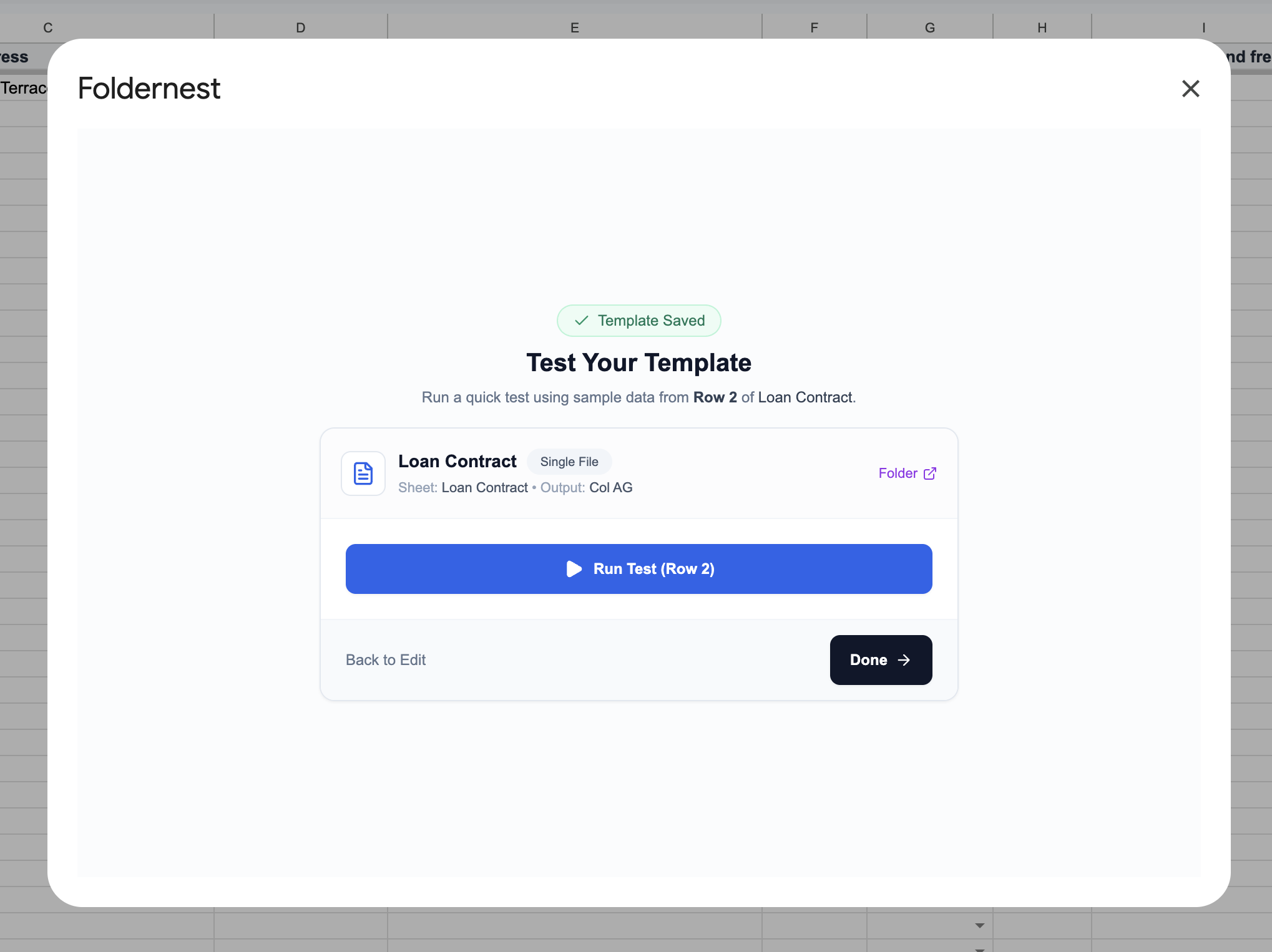
Step 9: Test Run on Sample Borrower (Row 2)
Before generating agreements for active borrowers, run a test using the sample row created by the starter. In the Test Your Template screen, click Run Test (Row 2).
Step 10: Generation Success Confirmation
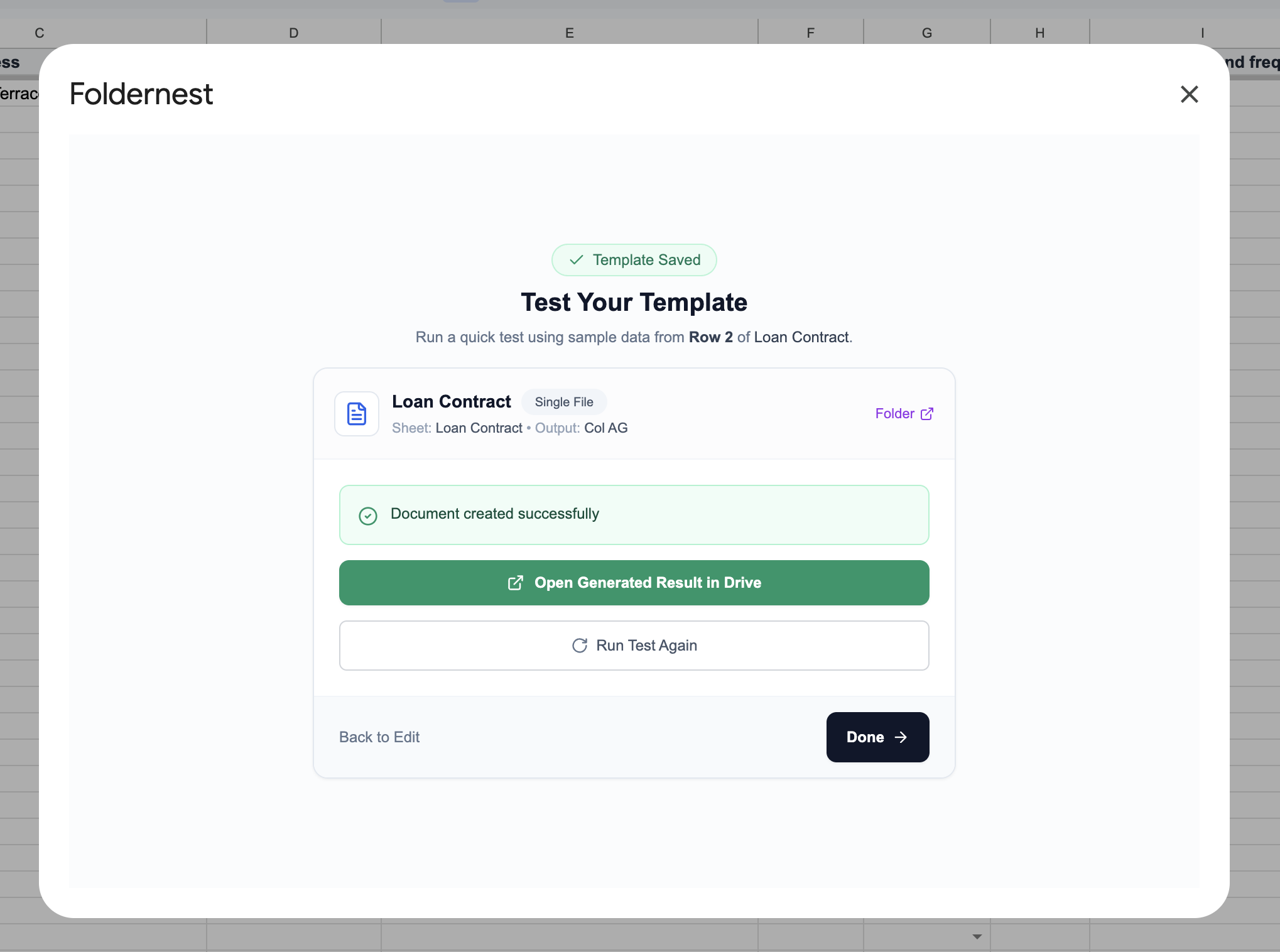
Within seconds, Foldernest confirms: Document created successfully. Click Open Generated Result in Drive to inspect your freshly created loan agreement.
Step 11: Review the Generated Loan Contract in Google Docs
Open your newly generated document (Contract - November 1, 2026). Notice how cleanly all financial figures, party details, and conditional clauses were compiled:
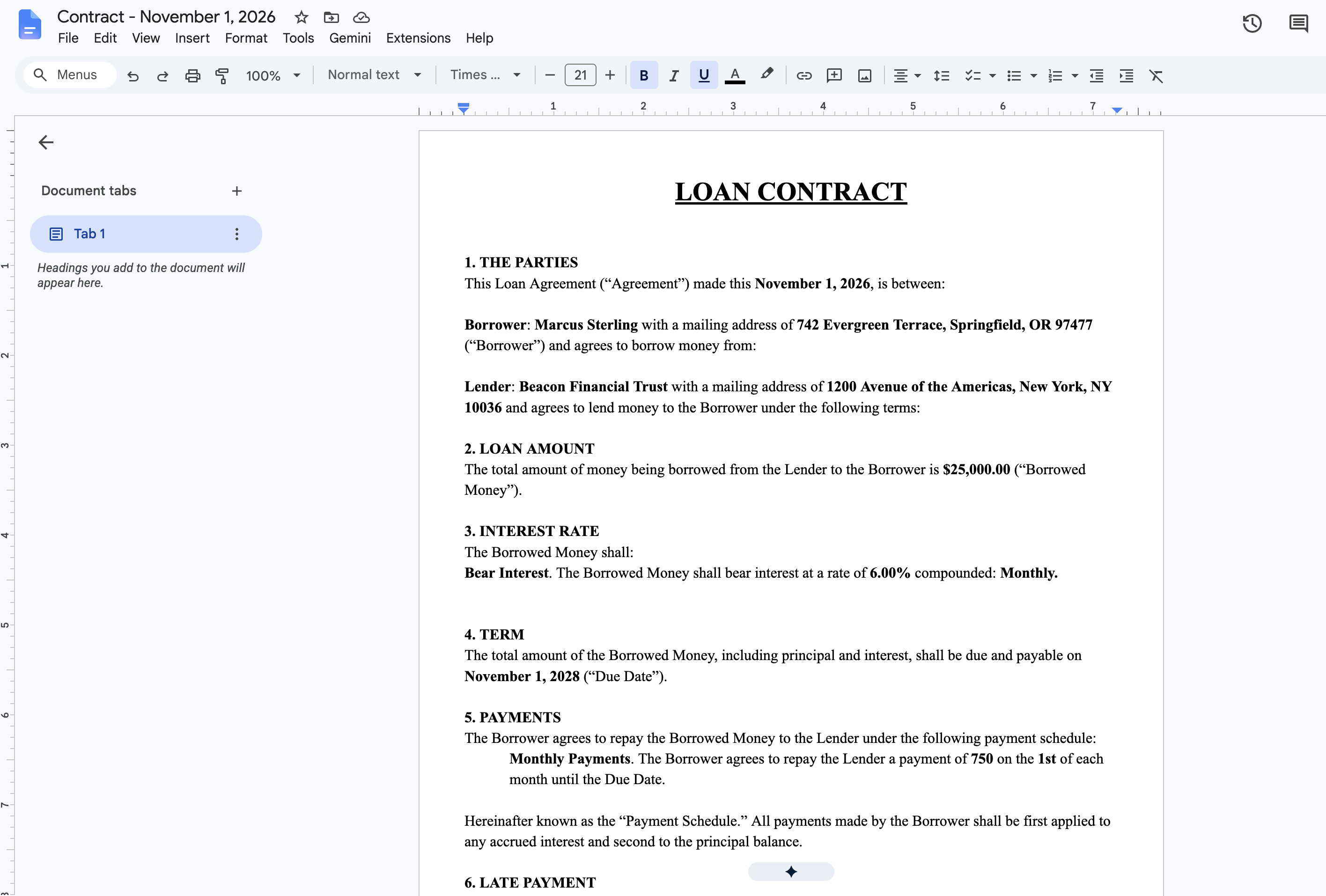
- Counterparties Separated: Borrower is accurately populated as Marcus Sterling (Springfield, OR) and Lender is populated as Beacon Financial Trust (New York, NY).
- Principal Defined: The Borrowed Money is inserted cleanly as $25,000.00.
- Evaluated Interest Clause: Because *Interest type* was set to *Bear Interest*, the active interest clause appears with 6.00% compounded Monthly. The unused *NOT Bear Interest* clause was completely omitted.
- Repayment Schedule: The *Monthly Payments* clause is populated with 750 due on the 1st of each month until the maturity date of November 1, 2028.
- Flawless Typography: Headings, underlines, section numbers, and paragraph indentation remain 100% intact with zero stray syntax tags.
Step 12: Production-Ready Automation in 'My Automations'
Click Done to return to the Foldernest Templates manager. Your Loan Contract automation is permanently saved under My Automations (1).
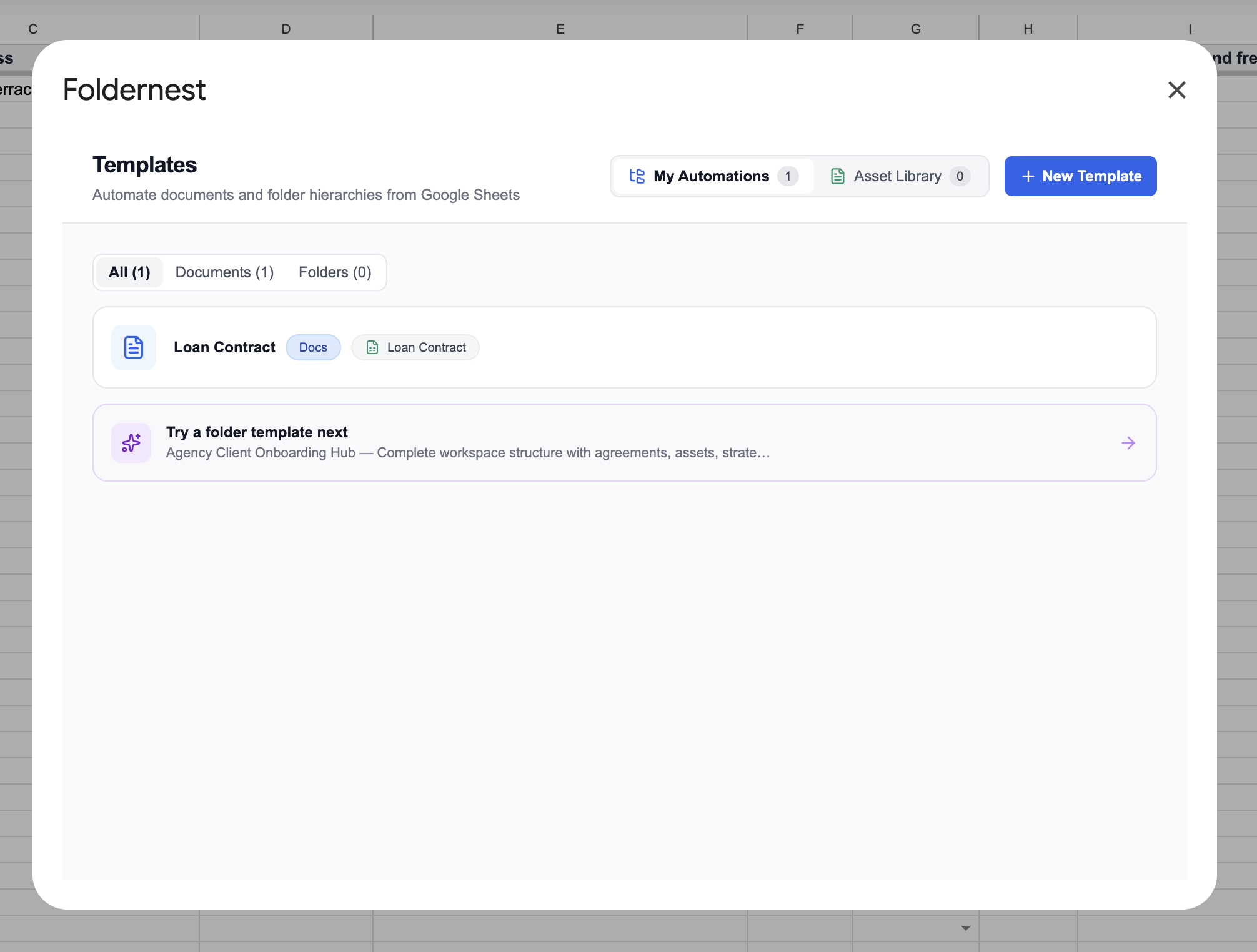
From this dashboard, you can test rows, modify configurations, or trigger batch document runs whenever you need to issue new agreements.
Step 13: Centralized Loan Register in Google Sheets
Switch back to your Google Sheets tab. In Column AG (Generated File URL), the generated document link is logged automatically. Hovering over the URL opens Google Drive's rich Smart Chip preview, enabling you to inspect or share the document without leaving the spreadsheet.
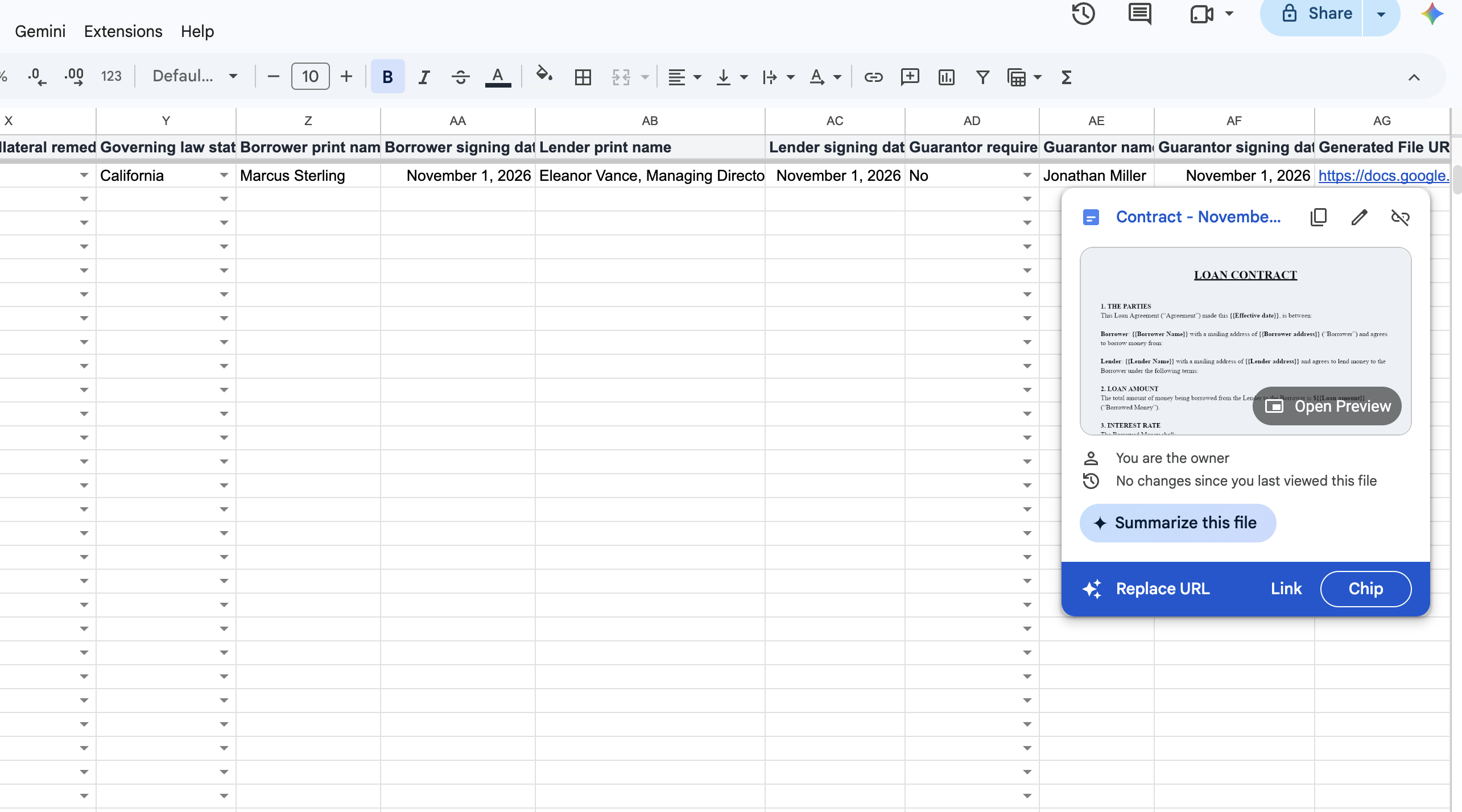
Your Google Sheet is now a centralized lending portfolio register: every borrower's principal, interest rate, repayment schedule, collateral status, and signed contract link are organized in a single searchable database.
Deep Dive: Mastering Conditional Logic in Loan Agreements
Loan contracts require strict legal accuracy because even minor wording discrepancies can invalidate security interests or create usury disputes. Foldernest handles conditional clauses with precision:
- Interest-Bearing vs. 0% Interest Loans: Toggle between commercial debt and family/internal non-interest advances. The template automatically includes or deletes Section 3 clauses based on the *Interest type* column.
- Repayment Method Variations: Seamlessly switch between *Monthly Payments*, *Weekly Payments*, and *Lump Sum* (balloon payment) schedules without manual cutting and pasting.
- Secured vs. Unsecured Debt: If *Security type* is set to *Pledge Security*, Foldernest injects Section 8 with collateral specifications and default remedies. If set to *Not Pledge Security*, Section 8 clearly affirms that the debt is unsecured.
- Guarantor Guarantee Block: When *Guarantor required* is set to *Yes*, personal guarantor liability language appears before the signature block; otherwise, it is cleanly omitted.
Manual Loan Drafting vs. Automated with Foldernest
| Workflow Dimension | Manual Copy-Paste | Automated with Foldernest |
|---|---|---|
| Drafting Time per Contract | 30–60 minutes per borrower | Under 3 seconds per row |
| Risk of Data Cross-Contamination | High (residual names/rates from past files) | Zero (built fresh from validated sheet rows) |
| Handling Variable Interest & Terms | Manual editing prone to legal discrepancies | Automated via conditional <<If: ...>> blocks |
| File Organization in Google Drive | Scattered files, inconsistent naming | Structured pattern naming in designated Drive folders |
| Audit Register & Portfolio Tracking | Lost links across emails and chat apps | Direct link logged in Column AG of Google Sheets |
| Batch Scalability | Linear burden with every new financing | Generate 1, 10, or 100 loan agreements at once |
Advanced Lending Automation Strategies
Pro Tip
End-to-End Application to Agreement: Pair your Google Sheet with an intake form (Google Forms, Typeform, or Tally). When a prospective borrower submits loan amount, requested terms, and contact details, Foldernest can automatically generate an initial draft contract for underwriting review.
- Standardize Numeric & Date Formats: Format loan amounts as clean currency (`25,000.00`) and dates as standard strings (`November 1, 2026` or `2026-11-01`).
- Pipeline Status Columns: Add workflow columns like *Underwriting Status* (*Pending*, *Approved*, *Funded*) and *E-Signature Date* right next to Column AG.
- Pair with Folder Automation: Use Foldernest Folder Templates to generate a full borrower Google Drive directory (Proof of Income, ID Verification, Promissory Note, Disbursal Receipts) alongside the contract.
- One-Click E-Signature Routing: Once generated in Google Docs, export the contract to PDF or route it into your electronic signature platform (DocuSign, PandaDoc, Adobe Sign).
Frequently Asked Questions (FAQ)
Is a loan contract generated via Foldernest legally binding?
Yes. Foldernest generates native Google Docs agreements using your approved master template. Once reviewed and signed by the borrower, lender, and guarantor (physically or via legally compliant e-signature platforms), the document is as enforceable as any attorney-drafted agreement.
Can I bring my own proprietary loan agreement template?
Absolutely. While Foldernest's pre-built Loan Contract starter provides a battle-tested structure, you can automate any existing Google Doc. Simply choose Start Blank in Foldernest, select your document, and insert `{{Column Name}}` markers and `<<If: ...>>` conditional blocks wherever spreadsheet data belongs.
How does conditional logic handle optional or non-applicable clauses?
Foldernest uses boolean conditional syntax: `<<If: (condition)>>content<<EndIf>>`. When evaluating a row, if the condition evaluates to false (e.g. *Interest type* is not *Bear Interest*), Foldernest removes the enclosed content, bullet points, and trailing line breaks completely, preventing unsightly empty gaps in your agreement.
What happens if I add new columns or reorder fields in my Google Sheet?
You never have to rebuild your automation. Just click the Detect / Refresh button in Step 2. Foldernest scans your headers, detects where the Generated File URL column moved, and updates the marker inventory instantly.
Does Foldernest preserve typography, margins, and custom branding?
Yes. Foldernest duplicates your master Google Doc using Google Drive APIs. All custom fonts, sizes, underlines, bold styling, tables, headers, footers, and legal margins remain identical to your master template.
Can I batch-generate agreements for multiple borrowers at once?
Yes. Highlight multiple borrower rows in your Google Sheet and run the automation. Foldernest processes each row, generates a dedicated document, records each file URL in Column AG, and saves every agreement into your designated Google Drive folder.
Start Automating Loan Contracts Today
Manual contract drafting is a major operational bottleneck that introduces unnecessary legal liability. By connecting your Google Sheets portfolio tracker with dynamic Google Docs templates in Foldernest, you can generate compliant, professionally formatted loan contracts in seconds and focus on growing your business.
Ready to modernize your lending workflow? Install Foldernest from the Google Workspace Marketplace and generate your first automated loan contract today.