
In real estate, speed, organization, and strict compliance can make or break a closing. When an offer is accepted and escrow opens, agents and transaction coordinators (TCs) must scramble to organize dozens of sensitive documents: purchase agreements, seller disclosures, inspection reports, title commitments, loan estimates, and closing settlement statements.
Building deal folders manually in Google Drive for every single buyer and seller is tedious, time-consuming, and prone to costly oversights. In this comprehensive tutorial, you will learn how to build a fully automated real estate transaction dossier system using Google Sheets, Google Drive, and Foldernest. With one click or an intake form submission, your complete multi-tier transaction workspace and pre-filled documents will generate automatically.
The Hidden Pitfalls of Manual Real Estate Deal Organization
Managing multiple active transactions with ad-hoc folder structures creates bottlenecks for your entire brokerage:
- Audit & Broker Compliance Violations: Inconsistent folder naming and misplaced disclosures risk state licensing penalties and compliance audit flags.
- Document Typo Nightmares: Manually duplicating purchase agreements and checklists leads to leftover buyer names, wrong escrow numbers, or incorrect closing dates.
- Transaction Coordinator Burnout: Spending 20+ minutes creating nested folders per deal eats into client care and lead generation.
- Client & Lender Friction: Searching through disorganized drives slows down loan underwriting and delays closing timelines.
The Standardized Real Estate Transaction Dossier Blueprint
To ensure compliance and frictionless closings, top-performing brokerages rely on a standardized 4-tier folder hierarchy for every escrow transaction:
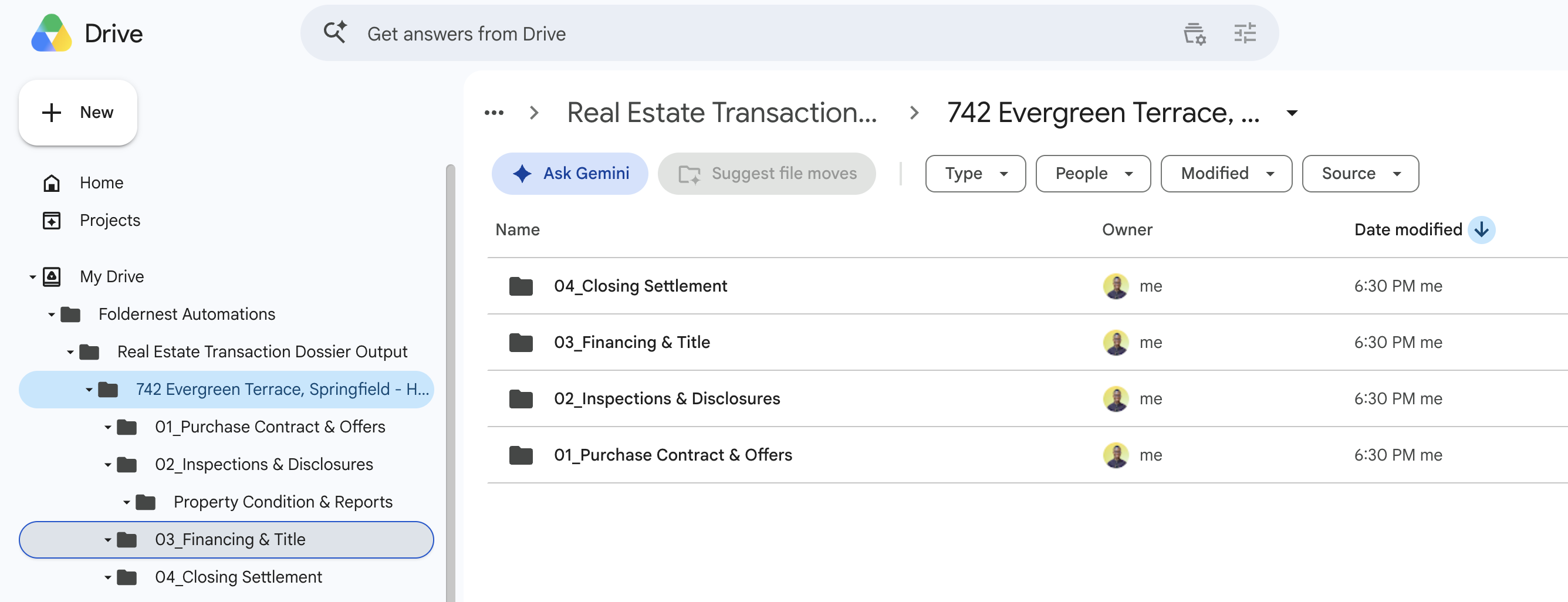
- Root Deal Folder: `{{Property Address}} - {{Buyer Name}}` (e.g. *742 Evergreen Terrace, Springfield - Homer Simpson*)
- 01_Purchase Contract & Offers: Houses the pre-filled Google Doc *Purchase Agreement - {{Property Address}}*, earnest money receipts, and addenda.
- 02_Inspections & Disclosures: Subfolders for *Property Condition & Reports*, lead paint disclosures, HOA bylaws, and repair requests.
- 03_Financing & Title: Dedicated space for lender pre-approvals, title commitments, preliminary settlement sheets, and wire instructions.
- 04_Closing Settlement: Contains the dynamic *Closing Checklist - {{Buyer Name}}*, final closing disclosure (CD), and signed deed transfer.
Step 1: Open FolderNest from Google Sheets
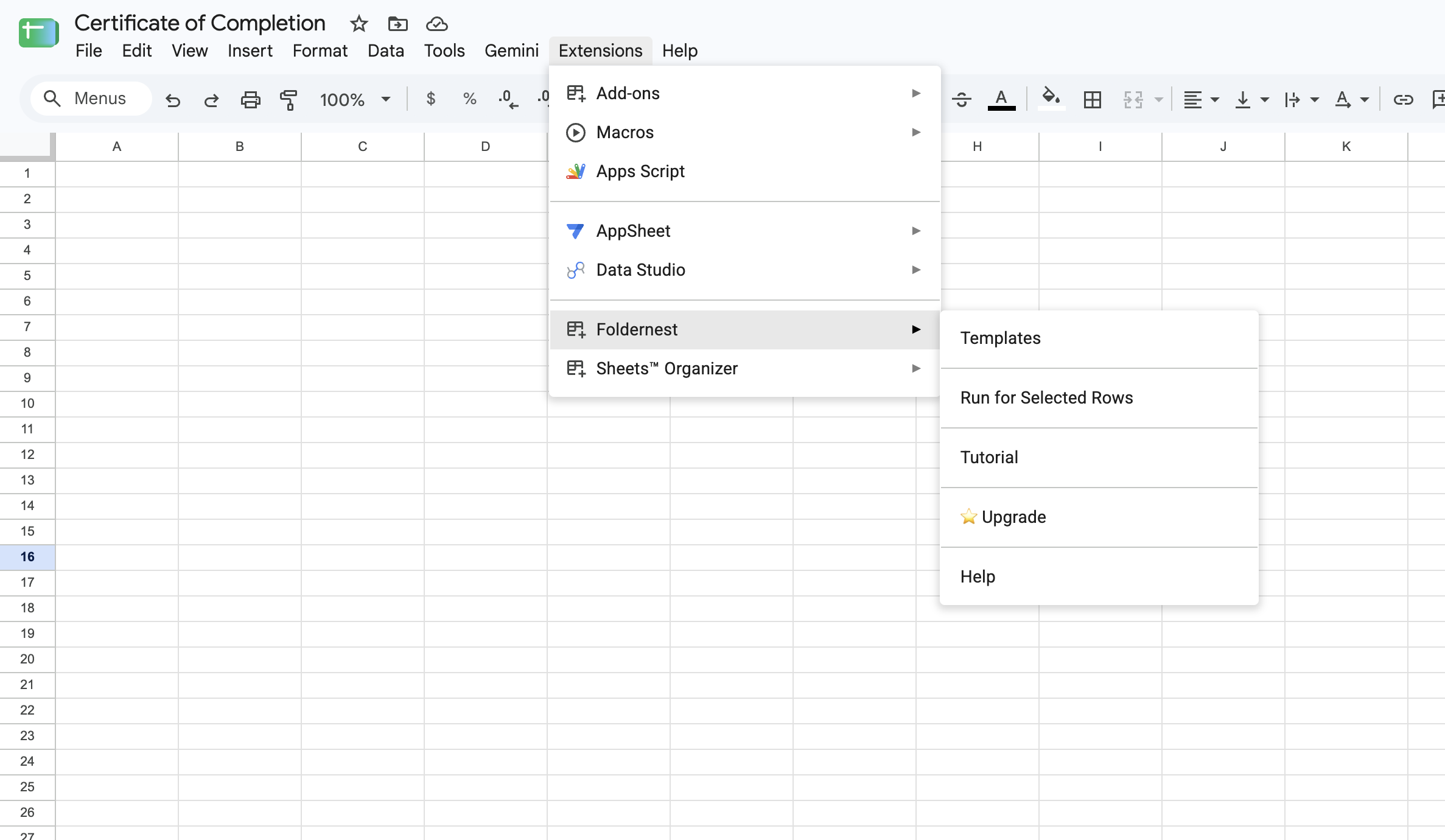
To get started, open the Google Sheet where you track your pending property pipeline or active deals. Launch FolderNest directly from the top menu:
- 1. Click Extensions in the Google Sheets menu.
- 2. Select Foldernest > Templates.
Step 2: Choose 'Folder Hierarchy Tree'
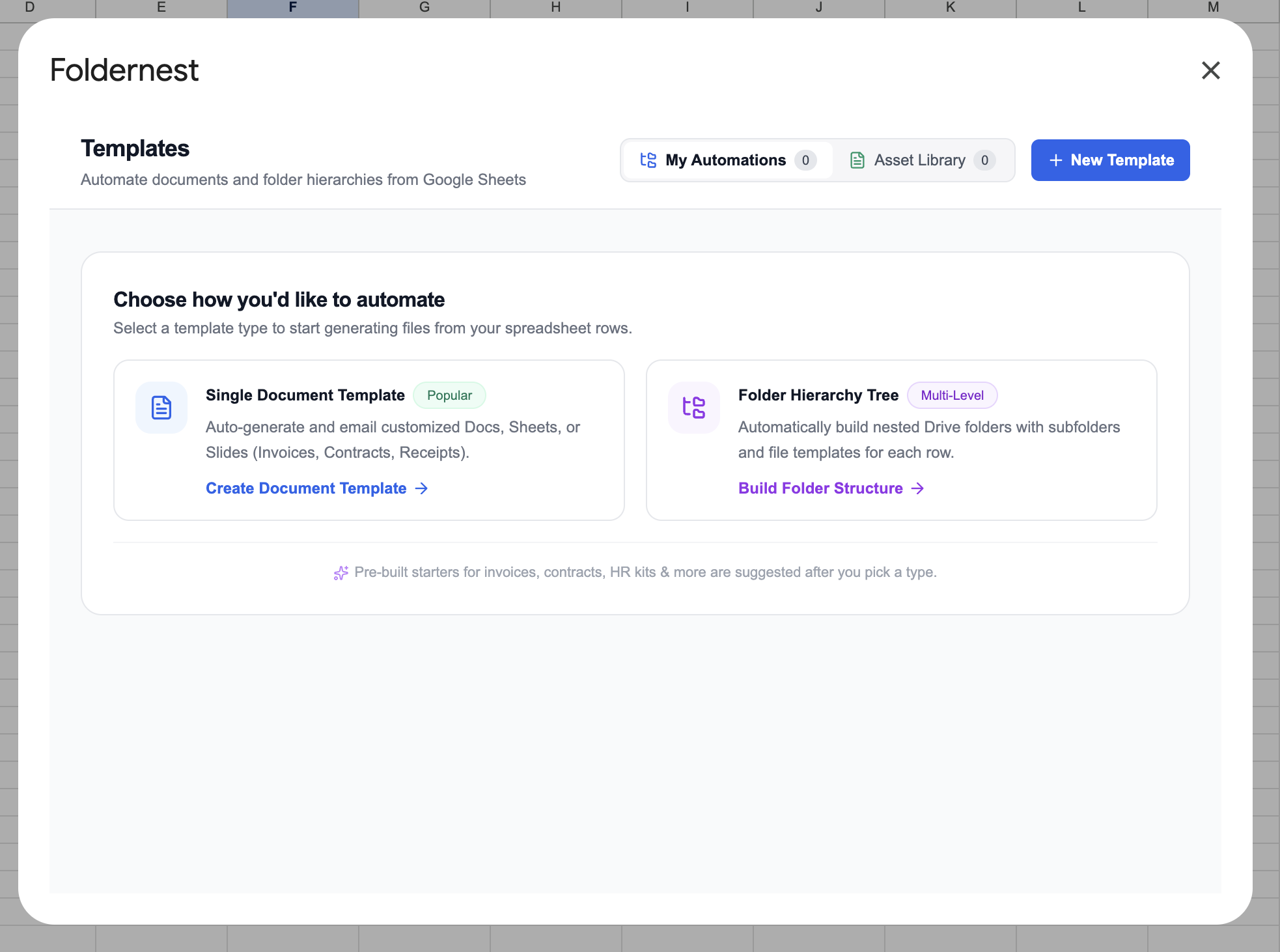
FolderNest supports both single document workflows and nested folder hierarchies. For complete property deal workspaces, select Folder Hierarchy Tree (Multi-Level).
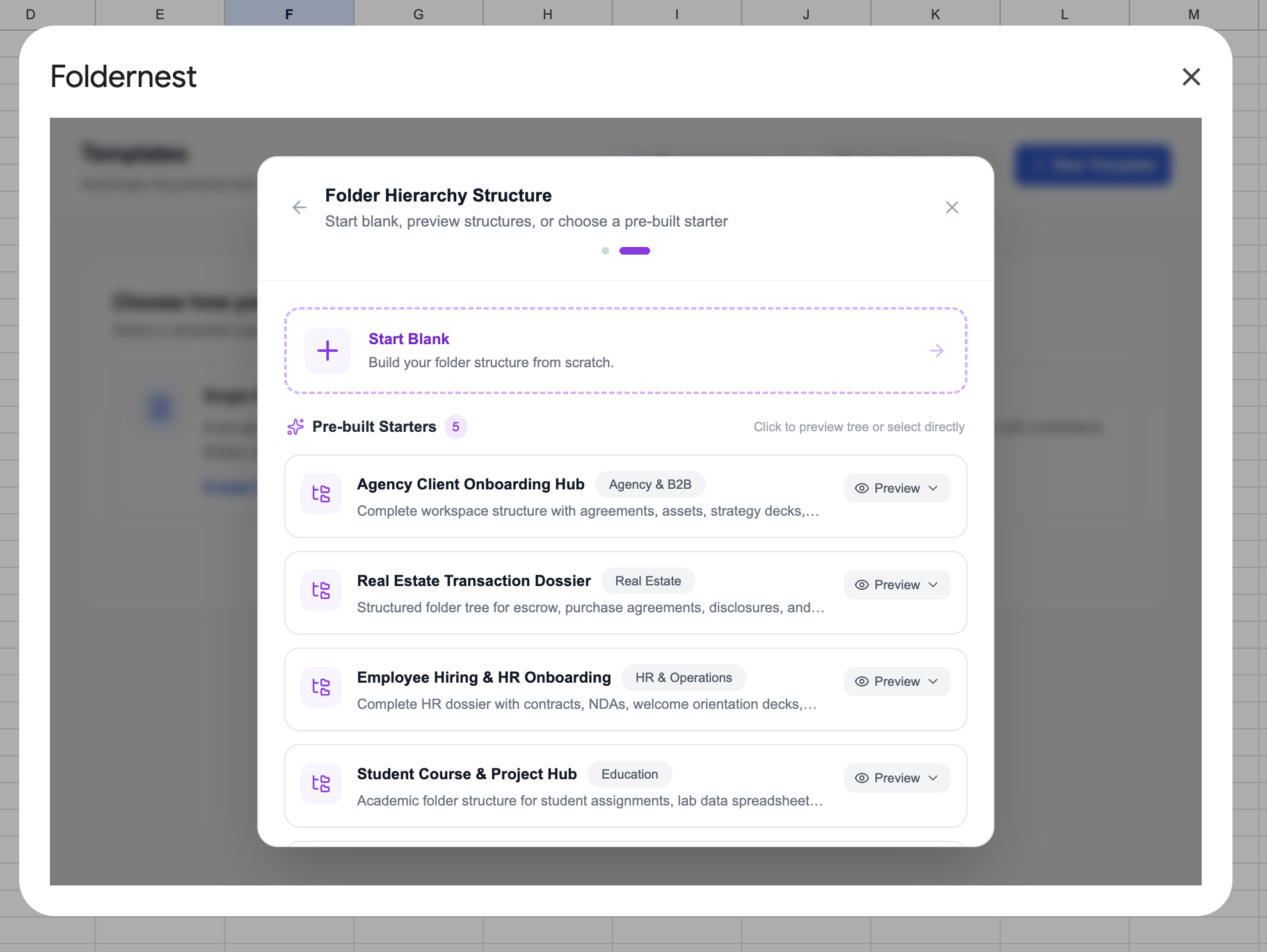
Step 3: Browse Pre-Built Starters & Select 'Real Estate Transaction Dossier'
FolderNest includes curated industry blueprint starters across Agency, Real Estate, HR, and Education so you don't have to construct folder hierarchies from scratch.
Under the Real Estate category, expand the Real Estate Transaction Dossier starter. This blueprint comes with 6 structured subfolders, 2 pre-configured Google Docs (*Purchase Agreement* and *Closing Checklist*), and 6 dynamic tags.
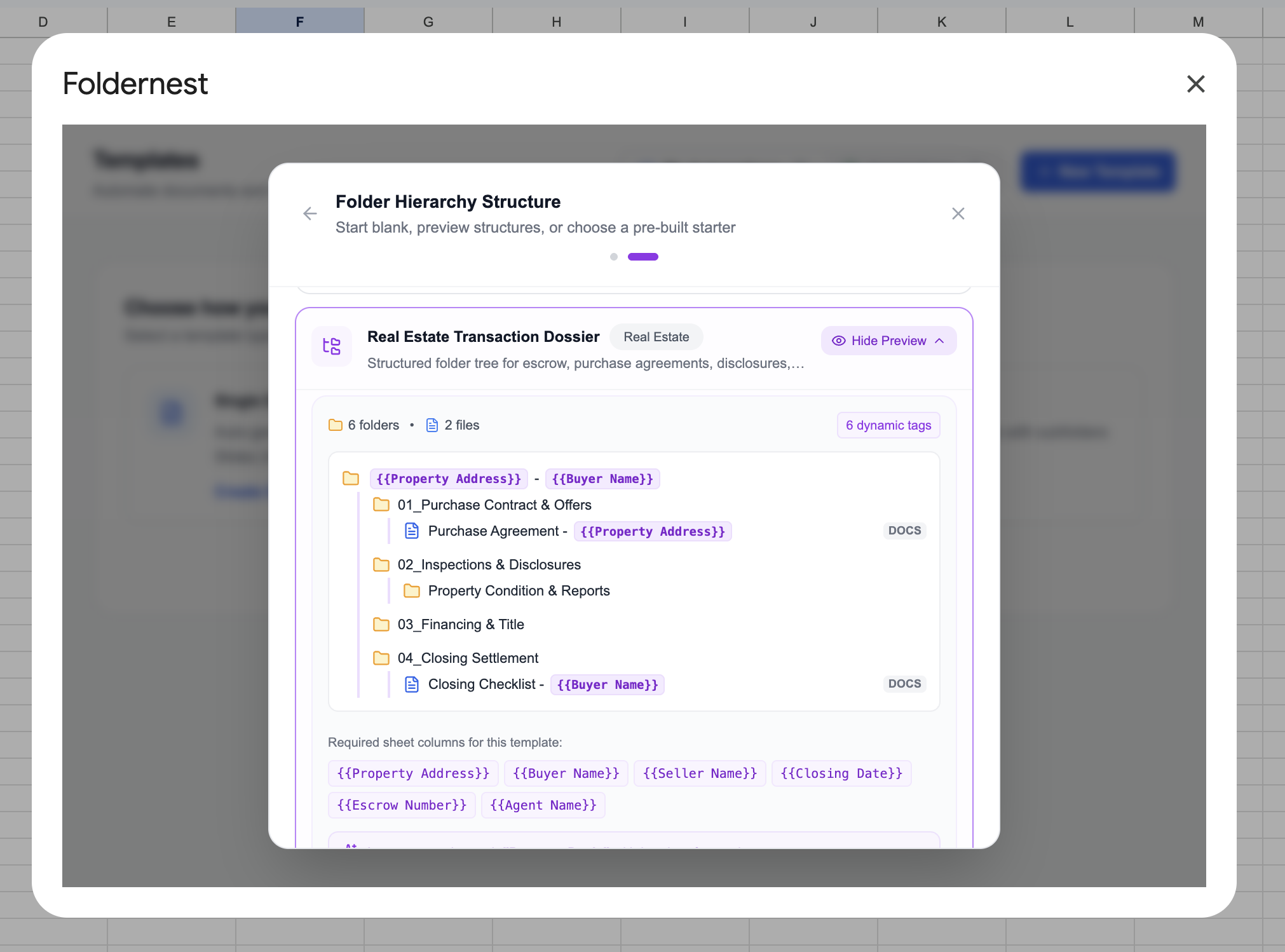
Foldernest automatically detects required spreadsheet variables (`{{Property Address}}`, `{{Buyer Name}}`, `{{Seller Name}}`, `{{Closing Date}}`, `{{Escrow Number}}`, and `{{Agent Name}}`). Clicking Use This Folder Template creates a dedicated spreadsheet tab named 'Property Deals' complete with headers and sample data.
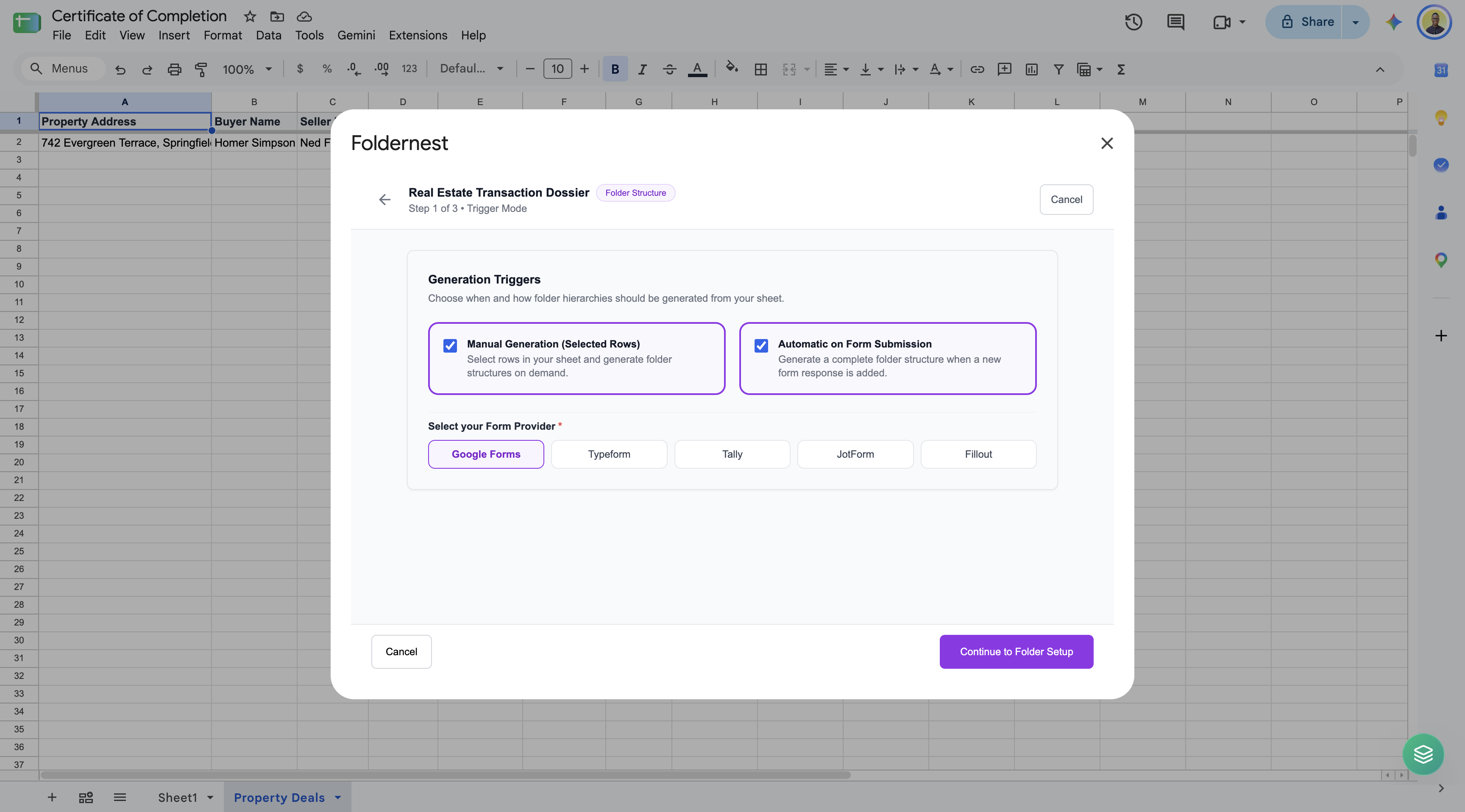
Step 4: Configure Generation Triggers (Manual & Intake Forms)
In Step 1 of the configuration wizard, determine when transaction folders should be created:
- Manual Generation (Selected Rows): Generate transaction folders on-demand when you highlight pending deals in your Google Sheet.
- Automatic on Form Submission: Auto-generate complete deal folders instantly whenever an agent or client submits an intake form via Google Forms, Typeform, Tally, JotForm, or Fillout.
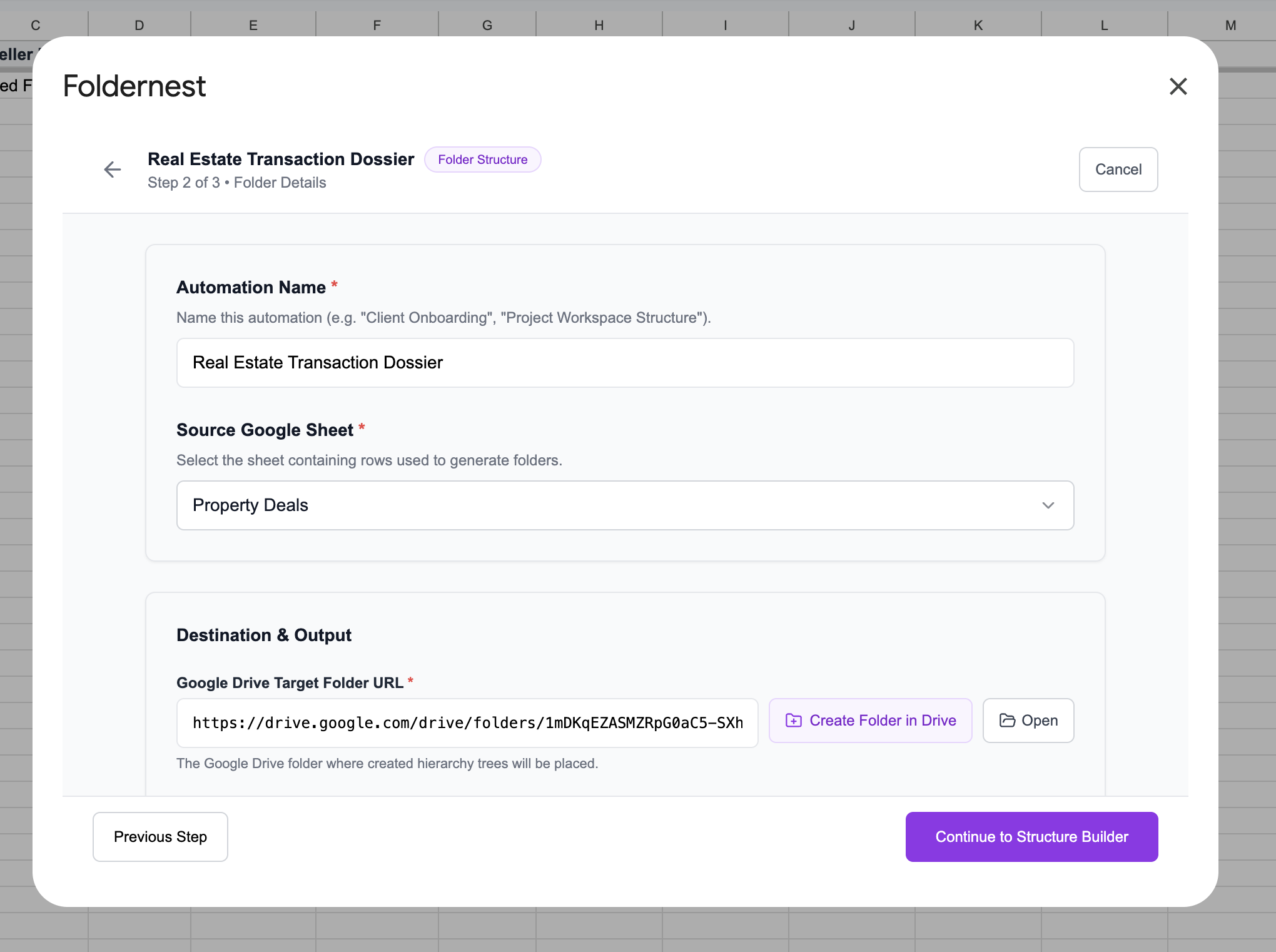
Step 5: Set Deal Automation Details & Google Drive Target Folder
In Step 2 of the wizard, enter a descriptive Automation Name (e.g. *Real Estate Transaction Dossier*), select your source sheet tab (*Property Deals*), and designate your parent Google Drive Target Folder URL (e.g. *Real Estate Transaction Dossier Output*).
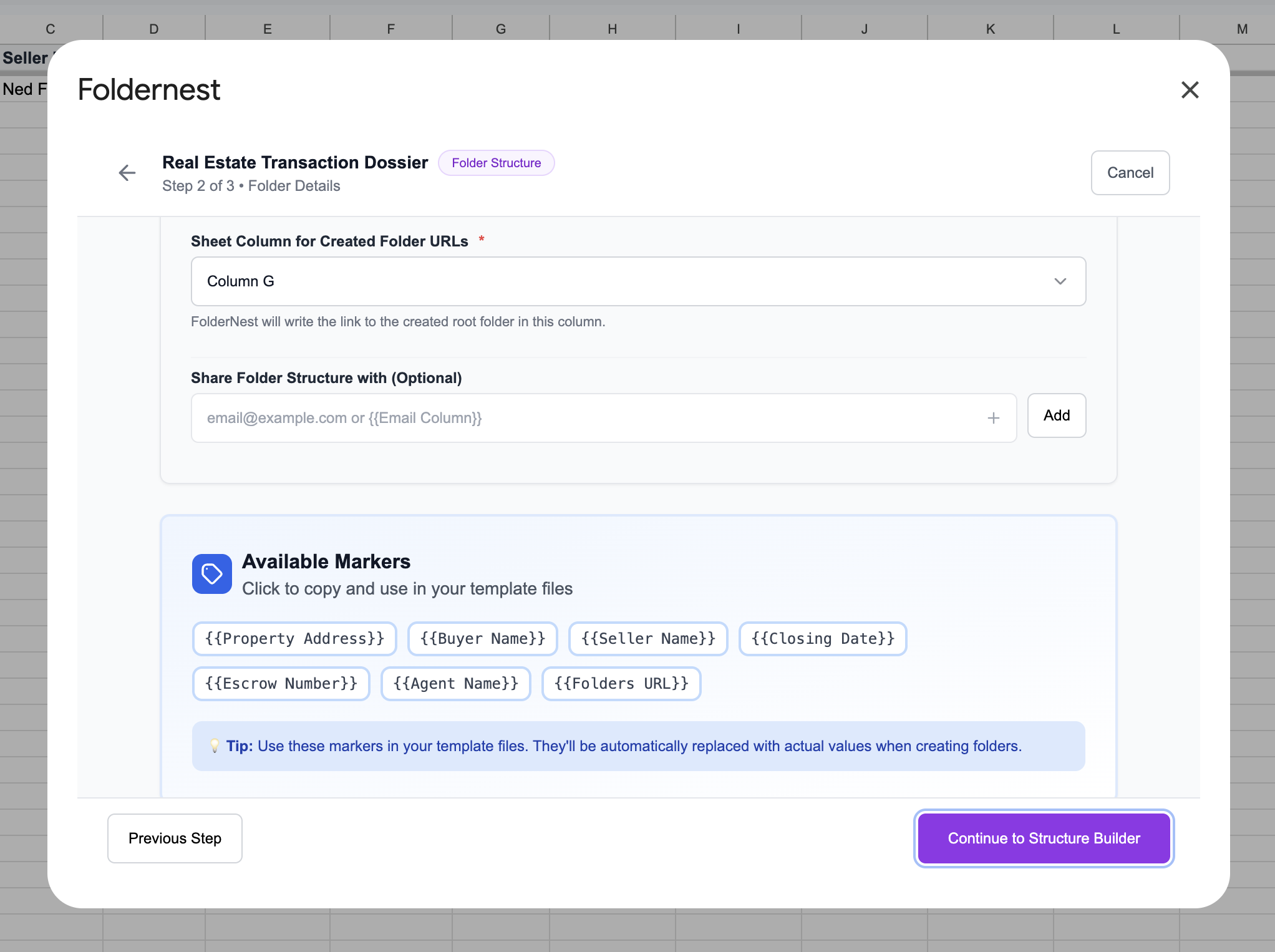
Step 6: Define Output URL Column & Dynamic Sharing
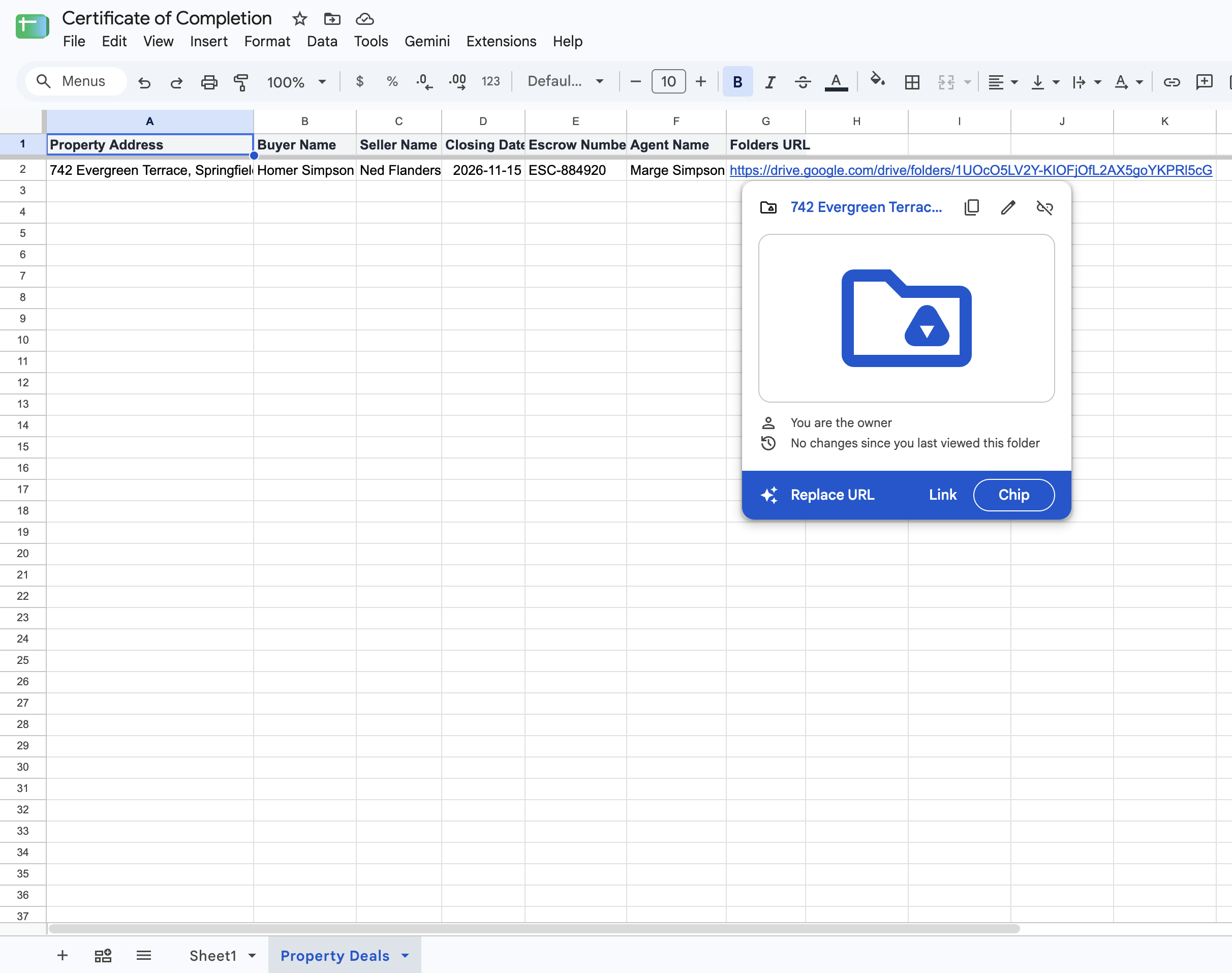
Specify the spreadsheet column (e.g. `Column G - Folders URL`) where Foldernest will record the direct Google Drive link to each generated property folder. You can also configure dynamic email sharing (e.g. `{{Agent Email}}` or `{{Lender Email}}`) to grant immediate viewing permissions.
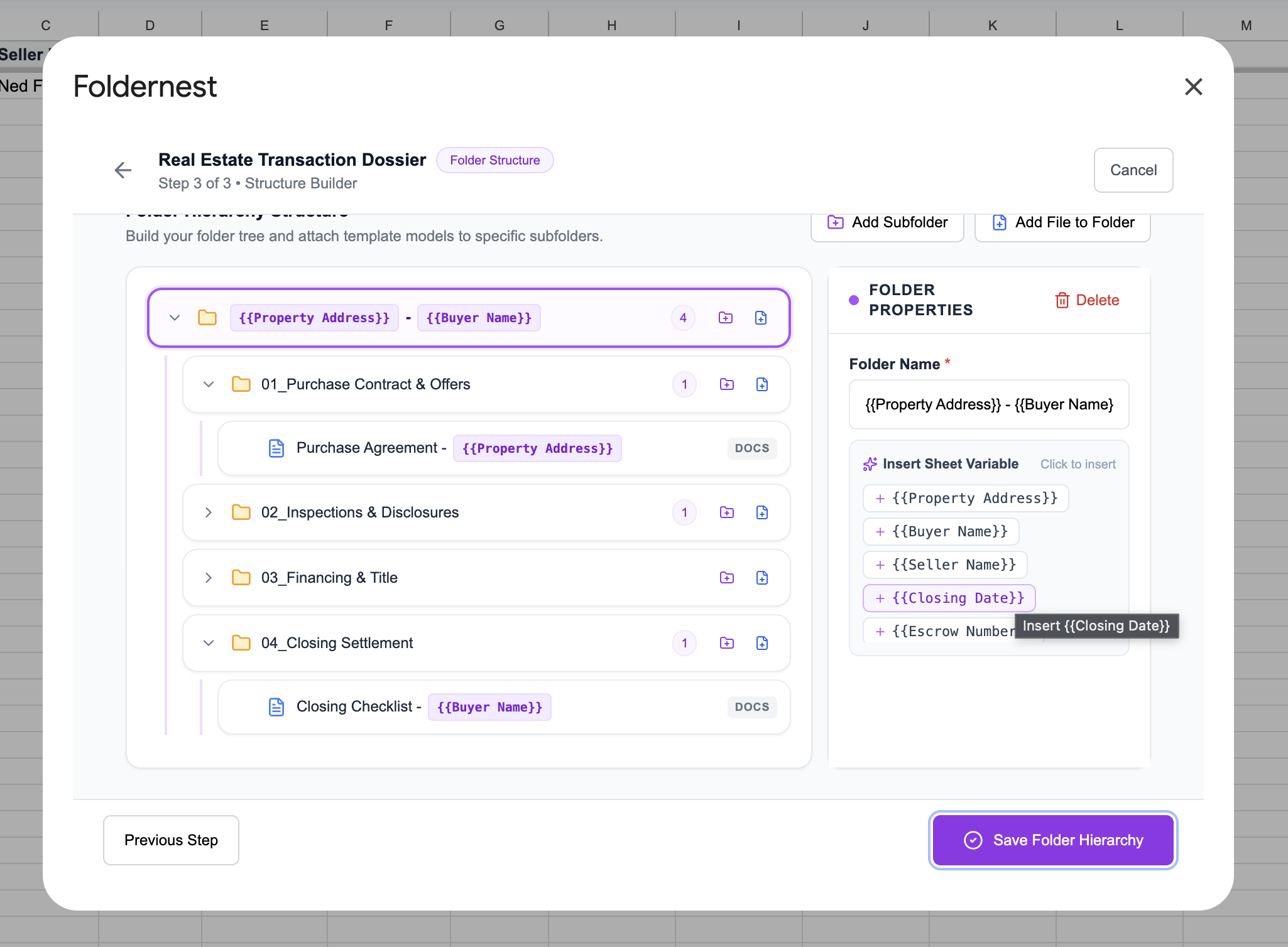
Step 7: Fine-Tune with Visual Structure Builder
Step 3 opens Foldernest's visual Structure Builder. You can add additional custom subfolders (such as *05_Appraisal & Valuation* or *06_HOA Governance*), attach your brokerage's standard disclosure PDFs or Google Docs, and customize folder naming with variable pills like `+ {{Closing Date}}` or `+ {{Escrow Number}}`.
Step 8: Run a Safe Test Simulation Before Production
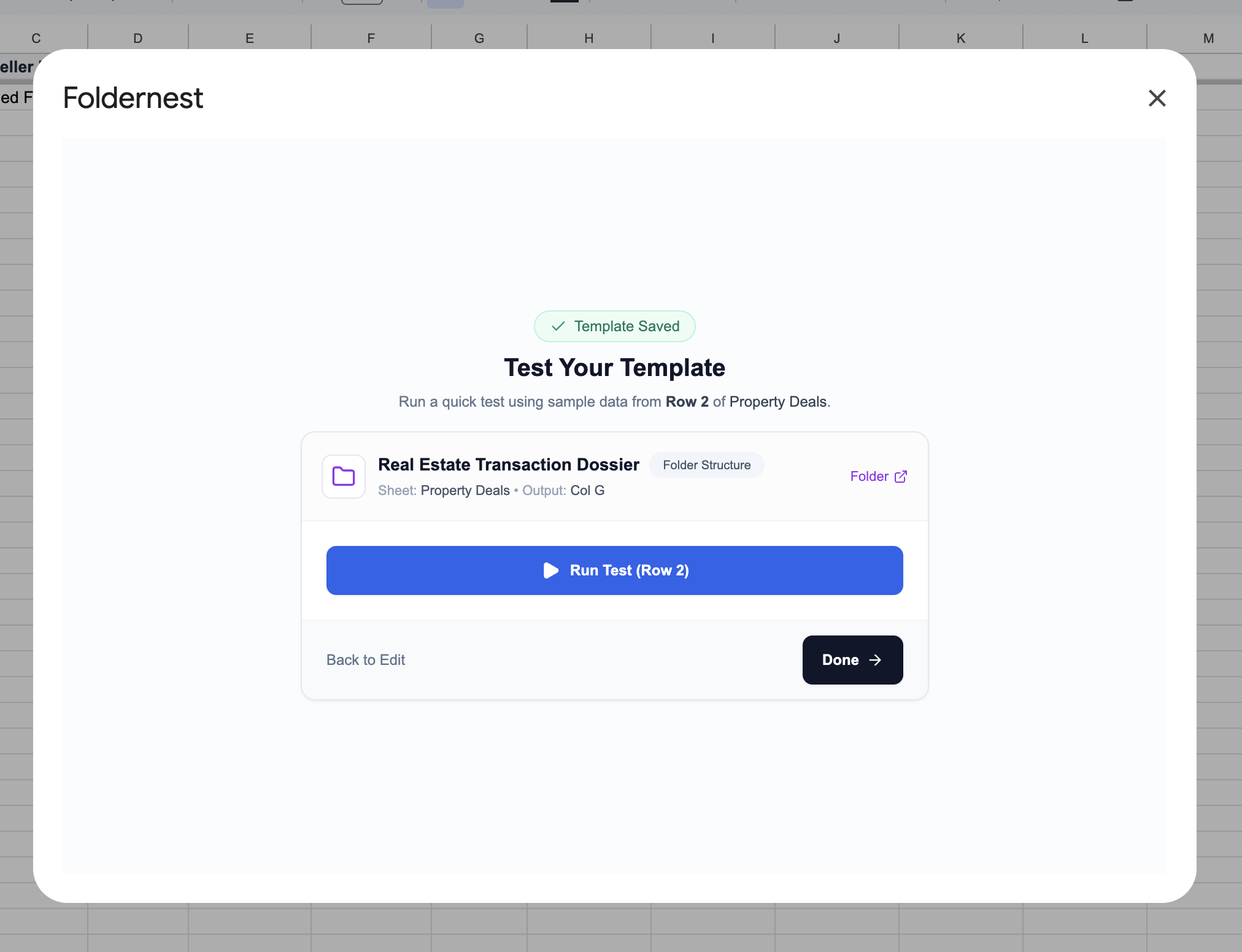
Foldernest provides an integrated test screen so you can verify your template logic safely without cluttering your Drive. Click Run Test (Row 2) to create a sample property workspace using test row data (*742 Evergreen Terrace, Springfield - Homer Simpson*).
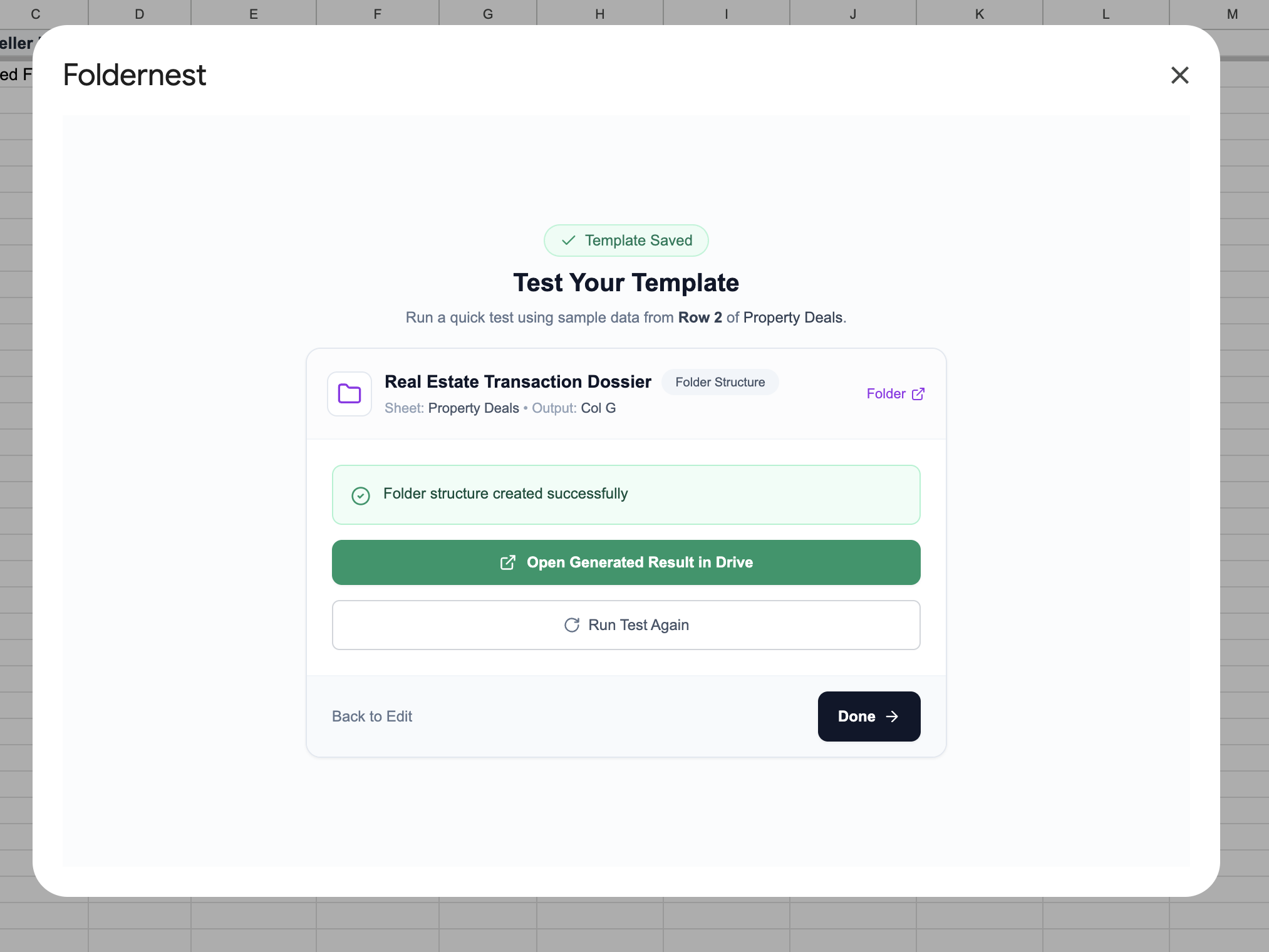
In less than 3 seconds, Foldernest confirms 'Folder structure created successfully' and displays a direct button to Open Generated Result in Drive.
Step 9: Manage Blueprints & Track Links in Google Sheets
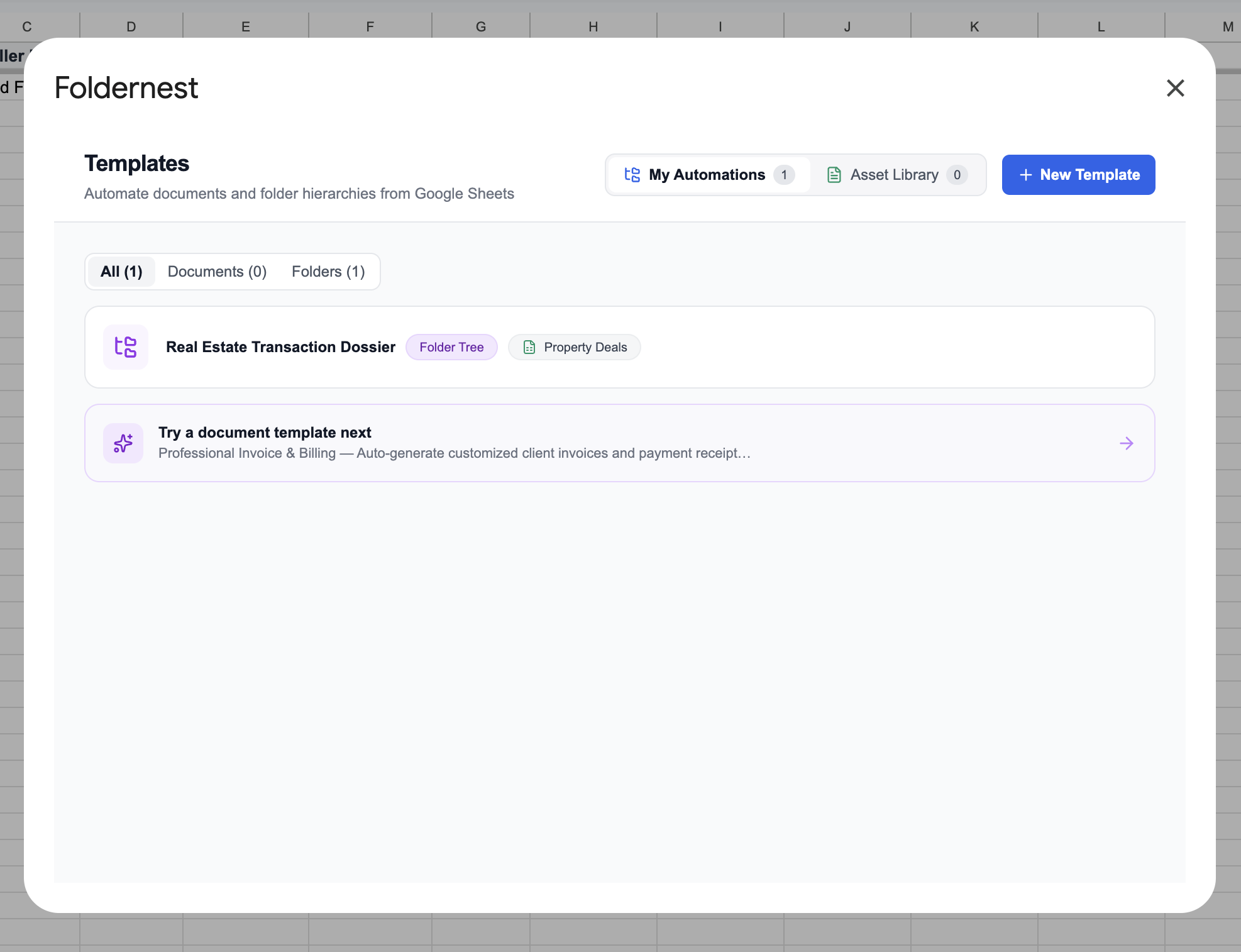
Click Done to save your template. Your automation is now active under My Automations in the Foldernest dashboard for easy access, editing, or duplication across other branches or teams.
In your Google Sheet, the generated Google Drive URL is automatically written back into Column G (`Folders URL`), featuring interactive Google Drive hover preview chips for one-click access.
Step 10: Inspect the Generated Google Drive Dossier
Opening Google Drive reveals the clean, standardized transaction folder: `742 Evergreen Terrace, Springfield - Homer Simpson`. Inside, all 4 subfolder categories and pre-populated documents are created with accurate deal data and formatted placeholders.
Comparison: Manual Folder Creation vs. Foldernest Automation
| Transaction Metric | Manual Deal Setup | Foldernest Automation |
|---|---|---|
| Time Spent per Transaction | 20 to 30 minutes | Under 2 seconds |
| Broker Audit Compliance | Vulnerable to misplaced files | 100% standardized structure across all agents |
| Form Ingestion (Google Forms/Typeform) | Manual data re-entry | Instant automated folder trigger |
| Contract & Checklist Setup | Manual file copying & renaming | Auto-generated Docs with {{dynamic_tags}} |
| Permission Management | Manual email invites per subfolder | Automated role-based sharing |
| Spreadsheet Tracking | Manual copy-pasting links | Instant URL writeback with Drive chips |
Best Practices for Real Estate Transaction Coordinators
Pro Tip
Pro Tip for High-Volume Teams: Link your intake forms (e.g. Typeform or Google Forms) directly to your `Property Deals` sheet tab. When your listing agent or buyer's agent submits deal terms from the field, Foldernest will instantly create the complete Google Drive workspace before they even get back to the office!
Frequently Asked Questions (FAQ)
Can I add state-specific real estate disclosures to the folder template?
Yes. In the Foldernest Structure Builder, you can attach any Google Docs, Google Sheets, or Google Slides templates to specific subfolders (such as attaching state disclosures inside *02_Inspections & Disclosures*).
Does Foldernest replace real estate CRM tools?
Foldernest works alongside your existing CRM or Google Workspace setup. Instead of paying hefty per-seat software fees for rigid document vaults, Foldernest keeps all your transaction files directly inside your own Google Drive and Google Sheets.
Can I generate folders for multiple historical transactions at once?
Yes! Highlight any number of rows in your Google Sheet and click Extensions > Foldernest > Run for Selected Rows to batch-create dozens of deal folders in seconds.