
Every semester, university professors, high school educators, STEM lab instructors, and bootcamp coordinators face the same daunting administrative hurdle: provisioning organized digital course spaces for dozens or hundreds of incoming students. Managing capstone proposals, lab research datasets, homework submissions, and private grading rubrics across Google Drive quickly spirals into chaos when handled manually.
Instructors often lose 15 to 25 hours at the start of each term creating nested folders one by one, duplicating Google Docs templates, adjusting individual student sharing permissions, and manually pasting folder links back into their class roster. In this case study and tutorial, we will demonstrate how to automate the entire Student Course & Project Hub workflow using Google Sheets, Google Drive, and Foldernest.
The Challenge: Manual Course File Management at Scale
Whether you teach a 30-person seminar or coordinate a 400-student STEM lecture with multiple lab sections, manual folder provisioning creates major administrative friction points:
- Master Template Corruption: When instructors share template links directly with students, students frequently edit the master file instead of making a copy, breaking assignments for the entire class.
- Lost & Misnamed Submissions: Students submit files via email or save them to personal drives with vague names like `assignment_final_v2.docx`, making grading and archival an organizational nightmare.
- Accidental Privacy Breaches: Misconfigured Drive permissions can accidentally expose grades, feedback notes, or peer submissions to unauthorized students.
- TA & Co-Instructor Disconnect: Teaching Assistants (TAs) waste hours searching through disorganized drives trying to locate specific student lab spreadsheets and project drafts.
The Solution: Standardized Student Project Hub Blueprint
To deliver a frictionless academic experience, modern academic institutions establish a standardized Student Course & Project Hub folder hierarchy for every enrolled student:
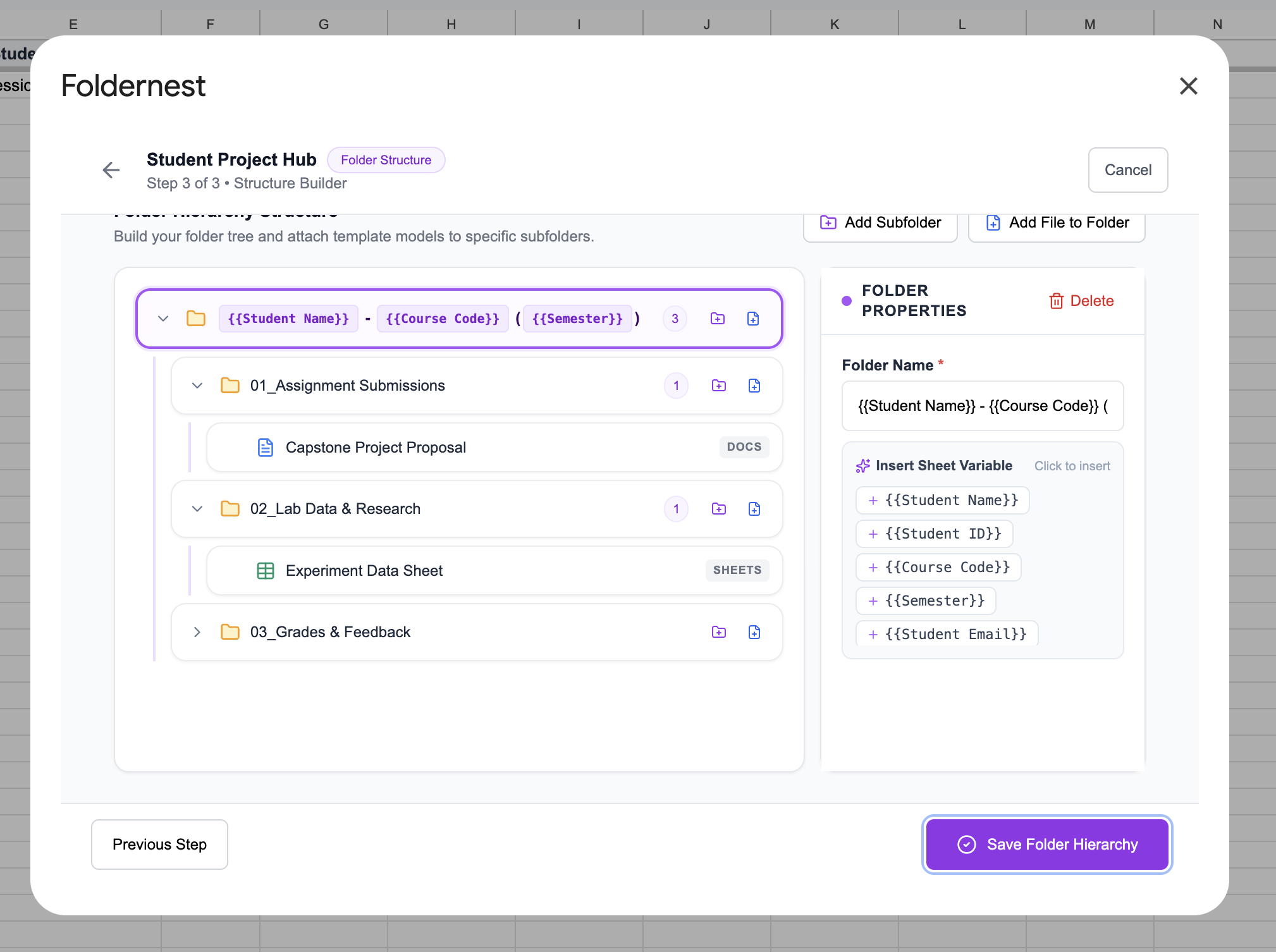
- Root Student Folder: Dynamic naming pattern `{{Student Name}} - {{Course Code}} ( {{Semester}} )` (e.g. *Alex Rivera - CS-401 (Fall 2026)*)
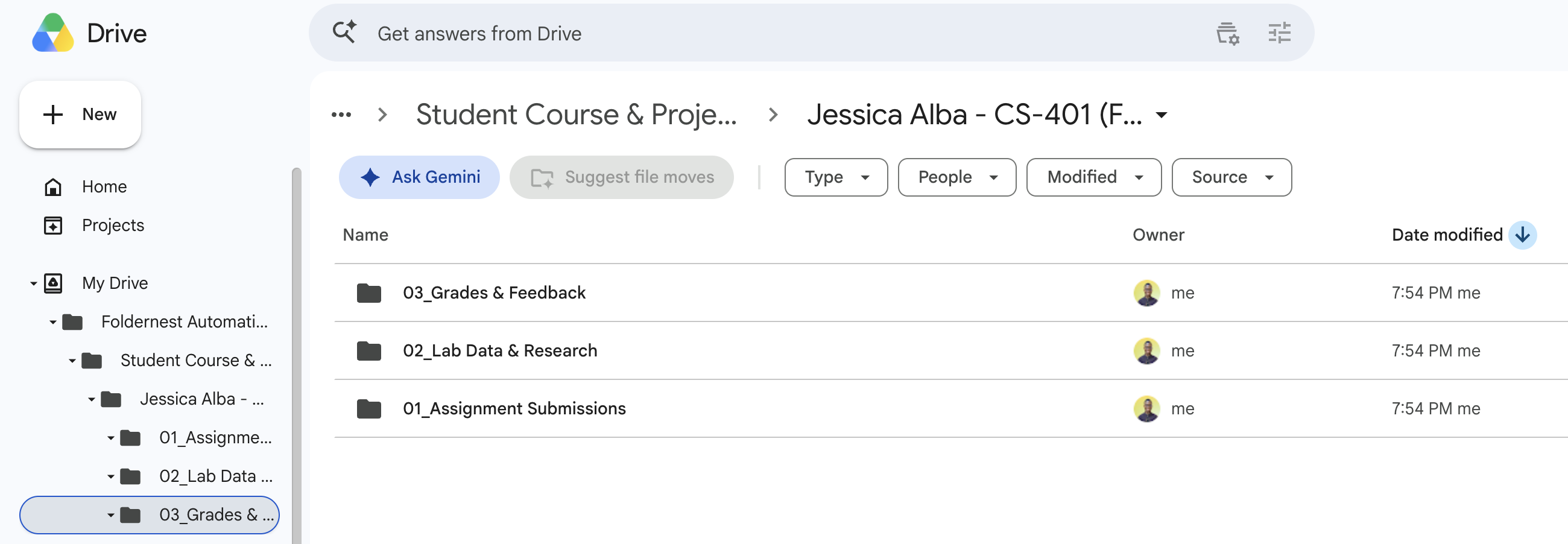
- 01_Assignment Submissions: Contains pre-populated starter documents such as *Capstone Project Proposal* (Google Docs) ready for student editing
- 02_Lab Data & Research: Pre-loaded with a formatted *Experiment Data Sheet* (Google Sheets) containing formula tables and measurement logs
- 03_Grades & Feedback: Dedicated folder restricted to instructors and TAs for rubric scorecards, feedback PDFs, and evaluation reports
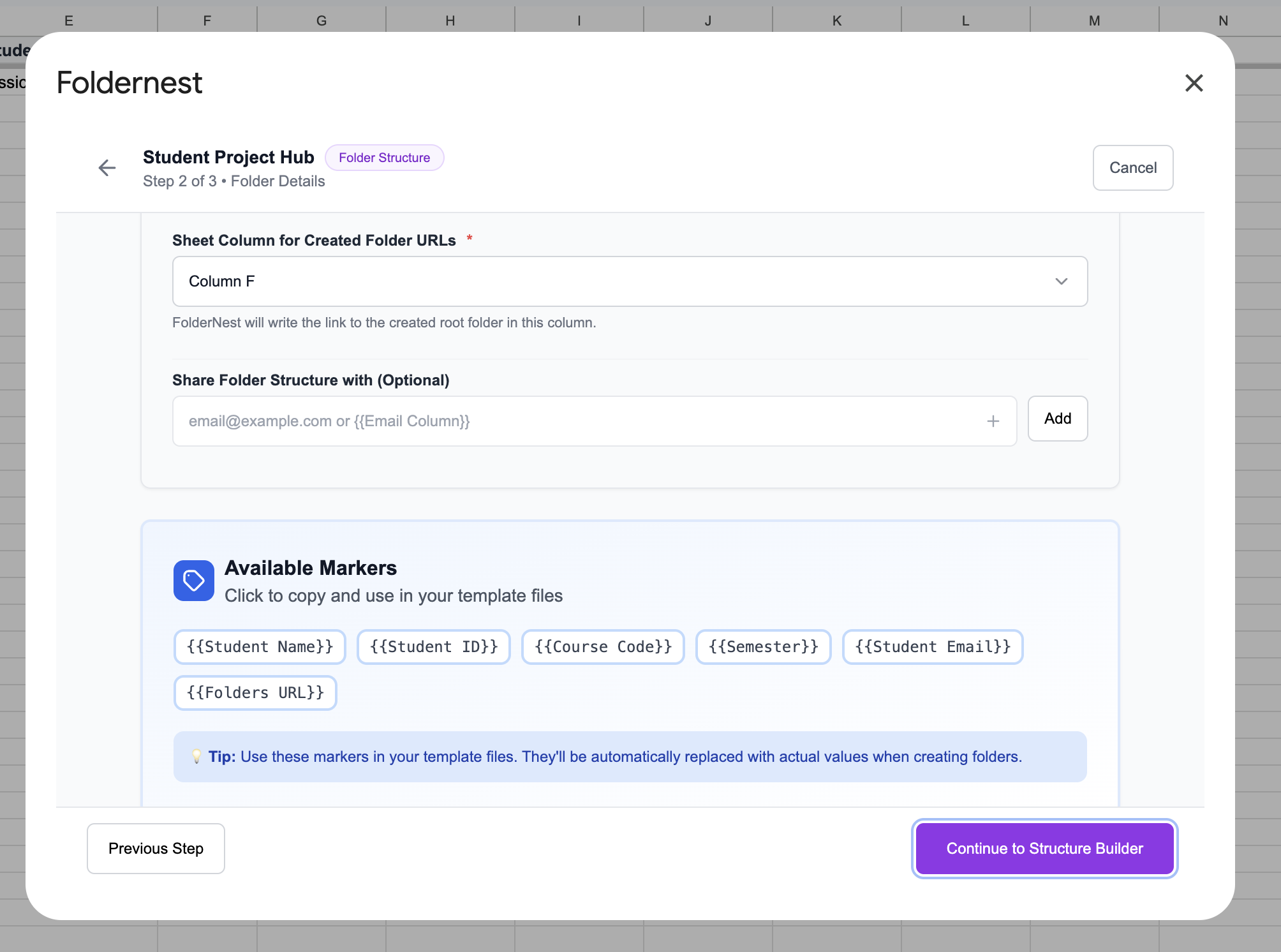
- Dynamic Tags: Merge values from your roster including `{{Student Name}}`, `{{Student ID}}`, `{{Course Code}}`, `{{Semester}}`, and `{{Student Email}}`
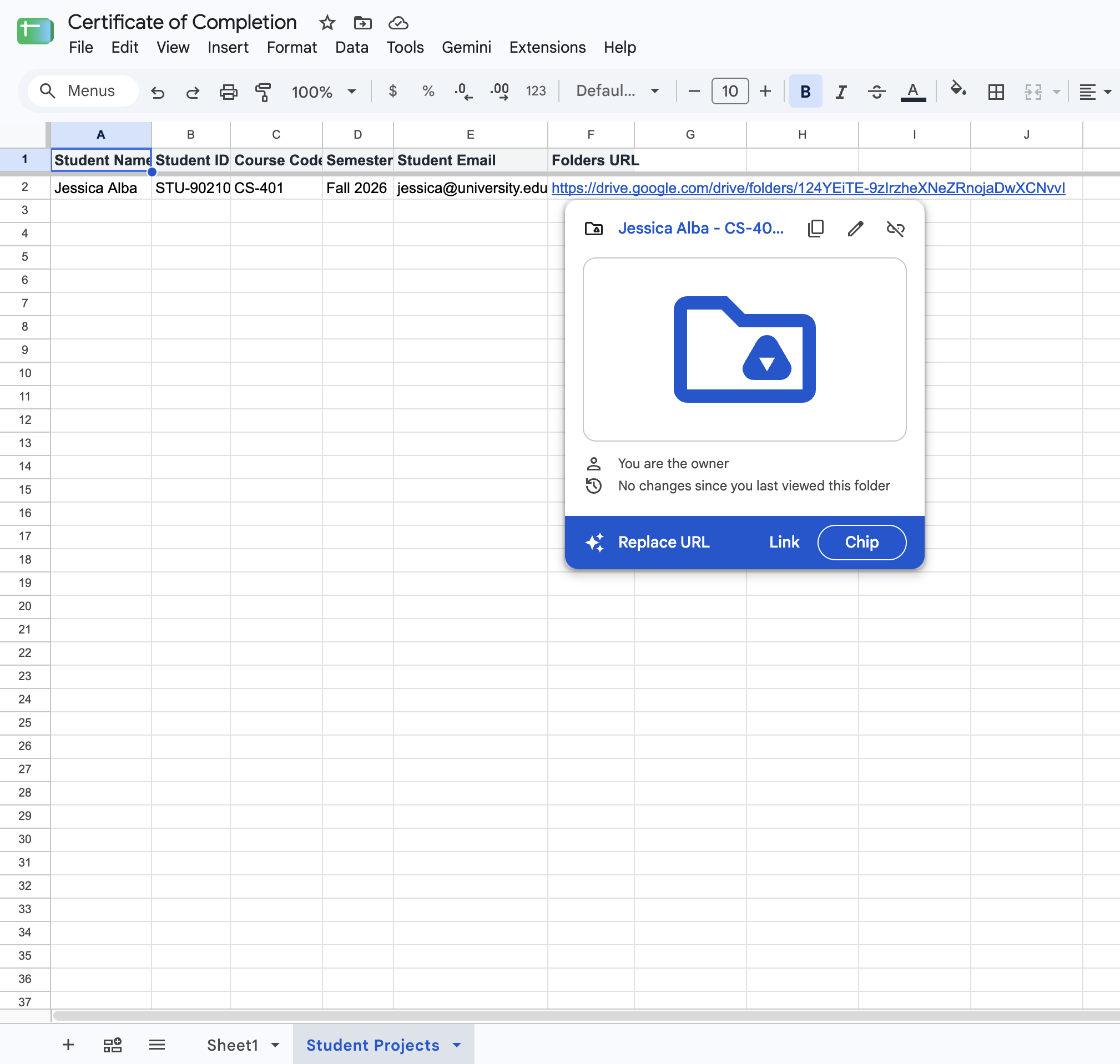
- Automatic Gradebook Link Logging: Every generated folder URL is saved directly into Column F of your master roster spreadsheet
Step 1: Open Foldernest from Google Sheets
Open your Google Sheet containing your student roster (or export a roster CSV from Canvas, Blackboard, Google Classroom, or Moodle). In the top menu, launch Foldernest:
- 1. Click Extensions in the Google Sheets toolbar.
- 2. Select Foldernest > Templates.
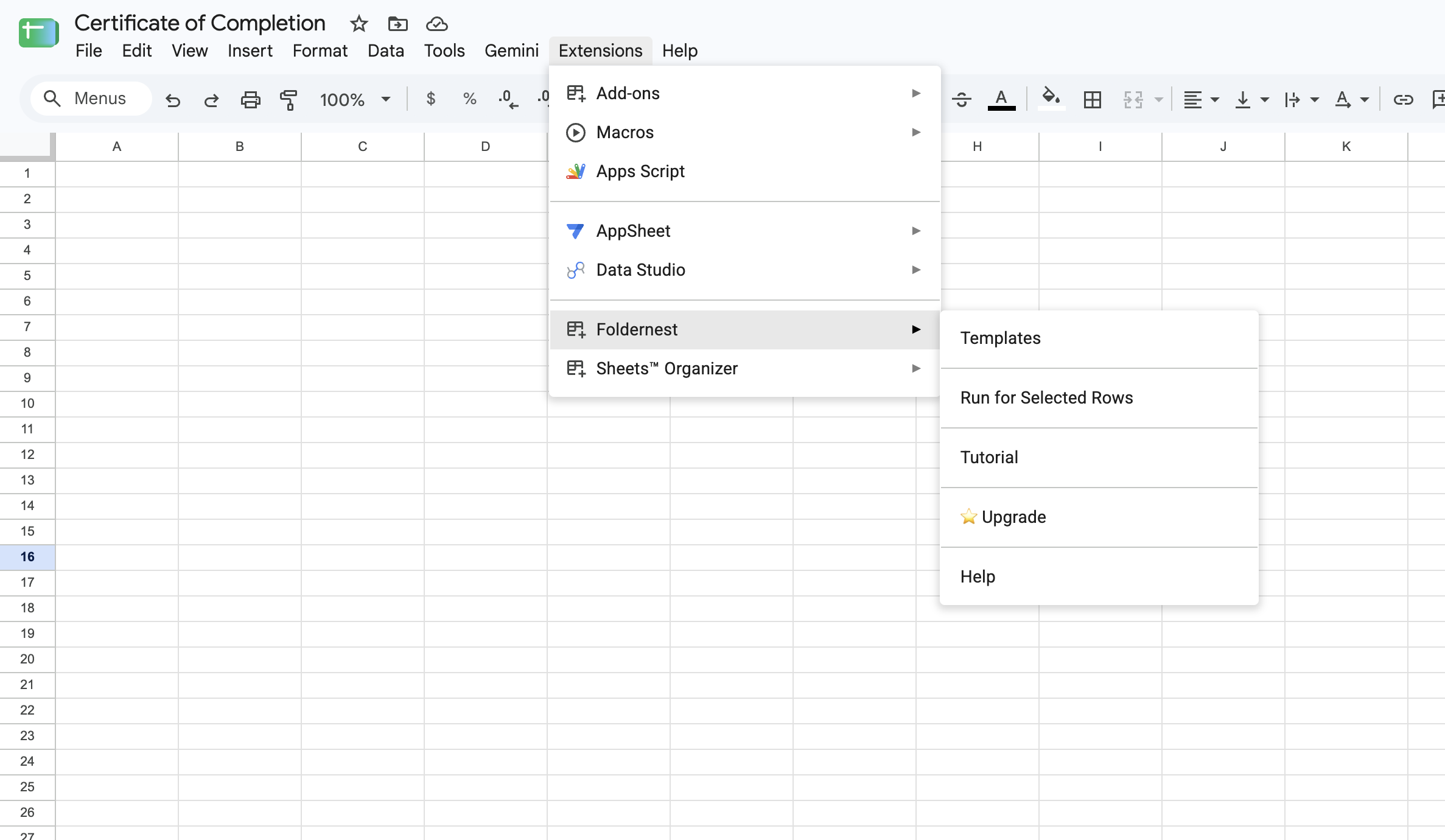
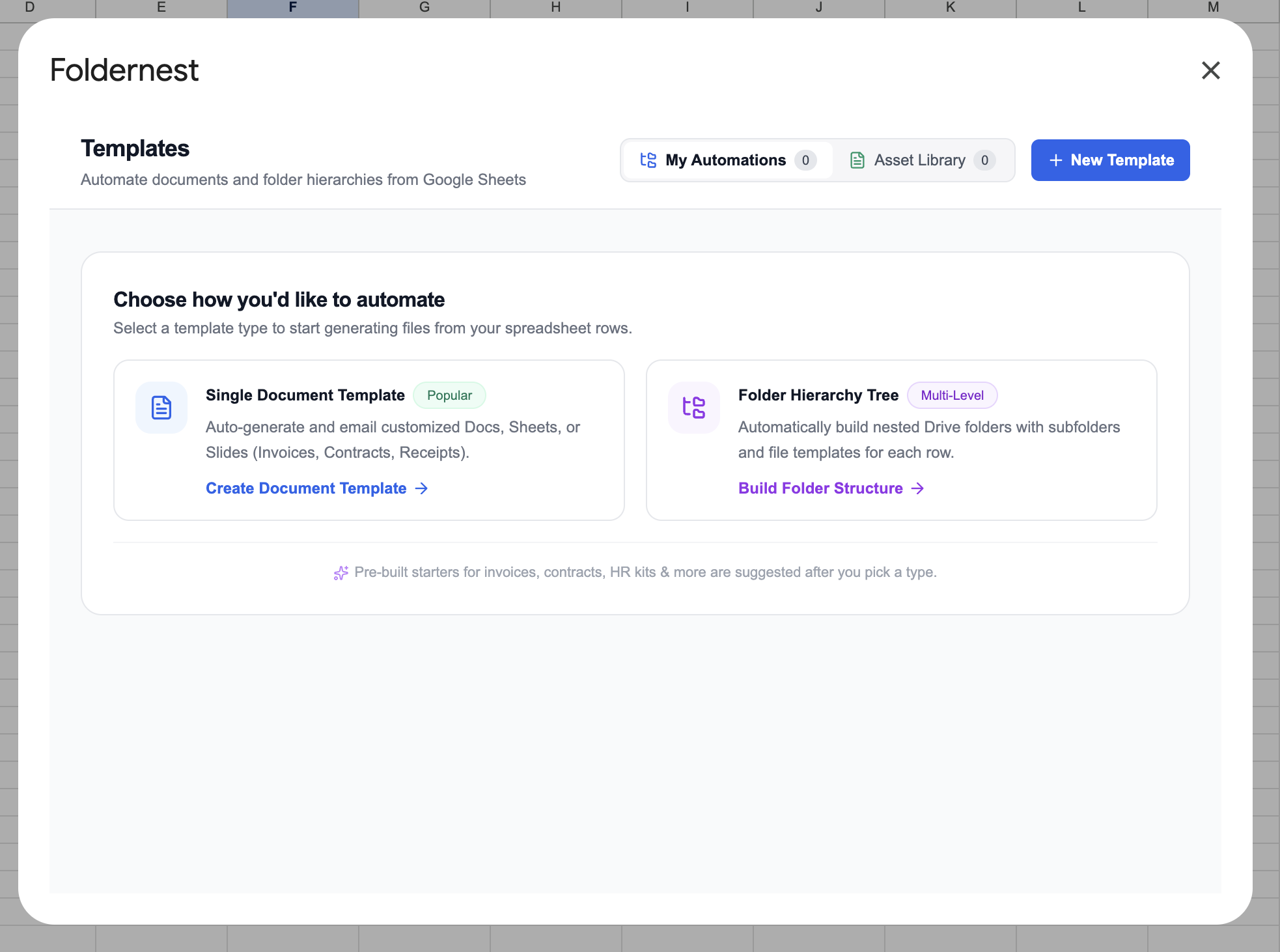
Step 2: Choose Folder Hierarchy Tree & Browse Starters
From the Foldernest template creation hub, select Folder Hierarchy Tree to create a multi-level nested folder blueprint with pre-configured template files.
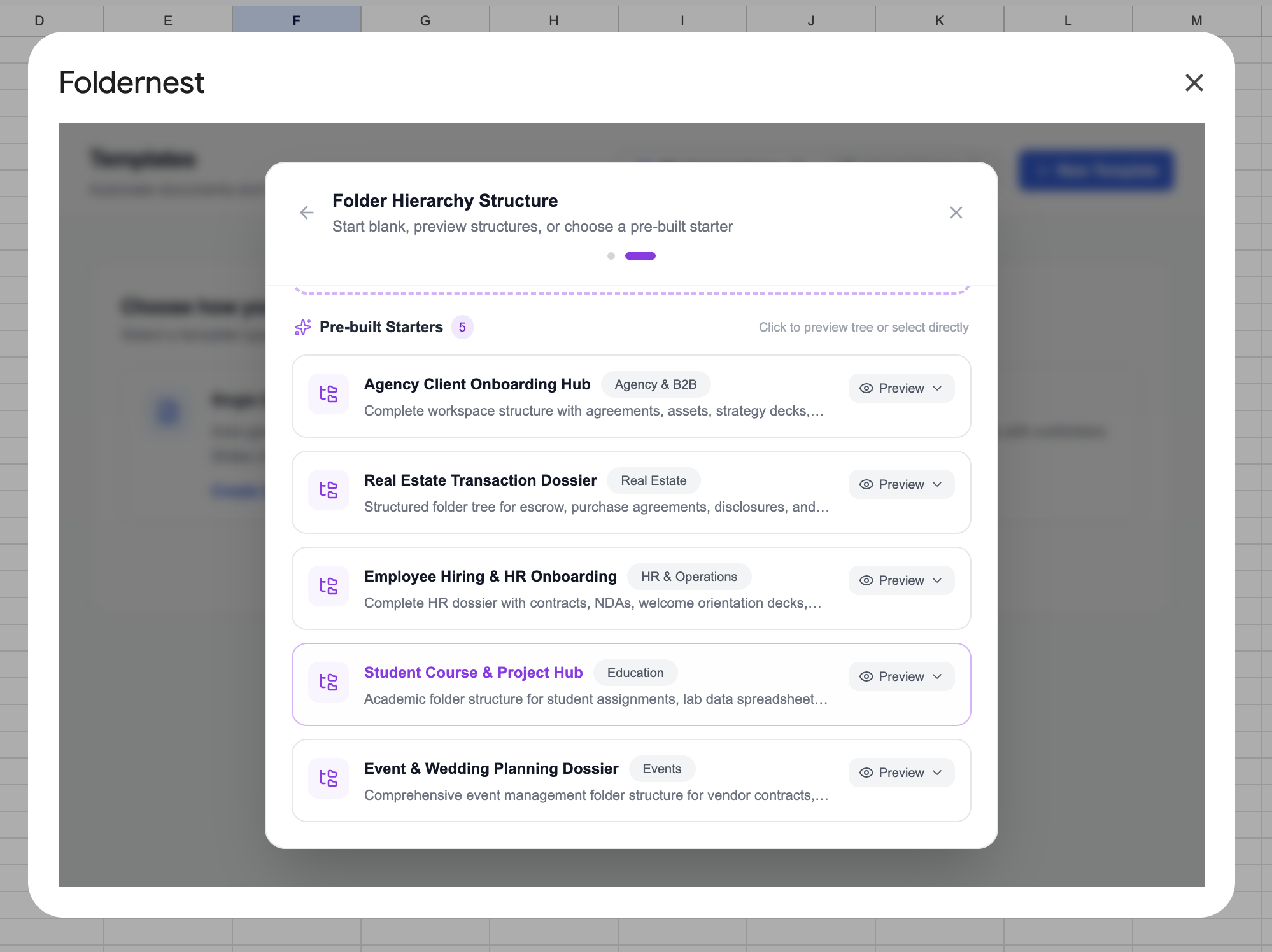
Click on Pre-Built Starters to view curated industry blueprints. Under the Education category, select Student Course & Project Hub.
Step 3: Preview the Course Hub Blueprint
Foldernest provides an interactive blueprint modal displaying the folder structure, starter files, and dynamic markers. When applied, Foldernest will automatically create a dedicated 'Student Projects' tab in your Google Sheet with pre-configured headers and copy required starter templates into your Drive.
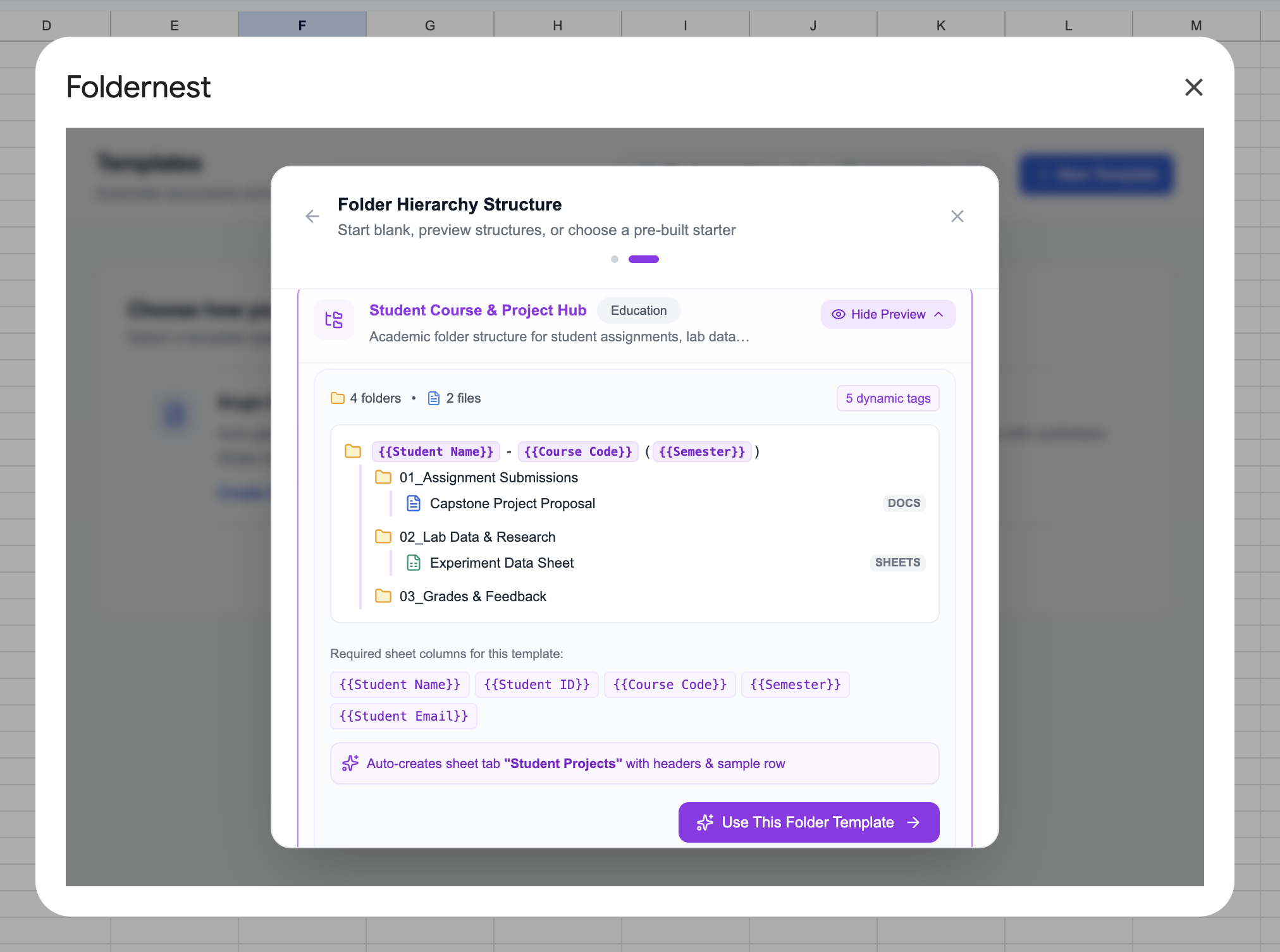
Click Use This Starter to import the structure into your setup wizard.
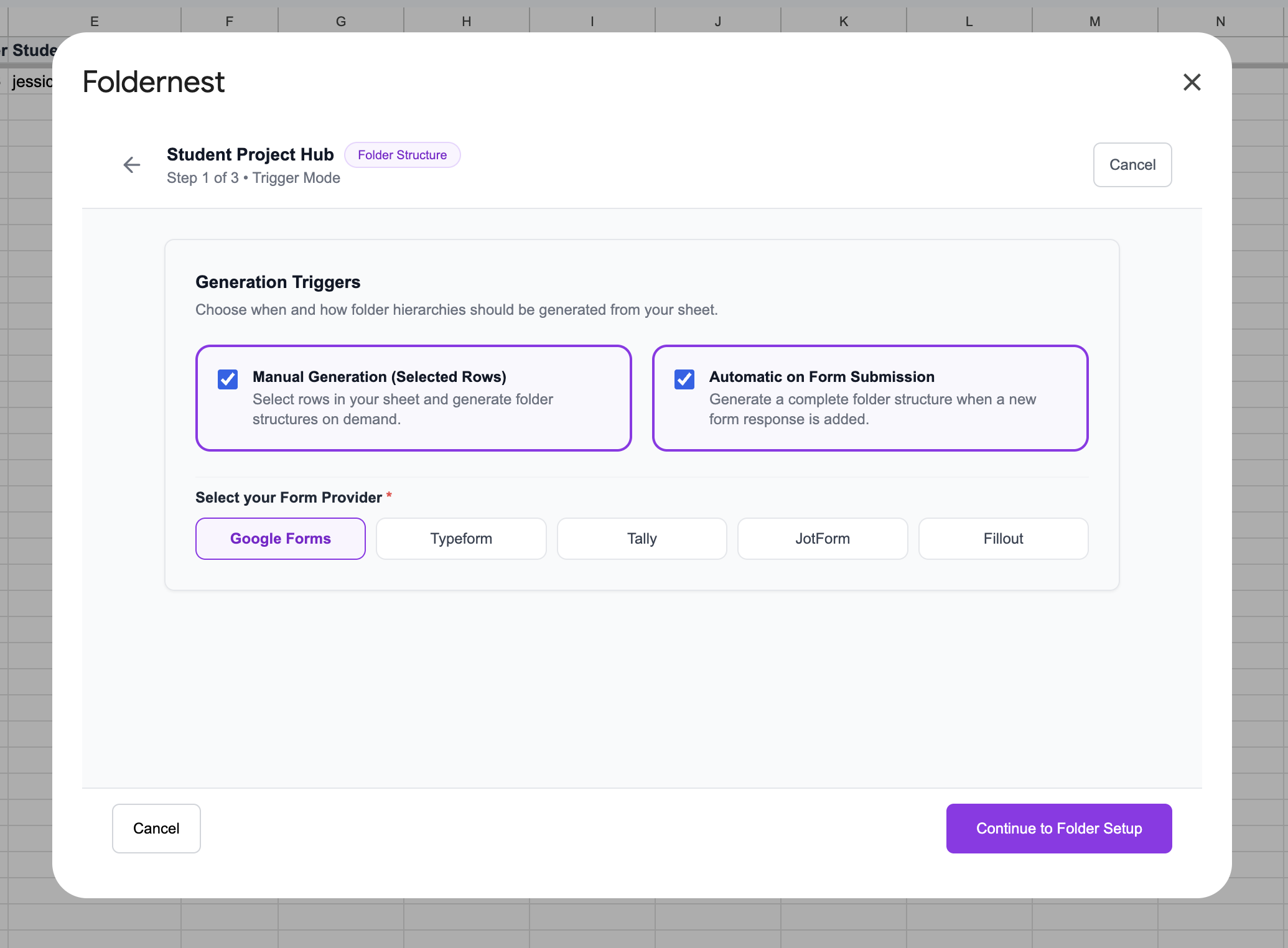
Step 4: Select Your Automation Trigger
Foldernest gives you flexible triggers to match your academic enrollment schedule:
- Manual Generation (Batch Mode): Ideal for beginning-of-semester batch creation where you generate folders for 50–300 registered students in one click.
- Form Submission (Real-time Intake): Perfect for lab sign-ups, capstone project registrations, or late adds where submitting a Google Form instantly creates the student folder.
- Add New Row: Automatically triggers folder generation whenever a new row is appended to the spreadsheet.
Step 5: Set Google Drive Target Folder & Output Column
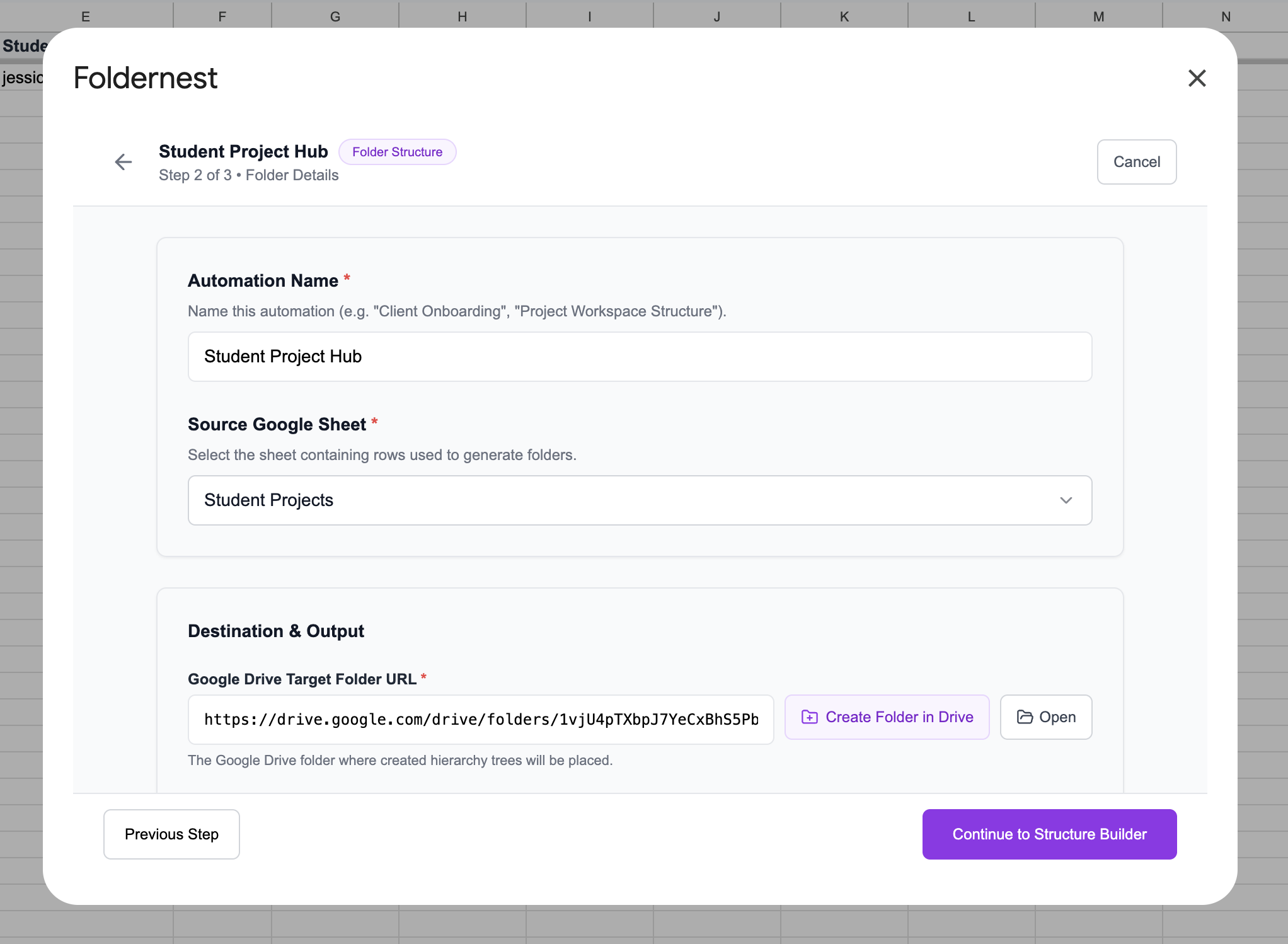
Configure your destination settings so all student hubs are organized cleanly inside your course parent folder:
- 1. Automation Name: Set a descriptive title like `Student Course & Project Hub`.
- 2. Source Sheet: Select the `Student Projects` worksheet tab.
- 3. Google Drive Target Folder: Paste the URL of your master course folder (e.g. `Course Submissions & Student Hubs`).
Scroll down to specify where Foldernest should record the generated Google Drive folder link (e.g. Column F). You can also configure dynamic email sharing to automatically grant each student Editor or Viewer access using `{{Student Email}}`.
Step 6: Customize Subfolders & Template Attachments
In Step 3: Structure Builder, you can fine-tune the hierarchy, add additional lab subfolders, attach syllabus files, or modify file names using dynamic tags:
- Capstone Project Proposal: Automatically duplicated from your master Google Docs template into `01_Assignment Submissions` for every student.
- Experiment Data Sheet: Auto-created from a Google Sheets template inside `02_Lab Data & Research`.
- Dynamic Renaming: Starter documents can be dynamically named using tags like `Capstone Proposal - {{Student Name}}`.
- Subfolder Flexibility: Add additional folders such as `04_Reading Notes` or `05_Final Presentations` with a single click.
Step 7: Test & Verify with Live Student Data
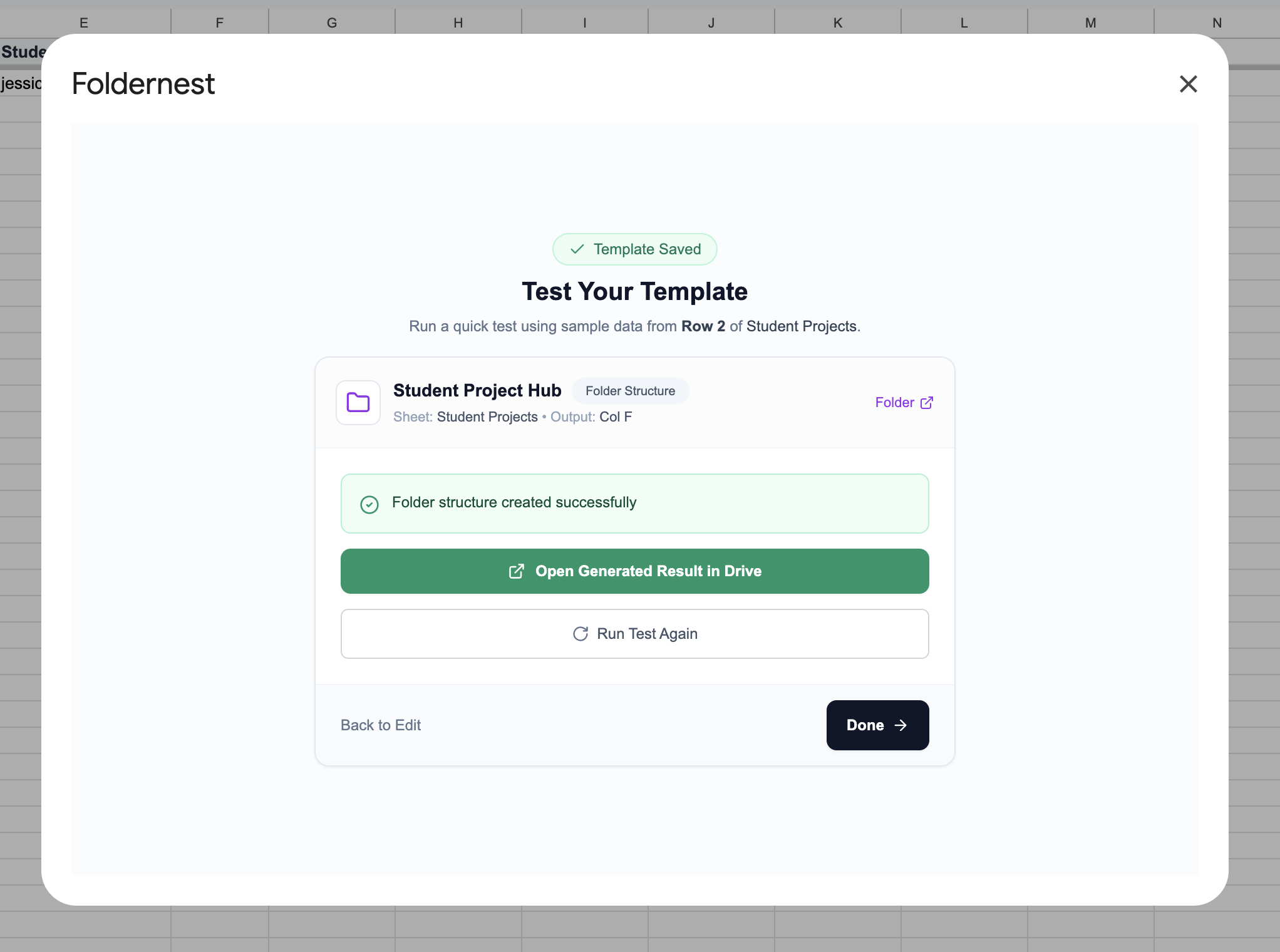
Before generating folders for your entire course roster, Foldernest allows you to run a safe test generation on a single student row (e.g. *Row 2: Alex Rivera - CS-401 (Fall 2026)*).
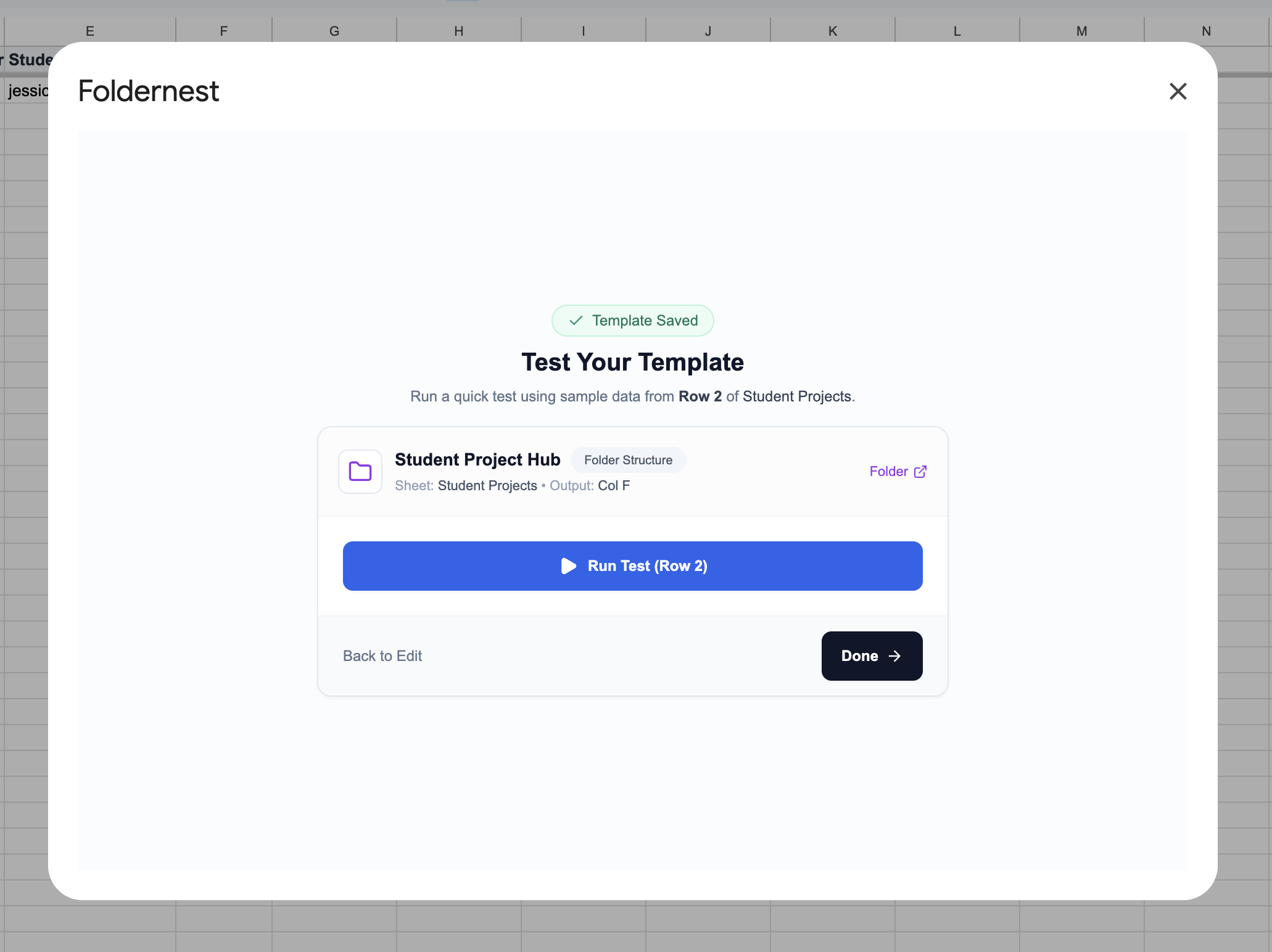
Within seconds, Foldernest provisions the test folder in Google Drive and displays a success notification with a direct link to inspect the created directory.
Step 8: Review the Generated Student Hub in Google Drive & Sheets
Open your Google Drive parent folder to inspect the result. Notice how cleanly the student folder is structured with all pre-loaded documents and subfolders ready for immediate coursework:
Back in Google Sheets, Foldernest records the clickable Google Drive folder link in Column F with an interactive Smart Chip preview. Instructors and TAs can jump straight into any student's project files with one click:
Real-World Results: Why Academic Teams Choose Foldernest
| Workflow Metric | Manual Course Setup | Automated with Foldernest |
|---|---|---|
| Setup Time per 100 Students | 8–12 hours of manual clicking | Under 2 minutes (1 click) |
| Template Distribution | Shared links (risk master corruption) | Isolated private copies per student |
| Student Sharing Permissions | Manual per-folder email entry | Automatic instant email sharing |
| Grading Link Tracking | Manual copy-paste into gradebook | Automatic Drive Smart Chips in Column F |
| Late Adds & New Enrollments | Manual repetition of all steps | Instant generation via Google Forms trigger |
Best Practices for Instructors & Academic Coordinators
Pro Tip
Pro Tip for Group Projects: If your students work in teams, create a Google Form asking for Team Name, Project Title, and Team Member Emails. Set Foldernest to auto-generate collaborative team folders on form submission so group members get shared edit permissions immediately.
- Restrict Grading Folder Permissions: Keep the `03_Grades & Feedback` subfolder set to instructor/TA view only while granting students edit access to `01_Assignment Submissions`.
- Semester Archive & Roll-over: At the end of the term, simply create a new parent folder (e.g. *Spring 2027 Courses*) and update your target folder URL in Foldernest for the new semester.
- Standardize Course Codes: Use consistent dynamic tags like `{{Course Code}}` and `{{Semester}}` to make department-wide accreditation and portfolio reviews straightforward.
Frequently Asked Questions (FAQ)
Can I import student rosters from Canvas, Blackboard, or Google Classroom?
Yes! Export your class roster as a CSV from Canvas, Blackboard, Google Classroom, or Moodle, and open or paste it into your Google Sheet. Foldernest will map columns like *Student Name*, *Student ID*, and *Student Email* to dynamic markers automatically.
Will students be able to edit or delete each other's project folders?
No. Foldernest scopes permissions per student. Each student is only granted access to their specific folder workspace using their email, ensuring privacy and academic integrity.
Can I include pre-filled rubrics and slide presentations?
Absolutely. You can attach any Google Docs, Google Sheets, or Google Slides file to any subfolder level. Foldernest copies the templates and dynamically renames them for every student.
Transform Your Course Operations with Foldernest
Educators should spend their time teaching, mentoring, and conducting research—not wasting hours doing repetitive Drive administration. With Foldernest, you can standardize course organization, protect master templates, and give every student a professional workspace in seconds.
Ready to automate your course folders and student project workspaces? Install Foldernest from the Google Workspace Marketplace today and get your first course hub automated in under 5 minutes.